
Open the Start menu and the first thing you see after your pinned apps is a short list of the apps you open most often. Windows calls it Most Used, and it is handy right up until it is not: on a shared PC it advertises what you have been doing, and on a tidy Start menu it is just clutter. The list is one switch away from gone, but that switch is sometimes greyed out for a reason that has nothing to do with Start at all. This guide covers the switch, the greyed-out fix, and how to hide a single app instead of the whole list.
Where the list lives and what it shows
The Most Used list sits in the Start menu, usually just below your pinned apps, and it shows up to six of the apps you open most frequently. It is built from your own launch history, so it changes as your habits change, and it is different for every user account on the PC. The list is a shortcut, nothing more: removing an app from it does not uninstall the app, and turning the list off does not stop any app from working.
Turn the list off
- Press the Windows key + I to open Settings.
- Select Personalization, then Start.
- Find Show most used apps on the Start settings page.
- Turn the switch off.
- Open the Start menu and check that the Most Used section is gone.
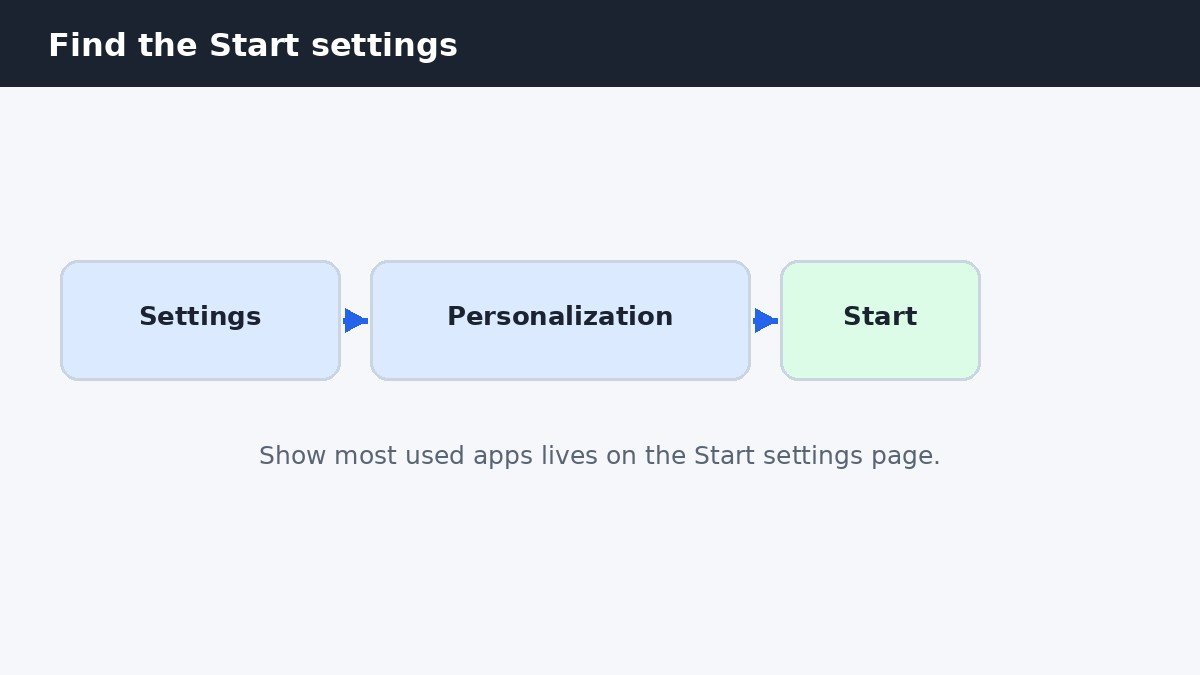
The change takes effect straight away, and you can turn the list back on the same way whenever you like. The same Start settings page holds the neighbouring switches for recently added apps and recently opened items, so this is also the place to tidy the rest of Start. Our guide to turning off the Recommended section in the Windows 11 Start menu covers that part of the same page step by step.
The toggle is greyed out: turn tracking back on
This is the snag that sends most people searching. The Show most used apps toggle is dead, greyed out and unclickable, even though every other switch on the page works fine. The cause sits on a different settings page entirely. Windows can only build a Most Used list if it is allowed to record which apps you launch, and that recording is controlled by a privacy setting. If app launch tracking is off, Windows has no history to show, so it disables the toggle rather than showing an empty list.
- Open Settings, then Privacy and security.
- Select General.
- Turn on Let Windows improve Start and search results by tracking app launches.
- Go back to Personalization, then Start, and the Show most used apps toggle is clickable again.
- Turn it off, as in the steps above.
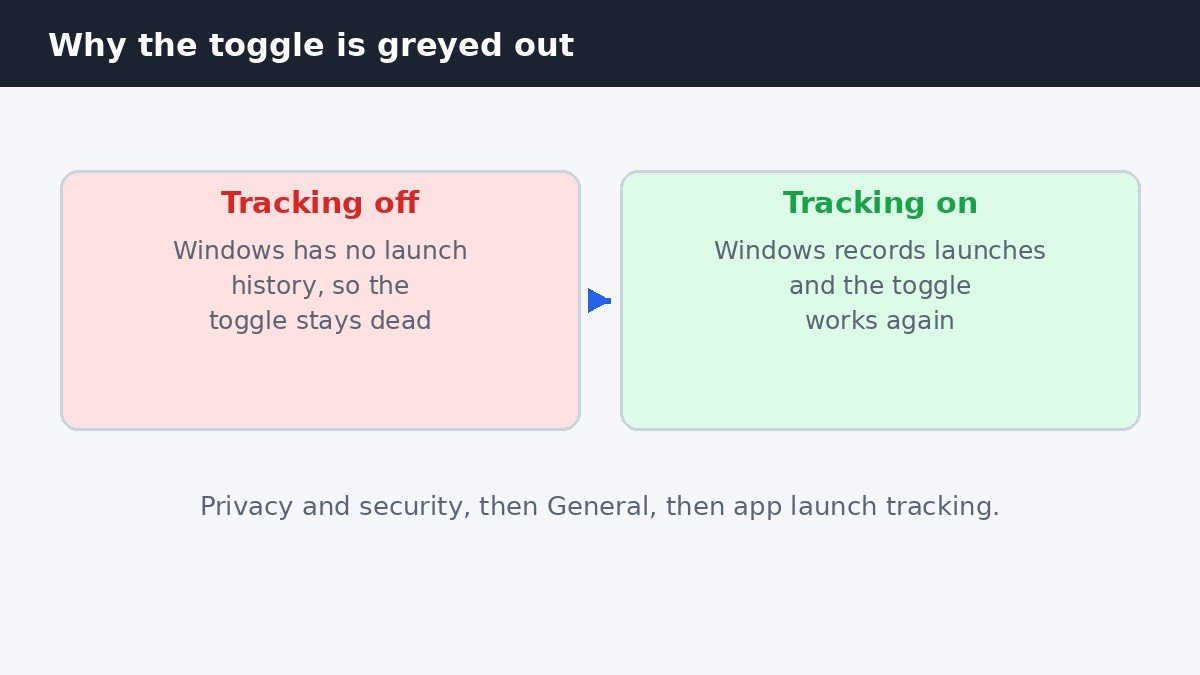
Notice the trade-off here. To hide the list, you first have to switch the tracking back on, which is the very recording the list is built from. The list stays hidden once the toggle is off, and you can turn tracking off again afterwards, which leaves both the tracking and the list switched off. Microsoft explains the tracking setting in its privacy settings for recommendations and offers in Windows 11. On a work or school PC the toggle can also be locked by policy, in which case the page says the setting is managed by your organization and only your IT administrator can change it.
Hide one app without hiding the rest
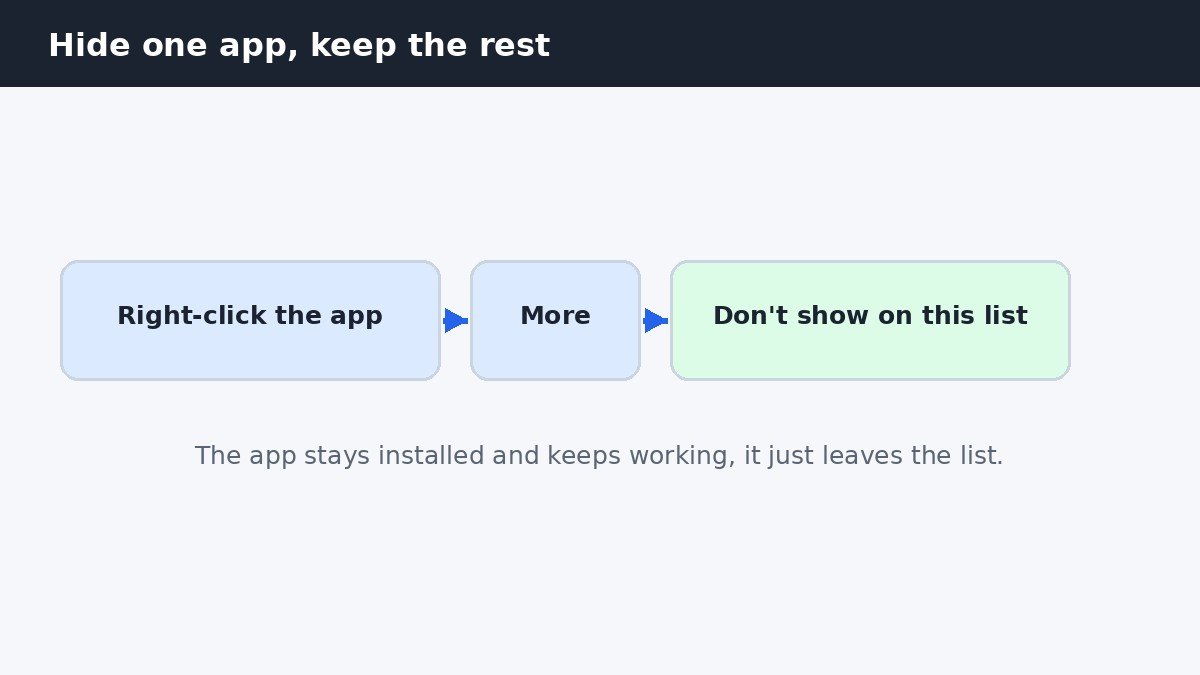
Sometimes the list itself is fine and only one app is the problem, for example a game or a messaging app you would rather not have advertised every time you open Start. You do not need to turn the whole list off for that. Open the Start menu, find the app in the Most Used list, right-click it, choose More, then choose Don’t show on this list. The app disappears from the list immediately and stays out of it, while the other apps keep appearing as normal. The app itself is untouched: it is still installed, still pinned if you pinned it, and still appears in the full All apps list.
The same job, four ways
Settings is the right route for one person on one PC, but it is not the only route. The table below compares the four ways to control the list, so you can pick the one that matches your situation instead of following steps meant for someone else.
| Method | What it does | Best for |
|---|---|---|
| Settings switch | Hides the list for your account | One person, one PC |
| Right-click one app | Hides a single app from the list | One embarrassing app |
| Group Policy | Shows or hides the list for all users | Pro and Enterprise PCs |
| Registry value | Stops the tracking that feeds the list | Advanced users and scripts |
For the Group Policy route, open the Group Policy Editor and go to Computer Configuration, then Administrative Templates, then Start Menu and Taskbar, and open Show or hide ‘Most used’ list from Start Menu. Set it to Enabled and choose Show or Hide. That policy needs Windows 11 Pro or Enterprise: it is not available on Home. The registry route uses the Start_TrackProgs DWORD value under the Start menu key, where 0 disables the tracking that feeds the list. Registry edits are for advanced users only, since a wrong value in the wrong key can cause real problems.
What turning it off does not change
Turning off Most Used does not change anything else about Start. Your pinned apps stay exactly where they are, the full All apps list still shows every installed program, and Windows Search still finds your apps when you type their names. The Recommended section is a separate setting on the same page, so turning off Most Used leaves your recent files and recently added apps untouched unless you switch those off too. If the list does not disappear after all this, sign out and back in once, since a stale Start menu session can hold onto the old layout for a while.
The Most Used list is a small convenience that turns into clutter the moment it shows the wrong app at the wrong time. One switch hides the whole list, one right-click hides a single app, and the tracking setting explains the greyed-out toggle that stops most people in their tracks. Pick the option that matches your PC, and Start goes back to showing only what you chose to put there.

- How to Turn Off Most Used Apps in the Windows 11 Start Menu - November 7, 2026
- How to Remap or Turn Off the Copilot Key in Windows 11 - November 6, 2026
- How to Turn Off Lock Screen Tips in Windows 11 - November 5, 2026