
Night Shift warms the colours on your Mac screen in the evening so the display feels easier on the eyes. The trouble starts when the warm tint shows up at the wrong time, or never goes away at all, and a photo that should look neutral comes out orange on screen. The fix takes less than a minute once you know where the setting lives, but there are two different off switches and they do very different things. One turns Night Shift off until tomorrow. The other turns it off for good.
Find Night Shift in Displays
Night Shift lives on the Displays page, which is not where most people look first. Click the Apple menu in the top-left corner, choose System Settings, then select Displays in the sidebar. Scroll down the Displays page until you reach the Night Shift section. That section holds the schedule dropdown and the manual toggle, and everything else in this guide starts from here. If you use more than one display, pick the right one in the Displays sidebar first, since the settings apply to the display you have selected.
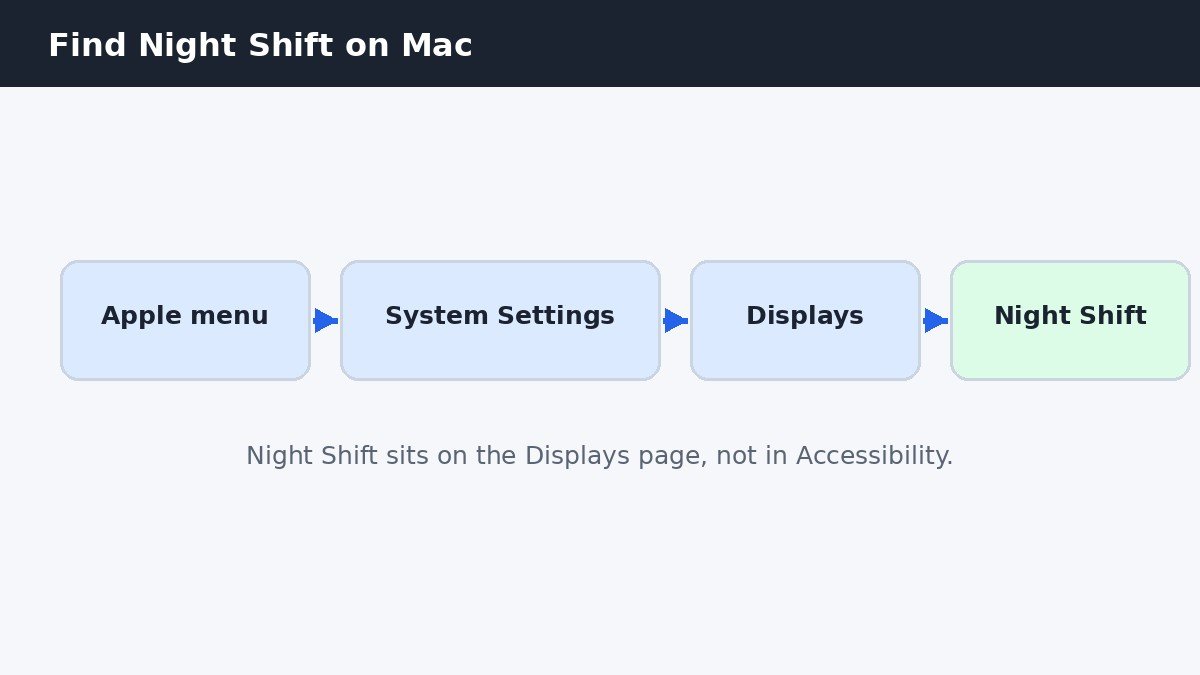
On older versions of macOS the same page was called System Preferences instead of System Settings, but the Night Shift section has sat in the same place for years. If you are on a Mac running macOS Ventura or later, the path above is the one to follow.
Pick the schedule that stops it
The schedule dropdown is the permanent control, and it is the one that decides whether Night Shift comes back tomorrow. There are three choices, and only one of them stops Night Shift for good.
| Schedule choice | What it does | When to pick it |
|---|---|---|
| Off | Night Shift never turns on | You want it gone for good |
| Sunset to Sunrise | Follows the sun each day | You like it, but only at night |
| Custom | Uses the times you set | You want it on your own hours |
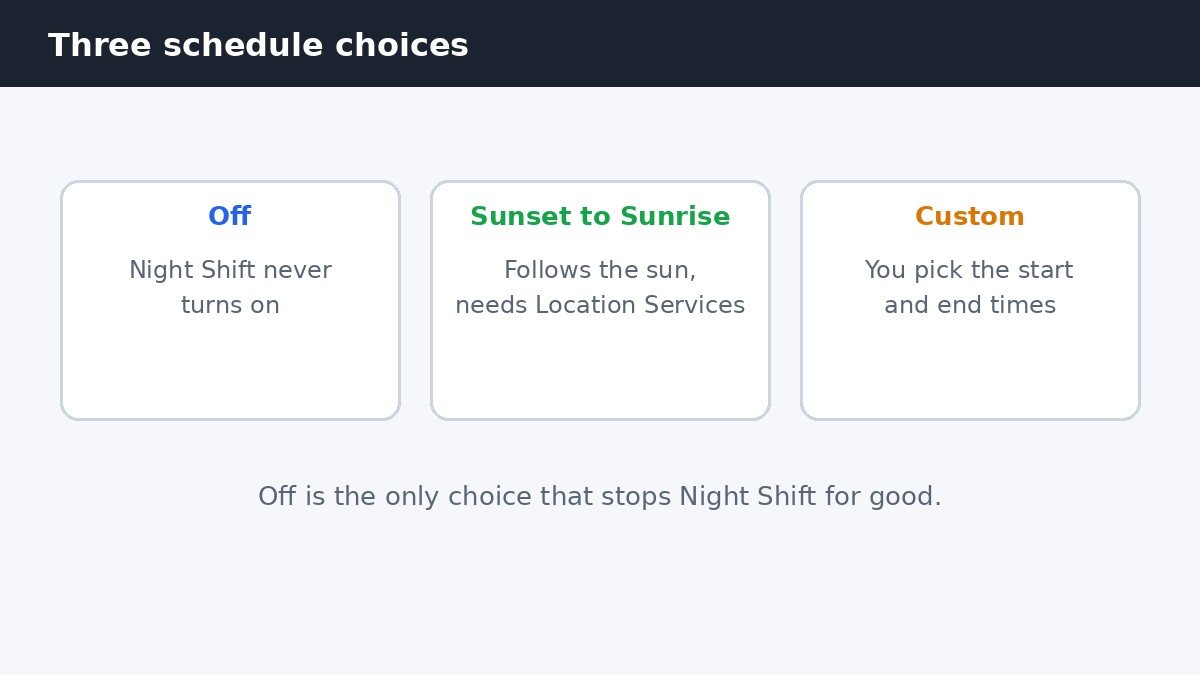
Choose Off and Night Shift is done: it will not turn on tonight, tomorrow, or any other night until you change the schedule back. Choose Sunset to Sunrise and macOS works out the times from your location, which means Location Services has to be switched on for it to work properly. Choose Custom and two time fields appear, so you can set the exact hours Night Shift runs, for example 9pm to 7am. The Custom choice is the one that causes the most confusion, because a schedule that covers the middle of the day keeps the screen warm all day long, which looks exactly like Night Shift being stuck on.
Turn it off just for tonight
If you only need true colours right now, for one photo edit or one video call, do not touch the schedule. On the same Night Shift section of the Displays page there is a Turn on until tomorrow toggle. Switch that off and Night Shift stays off until tomorrow, when your schedule takes over again. There are two faster ways to do the same thing without opening Settings at all. Open Control Center from the menu bar, click Display, and switch Night Shift off there. Or just ask Siri: say “Turn off Night Shift” and it switches off until tomorrow. Both of these are temporary in exactly the same way as the toggle, so if you want it gone permanently, go back to the schedule dropdown and choose Off.
Night Shift is not True Tone
After turning Night Shift off, many people look at the screen and feel that the colours still look wrong. That is usually True Tone, a separate feature that sits on the same Displays page and is easy to confuse with Night Shift. Night Shift warms the colours on a schedule, mostly in the evening, to cut down on blue light. True Tone adapts the colours to the light in the room, all day long, so a white page looks the same under a warm lamp as it does in daylight. Turning Night Shift off does nothing to True Tone, and turning True Tone off does nothing to Night Shift.
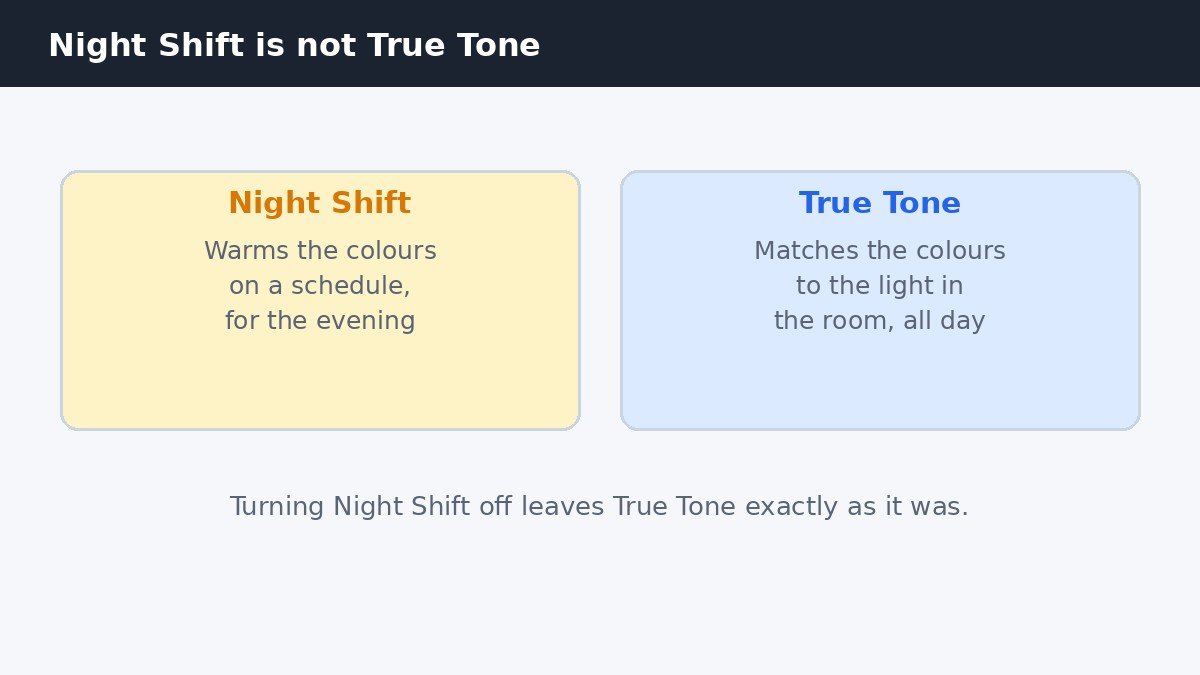
If you need colours to be exact, for photo editing or print work, turn both of them off. Our guide to turning off automatic brightness on Mac covers the other display setting that quietly changes how the screen looks, since automatic brightness and True Tone both sit in the same Displays area.
Why the screen stays warm all day
A Mac that stays warm-tinted all day is the most common Night Shift complaint, and it almost always has one of two causes. The first is a Custom schedule that covers daytime hours. If the schedule runs from 6am to 10pm, for example, the screen is warm for almost the whole day, and the only fix is to change the schedule times or set the dropdown to Off. The second cause is the Sunset to Sunrise schedule combined with a wrong location or time zone. If macOS thinks you are somewhere else, or the clock is set to the wrong zone after a trip, it works out the wrong sunset time and switches Night Shift on hours too early. Check the time zone in System Settings, then General, then Date and Time, and make sure Location Services is on so the sunset calculation uses your real position.
What still changes the colour after this
With the schedule set to Off, Night Shift is fully out of the picture, but a few things can still shift the colours on your screen. True Tone, covered above, is the main one. Night Shift also works on the built-in Retina display and on many external monitors, but it does not apply to TVs or projectors, so a Mac connected to a television will not show the warm tint at all. Colour profiles are another quiet influence: a display profile set for a specific printer or paper type changes the colours in a way that looks like a tint, and that setting lives in the Displays page under the colour profile list. Apple documents the schedule, the manual toggle, and the supported displays in its support article on Night Shift for Mac.
Night Shift is a small feature with an outsized ability to confuse, mostly because the temporary off switch and the permanent off switch look so alike. Remember the difference: the toggle and Control Center give you one clear evening, while the schedule dropdown is the only thing that stops it coming back.

- How to Turn Off Night Shift on Mac - November 7, 2026
- How to Stop “Background Items Added” Notifications on Mac - November 6, 2026
- How to Turn Off Live Activities on the iPhone Lock Screen - November 5, 2026