
How to Fix Excessive SSD Writes Caused by the NVIDIA Driver on Windows 11 (TBW Verdict)
A recent NVIDIA driver can keep writing to your SSD while your PC sits idle, and the fix is a newer driver. Install GeForce Game Ready Driver 621.40, released November 24, 2026, then check that the writes have actually stopped. This guide also answers the two questions other guides skip: how much of your SSD’s rated endurance the bug already used up, and what to do if 621.40 does not stop the writes on your PC.
The short version, in order: confirm the NVIDIA Display Container process is the writer, install 621.40 with a clean installation, leave the PC idle and recheck, then read your drive’s total host writes and compare it with its rated TBW. If the writes continue after 621.40, roll back to driver 621.01, the last version reported clean. Setting the NVIDIA Display Container LS service to Manual is the last resort, because it also breaks the NVIDIA App and Control Panel.
What happened, and which drivers are involved
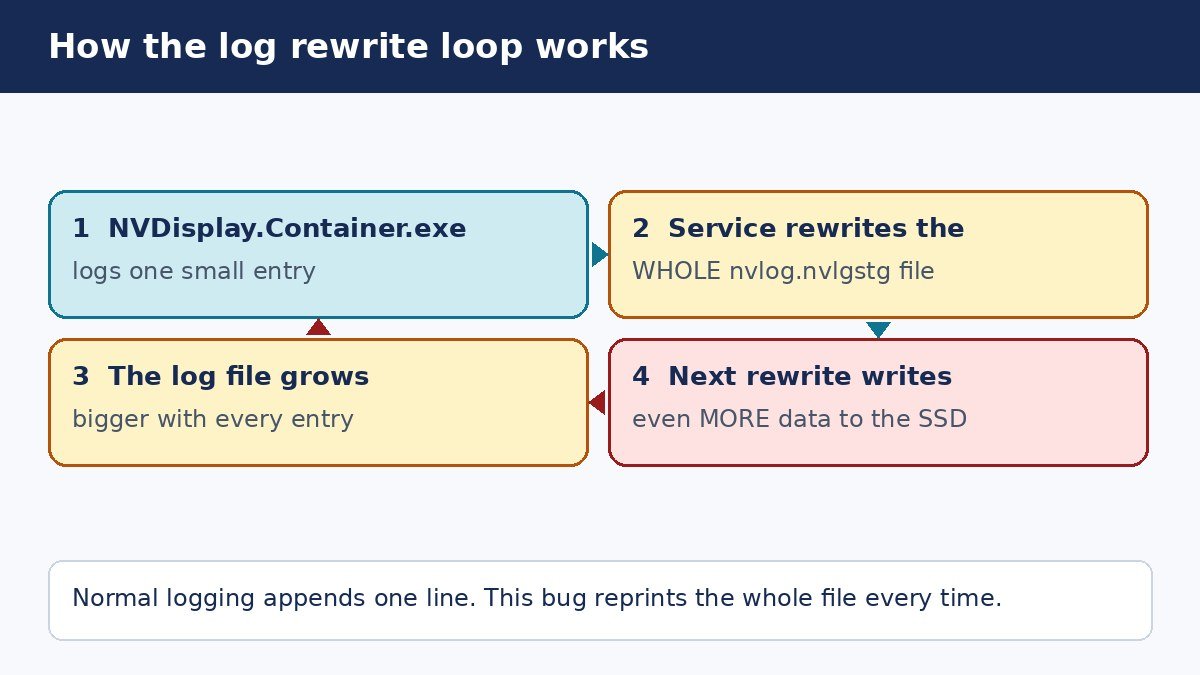
The problem sits in one background process, NVDisplay.Container.exe, which runs under the Windows service called NVIDIA Display Container LS. The process keeps a binary log file at C:\ProgramData\NVIDIA Corporation\nvtopps\nct\nvlog.nvlgstg. Instead of adding new entries to the end of that file, the service appears to rewrite the whole file each time it logs something. The file grows, each rewrite costs more, and the writes continue for as long as the PC is idle.
The regression arrived with GeForce Game Ready Driver 621.14 on November 4, 2026, and got worse with 621.24 on November 12, 2026. NVIDIA answered with GeForce Hotfix Display Driver 621.35 on November 20, 2026, but users reported the writes returning after a few hours on the hotfix. Driver 621.40, a full WHQL release dated November 24, 2026, lists the same bug, number 7116722, as fixed in NVIDIA’s own 621.40 release notes. As of November 26, 2026, 621.40 is the newest GeForce driver available, and no newer version has been released since.
| Driver version | Released | What it means for this bug |
|---|---|---|
| 621.01 | October 21, 2026 | Last version reported clean. The safe rollback target. |
| 621.14 | November 4, 2026 | Regression appears. Idle writes reported around 3 GB per hour in the worst user measurements. |
| 621.24 | November 12, 2026 | Worse. Worst reported case around 30 GB per hour at idle. |
| 621.35 hotfix | November 20, 2026 | Targeted the bug, but users reported the writes coming back after some hours. |
| 621.40 WHQL | November 24, 2026 | Lists bug 7116722 as fixed. Install this one. |
Two numbers in that table need honest handling. The 30 GB per hour figure is the worst reported case, from one user measurement, not a typical rate. Other measurements were far lower, around 3 GB per hour on 621.14 and about 5 GB per hour in one independent check on an idle RTX 4090. The rate also depends on how large the log file has grown on your PC, so two machines on the same driver can show very different numbers.
First, check whether your PC is affected
Not every PC on 621.14 or 621.24 shows the bug, so confirm it before you change anything. Windows has a built-in tool for this, Resource Monitor, and the check takes about ten minutes.
- Close your apps and browser tabs, then leave the PC alone for five minutes so it is genuinely idle.
- Press Windows key + R, type resmon, and press Enter to open Resource Monitor.
- Click the Disk tab, then click the Write column header so the heaviest writers sit at the top.
- Look for NVDisplay.Container.exe. On a healthy system it writes almost nothing at idle, under 2 MB in five minutes on driver 621.01. On an affected system it sits near the top, and one user measurement recorded 515 MB from this process alone in five idle minutes on 621.14.
- Click the process once to filter the lower panel, and confirm the file it is writing to is nvlog.nvlgstg.
If NVDisplay.Container.exe does not appear in the list, or its write total stays tiny while the PC is idle, your system is not affected. Just install 621.40 when you next update, as normal maintenance. If it is writing heavily, continue to the fix below.
Step 1: Install driver 621.40 with a clean installation
Install 621.40 through the NVIDIA App, or download it from NVIDIA’s driver download page and run the installer. Either route works. What matters is the clean installation option, which removes the old driver files instead of layering the new driver on top of the broken one.
- Open the NVIDIA App and go to Drivers, or download driver 621.40 from NVIDIA’s website for your graphics card and Windows 11.
- Start the installer and choose Custom installation when it offers the choice.
- Tick the box labelled Perform a clean installation, then continue. The screen may flicker or go black for a few seconds while the display driver reloads. That is normal.
- Let the installer finish, then restart the PC when it asks.
If you install drivers by hand through Device Manager instead of the NVIDIA App, the same clean-install idea applies: use the full installer from NVIDIA rather than a partial update. Our guide to updating drivers manually on Windows 11 walks through the manual route and how to check the new version actually installed.
After the restart, check which driver version is installed before you assume the update worked. In the NVIDIA App, open Drivers and read the installed version number. It should read 621.40.
Step 2: Confirm the writes have actually stopped
This is the step the hotfix proved you cannot skip. Driver 621.35 looked fixed at first, then the writes came back after some hours for some users. A five minute check right after installing 621.40 is not enough. Run the same Resource Monitor check twice: once shortly after the restart, and once after the PC has sat idle for a few hours, or overnight.
- After installing 621.40 and restarting, leave the PC idle for five minutes, open Resource Monitor, and check NVDisplay.Container.exe on the Disk tab. It should be writing almost nothing.
- Leave the PC idle for a few hours, or overnight, with no apps open.
- Open Resource Monitor again and check the same process. If it is still quiet, the fix is holding on your machine.
- If the writes are back, or never stopped, move to the decision ladder below. Do not just reinstall 621.40 and hope.
How much SSD endurance did the bug already use up
This is the question that decides whether the bug cost you anything real. An SSD wears out by writes. The maker rates each drive in TBW, terabytes written, which is the total amount of data the drive is rated to write over its warranty life. Your drive keeps its own lifetime write count, so you can compare the two numbers and get a plain answer.
- Download CrystalDiskInfo, the free standard edition, from its official site, and install it. The drive maker’s own utility, such as Samsung Magician or WD Dashboard, shows the same figures if you already have it installed.
- Open CrystalDiskInfo and select your system drive, usually the C: drive, at the top of the window.
- Find the Total Host Writes field in the attribute list and note the number. It is the total data written to that drive since it was new.
- Look up your exact drive model and capacity on the maker’s website and find its TBW rating in the specification sheet. A 1 TB Samsung 990 Pro, for example, is rated at 600 TBW. Ratings vary a lot by model and capacity, so use your own drive’s number, not a figure from another drive.
- Divide total host writes by the TBW rating, both in terabytes, and multiply by 100. That is the share of rated endurance your drive has used.
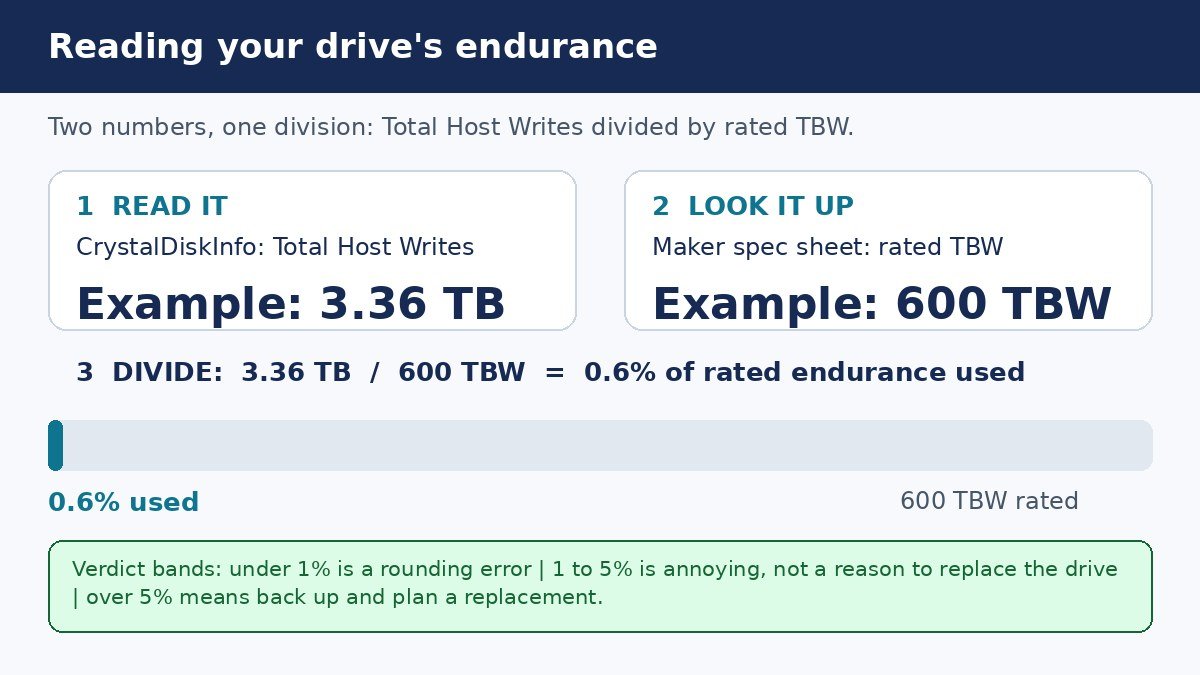
An example makes the verdict concrete. Take a 1 TB drive rated at 600 TBW, running the worst reported rate of 30 GB per hour, eight hours a day, for two weeks before the fix. That is 30 times 8 times 14, about 3,360 GB, or 3.36 TB. Against a 600 TBW rating that is about 0.6 percent of the drive’s rated endurance. At a more typical reported rate of 3 GB per hour over the same two weeks, the total is about 0.34 TB, or about 0.06 percent. Even a month at the worst reported rate, 24 hours a day, comes to about 21.6 TB, or 3.6 percent of 600 TBW.
| Share of rated TBW used | Verdict |
|---|---|
| Under 1 percent | A rounding error. Fix the driver, keep the drive, and stop worrying about it. |
| 1 to 5 percent | Annoying, and worth fixing promptly, but not a reason to replace a healthy drive. |
| Over 5 percent, or Percentage Used climbing fast | Back up your files now and start planning a replacement drive. |
| Any Media Errors, or Health Status below Good | Back up immediately and replace the drive. The write count is no longer the main concern. |
Two cautions belong with that verdict. First, TBW is a warranty rating, not a switch that turns the drive off. Drives commonly keep working past their rated TBW. Second, the bug’s writes are only part of your drive’s lifetime total. Windows, games, and every app you run also write data, and most of a high total is usually normal use, not this bug.
There is one more figure worth reading in the same CrystalDiskInfo window: Percentage Used, on NVMe drives. It shows the share of rated endurance the drive itself reports as used. If that number is high, or the Health Status reads anything other than Good, back up first and ask questions later.
If 621.40 does not stop the writes: the decision ladder
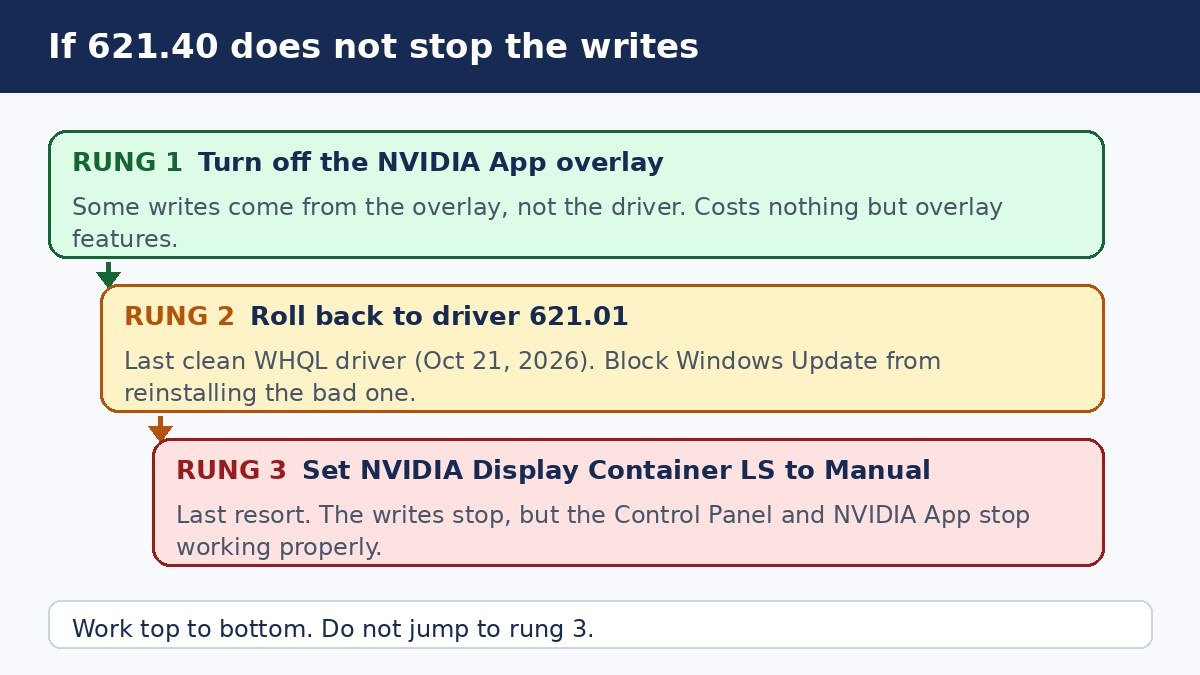
Early reports after 621.40 are mixed, and the 621.35 hotfix already showed that a listed fix can fail on some machines. If your Resource Monitor check still shows NVDisplay.Container.exe writing heavily after 621.40, work down this ladder in order. Each rung costs you more than the one above it, so do not jump to the bottom.
Rung 1: Turn off the NVIDIA App overlay
Some users have reported disk writes tied to the NVIDIA App overlay and its Frameview component, which is a separate source from the display driver log. Before you blame 621.40, open the NVIDIA App, turn the in-game overlay off, restart the PC, and repeat the idle Resource Monitor check. If the writes stop, the overlay was the writer, and you can keep 621.40 and simply leave the overlay off. This costs you nothing except the overlay features.
Rung 2: Roll back to driver 621.01
Driver 621.01, released October 21, 2026, is the last version reported clean, with idle writes under 2 MB in five minutes in the same test that measured 515 MB on 621.14. It is a full WHQL release, so you give up nothing on stability, only the game support and features added in 621.14 and later. Download the full 621.01 installer from NVIDIA, run it, choose a custom installation, tick Perform a clean installation, and restart.
One trap follows a rollback: Windows Update can push the newer driver back onto your PC without asking. After rolling back, stop Windows from reinstalling the bad driver on its own. Our guide to disabling automatic driver updates on Windows 11 shows how to block that, so your rollback actually sticks.
Stay on 621.01 until NVIDIA ships a driver newer than 621.40, then check the release notes for bug 7116722 before you update. Do not reinstall 621.35, the hotfix. It was a beta release, it is superseded by 621.40, and its fix did not hold for everyone.
Rung 3: Set the NVIDIA Display Container LS service to Manual
This is the last resort, and it has a real price. Press Windows key + R, type services.msc, and press Enter. Find NVIDIA Display Container LS in the list, double-click it, change Startup type from Automatic to Manual, click Stop, then click OK. With the service stopped, the process that rewrites the log cannot run, so the writes stop.
The price is that the NVIDIA Control Panel and the NVIDIA App stop working properly. You lose access to display settings, G-Sync controls, colour profiles, resolution overrides, and per-game 3D settings until you set the service back to Automatic and restart it. Only take this rung if you never open those panels, and set the service back to Automatic before you next update the driver. If you do change display settings often, stay on rung 2 and live with 621.01 instead.
Two things are not worth your time. Deleting the nvlog.nvlgstg file on its own only helps until the service recreates it and the file grows back, so the writes return. Turning off telemetry in the NVIDIA App is not a fix either: the bug was reported on systems with telemetry already disabled, and on a system without the NVIDIA App installed at all.
How to keep this from happening again
The habit that catches this kind of bug early is cheap: after every graphics driver update, leave the PC idle for five minutes and glance at Resource Monitor’s Disk tab. A healthy driver writes almost nothing at idle. If a process you do not recognise sits at the top of the write list, you have found the problem before it has had weeks to eat into your drive’s endurance.
For most people this story ends at 621.40. Install it with a clean installation, confirm the writes stop with an overnight idle check, read your total host writes once so you know where your drive stands, and move on. The lost endurance, even in the worst reported case, is a fraction of one percent of a typical drive’s rating.

- How to Fix Excessive SSD Writes Caused by the NVIDIA Driver on Windows 11 (TBW Verdict) - November 26, 2026
- How to Add a Printer on Windows 11 (Step-by-Step Guide) - November 24, 2026
- How to Turn On Windows Security in Windows 11 (Step-by-Step Guide) - November 23, 2026