
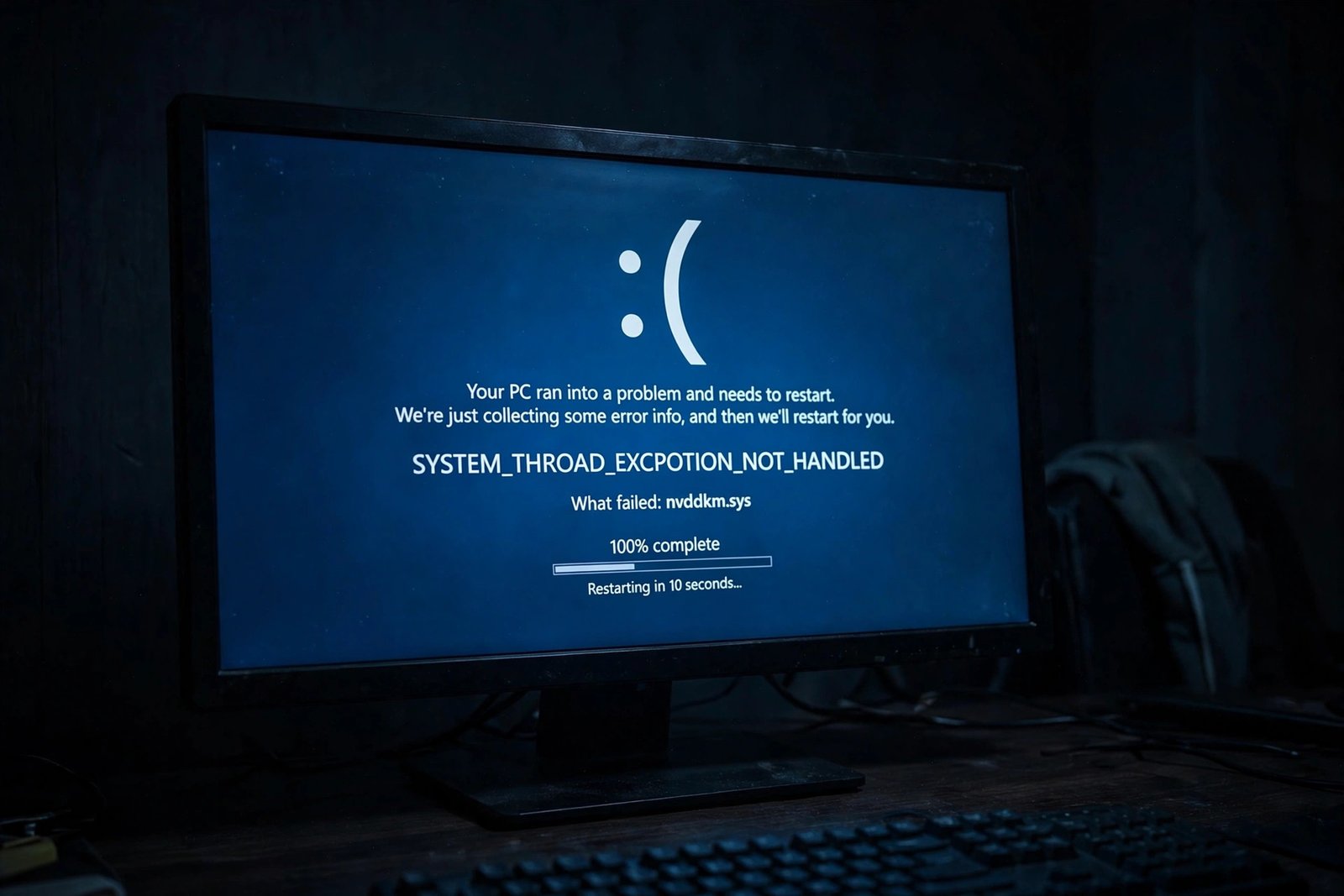
A blue screen with SYSTEM_THREAD_EXCEPTION_NOT_HANDLED (stop code 0x0000007E) means a system thread crashed in a way Windows could not recover from. It sounds serious, and it can be, but in most cases the cause is a single bad driver, usually the graphics driver. This guide shows you how to identify it and fix it, even if your PC will not boot normally.
Read the Clue on the Blue Screen
Before the PC restarts, the blue screen often names the failing file under “What failed:”. That filename tells you which driver to target, so note it down if you see it.
| Failing file | Belongs to | Fix first |
|---|---|---|
| nvlddmkm.sys | NVIDIA graphics driver | Reinstall or roll back the NVIDIA driver |
| atikmdag.sys / atikmpag.sys | AMD graphics driver | Reinstall or roll back the AMD driver |
| igdkmd64.sys | Intel graphics driver | Update the Intel graphics driver |
| rt640x64.sys | Realtek network driver | Update or reinstall the network driver |
| Netwbw02.sys | Intel WiFi driver | Update the wireless driver |
No filename shown? Do not worry. The fixes below still apply, starting with the graphics driver, which is the most common offender by a wide margin.
Step Zero: Get Into Safe Mode
If your PC is stuck in a crash loop, do all repairs from Safe Mode, where Windows loads only essential drivers and the faulty one cannot crash the system.
- Hold the power button to force the PC off. Turn it on, and as soon as the manufacturer’s logo appears, force it off again. Repeat this twice.
- On the third boot, Windows opens the Automatic Repair screen.
- Choose Troubleshoot > Advanced options > Startup Settings > Restart.
- Press 4 for Safe Mode, or 5 for Safe Mode with Networking if you need to download drivers.
Fix 1: Roll Back or Reinstall the Faulty Driver
- In Safe Mode, press Windows + X and open Device Manager.
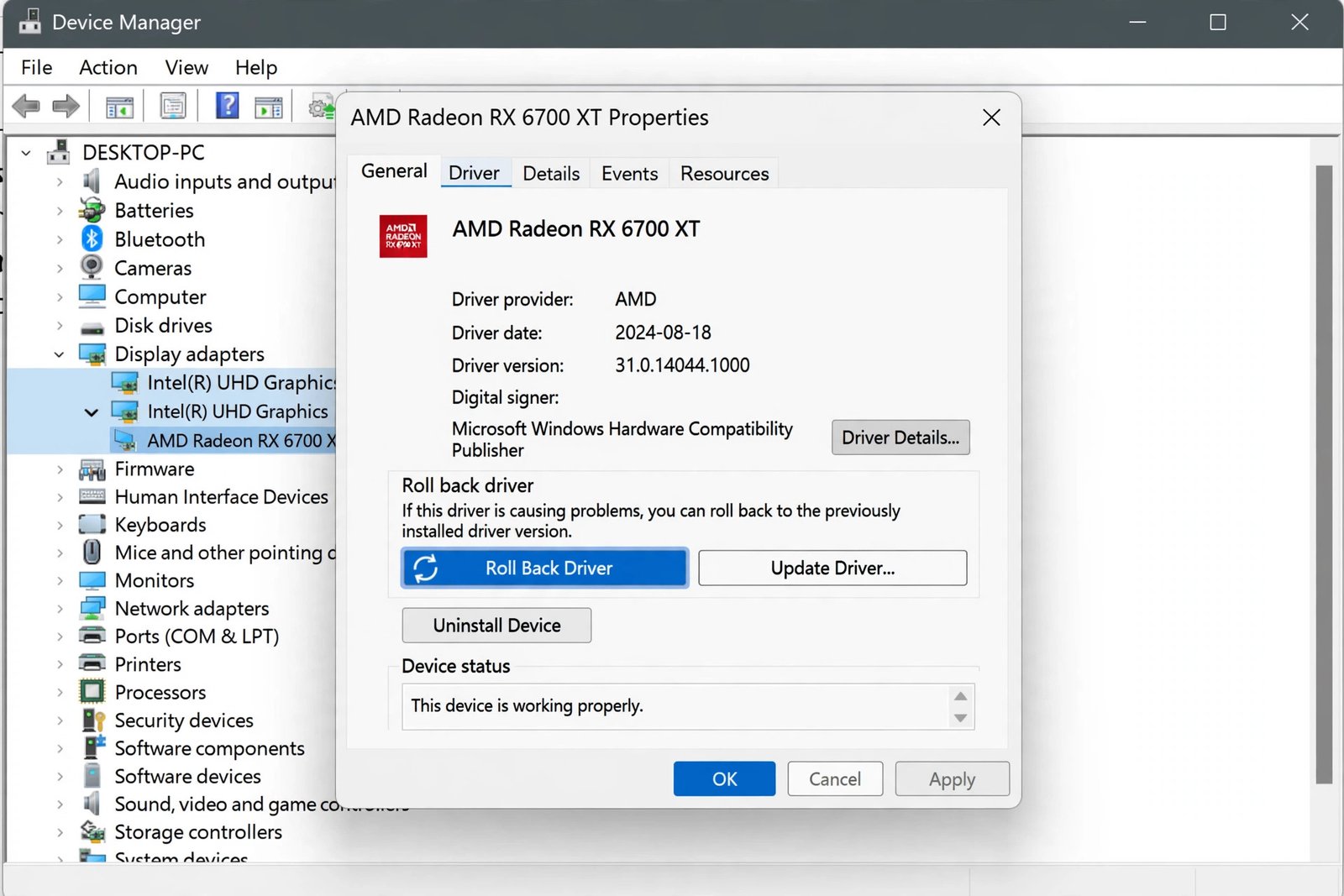
- Expand Display adapters, right-click your graphics card, and choose Properties.
- Open the Driver tab. If Roll Back Driver is available, use it to return to the previously working version.
- If rollback is greyed out, choose Uninstall device and tick the box to delete the driver software. Restart, and Windows will install a clean base driver.
- For a lasting fix, download the latest stable driver from NVIDIA, AMD, or Intel’s official site and install it manually rather than relying on the generic Windows driver.
Fix 2: Repair Corrupted System Files
Damaged Windows files can keep triggering this blue screen even after the drivers are clean. Run both of Windows’ built-in repair tools.
- Open Command Prompt as administrator (right-click it in Start and choose Run as administrator).
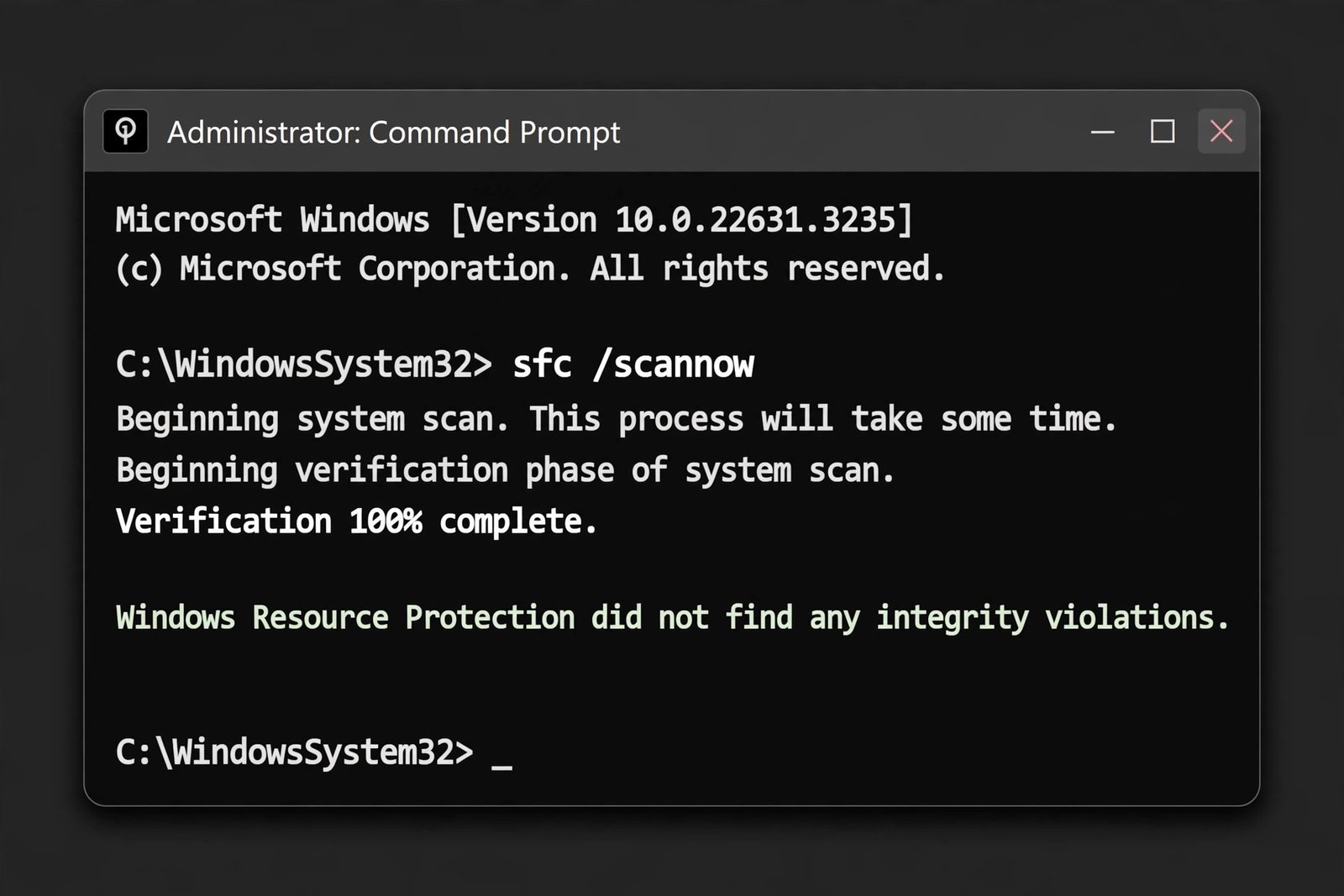
- Type sfc /scannow and press Enter. Wait for the scan to finish, which usually takes 5 to 10 minutes.
- When SFC completes, run DISM /Online /Cleanup-Image /RestoreHealth and let it reach 100 percent.
- Restart the PC normally and see if the crashes stop.
Fix 3: Identify the Culprit With a Clean Boot
If the crashes continue with fresh drivers and clean system files, a third-party program or service may be the trigger. A clean boot starts Windows with only the essentials.
- Press Windows + R, type msconfig, and press Enter.
- On the Services tab, tick Hide all Microsoft services, then click Disable all.
- On the Startup tab, click Open Task Manager and disable every startup item.
- Restart. If the blue screen is gone, re-enable services and startup items in small groups until the crashes return. The last group you enabled contains the culprit.
Fix 4: Reset BIOS Settings and Check Hardware
Overclocking, aggressive memory timings, or a recent BIOS update can destabilize system threads. Restart into your BIOS or UEFI (usually Delete, F2, or Esc during boot), choose Load Optimized Defaults, save, and exit. If the crashes persist after that, run a memory test with the built-in Windows Memory Diagnostic (type it into Start), since failing RAM produces exactly this kind of random thread crash.
Frequently Asked Questions
Can this blue screen damage my files?
The crash itself does not delete files, but repeated sudden shutdowns can corrupt data that was being written. Back up important files from Safe Mode before attempting driver surgery.
Should I use a driver updater tool?
Manual installation from the manufacturer’s site is safer. Third-party updater tools sometimes install mismatched drivers, which is exactly how this blue screen starts.
For deeper dives, the Fone Tips repair guide and the All Things How Windows 11 guide walk through the same fixes with extra screenshots. On this site you may also need the user profile service failed the sign-in fix, the RPC server unavailable fix, and how to fix a slow web browser.

- How to Change the Lock Screen Timeout on Windows 11 - October 25, 2026
- How to Fix the Windows 11 Taskbar Auto-Hide Problem - October 24, 2026
- How to Fix a Laptop Camera Not Working in Windows 11 - October 23, 2026