
Snipping Tool is one of those apps you only think about when it breaks. You press Windows + Shift + S, nothing happens, and suddenly taking a quick screenshot turns into a small crisis. The good news is that most Snipping Tool problems come from a short list of causes, and you can usually fix them in under fifteen minutes.
This guide walks you through the fixes in the order that works best, from the fastest checks to the deeper repairs. Start at the top and stop when your screenshots work again.
Figure Out Which Part Is Actually Broken
Before changing anything, take ten seconds to find out what is failing. The fix is very different depending on whether the app opens, the shortcut works, or the capture itself fails.
| Symptom | What it usually means |
|---|---|
| Windows + Shift + S does nothing | Shortcut hijacked by another app, or app needs a restart |
| Snipping Tool will not open from Start | App files are corrupted, or the app was uninstalled |
| App opens but closes when you click New | Corrupted app data, Repair or Reset usually fixes it |
| Screenshot is taken but you never see it | Notifications are off, or the file went to the wrong place |
| Record button is missing | Snipping Tool is outdated, it updates through the Microsoft Store |
Fix 1: Restart the App and Test the Shortcut
Temporary glitches stop Snipping Tool more often than anything else. End the process and start fresh before you try anything heavier.
- Press Ctrl + Shift + Esc to open Task Manager.
- Find Snipping Tool in the process list, right-click it, and choose End task.
- Open Snipping Tool from the Start menu and click New. If the capture works, the problem was a stuck process.
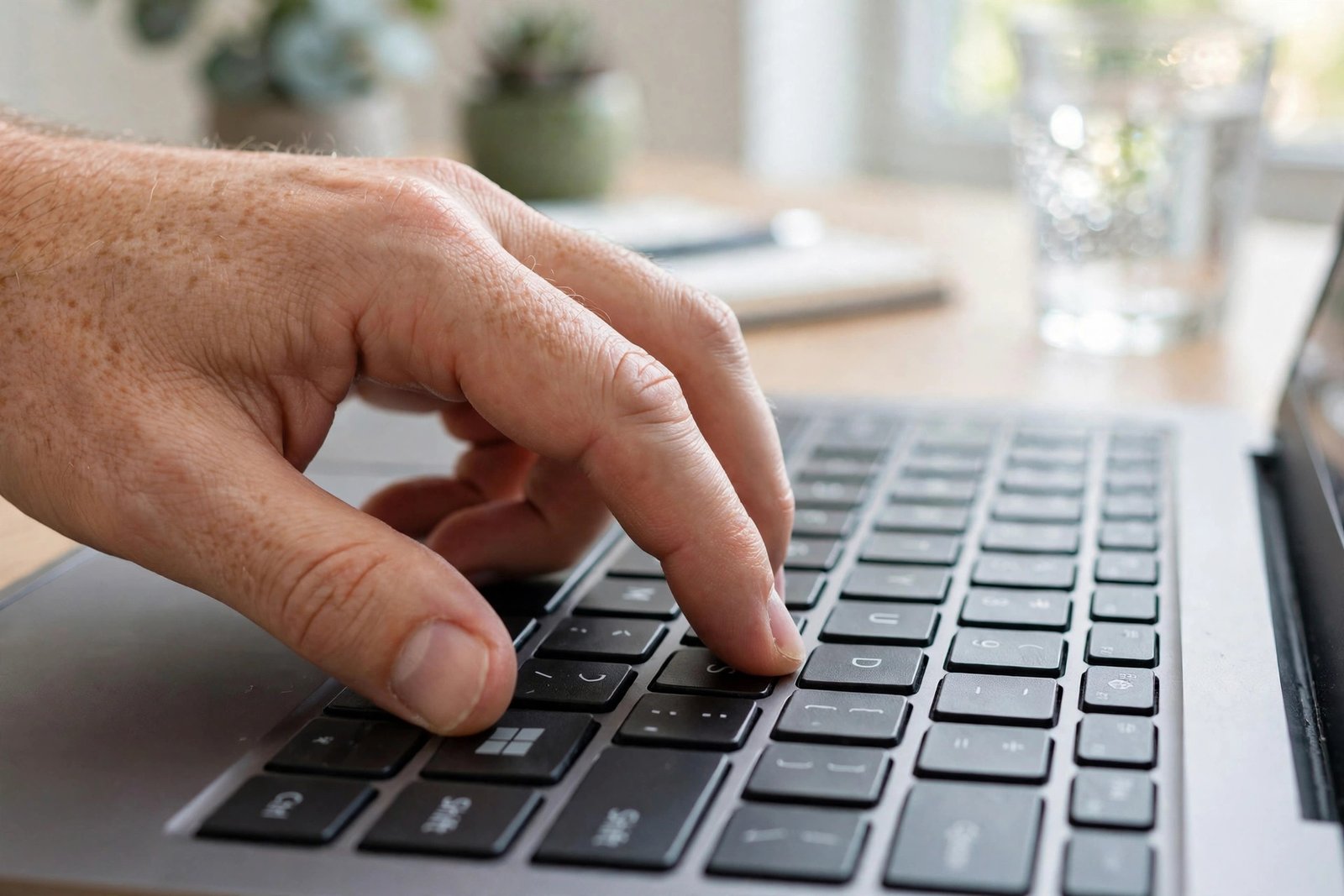
- If the app works but Windows + Shift + S still does nothing, another program may have claimed that shortcut. Close utilities that remap Windows key combinations one at a time and test again.
Fix 2: Repair the Snipping Tool App
If the app will not open or keeps crashing, use the built-in Repair option. It fixes broken app files without touching your settings.
- Press Windows + I to open Settings.
- Go to Apps, then Installed apps.
- Find Snipping Tool in the list and click the three dots next to it.
- Choose Advanced options, then click Repair.
- Wait for the checkmark, then open Snipping Tool and test a capture.
Fix 3: Reset the App Back to Defaults
When Repair does not help, Reset puts the app back to its original state. Your saved screenshots stay where they are, only the app settings return to defaults.
- Go back to Settings > Apps > Installed apps > Snipping Tool > Advanced options.
- Click Reset and confirm when Windows asks.
- Restart your computer, then open Snipping Tool and try again.
Fix 4: Update Windows and the App From the Microsoft Store
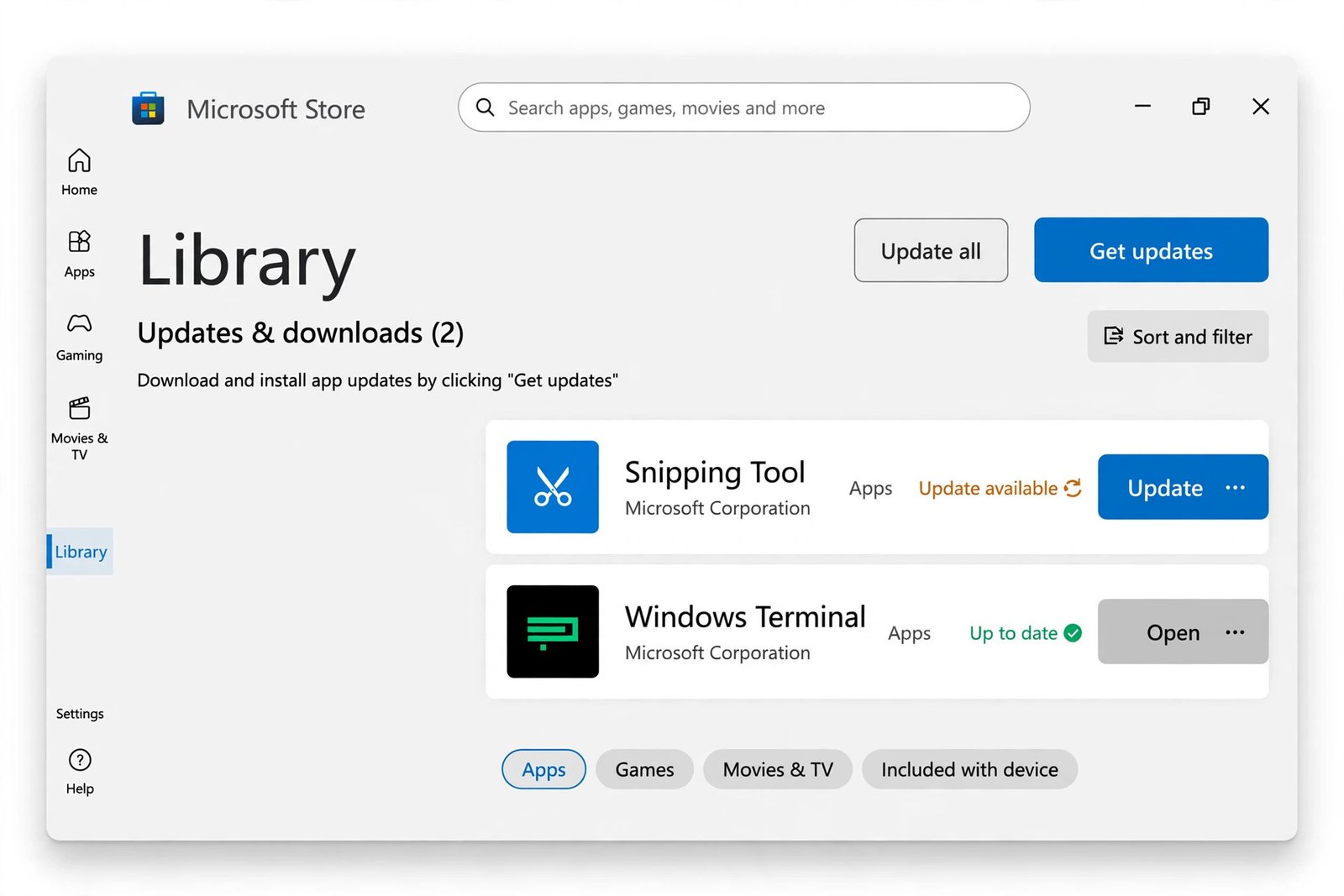
Snipping Tool updates through the Microsoft Store, not through Windows Update, so the app can fall behind even on a fully patched PC. An old version is the usual reason the Record button goes missing.
- Open the Microsoft Store, go to Library, and click Get updates.
- Install any Snipping Tool update that appears, then reopen the app.
- Separately, open Settings > Windows Update and install any pending Windows updates, then restart.
Fix 5: Reinstall Snipping Tool Completely
If the app is missing from your PC or nothing above helped, a clean reinstall often clears whatever is stuck. Uninstall it first, then grab a fresh copy from the Store.
- In Settings > Apps > Installed apps, open the three-dot menu on Snipping Tool and choose Uninstall.
- Restart your computer.
- Open the Microsoft Store, search for Snipping Tool, and install it.
- Open the fresh app and press Windows + Shift + S to confirm it works.
Fix 6: Check Notifications and Clipboard Settings
Sometimes Snipping Tool is working fine and the screenshot is simply invisible to you. If captures happen but you never see a preview, notifications are the first suspect.
- Go to Settings > System > Notifications and make sure notifications are turned on, with Snipping Tool allowed in the app list.
- Press Windows + V to open clipboard history. If your snip is there, the capture worked and only the notification was missing.
- If the Print Screen key should open screen capture, check Settings > Accessibility > Keyboard and turn on Use the Print screen key to open screen capture. On some laptops you also need to hold Fn with Print Screen.
Fix 7: Repair Windows System Files
When every built-in app starts misbehaving, damaged Windows files may be the cause. The System File Checker scans and repairs them.
- Type cmd in the Start menu, right-click Command Prompt, and choose Run as administrator.
- Type sfc /scannow and press Enter. The scan takes several minutes.
- When it finishes, restart your PC and test Snipping Tool again.
Still Not Working?
If you have worked through every fix and Snipping Tool still refuses to cooperate, two things are worth checking. First, make sure no screen capture permission is blocked under Settings > Privacy & security, since Windows can restrict which apps capture the screen. Second, if the problem started right after a Windows update, a system restore to a point before the update can undo the damage while you wait for Microsoft to patch it. The Technobezz troubleshooting walkthrough also covers the PowerShell re-register method for cases where the app package itself is damaged.
Frequently Asked Questions
Why did Snipping Tool stop working after a Windows update?
Updates sometimes replace app files or change permissions that Snipping Tool depends on. Repairing the app from Settings usually resolves it, and checking the Microsoft Store for an app update fixes version mismatches.
Does resetting Snipping Tool delete my screenshots?
No. Reset only returns the app settings to defaults. Screenshots you already saved stay in their folders.
Can I use Snipping Tool on Windows 10 too?
Yes, Windows 10 has its own version of Snipping Tool with the same core features. Most of these fixes, like Repair and Reset under Apps settings, apply to Windows 10 as well. If your Windows 10 PC keeps losing cached files, the cache cleanup guide covers similar maintenance steps.
For other Windows app problems, see how to uninstall Cortana from Windows 11 and how to manage startup programs in Windows 11.

- How to Fix an SD Card Not Detected on Windows 11 - October 25, 2026
- How to Fix Windows 11 Search Not Finding Files - October 24, 2026
- How to Fix Windows 11 Clock Showing the Wrong Time - October 23, 2026