
Key Takeaways
Startup programs launch automatically when you sign in. The fastest way to manage them is Settings, then Apps, then Startup, where each app gets a simple On/Off toggle. Task Manager’s Startup apps tab adds a Startup impact column (High, Medium, Low) so you can see which apps actually slow your boot. To make any program launch at sign-in, drop its shortcut in the shell:startup folder.
Too many programs launching at sign-in is the most common reason a Windows 11 PC feels slow right after boot. Here are three ways to add or remove startup programs, from the easiest toggle to the folder trick that works for anything.
How to Manage Startup Programs Using Settings
This is the fastest method and the one most people should use. Press Win + I to open Settings, then go to Apps, then Startup. You will see a list of registered startup apps, each with a toggle. Flip an app Off to stop it launching at sign-in, or On to let it start automatically. Changes take effect the next time you sign in; nothing else to do.
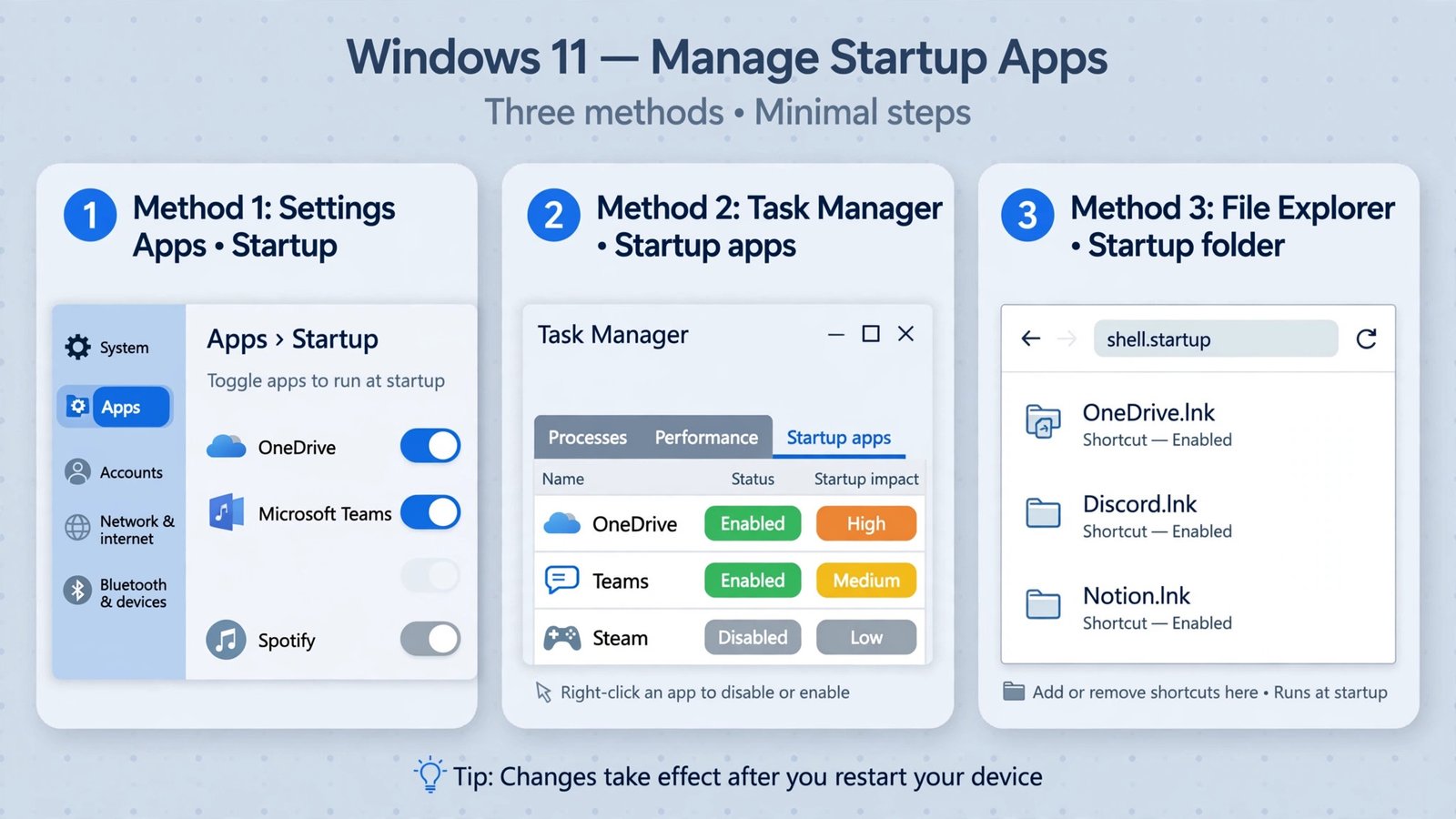
Note: not every program appears in this list. Apps that launch through the Startup folder or their own internal settings will not show up here, which is where the next two methods come in.
How to Manage Startup Programs Using Task Manager
If the Settings list feels thin, Task Manager gives you the fuller picture plus one thing Settings does not: a Startup impact column rating each app High, Medium, Low, or Not measured. That rating is your triage guide, so disable the High-impact apps first for the biggest boot-time win.
- Step 1: Press Ctrl + Shift + Esc to open Task Manager.
- Step 2: Click the Startup apps tab on the left sidebar.
- Step 3: Right-click any app and choose Disable to stop it launching, or Enable to let it launch again. You can also sort by the Startup impact column to find the worst offenders first.
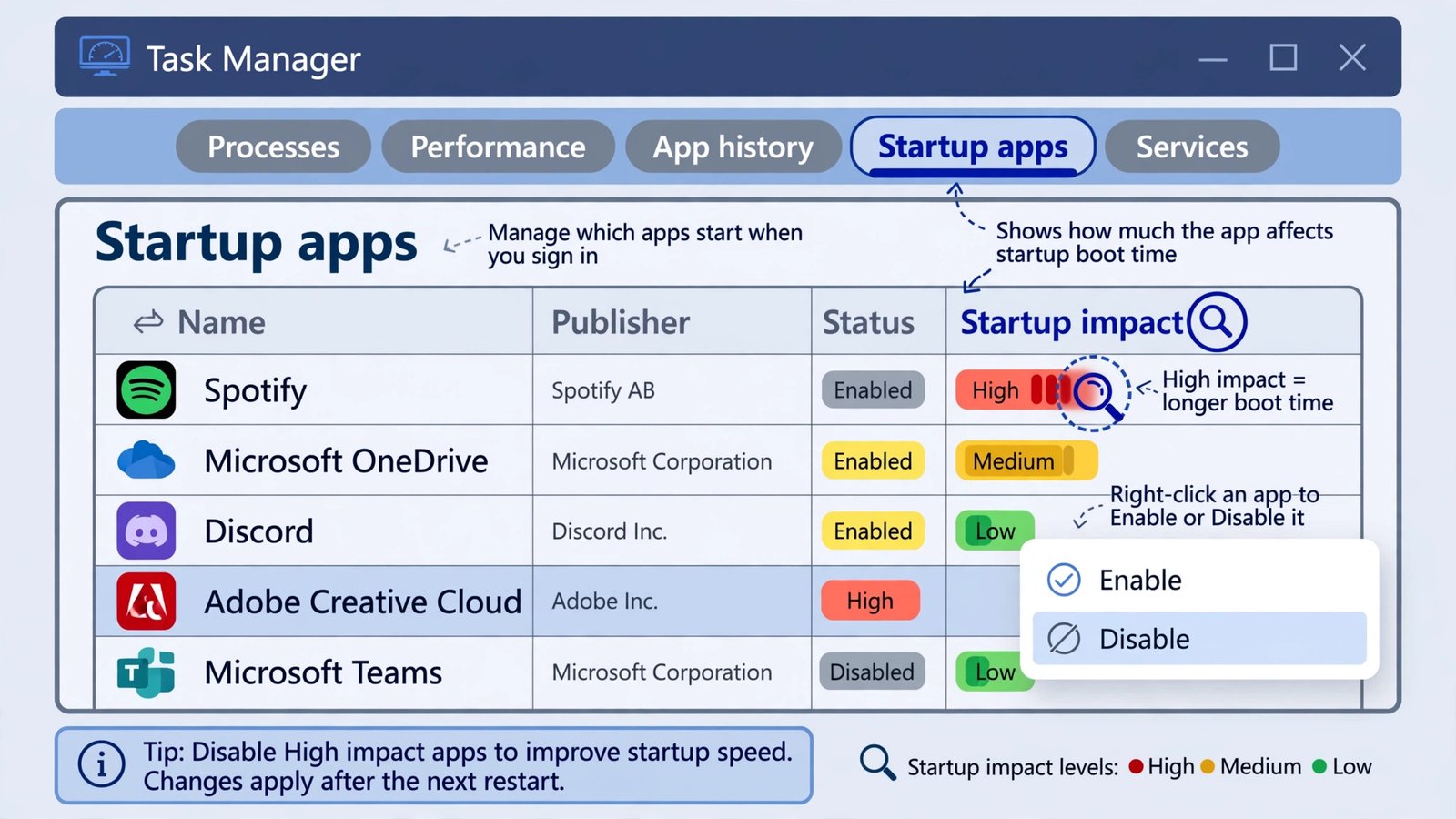
Warning: leave your antivirus, audio and graphics drivers, and anything from Microsoft or your PC maker enabled unless you know exactly what it does. Disabling security or driver software at startup can cause instability or leave you unprotected.
How to Add Any Program Using the Startup Folder
The Settings and Task Manager lists only cover apps that registered themselves as startup apps. For anything else, a script, a portable app, a document you want open every morning, Windows still honors the old-fashioned Startup folder: anything with a shortcut in it launches at sign-in.
- Step 1: Press Win + R, type shell:startup, and press Enter. This opens your personal Startup folder (the path is C:\Users\YourName\AppData\Roaming\Microsoft\Windows\Start Menu\Programs\Startup).
- Step 2: Find the program in the Start menu, right-click it, and choose Open file location. Copy the shortcut you find there.
- Step 3: Paste the shortcut into the Startup folder window. The program will launch the next time you sign in.
- Step 4 (remove): To stop it launching, delete only the shortcut from the Startup folder. Do not delete the program’s installation folder.
Note: some apps manage startup from inside their own settings instead (Spotify, Zoom, and Teams all have a “launch at startup” option). If an app keeps re-enabling itself after you disable it, check the app’s own settings first. And if apps reopen after a restart even though they are disabled, that is a different feature: go to Settings, then Accounts, then Sign-in options, and turn off “Automatically save my restartable apps and restart them when I sign back in”.
Need an app to start for everyone who uses the PC? Use shell:common startup instead of shell:startup. That folder applies to all users, but you will need administrator rights to change it.
A Faster, Quieter Startup
For most people the job is done in Settings in under a minute: flip off everything you do not need the moment you sign in, and keep your antivirus and drivers on. If boot time is still slow after trimming the list, the next wins are speeding up Windows boot time overall and removing bloatware from Windows 11. And if you are auditing what is installed in the first place, see how to get a list of all installed programs in Windows.

- How to Fix the Windows 11 Taskbar Auto-Hide Problem - October 24, 2026
- How to Fix a Laptop Camera Not Working in Windows 11 - October 23, 2026
- How to Fix the Brightness Slider Missing in Windows 11 - October 22, 2026