
Key Takeaways
- Startup apps are the biggest cause of slow boots. Sort by Startup impact in Task Manager and disable the High-impact entries you do not need right after sign-in.
- Fast Startup usually helps, but not always. It can cause driver or device conflicts on some PCs, so test your boot with it both on and off.
- Keep Windows and your drivers current, and keep at least 10-15% of your system drive free. Low disk space and stale drivers both drag out boot times.
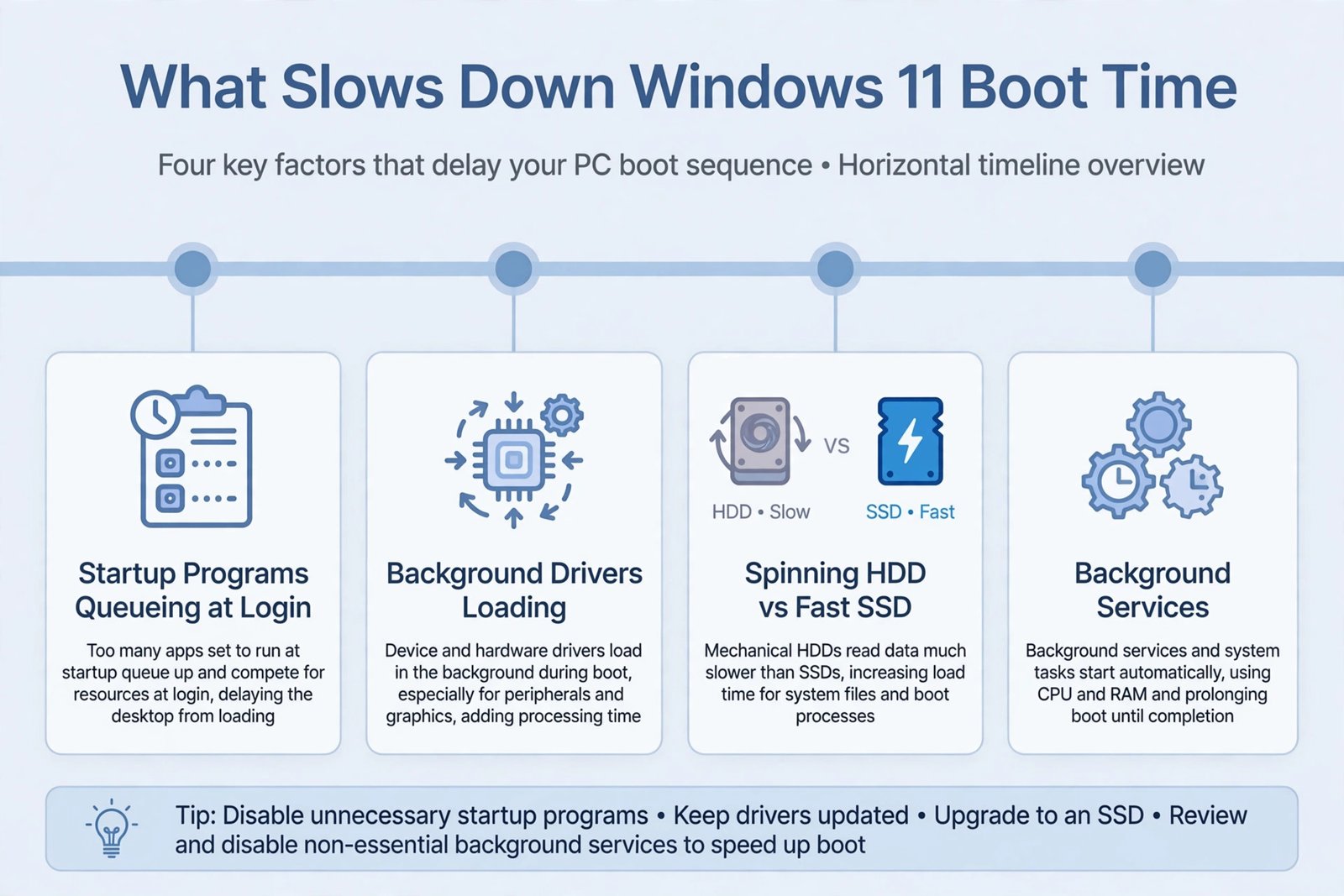
A slow boot is death by a thousand cuts: a dozen apps fighting to launch the moment you sign in, drivers loading one by one, and a drive with no breathing room. Four fixes resolve nearly every slow boot I have seen on Windows 11, and the first takes about two minutes.
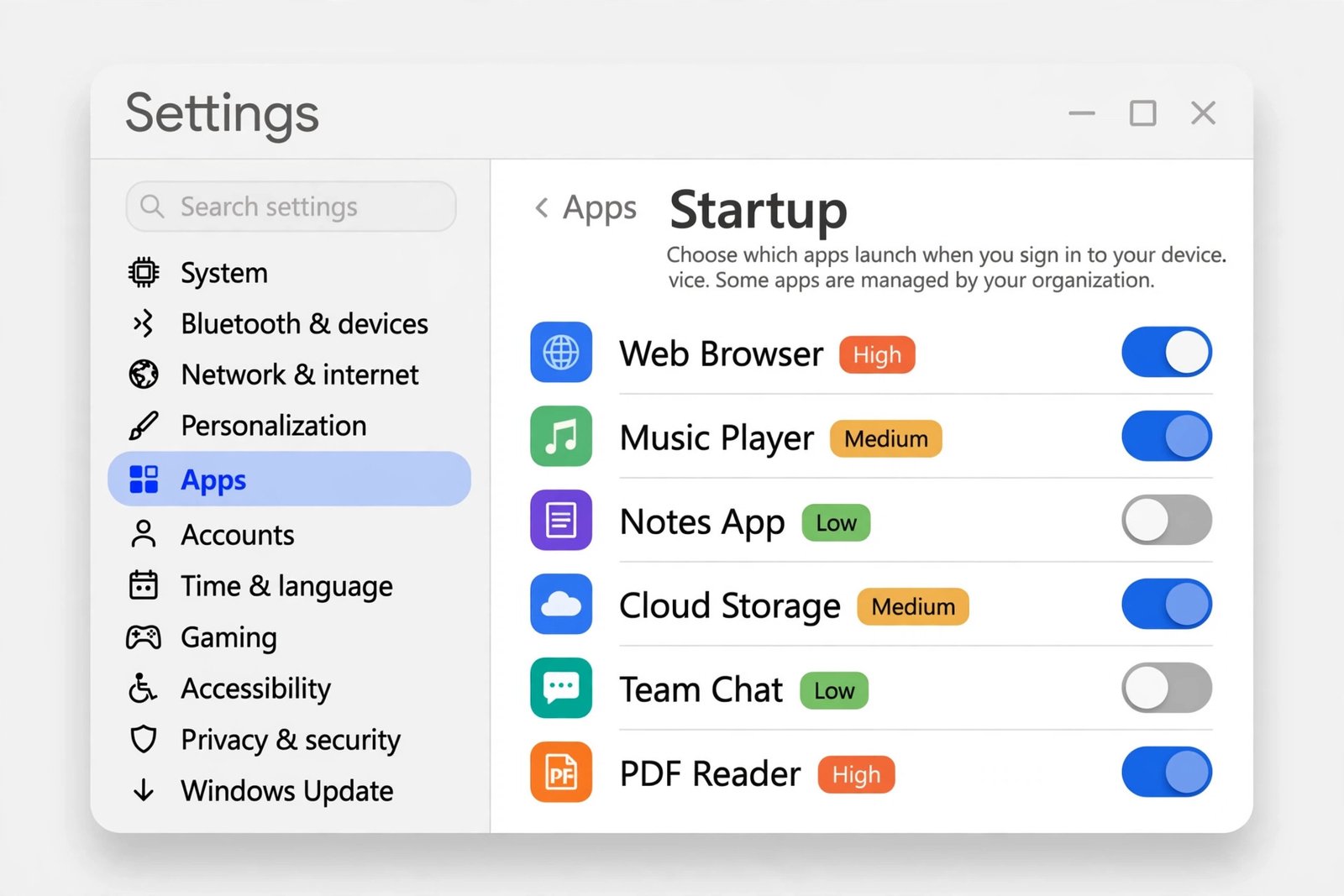
Trim startup apps first (the biggest win)
Every program set to launch at startup competes for CPU, memory, and disk access during the most resource-intensive moment of your day. Cutting this list is the single most effective change you can make, and Task Manager shows you exactly which entries cost the most.
- Step 1: Press Ctrl + Shift + Esc to open Task Manager.
- Step 2: Click Startup apps in the left sidebar (on Windows 10 this is a tab at the top).
- Step 3: Click the Startup impact column header to sort, so the worst offenders sit at the top.
- Step 4: Right-click any app rated High or Medium that you do not need immediately at sign-in, and choose Disable.
- Step 5: Restart your PC and notice the difference.
Safe candidates to disable include chat apps (Teams, Discord), music apps (Spotify), game launchers (Steam, Epic), Adobe updaters, and cloud storage clients you do not need syncing the instant you log in. Keep your antivirus, audio drivers, and GPU control panel enabled. If you do not recognize a name, look it up before touching it. For a deeper walkthrough of the full list, see our guide to add or remove startup programs in Windows 11.
Good to know: Disabling a startup entry does not uninstall the program. It still works when you open it by hand, and you can re-enable it any time.
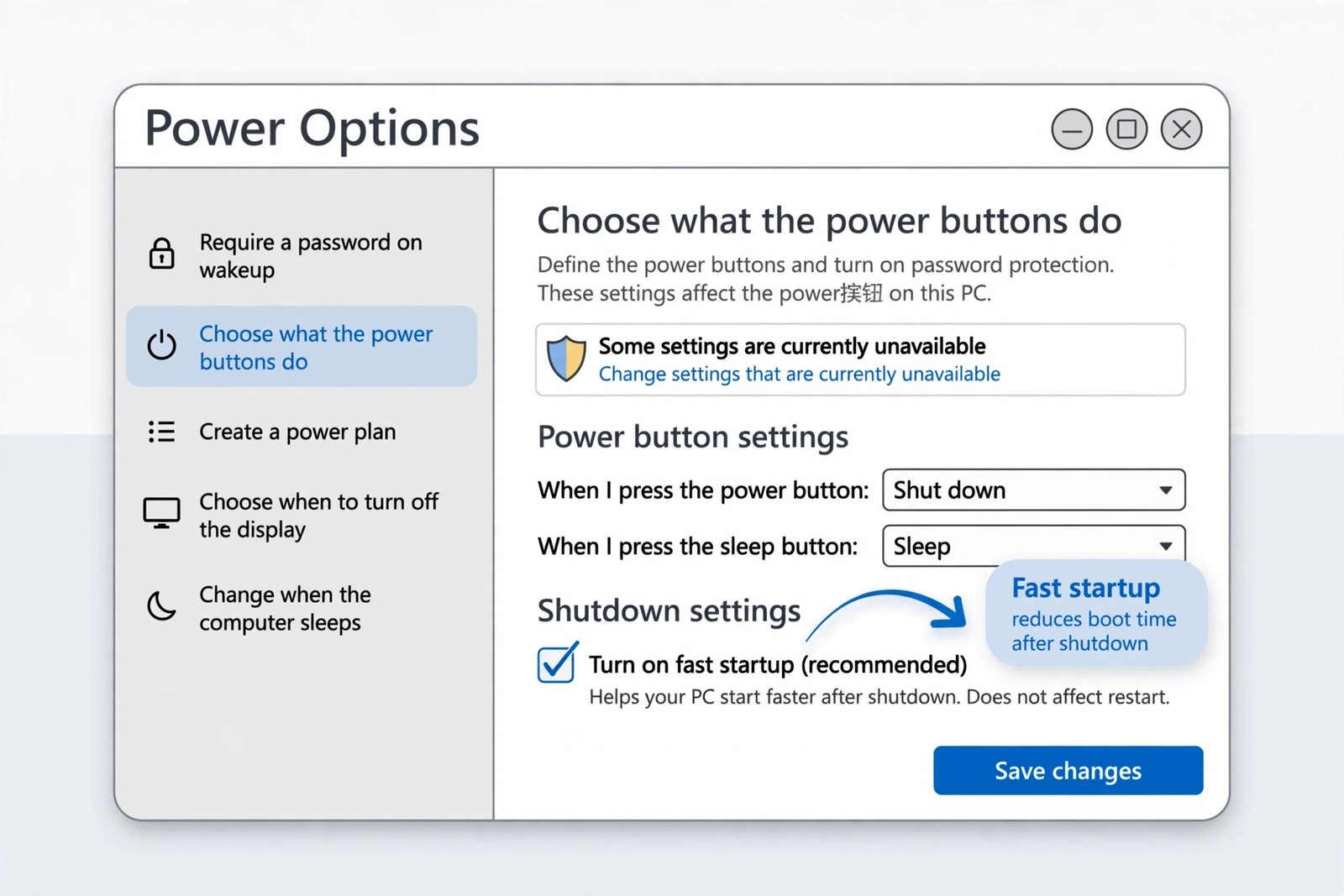
Test Fast Startup both ways
Fast Startup saves part of the system state to a hibernation file on shutdown, so the next cold boot skips re-initializing the kernel and drivers. On most PCs this cuts boot time noticeably. On some, though, it leaves devices in a bad state or conflicts with drivers, and turning it off actually boots faster. The only way to know is to test.
- Step 1: Open Control Panel, then go to Hardware and Sound > Power Options.
- Step 2: In the left pane, click Choose what the power buttons do.
- Step 3: Click Change settings that are currently unavailable (this needs administrator rights).
- Step 4: Under Shutdown settings, clear the Turn on fast startup checkbox, click Save changes, then restart twice and compare. If boots feel the same or worse, turn it back on.
If the checkbox is missing entirely, hibernation is disabled on your system, which is common on PCs where the feature offers little benefit anyway. Read our explainer on how Fast Startup works and when to disable it for the full picture.
Update Windows and your drivers
Stale drivers and missed cumulative updates are a quiet but common cause of long boots, especially storage and chipset drivers. Go to Settings > Windows Update > Check for updates and install everything offered. Then check your PC or motherboard manufacturer’s support page for newer chipset, storage, and BIOS firmware updates than Windows Update provides. Restart after installing and time the difference.
Free up space and check your drive health
Windows needs free space on the system drive for updates, temporary files, and virtual memory. Aim to keep at least 10-15% of the drive free. Open Settings > System > Storage, turn on Storage Sense, and remove apps and large files you no longer need. Our guide to clear the cache on Windows 11 recovers space quickly without touching anything important.
One honest note: if your PC still boots from a spinning hard drive, no settings change will beat replacing it with an SSD. That single hardware swap improves boot times more than every software tweak in this guide combined.
Keep your boot fast
Do the startup app trim first and you will likely fix most of the problem today. Then test Fast Startup, run your updates, and keep the system drive from filling up. New apps will keep adding themselves to the startup list over time, so revisit Task Manager every few months and prune it again.

- How to Fix Windows 11 Search Not Finding Files - October 24, 2026
- How to Fix Windows 11 Clock Showing the Wrong Time - October 23, 2026
- How to Fix File Explorer Slow to Open in Windows 11 - October 22, 2026