
You try to connect to a remote computer and Windows stops you cold: the remote computer requires Network Level Authentication. No desktop, no login screen, just a refusal. It sounds technical, but the fix is usually one setting. Here is what NLA is, why your connection is tripping it, and the fixes in the order worth trying.
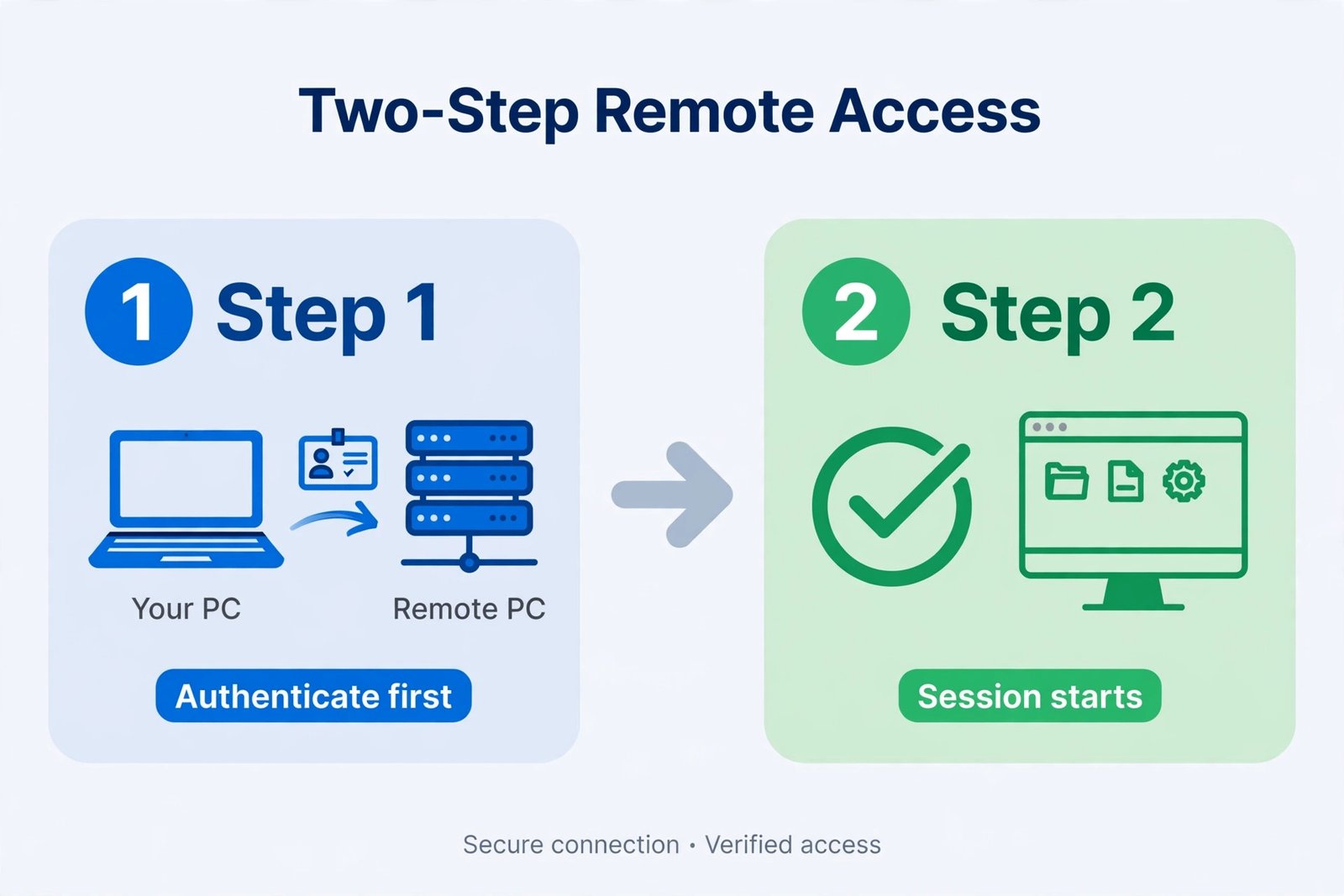
What Network Level Authentication actually is
Normally, Remote Desktop shows you the server’s login screen and you type your password there. With Network Level Authentication, your computer proves who you are before the session starts, using your own machine’s credentials dialog. It is a security feature: the server never wastes resources (or exposes a login screen) to someone it cannot verify first.
So when you see the error, it is not saying your password is wrong. It is saying the two machines could not complete that up-front handshake. The usual suspects: the server demands NLA but your client cannot do it, the server’s settings changed, or a domain-joined server cannot reach its domain controller to verify you.
Why you are seeing this error
- The server requires NLA, but you are connecting from a client that cannot perform it. Older RDP clients, some third-party clients, and very old Windows versions fall into this bucket.
- The server is domain-joined and cannot reach its domain controller. This produces the longer variant of the error mentioning the domain controller explicitly. Nothing is wrong with your login; the server cannot verify anyone right now.
- A recent update or policy change flipped the NLA setting on the server. This became more common after the September 2026 security updates, which caused a wave of Remote Desktop authentication issues.
- Your saved connection file or client defaults are out of sync with the server. If everything worked last week, start here before changing the server.
Fix 1: Adjust the setting on the host computer
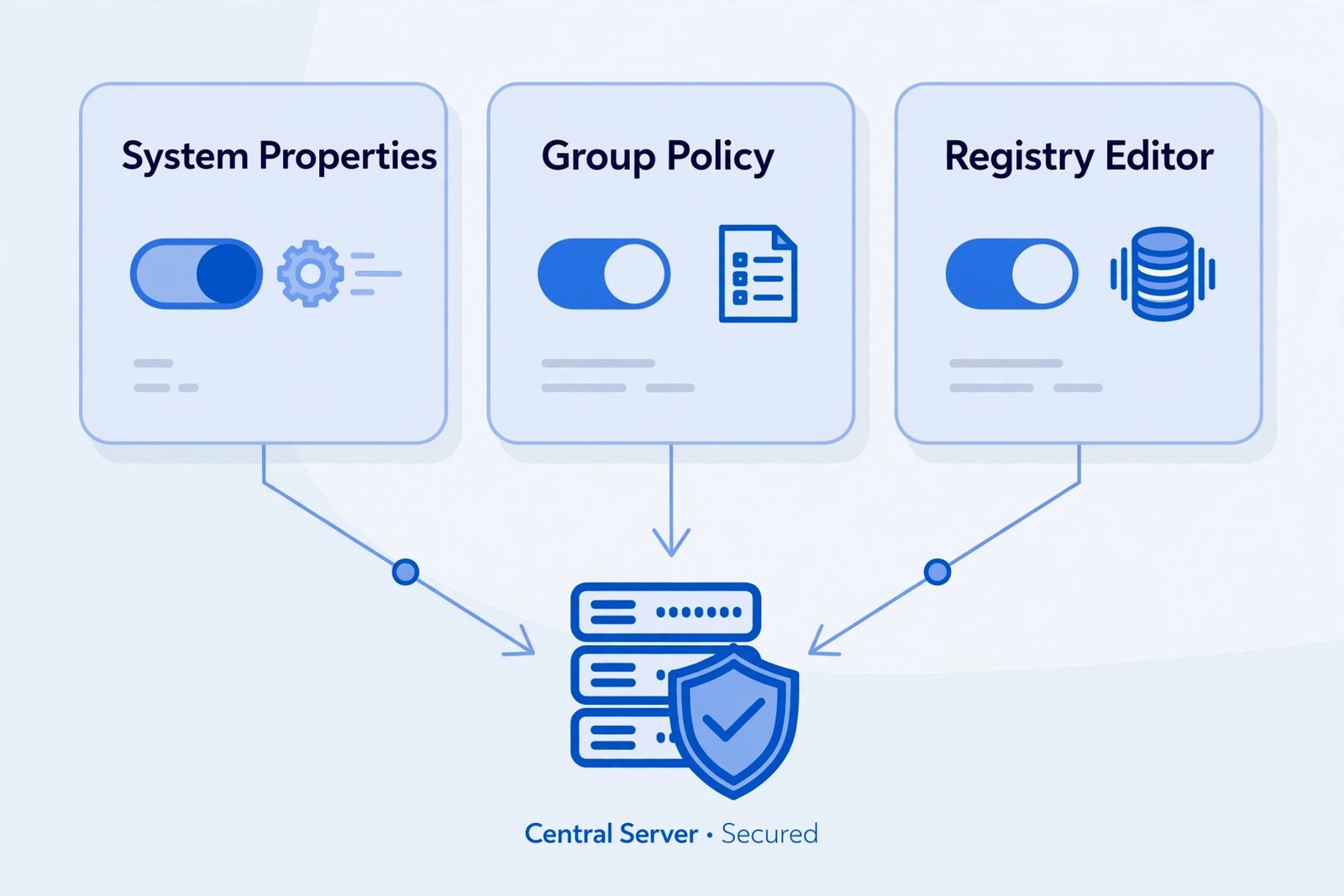
If you have any way to reach the host (its own keyboard, a console session on your VPS, or another admin), this is the quickest fix. On the host, press Win + R, type sysdm.cpl, and open the Remote tab. You will see Allow connections only from computers running Remote Desktop with Network Level Authentication (recommended). Untick it to temporarily allow connections without NLA, connect, sort out the underlying problem, and then tick it back on.
Yes, unchecking reduces security. That is why it is temporary. NLA exists to protect the server from unauthenticated connection attempts, so leaving it off permanently on an internet-facing machine is asking for trouble.
Fix 2: Change it with Group Policy
On the host (Windows Pro or Server), press Win + R, type gpedit.msc, and navigate to Computer Configuration > Administrative Templates > Windows Components > Remote Desktop Services > Remote Desktop Session Host > Security. Double-click Require user authentication for remote connections by using Network Level Authentication and set it to Disabled. Run gpupdate /force and retry the connection.
Fix 3: Change it in the registry
Useful on Windows Home hosts or when you can only reach the machine’s registry (for example, through the remote registry editor pointed at the host). Open regedit and go to HKEY_LOCAL_MACHINE\SYSTEM\CurrentControlSet\Control\Terminal Server\WinStations\RDP-Tcp. Set both SecurityLayer and UserAuthentication to 0, then restart the host. Back up the key before editing.
Fix 4: Fix the domain controller connection
If the error mentions that the domain controller cannot be contacted, the fix is not on your laptop at all. The host needs network access to its domain controller: check that it is on the right network, that DNS resolves the domain, and that no firewall or VPN change is blocking it. Resetting network settings on Windows 11 can clear up misconfigured adapters and DNS on either end. Once the host can talk to the domain controller again, NLA starts working without any setting changes.
Fix 5: Update your RDP client
If you are connecting from an old machine or a third-party RDP app, the client itself may simply not support NLA. Update Windows on the client, or switch to the built-in Remote Desktop Connection (mstsc), which supports NLA on every currently supported Windows version. If you keep hitting other cryptic remote errors after this, our guide to fixing the RPC server unavailable error covers the next most common one.
Our take: turn NLA back on when you are done
Disabling NLA is a troubleshooting step, not a configuration. On a home network between your own machines it is low drama, but on anything reachable from the internet, re-enable the requirement as soon as the real problem (client, updates, or domain connectivity) is fixed. The error is annoying precisely because the security feature is doing its job; the goal is to satisfy it, not to remove it.

- How to Stop Android Auto-Connecting to Open Wi-Fi Networks - October 24, 2026
- How to Stop iPhone Apps Asking for Ratings and Reviews - October 23, 2026
- How to Turn Off HDR in Windows 11 When Colors Look Washed Out - October 22, 2026