
Suggested Actions is the Windows 11 feature that watches what you copy. Copy a phone number, and a small bar offers to call it. Copy a future date, and it offers to create a calendar event. It was handy for some people and a distraction for others.
If you want it gone, the short answer is simple: open Settings, go to System, then Clipboard, and switch Suggested actions to Off. The change takes effect right away, with no restart.
There is one catch, and it is the reason this guide starts with a version check. Microsoft deprecated Suggested Actions in December 2024 and says it will be removed in a future Windows 11 update. On newer builds, the toggle is already gone, and there is nothing left to switch off. So the first step is to find out whether the feature still exists on your PC.
Check Whether Suggested Actions Still Exists on Your PC
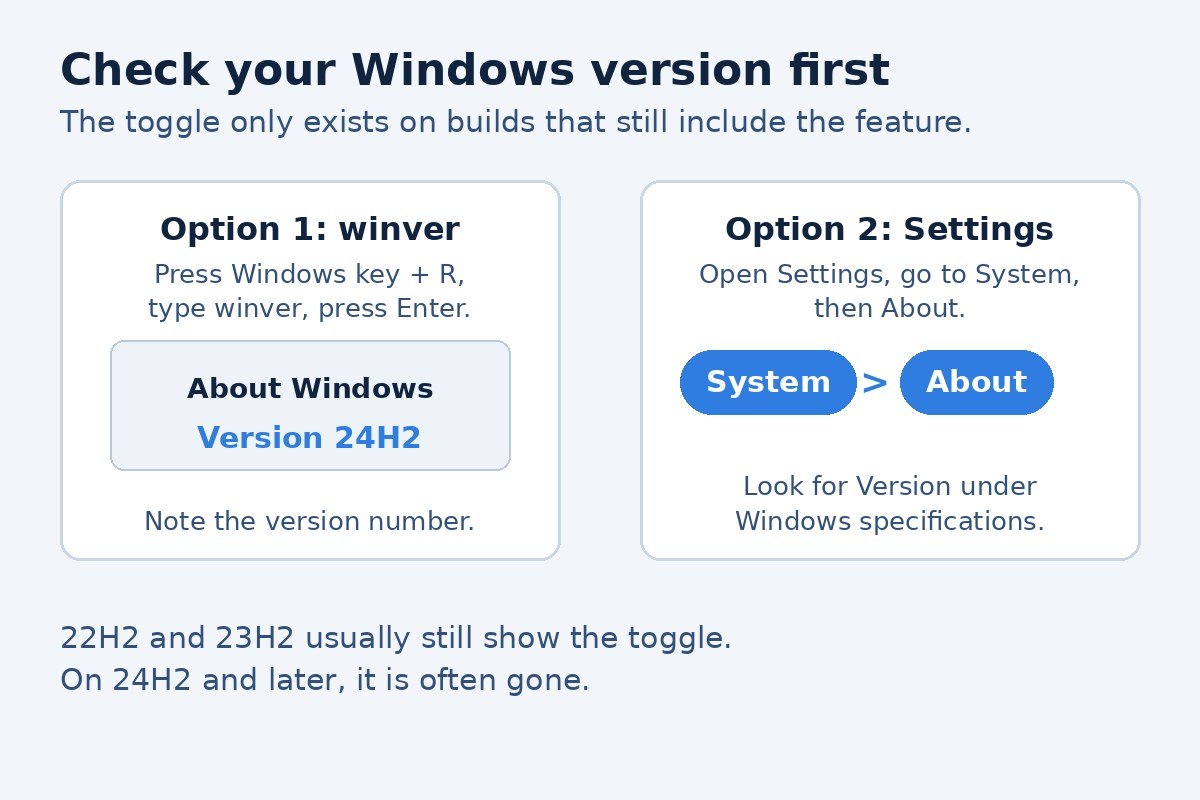
Before you go hunting through Settings, spend thirty seconds checking your Windows version. It decides which set of steps applies to you.
- Use winver. Press Windows key + R, type
winver, and press Enter. A small window shows your version and build number. - Use Settings. Press Windows key + I, select System, then About. Look for Version under Windows specifications.
| Windows 11 version | What to expect |
|---|---|
| 22H2 | The toggle is usually present in Clipboard settings. |
| 23H2 | The toggle is usually present in Clipboard settings. |
| 24H2 and later | The toggle is often missing, because Microsoft is removing the feature. |
Microsoft has not published a list saying exactly which build drops the toggle, so treat the table as a guide based on what users report on newer builds. The version check still matters: if the toggle is missing, the section further down this page explains what that means and what to do instead.
Region matters too. Microsoft originally offered Suggested Actions only in the United States, Canada, and Mexico. If your region is set elsewhere, the feature may never have appeared on your PC at all.
Turn Off Suggested Actions in Settings
If your build still has the feature, this is the whole job, and it takes less than a minute.
- Press Windows key + I to open Settings.
- Select System in the left sidebar, then Clipboard.
- Find Suggested actions and switch the toggle to Off.
You can jump straight to the same page. Press Windows key + R, type ms-settings:clipboard, and press Enter. Settings opens directly on the Clipboard page.
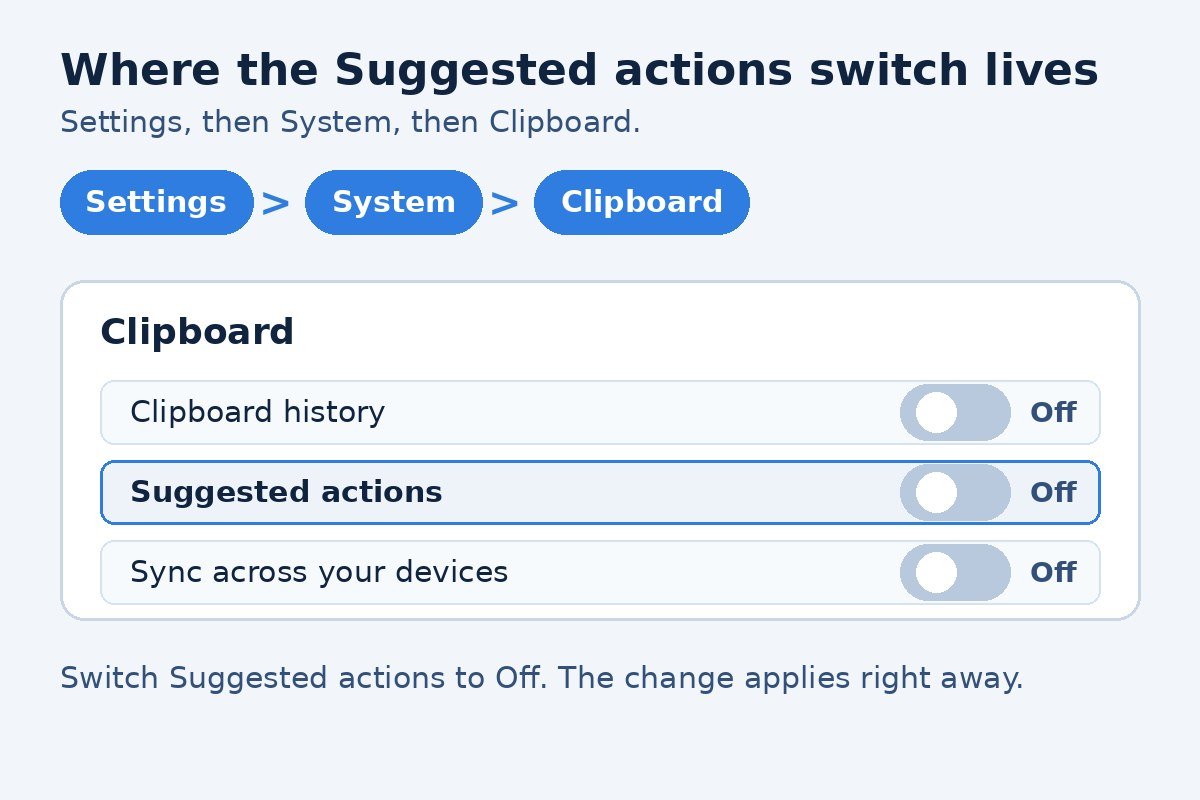
Turning the toggle off stops the suggestion bar from appearing when you copy a phone number or a date. It does not clear anything, and it does not change any other Clipboard setting. Clipboard history is a separate switch on the same page, and it keeps working exactly as before. If you also want to stop Windows keeping a list of copied items, our guide to turning off Clipboard history in Windows 11 covers that switch on its own.
To turn the feature back on later, follow the same steps and switch the toggle back to On, as long as your build still offers it.
Turn Off Suggested Actions with the Registry Editor
Use this method only if the toggle is missing from Settings but the suggestion bar still appears. That combination is most common on older builds, or on PCs where an administrator has hidden parts of Settings. On a newer build where Microsoft has already removed the feature, a registry change does nothing, because there is no feature left to disable.
Editing the registry can cause problems if a wrong value is changed, so back it up first. In Registry Editor, choose File, then Export, and save the backup somewhere safe.
- Press Windows key + R, type
regedit, and press Enter. Click Yes if User Account Control asks for permission. - Go to
HKEY_CURRENT_USER\Software\Microsoft\Windows\CurrentVersion\SmartActionPlatform\SmartClipboard. You can paste the path into the address bar at the top of Registry Editor. - In the right pane, look for a value named Disabled. If it is not there, right-click an empty space, choose New, then DWORD (32-bit) Value, and name it Disabled.
- Double-click Disabled, set Value data to 1, and click OK.
- Sign out and back in, or restart the PC.
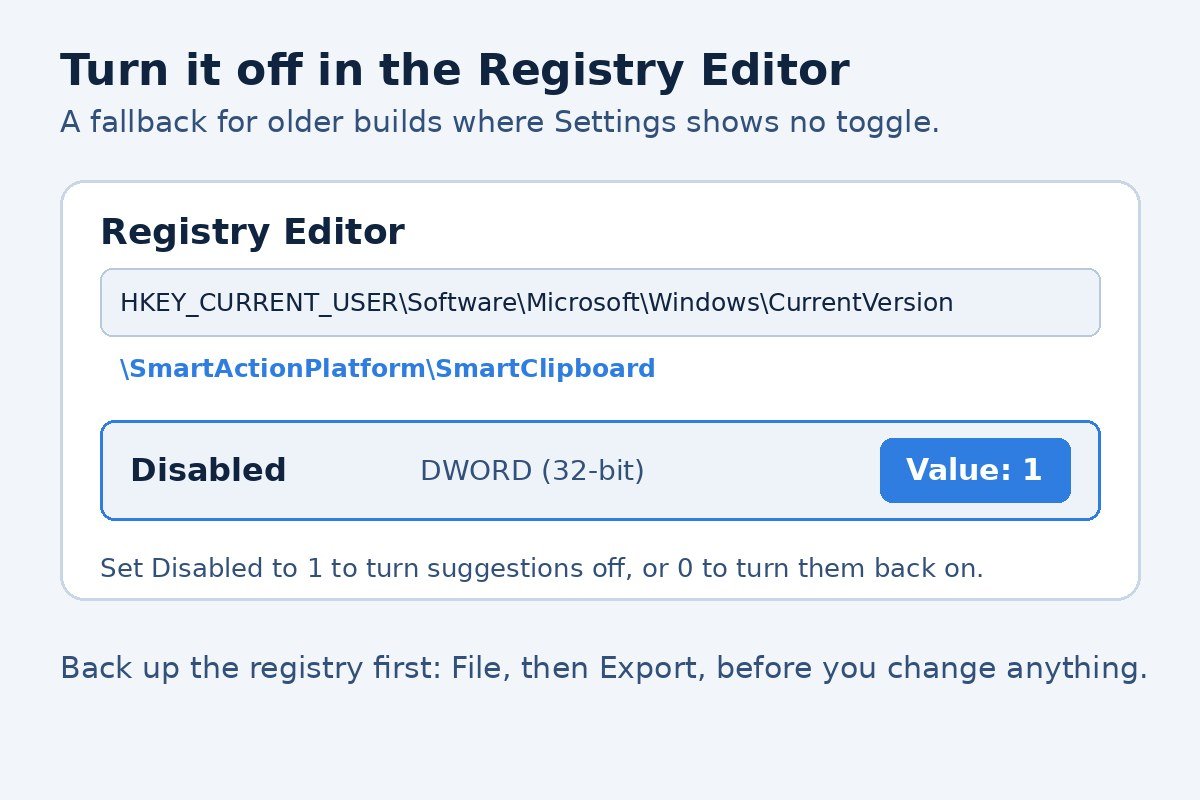
Setting Disabled to 1 turns the suggestions off. Setting it to 0 turns them back on, on builds where the feature still exists.
What to Do When the Toggle Is Missing or Greyed Out
The toggle is missing. If you checked your version and the toggle is not in Clipboard settings, the feature has already been removed from your build, or it was never offered in your region. There is nothing to turn off and no registry value to set. The suggestion bar cannot appear, because the code behind it is gone.
The toggle is greyed out. If the toggle is visible but you cannot move it, the setting is managed by your work or school. An administrator policy is controlling it, so speak to your IT team. Changing the registry on a managed PC can conflict with that policy, so leave it alone.
The pop-ups continue after switching it off. If you turned the toggle off and still see suggestion bars, restart the PC first, because the change sometimes needs a fresh sign-in to take hold. If they still appear, look closely at what is showing them. A similar bar can come from another app, such as a phone app or a clipboard manager, and the Windows setting does not control those.
What Replaced Suggested Actions
Microsoft has not named a direct replacement for every PC. The closest current feature is Click to Do, and it only runs on Copilot+ PCs.
Click to Do works the other way around. Instead of reacting to what you copy, it acts on text or images already on your screen. Press the Windows key and click on something, or press Windows key + Q, and it offers actions such as copying text, searching the web, or summarizing a passage. Microsoft’s support page explains the full list of actions and the requirements.
Click to Do needs a Copilot+ PC, which means a PC with a neural processing unit built for AI features. On an ordinary Windows 11 PC, it is not available, and there is no setting to enable it. If that is your PC, the honest answer is that nothing replaces Suggested Actions, and you lose nothing by its removal. Copy text as normal, and open your calendar or phone app directly when you need them.
One more thing worth knowing: Click to Do has its own switch. On a Copilot+ PC, you can turn it off under Settings, then Privacy and security, then Click to Do.
Frequently Asked Questions
Does turning off Suggested Actions clear my clipboard history? No. The two settings are separate. Turning off Suggested Actions only stops the suggestion bar. Everything you copied stays in clipboard history until you clear it or restart the PC.
Does it stop clipboard sync across devices? No. Syncing copied text to your other PCs is controlled by the separate Sync across your devices switch on the same Clipboard page.
Does it affect copy and paste? No. Copy and paste work exactly as before. Only the pop-up suggestion bar goes away.
Can I get Suggested Actions back after it is removed? There is no supported way to bring it back. Once a build has removed the feature, the toggle and the suggestion bar are gone for good on that build. A later update will not restore a feature Microsoft has deprecated.
Will a Windows update turn it back on? That is unlikely. Because the feature is deprecated, updates are more likely to remove it than to restore it. If your toggle is still there after an update, it stays in whatever position you left it.
Suggested Actions was a small convenience that never found a wide audience, and Microsoft is quietly retiring it. If your PC still has the toggle, switching it off takes less than a minute. If the toggle is already gone, your PC has simply moved on, and there is nothing left for you to do. Either way, the pop-ups stop, and copying a phone number goes back to being just copying a phone number.

- How to Turn Off Suggested Actions in Windows 11 - November 15, 2026
- How to Turn Off Enhance Pointer Precision in Windows 11 - November 14, 2026
- How to Stop iPhone Mirroring Notifications on Mac - November 13, 2026