
Status update: there is no Cortana left to uninstall. Microsoft deprecated the Cortana standalone app in August 2023, stripped it out of Windows 11 version 24H2, and fully discontinued it across all products by June 2024. If you landed here hoping for an uninstaller, you can stop searching: on any current Windows 11 system, the app is already gone. What follows is the honest version of this guide: how to confirm and clear any Cortana leftovers, and how to remove what most readers actually want gone in 2026, which is Copilot and bundled bloatware.
What actually happened to Cortana
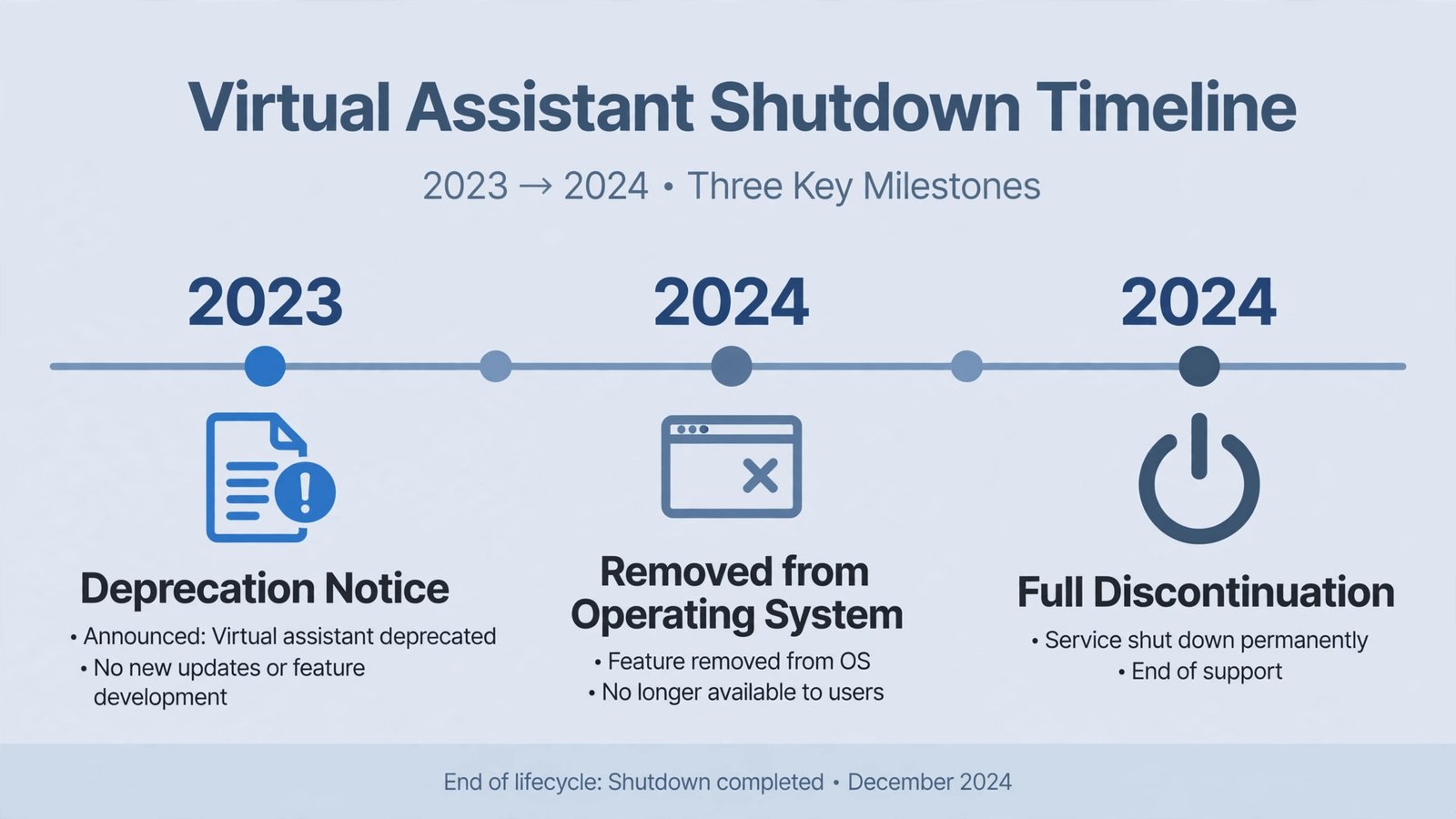
Microsoft’s end-of-support page for Cortana documents the wind-down precisely:
- Spring 2023: Microsoft announces Cortana will no longer be supported as a standalone app in Windows.
- August 2023: the Cortana app is updated to show a deprecation notice and stops working.
- Fall 2023: Cortana is retired from Teams mobile, Teams displays, Teams Rooms, and Outlook mobile.
- May 2024: Microsoft announces Windows 11 version 24H2, which removes Cortana, the Tips app, and WordPad from the system entirely.
- June 2024: voice search and Play My Emails are removed from Outlook mobile, marking the end of Cortana in every Microsoft product.
Microsoft points former Cortana users to Copilot and to Windows 11’s voice access feature instead. Which brings us to the lab work.
Removing Cortana leftovers: the experiment
Hypothesis: on an up-to-date Windows 11 PC, no Cortana package remains to remove. Method: run the removal commands anyway and observe what happens. Observed result: exactly what the hypothesis predicts.
Open Terminal as administrator (right-click Start, then Terminal (Admin)) and try the Cortana app package:
Get-AppxPackage Microsoft.549981C3F5F10 | Remove-AppxPackageObserved result: on Windows 11 24H2 and later, the command returns nothing because the package no longer exists. That empty output is the success state: there is nothing to uninstall.
The winget route tells the same story:
winget uninstall "Cortana"Observed result: “No installed package found.” If you are on an older Windows 11 build that somehow still has the app, either command above removes it. If a third-party “Cortana remover” tool asks you to download it instead, close the tab: you don’t need it, and free uninstaller tools are a classic bundleware trap.
What readers actually want in 2026: removing Copilot and bloatware
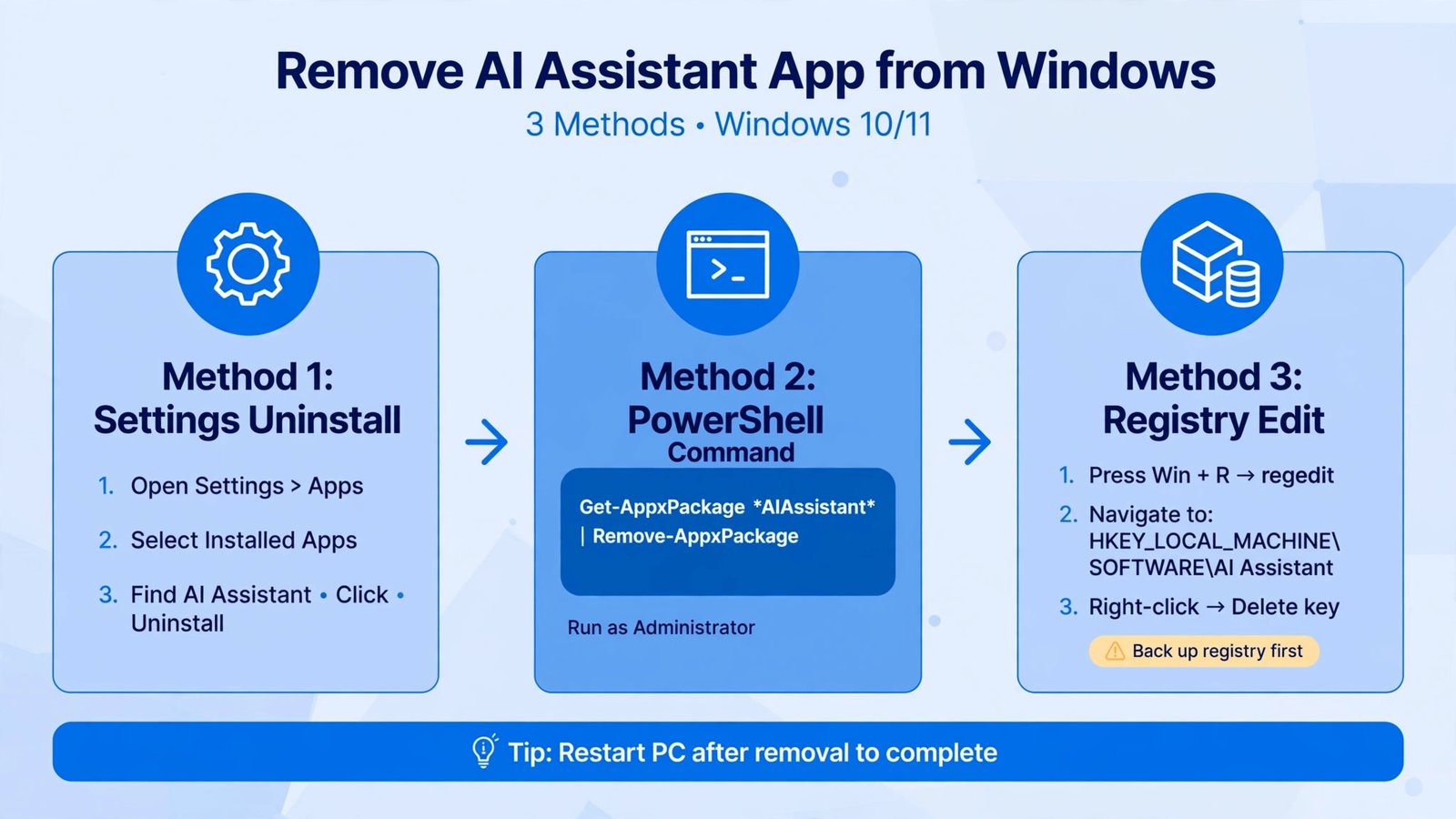
Most people searching “uninstall Cortana” in 2026 actually want Microsoft’s current assistant, Copilot, off their PC. Good news: since the April 2026 Windows update, Microsoft made Copilot genuinely removable, as documented by Windows Latest. Three methods, easiest first:
- Settings (easiest): open Settings with Windows key + I, go to Apps, then Installed apps. Find Copilot or Microsoft 365 Copilot, click the three-dot menu, and choose Uninstall.
- PowerShell (thorough): in an admin Terminal, run:
Get-AppxPackage -AllUsers -Name "Microsoft.Windows.Ai.Copilot.Provider" | Remove-AppxPackage
On older builds the package may instead be namedMicrosoft.Copilot; list candidates first withGet-AppxPackage *Copilot*. - Registry (stops it coming back): Copilot has a habit of reinstalling after updates, so pair the uninstall with this. Open Registry Editor, go to
HKEY_CURRENT_USER\Software\Policies\Microsoft\Windows, create a new key namedWindowsAI, and inside it create a DWORD (32-bit) value namedRemoveMicrosoftCopilotAppset to1. Sign out or restart. Windows Pro users get the same effect from the Copilot removal policy under Computer Configuration, Administrative Templates, Windows Components, Windows Copilot.
For everything else Microsoft bundles in, our bloatware removal guide covers the full cleanup, and managing startup programs stops the leftovers from slowing your boot.
Verdict
Stop hunting for a Cortana uninstaller: the app died in 2023 and was buried by Windows 11 24H2. Run the two commands above to confirm your system is clean, then spend your energy where it counts: removing Copilot with the Settings, PowerShell, or registry method, and clearing the rest of the bloatware. A clean Windows 11 in 2026 is absolutely achievable; it just doesn’t involve Cortana anymore.

- How to Change the Screenshot Save Location on Mac - October 24, 2026
- How to Turn Off Stage Manager on Mac - October 23, 2026
- How to Reset Your Private Space PIN on Android If You Forgot It - October 22, 2026