
Key takeaways:
- On laptops, a missing brightness slider is almost always a disabled Generic PnP Monitor entry or a broken graphics driver, not a hardware fault.
- The fix usually takes under five minutes: re-enable the monitor in Device Manager, then reinstall the graphics driver if needed.
- On desktop PCs with an external monitor, Windows may never show a brightness slider at all. That is normal behavior, and the monitor’s own buttons or a DDC/CI app are the real controls.
If the brightness slider has vanished from both the Settings page and Quick Settings, the cause is almost never a broken screen. Windows has simply lost the handshake that lets it control your display’s backlight. This guide walks through 4 fixes in the order they are most likely to work, starting with the single most common cause on laptops.
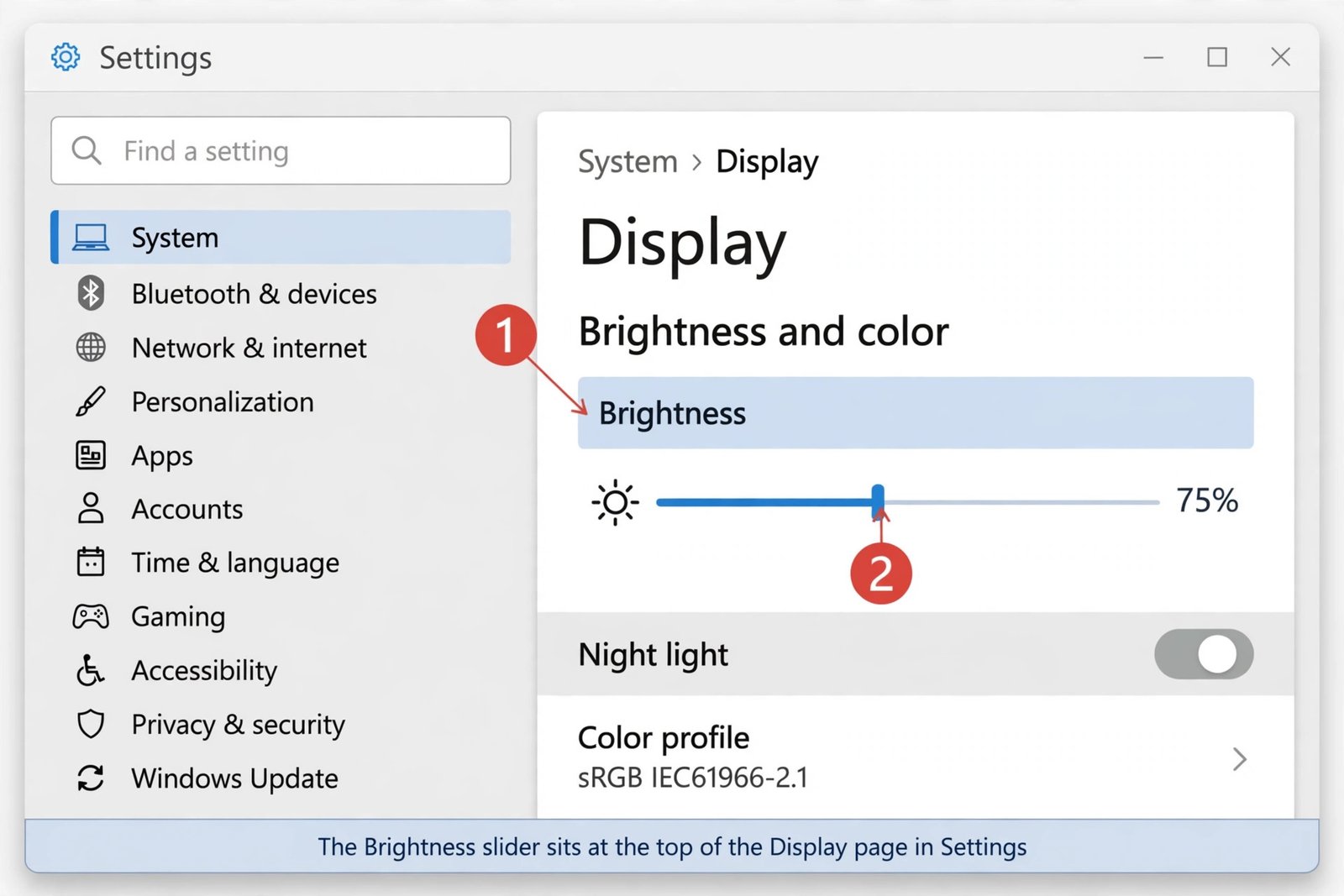
Before troubleshooting, confirm where the slider should live. On a laptop or tablet with a built-in display, it sits at the top of Settings > System > Display under Brightness and color, and a copy appears in Quick Settings when you press Win+A. If it is missing from both places, start with Fix 1 below.
Fix 1: Re-enable the Generic PnP Monitor in Device Manager
This is the most common cause of a missing brightness slider, and it takes about a minute. Windows identifies your built-in screen through a driver entry called Generic PnP Monitor. If that entry gets disabled, by a third-party app, a driver installer, or seemingly nothing at all, the brightness slider disappears with it.
- Step 1: Press Win+X and select Device Manager. (Right-clicking the Start button and choosing Device Manager works too.)
- Step 2: Expand the Monitors node.
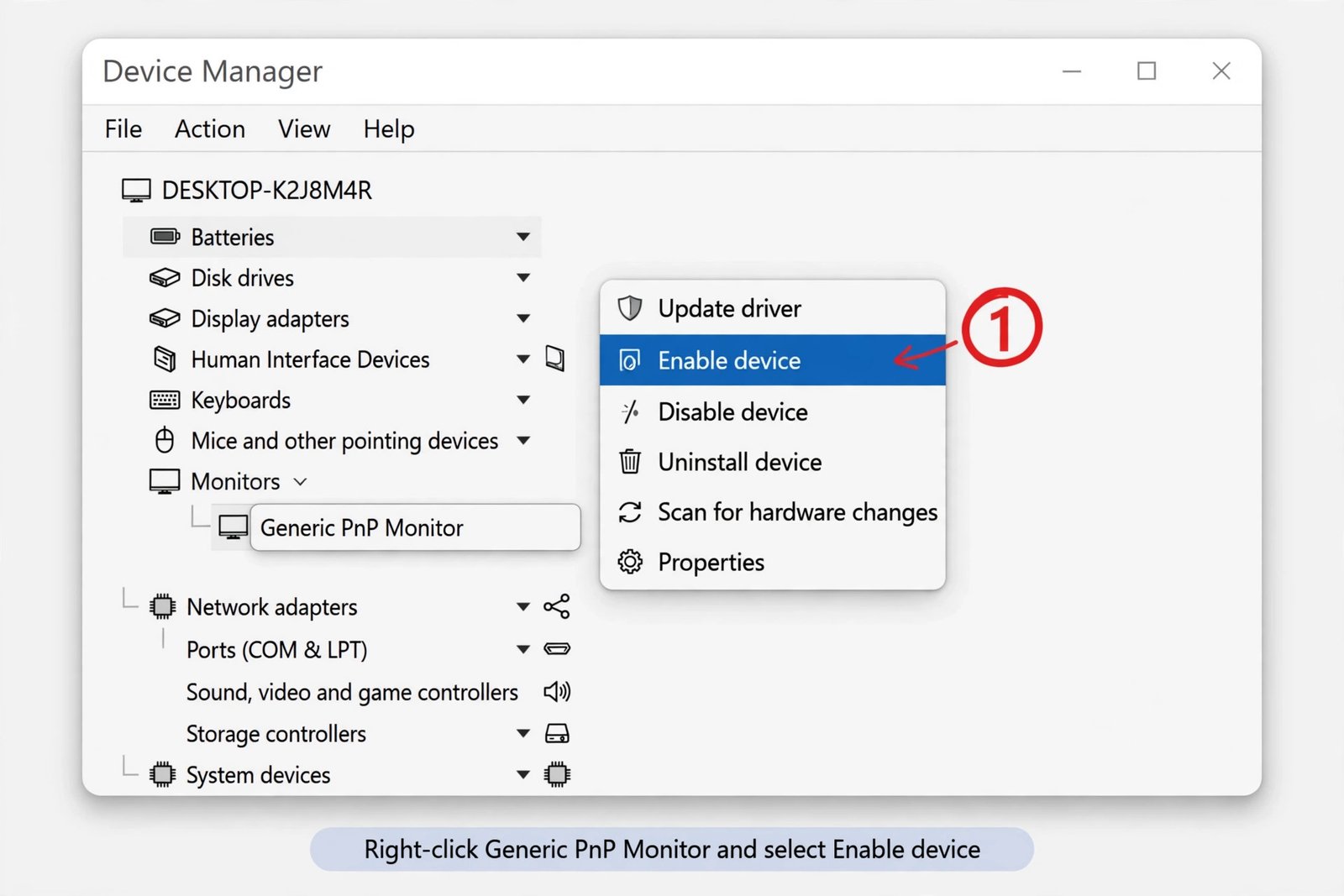
- Step 3: Right-click Generic PnP Monitor. If you see Enable device, select it. A disabled entry usually shows a small down arrow on its icon.
- Step 4: If the menu only offers Disable device, the entry is already enabled. Choose Disable device, wait a few seconds, then right-click it again and choose Enable device. This refreshes the driver state.
Now open Settings > System > Display and look for the Brightness row. On many laptops the slider returns after a restart, so reboot before moving on if it is still missing.
If the monitor entry was fine, or re-enabling changed nothing, the graphics driver is the next suspect.
Fix 2: Reinstall the graphics driver
Windows cannot dim the screen without a working graphics driver. This is the next place to look, especially if the problem started right after a Windows Update or a driver update. A common tell is the slider vanishing alongside other display quirks, like the screen no longer waking properly or the resolution dropdown offering fewer choices than before.
Let Windows reinstall the driver
- Step 1: In Device Manager, expand Display adapters.
- Step 2: Right-click your graphics device (Intel, AMD, or NVIDIA) and choose Uninstall device.
- Step 3: Do not check the box to delete the driver software. Click Uninstall.
- Step 4: Click Action at the top of Device Manager and choose Scan for hardware changes, or simply restart your PC. Windows redetects the graphics hardware and reloads the driver.
Note: You need an administrator account to uninstall a device, and a restart is required before the brightness slider can come back.
Update or roll back to a working driver
If the basic reinstall did not help, try a newer or older driver version instead.
- Step 1: Right-click the graphics device, choose Update driver, then Search automatically for drivers, and let Windows look for a newer version.
- Step 2: If the problem started right after a driver update, right-click the device, choose Properties, open the Driver tab, and select Roll Back Driver if the option is available.
- Step 3: On a laptop, the most reliable driver usually comes from the laptop maker’s support page. Download it there and install it manually if Windows cannot find a good version on its own.
You should now see the Brightness row back at the top of the Display page. Driver trouble covers most remaining cases, but if the slider is still missing, Windows may simply be looking at the wrong display.
Fix 3: Check the projection mode with Win+P
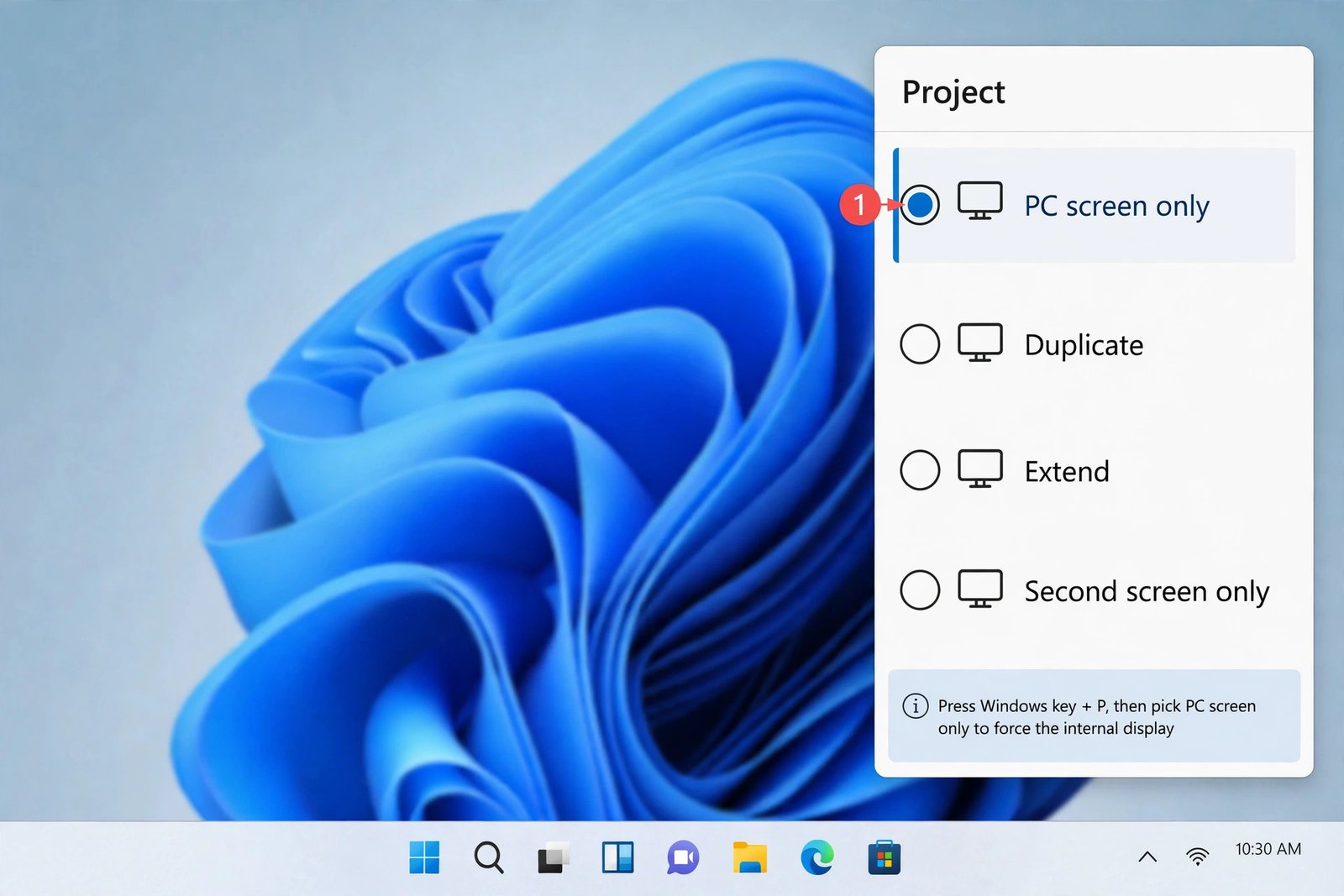
If your laptop has ever been plugged into a projector, a second monitor, or a dock, Windows may be stuck in a display mode where the brightness slider does not apply. Pressing Win+P opens the Project pane on the right side of the screen, with four options: PC screen only, Duplicate, Extend, and Second screen only.
- Step 1: Press Win+P to open the Project pane.
- Step 2: Select PC screen only. This tells Windows to use only the built-in display.
- Step 3: Open Settings > System > Display and check whether the Brightness row has returned.
Each mode treats the brightness slider differently:
| Project mode | What typically happens to the brightness slider |
|---|---|
| PC screen only | The slider controls the built-in display normally |
| Duplicate | The slider appears, but it adjusts the built-in panel, while the external screen keeps its own level |
| Extend | The slider adjusts the built-in display only when that display is selected |
| Second screen only | No slider at all, because the built-in display is switched off |
If you dock your laptop or keep a monitor attached, switching to PC screen only just for this check tells you whether the mode was the culprit. You can switch back to Extend afterward and the slider should stay where it belongs. As a related check, unplugging the dock entirely and restarting often restores the slider immediately, which confirms the dock’s display path was the problem.
Fix 4: External monitor reality check, use the right control for the screen you have
This one matters for desktops. Windows only draws a brightness slider for displays that report brightness control to it, which in practice means the built-in screens of laptops, tablets, and all-in-one PCs. If your desktop is wired to a regular external monitor, the slider may never appear, and that is normal, not broken. Microsoft’s brightness guide confirms that on PCs with an external monitor you may not see the Brightness slider, and says to change brightness with the buttons on the monitor itself.
If your monitor supports DDC/CI, a free utility can bring a software slider back. Tools like Twinkle Tray or the Power Display module in Microsoft PowerToys talk to the monitor over DDC/CI and add a brightness control to Windows. Check your monitor’s on-screen menu first to make sure DDC/CI is turned on, since some monitors ship with it disabled.
Bringing the slider back
Start with the Generic PnP Monitor check. It is the most common fix, it takes about a minute, and it explains most sudden disappearances. The graphics driver is the next place to look, and the Win+P check catches the cases a dock or a projector left behind. Desktop owners should save themselves the troubleshooting loop: with an external monitor, the physical buttons on the monitor are the intended control, and Windows hiding the slider is expected behavior. If none of the four fixes brings the slider back on a laptop, the next step is the laptop maker’s support page for a model-specific graphics driver, and after that, a service technician.

- How to Fix the Brightness Slider Missing in Windows 11 - October 22, 2026
- How to Stop Phone Link From Opening on Startup in Windows 11 - October 21, 2026
- How to Turn Off the Snap Layouts Popup When Dragging a Window to the Top in Windows 11 - October 20, 2026