
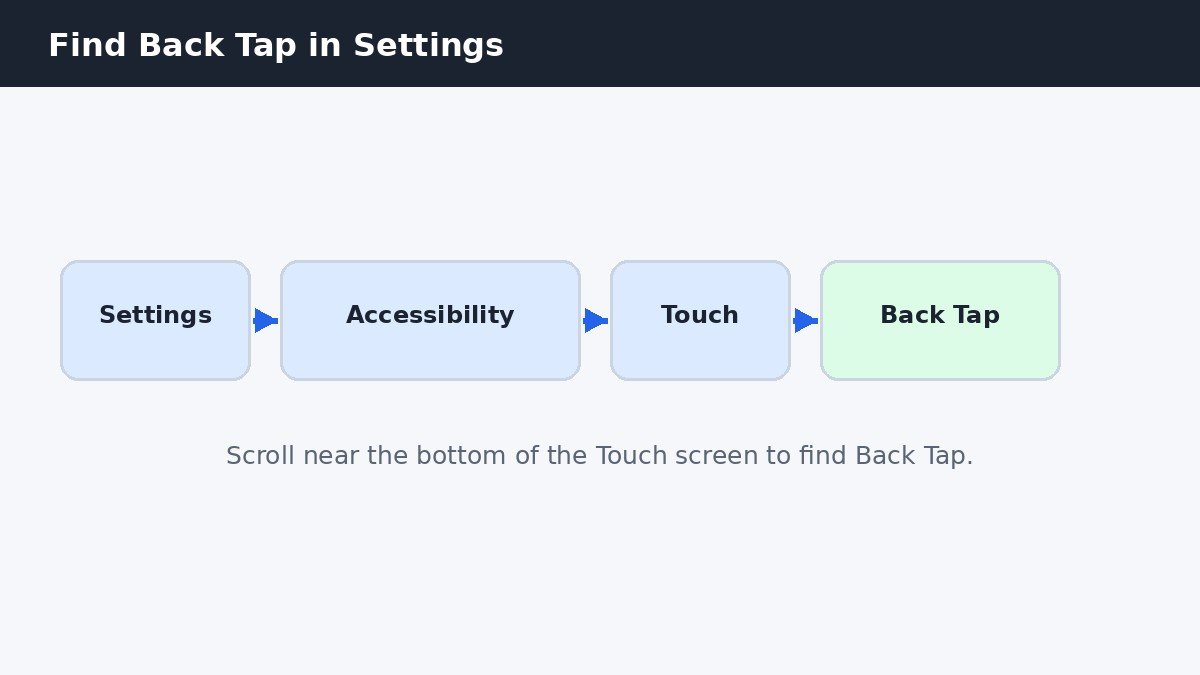
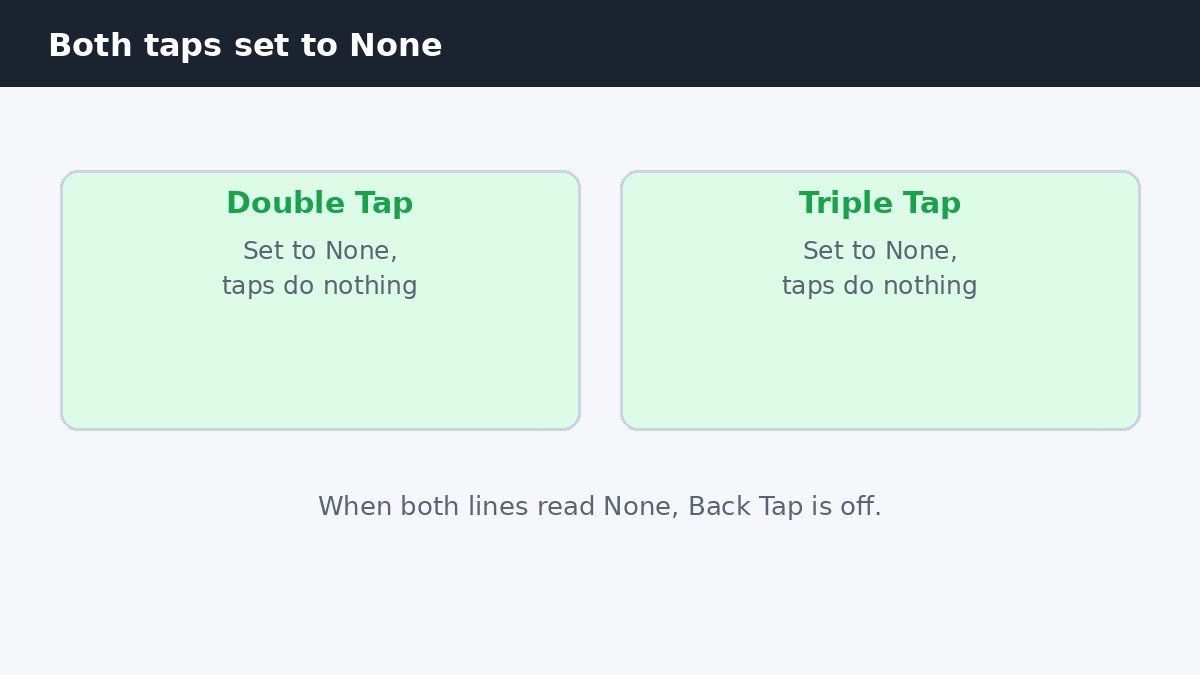
Back Tap runs an action when you tap the back of your iPhone twice or three times. When it starts taking screenshots or switching on the flashlight at the wrong moment, most people go looking for an off switch and cannot find one. There is no single on/off switch for Back Tap, and that is exactly why it is so hard to turn off. The quick answer: open Settings, then Accessibility, then Touch, then Back Tap, and set both Double Tap and Triple Tap to None. Tap Double Tap, choose None at the top of the list, go back, then tap Triple Tap and choose None. When both lines read None, tapping the back of your phone does nothing. The whole job takes less than a minute once you know where the setting hides.
Why there is no off switch to find
Back Tap arrived with iOS 14 as an accessibility feature, which is why it lives under Accessibility. Apple designed it as two separate choices, one for Double Tap and one for Triple Tap, and each choice holds one action. There is no master toggle above them, because the feature is already off when both choices sit at None. That is how your iPhone ships: until you pick an action, tapping the back does nothing.
The confusion usually starts after a screenshot action on Double Tap gets set by accident, or set up and forgotten about, because two taps happen easily in everyday handling. The fix is the same either way: set both tap counts back to None, and the feature is off again. The sections below walk through the fix, then cover the middle option for people who like the idea but hate the accidents.
Turn off Back Tap in four steps
Open Settings, then tap Accessibility. Under Physical and Motor, tap Touch, then scroll near the bottom of the Touch screen and tap Back Tap. You will see two lines, Double Tap and Triple Tap, each showing its current action. The path is the same on current iOS versions, so these steps match the layout in iOS 27 as well.
- Tap Double Tap, then choose None at the top of the list.
- Go back.
- Tap Triple Tap, then choose None.
- Check both lines read None.
That is the whole job. There is no save button and no restart, so the change takes effect at once. Tap the back of your phone twice and then three times: nothing should happen. If an action still fires, one line is not set to None yet, so open Back Tap again and check both.
Keep the shortcut, just move it to Triple Tap
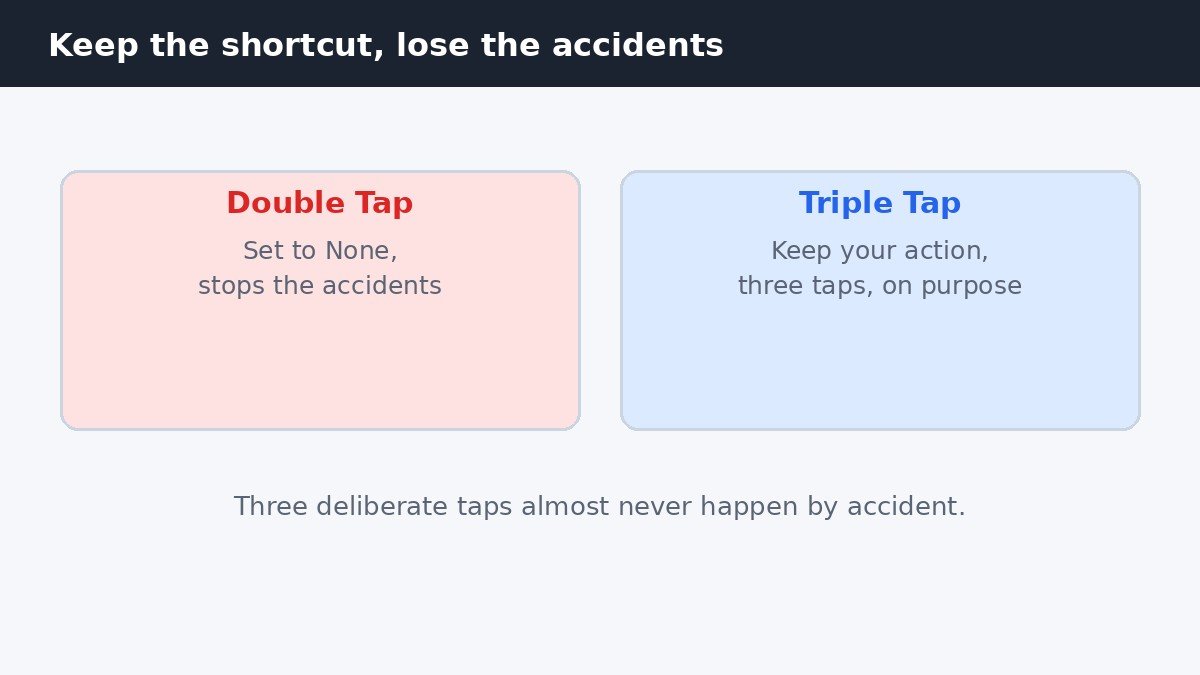
Turning Back Tap off completely is not the only answer, and for some people it is not the best one. Double Tap fires far more easily by accident than Triple Tap, because two quick taps happen in normal handling and three deliberate taps rarely do. If you like a shortcut on the back of your phone, move the action from Double Tap to Triple Tap instead of switching the feature off. Set Double Tap to None, then give Triple Tap the action you want. You keep the shortcut, and the accidental triggers mostly stop.
The same Touch screen holds other gestures worth knowing about. Shake to Undo, which undoes typing when you shake the phone, lives in the same menu, and this guide to turning off Shake to Undo on iPhone walks through it if that gesture bothers you too. Like Back Tap, it triggers easily by accident, and switches off just as easily.
Why Back Tap keeps firing by accident
A few usual causes sit behind accidental triggers. Double Tap is the main one: two taps is a short pattern, and picking the phone up, setting it down, or tapping the case can fire it. Triple Tap needs a deliberate three-tap rhythm, which is why it misfires far less often.
A thick case can also make taps unreliable, because the case absorbs some of each tap and the phone reads the pattern unevenly. If Back Tap works sometimes and not others, the case is a likely cause, and taking it off for a quick test will tell you. One more quirk: Back Tap gives no haptic feedback, so nothing confirms that the gesture registered. When a tap does nothing, you cannot tell whether the phone missed it or the action had no visible result, which makes the feature feel inconsistent even when it works.
Check your iPhone supports it, and do not mix it up with VoiceOver
Back Tap works on iPhone 8 or later running iOS 14 or later, so almost every iPhone in use today has it. If Back Tap is missing from the Touch screen, check your iOS version in Settings, General, About, and update if one is available. Apple’s own Back Tap guide lists the same requirements and the same Settings path.
One last point of confusion: Back Tap is not the same as the double-tap used by VoiceOver, and it is unrelated to Zoom. VoiceOver double-tap is a tap on the screen to activate an item, while Back Tap is a tap on the back of the phone. Changing Back Tap will not change how VoiceOver behaves, and turning VoiceOver off will not stop Back Tap.
| Tap count | Set to | What happens |
|---|---|---|
| Double Tap | None | Nothing happens |
| Triple Tap | None | Nothing happens |
| Triple Tap | Screenshot | Three taps take a screenshot |
Should you turn Back Tap off?
It depends on how the feature treats you. If Double Tap keeps taking screenshots or switching on the flashlight in your pocket or your hand, turn both taps to None and be done with it. If you use the shortcut and only the accidents annoy you, move the action to Triple Tap and give it a week before deciding.
Back Tap is a small feature with an outsized ability to confuse, because the off switch is really two choices that both need to read None. Once you know the path, the fix takes under a minute, and Triple Tap keeps the shortcut for people who want it. Set it the way that suits your hands, and the back of your phone goes back to being just the back of your phone.

- How to Turn Off Back Tap on iPhone - November 11, 2026
- How to Turn Off Hibernation in Windows 11 - November 10, 2026
- How to Turn Off Copilot in Windows 11 - November 9, 2026