
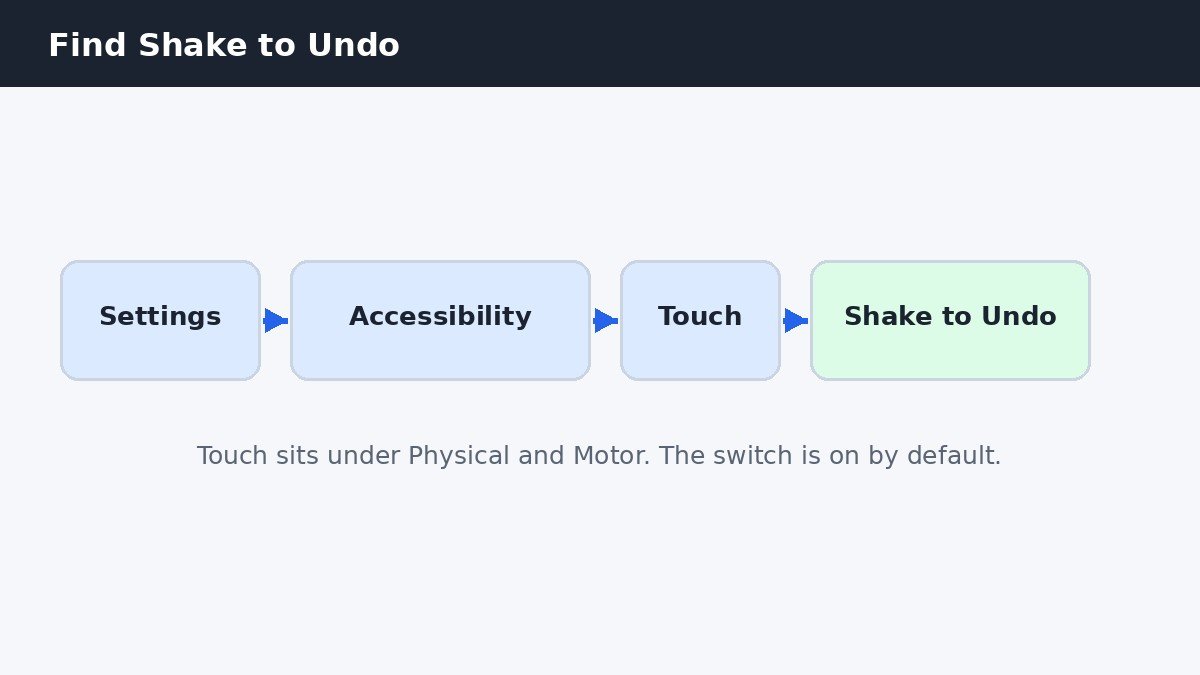
You are halfway through a message when the screen stops and a small box appears: “Undo Typing”. You did not tap anything. You only moved, and your iPhone took that movement as a request to undo what you just wrote. That box is Shake to Undo, a feature that is on by default, and it is easy to switch off. Go to Settings, then Accessibility, then Touch, and turn Shake to Undo off. The pop-up will stop, and you will not lose undo itself, because the iPhone has steadier ways to undo.
The pop-up that keeps interrupting you
Shake to Undo was built with a good intention: a way to undo typing by shaking the phone, which can help if tapping small buttons is hard. The trouble is that the phone cannot tell a deliberate shake from an accidental one. A brisk walk, a run, a bumpy bus ride, or the phone shifting in a pocket can all feel like a shake to the sensor inside it. When that happens while you are typing, the Undo Typing alert appears and waits for you to choose Undo or Cancel.
Nothing is lost yet, but your flow is broken, and a hurried tap on the wrong button can lose words you meant to keep. Tapping Cancel gets you back to typing, but the alert can return the next time the phone moves. That is why so many people want it off: not because undo is useless, but because the shake is too easy to trigger by accident.
Turn Shake to Undo off
Open Settings, then tap Accessibility. Scroll down to the Physical and Motor section and tap Touch. Near the bottom of that page you will find Shake to Undo with a switch beside it. Turn the switch off. The change takes effect straight away, with no restart. From now on, shaking the phone will do nothing while you type, and the Undo Typing alert will not appear. Apple’s guide to iPhone touch settings covers this same switch, along with the other touch options on that page.
If you ever want the shake back, follow the same path and turn the switch on again. There is no sensitivity slider and no way to make the shake harder to trigger, so the choice is simply on or off. For most people annoyed by accidental pop-ups, off is the right answer, and the gestures below make it painless.
Why the shake triggers so easily
The iPhone detects shaking with the same motion sensor that notices when you turn the phone sideways or pick it up. It has to catch a real shake quickly, and that sensitivity is also what makes it jump at ordinary movement. Typing while you walk is the classic case: each step adds a small jolt, and a few jolts close together look just like a shake.
| Situation | Why it triggers | What to do |
|---|---|---|
| Walking while typing | Each step adds a small jolt | Turn it off |
| Running with the phone | Repeated bouncing looks like a shake | Turn it off |
| Phone moving in a pocket | Movement against your leg shakes it | Turn it off |
| Bumpy bus or train ride | Vibration adds up to a shake | Turn it off |
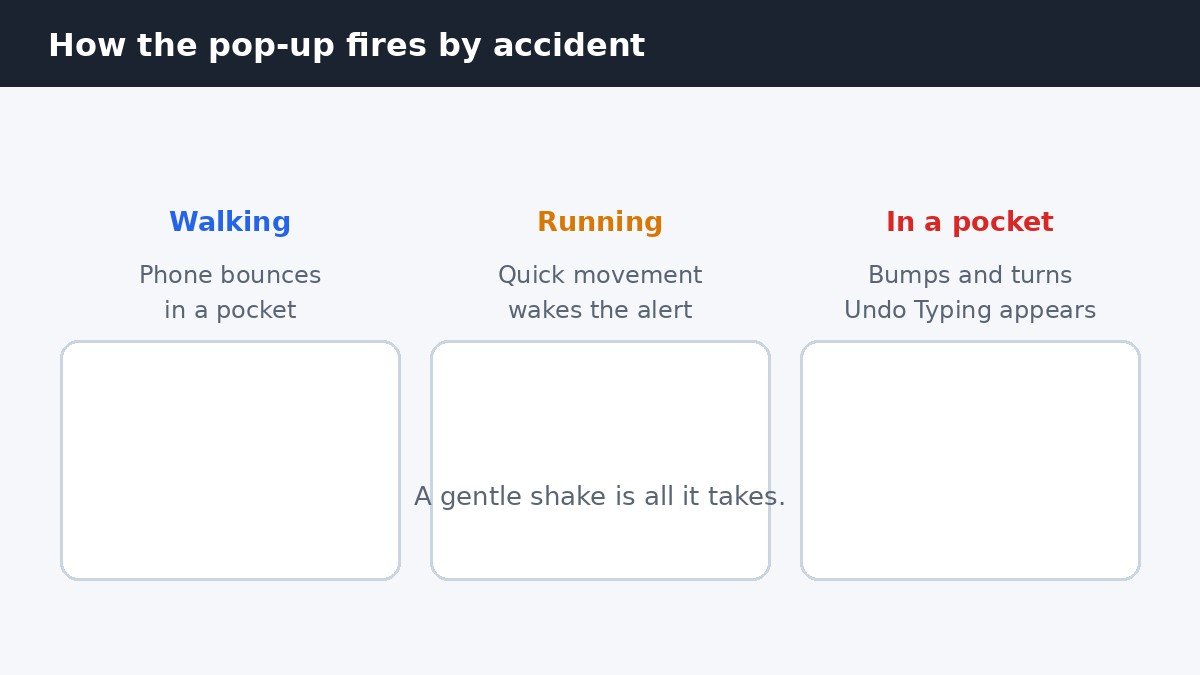
Every row in the table ends the same way, because no case or grip fixes the problem for long. The movement is part of normal life, not a mistake you are making. Once the switch is off, you can walk, run, and ride without the alert appearing.
Undo without shaking: the three-finger gestures
Turning the shake off costs nothing, because the iPhone has finger gestures that do the same job with far more control. Swipe left across the screen with three fingers to undo your last typing. Swipe right with three fingers to redo it, which brings back what you just undid. If a swipe feels awkward, double-tap with three fingers instead: that also undoes the last change. Each gesture acts only when you mean it, because three fingers on the screen is a deliberate move that walking cannot copy by accident.
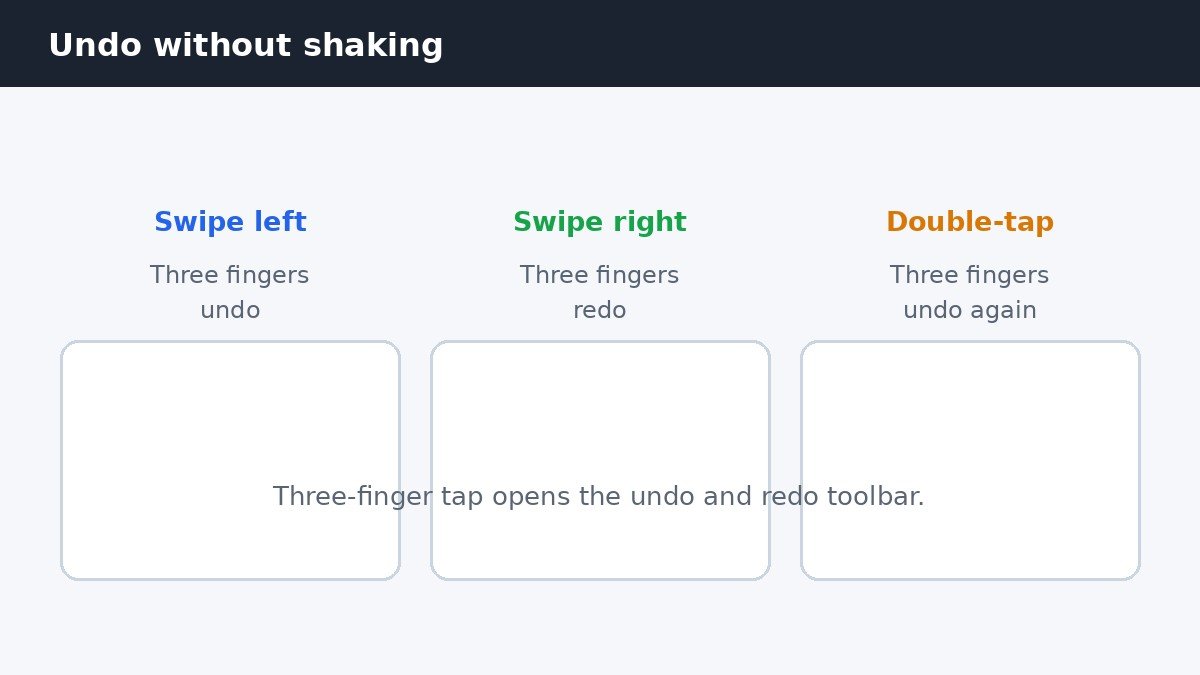
Give the gestures a short practice run in Notes. Type a sentence, swipe left with three fingers, and watch it disappear. Swipe right with three fingers and watch it return. Within a day or two the motion becomes automatic, and it is faster than shaking the phone and waiting for the alert.
The on-screen toolbar and the keyboard shortcut
If gestures are not your thing, there is a visible option as well. Tap the screen with three fingers, just a single tap, and a small undo and redo toolbar appears above the keyboard. Tap the curved arrow pointing left to undo, or the curved arrow pointing right to redo, then tap anywhere else to close it. You can see both buttons before you choose, and there is no motion for the phone to misread.
There is one more replacement, for anyone who types on a real keyboard. If you use an external keyboard with your iPhone, press Cmd+Z to undo, exactly as you would on a Mac or a computer. Press Cmd+Shift+Z to redo. It is the quickest undo when your hands are already on the keys. While you are tuning how typing feels, you may also want to look at the sounds and vibration your keyboard makes, covered in this guide to turning off iPhone keyboard clicks and haptic feedback.
Who should keep it on
Not everyone should turn Shake to Undo off. Apple designed it for people with limited dexterity, for whom a shake can be easier than a precise three-finger gesture or a small on-screen button. If the gestures in this guide feel hard to do, or if the shake is the only undo method that works comfortably for you, leave the switch on. A reliable way to undo matters more than a quiet screen.
Turning Shake to Undo off only stops the shake gesture. It does not remove undo from your iPhone. The gestures, the toolbar, and the keyboard shortcut all keep working, and apps that have their own undo buttons keep working too. You are removing one trigger, not one feature.
The fix takes less than a minute. Switch Shake to Undo off, learn one gesture that suits your hand, and the Undo Typing alert will stop interrupting you. Your words will stay put until you decide to change them, which is how typing should feel.

- How to Disable Shake to Undo on iPhone - November 8, 2026
- How to Turn Off Auto-Brightness on iPhone - November 7, 2026
- How to Turn Off Siri Suggestions on iPhone - November 6, 2026