
Do Not Disturb is the quiet hero of Android. One tap silences the barrage of calls, texts, and app alerts while still letting alarms and urgent calls through. Here is how to set it up properly on Android 16 and recent versions.
What Do Not Disturb actually does
When Do Not Disturb is on, your phone stops ringing, vibrating, and lighting up for notifications. By default, alarms still sound and anything you mark as an exception still gets through, so you can sleep or focus without missing something genuinely urgent.
It is different from silent mode. Silent mode only mutes the ringer, while Do Not Disturb blocks notification pop-ups and badges too. It is also different from Android’s Modes and Bedtime mode, which can layer extra rules like grayscale or a dark wallpaper on top.
Turn it on in two taps from Quick Settings
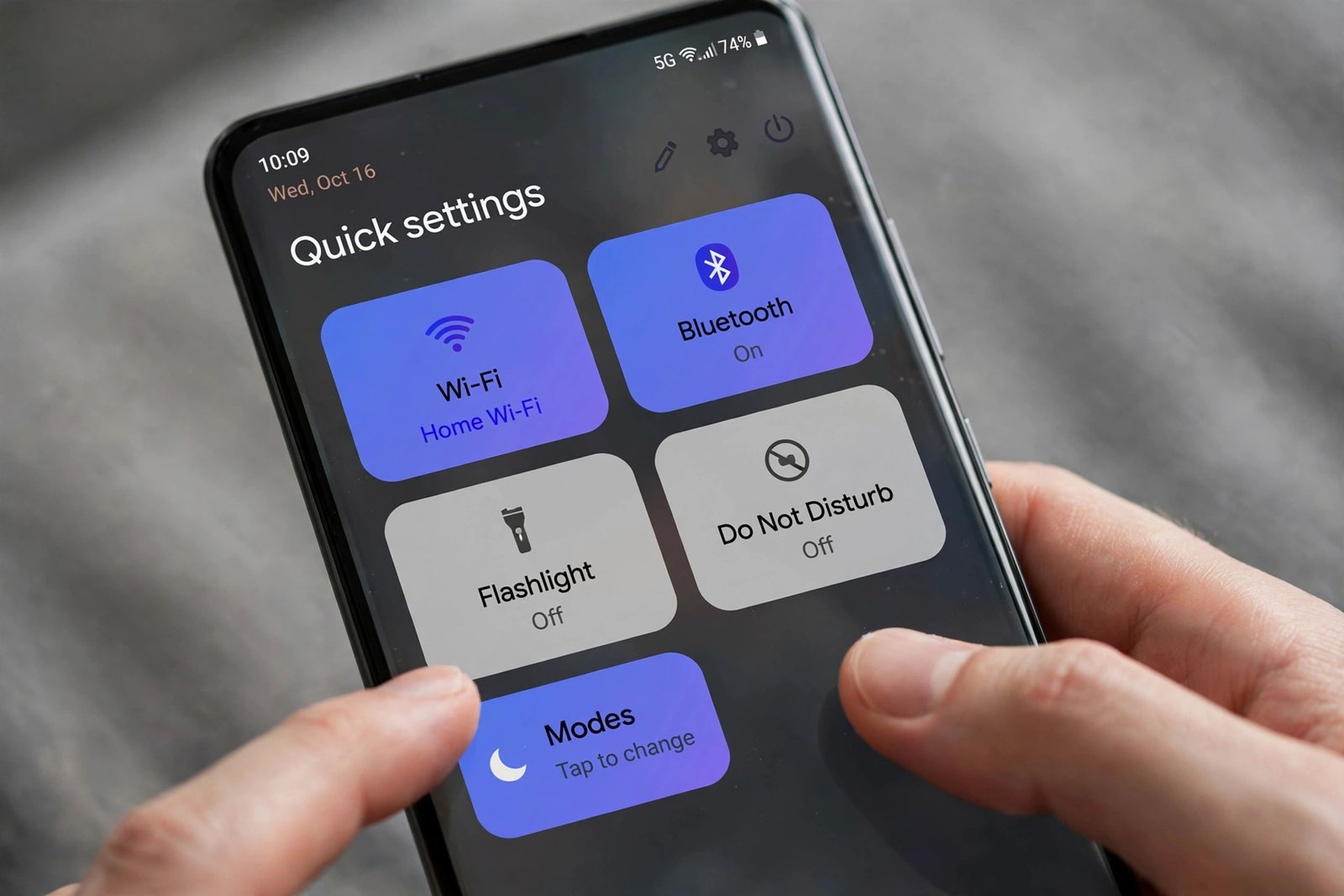
The fastest way is the notification shade. Swipe down from the top of the screen twice to open the full Quick Settings panel. On Android 16, the Modes tile has a dual purpose: tapping the icon on the left side toggles Do Not Disturb on or off with a single tap, while tapping the rest of the tile opens the Modes menu so you can pick Bedtime, Driving, or another mode instead. 9to5Google has a detailed look at how the dual-purpose tile works.
If you do not see a DND or Modes tile, tap the pencil icon in Quick Settings, find the tile, and drag it into your active tiles. For the one-tap toggle to work without a pop-up each time, set the “Duration for Quick Settings” option inside the Do Not Disturb settings to “Until you turn off” or a fixed number of hours.
Set it up properly in the Settings app
Quick Settings is great for a manual toggle, but the real power is in the settings. Here is the full setup, step by step.
Step 1: Open the Do Not Disturb settings
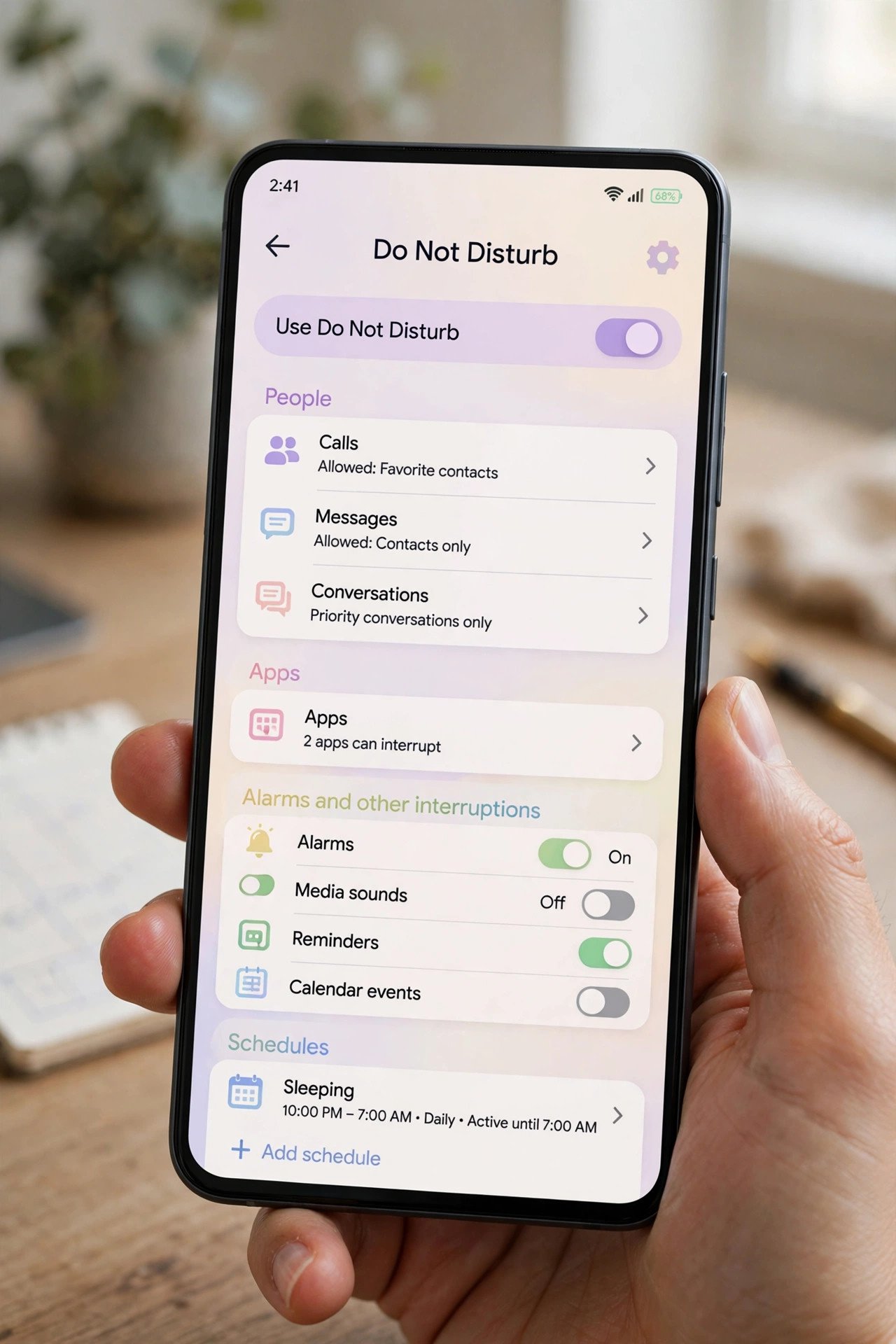
- On Pixel and OnePlus: open Settings, go to Sound and vibration, then tap Do Not Disturb.
- On Samsung Galaxy: open Settings, go to Notifications, then tap Do not disturb. Samsung’s support guide has device-specific notes.
- Tap Turn on now to try it immediately, or leave it off and move on to customizing first.
Step 2: Choose which people can reach you
- Tap People, then Calls, and choose Starred contacts. Star your important contacts in the Contacts app so only family and close contacts can ring through.
- Do the same under Messages if you want texts from starred contacts to come through too.
- Turn on Repeat callers. If anyone calls twice within 15 minutes, the second call breaks through. This is the safety net for real emergencies.
Step 3: Allow the apps that matter
- Tap Apps, then add your messaging and work apps such as WhatsApp, your bank, or a home security app. These should bypass DND.
- Keep social media and games out of this list. The whole point of DND is that they wait until you are ready.
- If a specific app keeps buzzing through DND when it should not, go to Settings, Apps, pick the app, then Notifications and make sure Ignore Do Not Disturb is off for its categories.
Step 4: Put DND on a schedule
Manual toggling gets old fast. Two schedules cover almost everything.
- Overnight: tap Schedules, then Add more. Name it “Overnight”, set the time type, pick 10 PM to 7 AM, and select every day.
- Meetings: add another schedule, choose the Event type, pick your calendar app, and set it to activate whenever your calendar shows you are busy. Your phone goes quiet for meetings on its own.
- Make sure the Use schedule toggle is on for each schedule you create.
Quick fixes when Do Not Disturb misbehaves
Sometimes DND turns on by itself, or calls slip through when they should not. The usual culprits are easy to fix.
| Symptom | Likely cause | Fix |
|---|---|---|
| DND turns on by itself | A schedule you forgot about | Check Settings, Do Not Disturb, Schedules and disable extras |
| Calls still ring through | Repeat callers or starred contacts | Review People settings and star only true essentials |
| One app keeps buzzing | App set to ignore DND | App settings, Notifications, turn off Ignore Do Not Disturb |
| Tile missing from Quick Settings | Tile not added to panel | Tap the pencil icon and drag the Modes or DND tile up |
| Alarms did not ring | Alarm exception turned off | Re-enable alarms in the DND exceptions list |
A few common questions
Will my alarm still ring?
Yes, on Pixel and Samsung phones alarms are allowed through DND by default. If you wake up with a missed alarm, someone toggled the alarm exception off. Leave it on.
Can I silence everything, no exceptions?
Yes. In the DND settings, set People to “None” for calls and messages, allow no apps, and turn off the alarm exception if you truly want total silence. Total silence is rarely what you want overnight, though.
Is DND the same as Bedtime mode?
Bedtime mode includes DND but adds extras like a dark screen and reduced color. DND is the simpler, everyday option for meetings, focus time, and quiet evenings.
Set up the schedules once, pick your exceptions, and Do Not Disturb becomes invisible. Your phone stays quiet when it should and reachable when it matters. If late-night alerts still sneak through, a quick pass with one of the best Android cleaner apps can clear notification spam from your apps, and caller ID apps help you decide which calls are worth a star. If you run into connection errors while setting things up, see how to fix ERR_NAME_NOT_RESOLVED on Android.

- How to Fix Windows 11 Clock Showing the Wrong Time - October 23, 2026
- How to Fix File Explorer Slow to Open in Windows 11 - October 22, 2026
- How to Fix a Printer Showing Offline in Windows 11 - October 21, 2026