
You plug in your external hard drive and nothing happens. No icon on the desktop, no drive in Finder. Before you panic about lost files, know this: a drive that will not mount is usually a settings, cable, or file system problem, not a dead drive. Work through these fixes on macOS Tahoe.
Start with the five-minute checks
- Check the cable and port. Swap in a different USB-C, USB-A, or Thunderbolt cable and try another port. Cables fail more often than drives do.
- Check power. Larger desktop drives need their own power adapter plugged in. Bus-powered drives sometimes need a direct port instead of a hub.
- Try another computer. If the drive mounts on a different Mac or PC, the problem is with your Mac, not the drive.
- Check Finder settings. Open Finder, go to Finder, Settings, General, and make sure External disks is checked. If it is off, the drive is mounted but invisible.
Fix 1: Mount it manually in Disk Utility
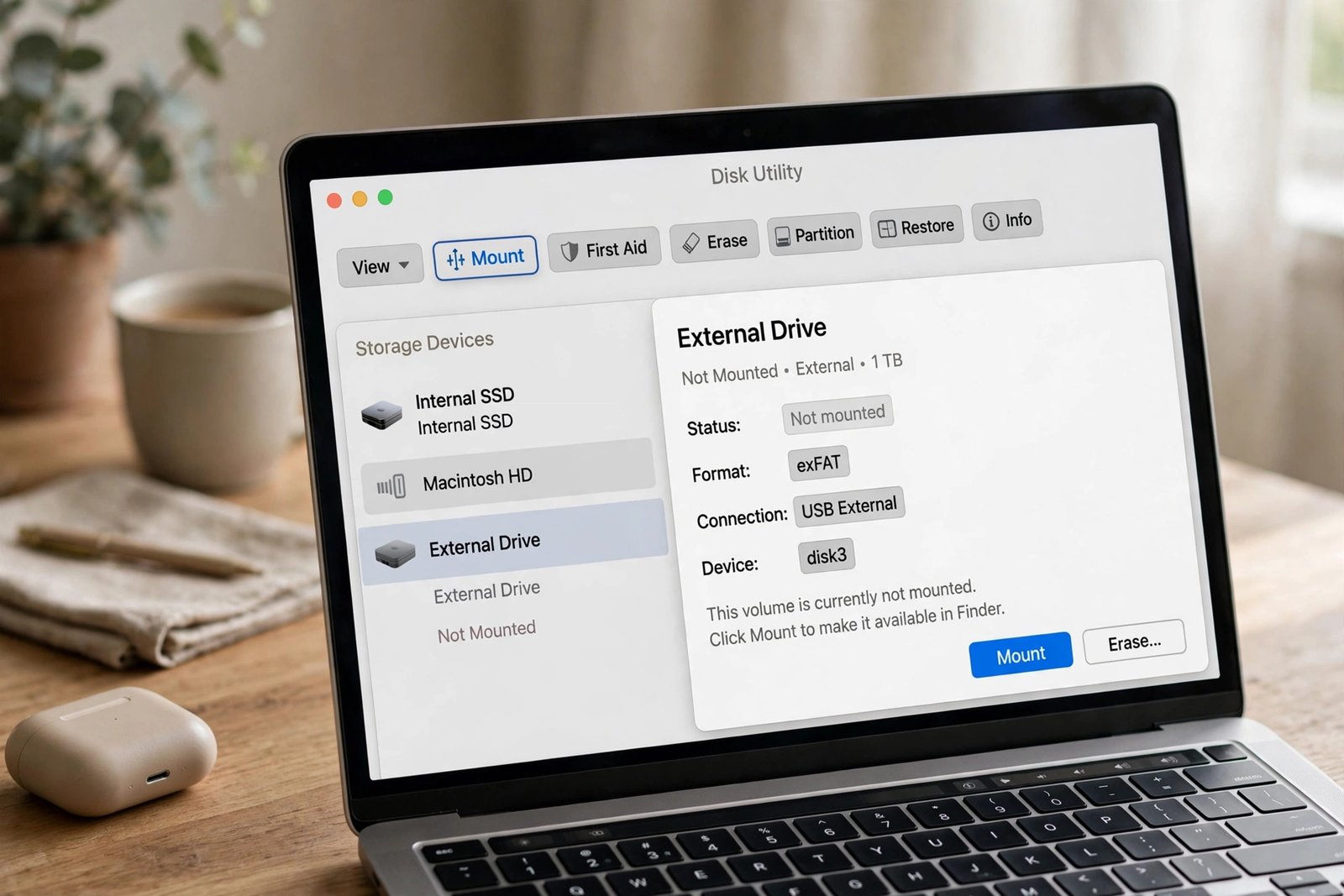
- Open Disk Utility from Applications, Utilities.
- Look for your drive in the left sidebar. If it appears grayed out, select it.
- Click Mount in the toolbar.
If the drive mounts, it should now appear in Finder. If the Mount button does nothing or the drive does not appear in the sidebar at all, keep going. MacObserver’s Tahoe-specific troubleshooting guide walks through the same checks.
Fix 2: Run First Aid
First Aid scans for and repairs minor file system errors that prevent mounting.
- In Disk Utility, select the unmountable drive or volume.
- Click First Aid in the toolbar and confirm.
- Wait for the process to finish, then restart your Mac and check Finder.
If First Aid reports errors it cannot repair, do not format yet. Recover your files first, which we cover below.
Fix 3: Force-mount with Terminal
If Disk Utility sees the drive but will not mount it, Terminal can sometimes succeed where the button fails.
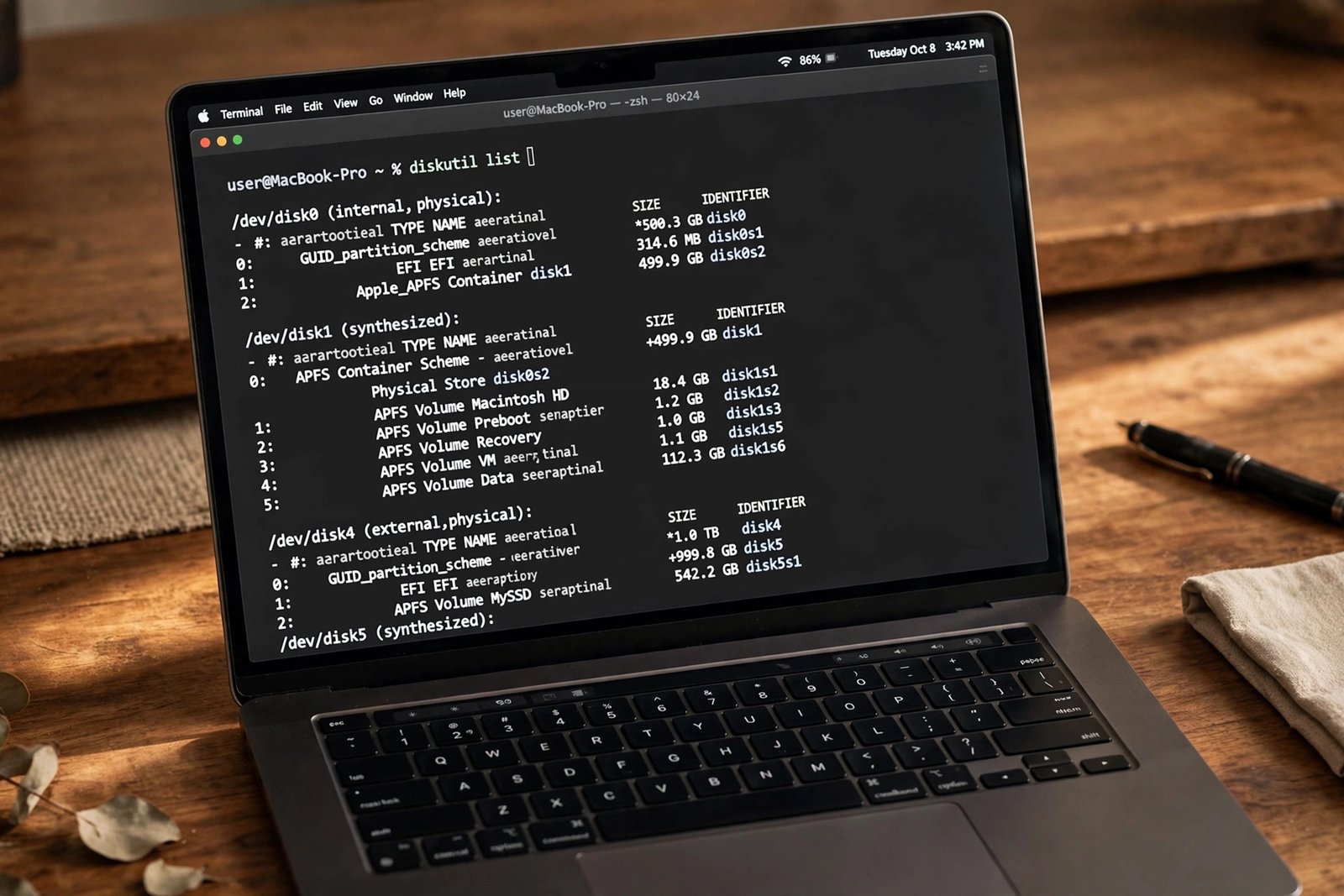
- Open Terminal from Applications, Utilities.
- Type
diskutil listand press Return. Find your drive’s identifier, such as disk4s1. - Type
diskutil mountDisk /dev/disk4, replacing disk4 with your drive’s identifier, and press Return.
Be careful to target the external drive and not your internal disk. If you are unsure which identifier is which, stop here and use Disk Utility only.
Fix 4: Reset NVRAM and restart
Your Mac stores hardware settings in NVRAM, and resetting it can clear USB and peripheral detection issues.
- Apple Silicon Macs (M1, M2, M3, M4): simply shut down and restart. There is no manual NVRAM reset on these models.
- Intel Macs: shut down, then power on while holding Option + Command + P + R for 20 seconds before releasing.
Fix 5: Reformat, only after your data is safe
If the drive appears in Disk Utility but nothing mounts or repairs it, the file system may be too damaged. Reformatting erases everything, so only do this after recovering your files.
| Format | Best for | Notes |
|---|---|---|
| APFS | Modern SSDs used only with Mac | Fastest and most stable on macOS Tahoe |
| Mac OS Extended (HFS+) | Old spinning hard drives | Better than APFS on mechanical HDDs |
| exFAT | Sharing between Mac and Windows | Convenient but prone to corruption if unplugged without ejecting |
To reformat: select the drive in Disk Utility, click Erase, choose the format and GUID Partition Map, then confirm. Real4web also covers Tahoe external drive issues in more depth.
Recover your files before you erase
If the drive will not mount at all, recovery software can often still read it. Tools like iBoysoft Data Recovery scan unmountable drives and let you preview files before recovering them to a different disk. The rule is simple: recover first, format second. Never recover files back onto the same broken drive.
Most of the time, the story ends at Fix 1 or Fix 2: a manual mount or a First Aid repair. If your Mac itself is running slow on top of drive trouble, see how to optimize your Mac for a broader tune-up. For diagnosing the drive’s health, hard drive repair software can help, and Mac users should bookmark the best text editors for Mac for the Terminal work above.

- How to Stop iPhone Apps Asking for Ratings and Reviews - October 23, 2026
- How to Turn Off HDR in Windows 11 When Colors Look Washed Out - October 22, 2026
- What Is Samsung Free and How to Stop It Opening on Your Home Screen - October 21, 2026