
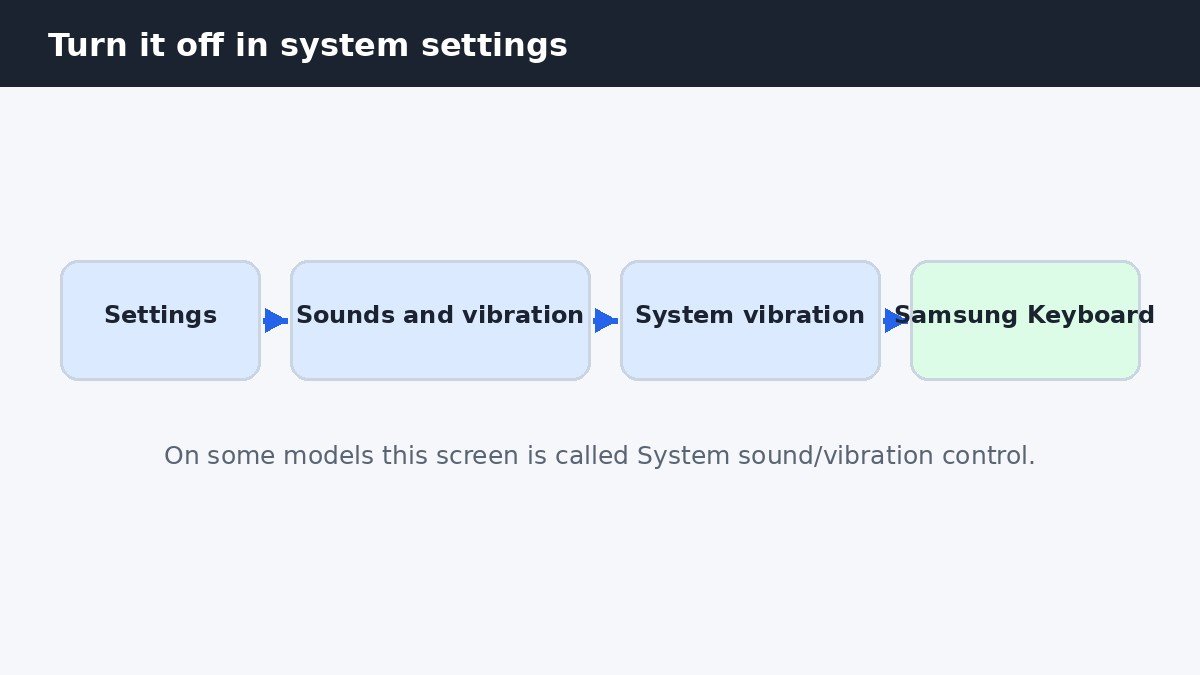
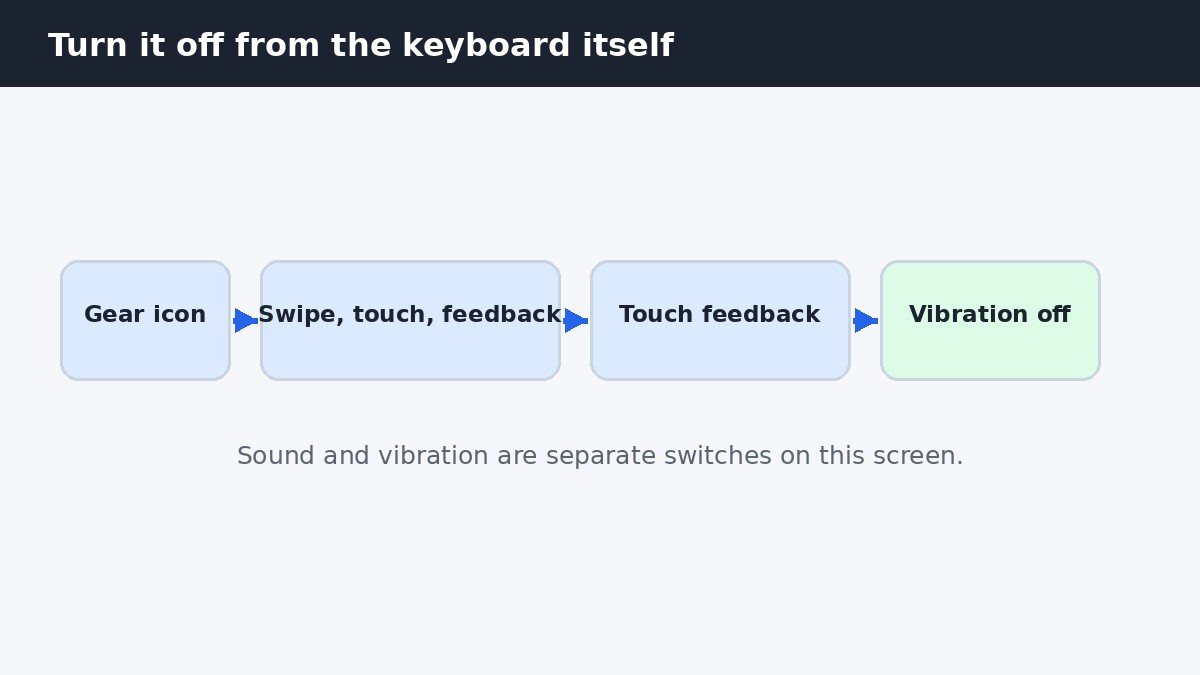
That small buzz on every keypress can get annoying fast, especially when you type long messages or work in a quiet room. The quick answer is simple. Open Settings, go to Sounds and vibration, then System vibration, and turn off the Samsung Keyboard switch. If that switch is not there, or the buzz is still there after you turn it off, use the second route in this guide instead. Open the Samsung Keyboard, tap the gear icon, go to Swipe, touch, and feedback, then Touch feedback, and turn off Vibration.
What turning it off does, and what it does not
Keyboard vibration is separate from call and notification vibration. Turning it off stops the buzz on each keypress only. Calls and notifications still vibrate in the normal way, so you will still feel an incoming call or a message alert in your pocket.
The same separation applies inside the keyboard itself. Sound and vibration are separate switches on the Touch feedback screen, so turning off vibration does not mute the keypress sound, and vice versa. If you want a silent keyboard, turn off both. Character preview is the third option on that screen.
Turn it off in Settings
This is the main route, and it is the one to try first. Open Settings, then tap Sounds and vibration. On the next screen, tap System vibration. Find the switch labelled Samsung Keyboard and turn it off. The change takes effect straight away, so open any app, tap a text field, and type a few letters to check that the buzz has gone.
The screen can look slightly different from phone to phone. On some One UI versions it is called System sound/vibration control, and the label can vary slightly by One UI version and model. If the Samsung Keyboard switch is missing altogether, the model may not support keyboard vibration. If the menu names on your model differ, use Settings search instead. Open Settings, tap the search box at the top, and type “keyboard vibration”. Samsung’s guide to using the keyboard on your phone covers the keyboard settings in general.
Turn it off in the keyboard settings
The Samsung Keyboard has its own vibration switch, separate from the one in Settings. This is the route to use if the Settings switch did not work, if it was missing, or if the vibration came back after you turned it off. Open the Samsung Keyboard in any app, for example by tapping the text field in Messages. Look at the toolbar above the keys and tap the gear or cog icon to open the keyboard settings.
From there, tap Swipe, touch, and feedback, then tap Touch feedback. On the Touch feedback screen, turn off Vibration. The sound switch sits on the same screen, and the two work independently, so the keypress sound stays exactly as it was unless you turn that off too. Character preview is the third option on this screen.
There are two switches because the Settings switch controls the system level vibration for the Samsung Keyboard, while the keyboard switch controls it from inside the keyboard itself. On most phones, turning off either one is enough, so check both before deciding the setting does not work.
| Route | Path | Use it when |
|---|---|---|
| Settings | Settings, Sounds and vibration, System vibration, Samsung Keyboard off | You want the main system switch |
| Keyboard settings | Gear icon, Swipe, touch, and feedback, Touch feedback, Vibration off | The Settings switch did not work or is missing |
| Gboard | Gboard settings, Preferences, Haptic feedback on keypress off | Gboard is your default keyboard |
Keep a softer buzz instead of none
Some people do not want the vibration gone completely. They like a small amount of feedback when they type, but the default buzz feels too strong. There is a middle ground, and it uses the system vibration slider rather than a separate keyboard control. Do not look for a per-keyboard intensity slider, because that setting does not exist.
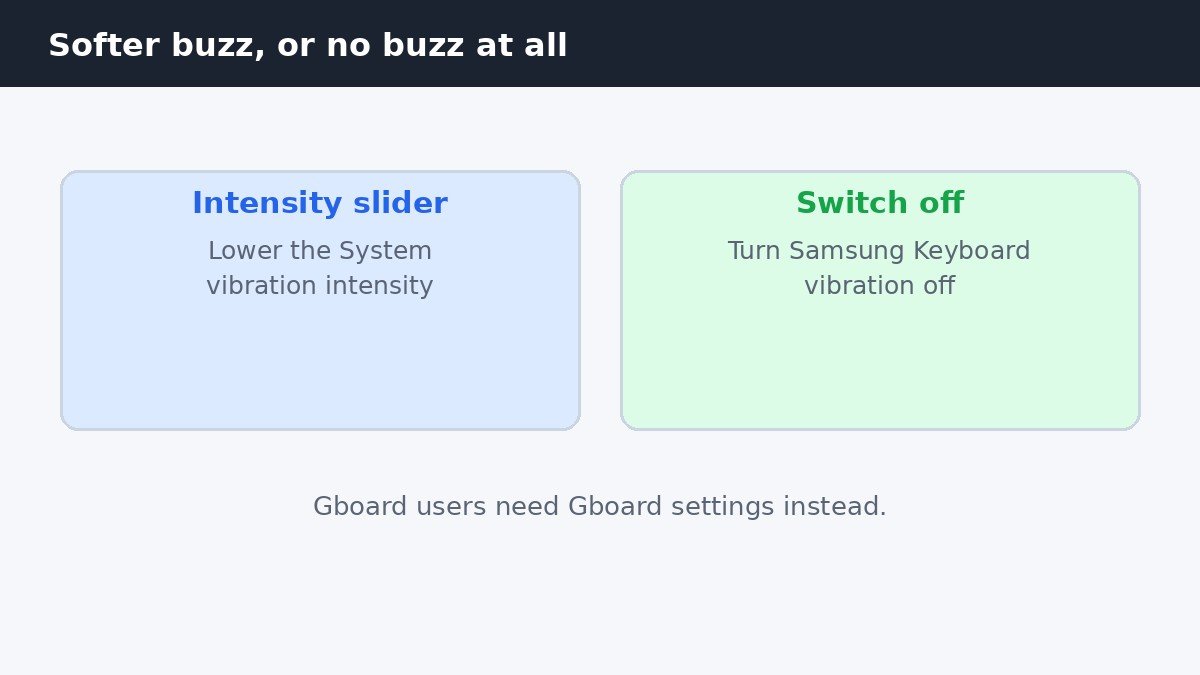
Go to Settings, then Sounds and vibration, then System vibration. On that screen you will find a System vibration intensity slider. Move the slider down to make the buzz gentler, then type a few letters to feel the result. This is a good option to try before switching vibration off completely, since a softer buzz keeps the typing feedback without the distraction.
If you use Gboard instead
Everything above applies to the Samsung Keyboard, which is the keyboard that comes with a Galaxy phone. If Gboard is the default keyboard instead, the Samsung switches do nothing. You can turn off every Samsung Keyboard switch on the phone and still feel a buzz on each keypress, because Gboard has its own separate setting and it is the keyboard that is actually running.
The fix is to change the setting in Gboard itself. Open Gboard settings, tap Preferences, and turn off Haptic feedback on keypress. Type a few letters afterwards to check that the buzz has gone. The gear icon on the Samsung Keyboard toolbar is a clear sign you are using the Samsung Keyboard rather than Gboard.
If vibration comes back
Keyboard vibration can return after a software update, or after reinstalling the keyboard. An update can reset a setting to its default, and reinstalling the keyboard can do the same. When the buzz comes back, check the second route first, since the keyboard’s own toggle can re-enable itself. Open the keyboard settings, go to Swipe, touch, and feedback, then Touch feedback, and look at the Vibration switch.
If the keyboard switch is off but the buzz is back, check the Settings route as well. Go to Settings, Sounds and vibration, then System vibration, and look at the Samsung Keyboard switch there. If you use Gboard, check its Preferences screen in the same way, since an update can also restore its haptic feedback setting.
Turning off keyboard vibration is a small change, but it makes typing feel calmer. Start with the switch in Settings under Sounds and vibration and System vibration, and use the keyboard’s own Touch feedback switch if the buzz is still there. If you prefer a gentler feel rather than none at all, lower the System vibration intensity slider instead. Calls and notifications will still vibrate as normal, and you can turn the keyboard buzz back on at any time.

- How to Turn Off Keyboard Vibration on Samsung Galaxy - November 9, 2026
- How to Turn Off Read Receipts on Samsung Galaxy - November 8, 2026
- How to Turn Off Night Shift on Mac - November 7, 2026