
You tap a photo in WhatsApp, and instead of opening, it shows a download icon that spins forever, or an error saying the download failed. Sometimes the file downloads but never appears in your gallery. It is one of the most common WhatsApp complaints, and it is almost always fixable without losing your chats.
This guide covers every reliable fix for WhatsApp not downloading images, videos, voice notes, and documents in 2026: on Android, iPhone, WhatsApp Web, and the desktop app. Work through them in order, easiest first.
Why WhatsApp Stops Downloading Files
Understanding the cause saves you from trying random fixes. The usual culprits:
- Weak or unstable internet. Downloads stall on flaky Wi-Fi or congested mobile data.
- Full phone storage. WhatsApp needs free space to save files. A nearly full phone is the single most common cause.
- Missing permissions. WhatsApp cannot save photos if it lost access to your storage or photo library after an OS update.
- Wrong WhatsApp settings. Media auto-download or media visibility got turned off.
- Corrupted cache. Temporary files pile up and interfere with new downloads.
- Outdated app. Old versions develop bugs that updates already fixed.
Quick Checks: Do These First (2 Minutes)
- Test your internet. Open a website or play a video. If that struggles too, the problem is your connection, not WhatsApp. Switch between Wi-Fi and mobile data to confirm.
- Restart your phone. This clears stuck background services and temporary glitches. Boring, but it resolves a surprising number of download failures.
- Check your storage. On Android: Settings, search “storage.” On iPhone: Settings, General, iPhone Storage. If you are under 1 GB free, free up space before doing anything else.
If your Wi-Fi itself is misbehaving on a Windows machine, our Wi-Fi disappeared fix guide covers the deeper network resets.
Fixes on Android
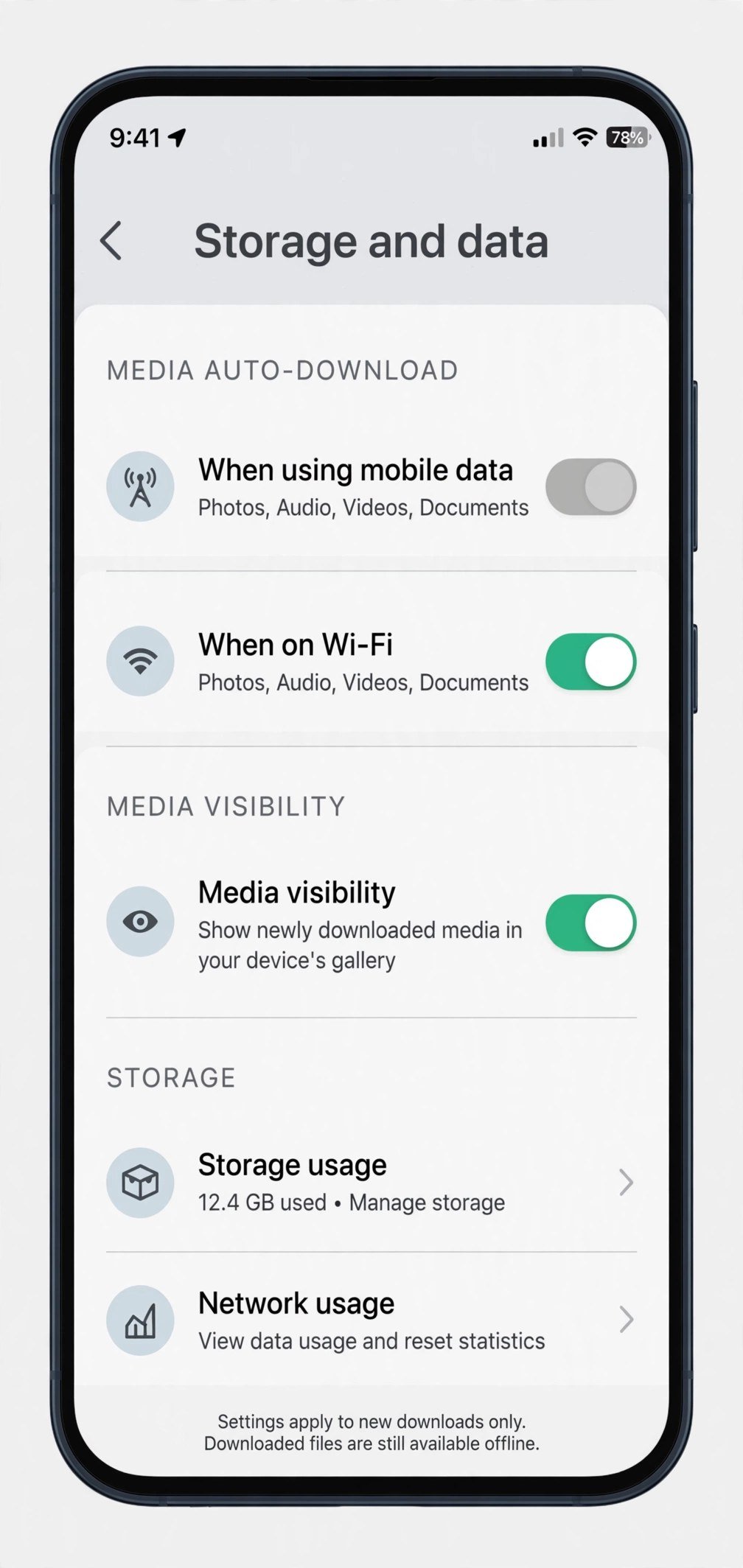
- Turn on Media Visibility. Open WhatsApp, tap the three dots, Settings, Chats, and make sure “Media visibility” is on. This is why downloaded photos sometimes never appear in your gallery: they downloaded fine, but WhatsApp hid them from other apps.
- Check storage permission. Go to Settings, Apps, WhatsApp, Permissions, and make sure Files and media (or Photos and videos on newer Android) is allowed. OS updates sometimes revoke this silently.
- Enable media auto-download. In WhatsApp Settings, Storage and data, check the auto-download settings for “When using mobile data” and “When connected on Wi-Fi.” If everything is unchecked, tap-to-download can behave inconsistently.
- Clear the WhatsApp cache. Go to Settings, Apps, WhatsApp, Storage, and tap Clear cache. This is safe: it removes temporary files only, not your chats or media.
- Remove the hidden .nomedia file. Sometimes a file named .nomedia inside the WhatsApp media folder tells Android to hide everything in it. Open your file manager, enable “show hidden files,” navigate to the WhatsApp Images folder, and delete .nomedia if you find it. Your photos should reappear in the gallery.
- Update WhatsApp. Open the Play Store, search WhatsApp, and install any available update.
Fixes on iPhone
- Check photo permission. Go to Settings, scroll to WhatsApp, tap Photos, and set it to “Full Access.” Limited access is the usual reason downloads silently fail on iOS.
- Turn on Save to Camera Roll. In WhatsApp, Settings, Chats, enable “Save to Camera Roll” so incoming media lands in Photos automatically.
- Check iPhone storage. Settings, General, iPhone Storage. iOS gets aggressive about blocking downloads when space runs low, sometimes without a clear warning.
- Force-close and reopen WhatsApp. Swipe up from the bottom, pause, then swipe the WhatsApp preview away. Reopen and retry the download.
- Update WhatsApp and iOS. An outdated app on an outdated OS is a classic recipe for media bugs.
Fixes for WhatsApp Web and Desktop
Download failures on WhatsApp Web or the desktop app have their own causes:
- Check the browser download location. On WhatsApp Web, files go to your browser’s download folder. If that folder was moved or the drive is full, downloads fail silently. Check your browser’s download settings.
- Clear the browser cache. Cached data from web.whatsapp.com can break the download handshake. Clear cached images and files, then reload the tab.
- Try a different browser. If downloads fail in Chrome but work in Edge or Firefox, an extension or browser setting is interfering. Ad blockers and privacy extensions are frequent culprits.
- Temporarily check your antivirus. Overzealous antivirus or firewall software sometimes blocks WhatsApp Desktop downloads. Test with it briefly disabled, then re-enable it immediately.
- Log out and back in. On the desktop app, logging out and re-linking your phone resets the session and clears sync glitches.
Windows users dealing with broader system quirks should also see our Windows 11 cache clearing guide, since system-level temp file buildup can affect desktop apps too.
The Last Resort: Reinstall (Safely)
If nothing above worked, reinstalling WhatsApp fixes whatever is left, but do it in the right order or you will lose chats:
- Back up first. WhatsApp, Settings, Chats, Chat backup, and tap Back Up Now. On Android this goes to Google Drive; on iPhone, to iCloud. Wait for it to finish.
- Uninstall WhatsApp.
- Reinstall from the official store and verify your number.
- Restore when prompted. WhatsApp will offer your backup during setup. Accept it.
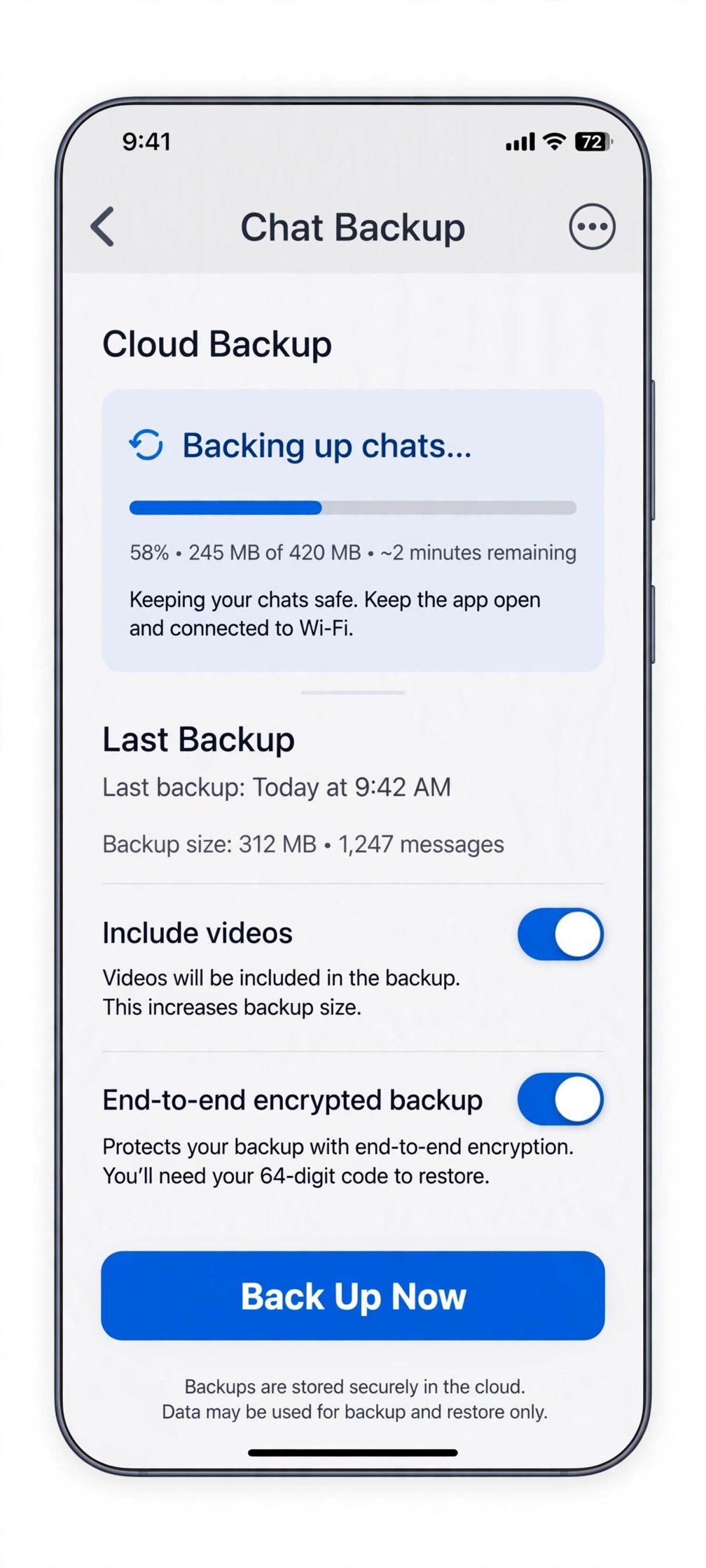
Never skip the backup. Reinstalling without one deletes your message history permanently, and no fix is worth that trade.
Frequently Asked Questions
Why do WhatsApp photos download but not show in my gallery?
Almost always Media Visibility (Android) or Save to Camera Roll (iPhone) is off, or a .nomedia file is hiding the folder. The files are on your phone; your gallery app just cannot see them. If you want copies on your computer instead, our Android to PC photo transfer guide covers every method.
Will clearing the cache delete my chats?
No. Clear cache only removes temporary files. Do not tap “Clear data” or “Clear storage” unless you have a fresh backup, because that wipes the app completely.
WhatsApp says “download failed” immediately. What does that mean?
An instant failure usually means a permission or storage problem rather than a network one: the app cannot even start writing the file. Check storage space and app permissions first.
Does this affect voice notes and documents too?
Yes. Every fix in this guide applies to all media types: images, videos, voice messages, PDFs, and other documents all download through the same pipeline.
These steps align with established troubleshooting from MakeUseOf’s media download guide and DigitalTechTime’s fix walkthrough.
Bottom Line
Start with the two-minute checks: internet, restart, storage. Then fix visibility and permissions, which solve the majority of cases. Save the reinstall for last, and always back up first. One of these steps fixes it nearly every time.

- How to Fix Windows 11 Search Not Finding Files - October 24, 2026
- How to Fix Windows 11 Clock Showing the Wrong Time - October 23, 2026
- How to Fix File Explorer Slow to Open in Windows 11 - October 22, 2026