
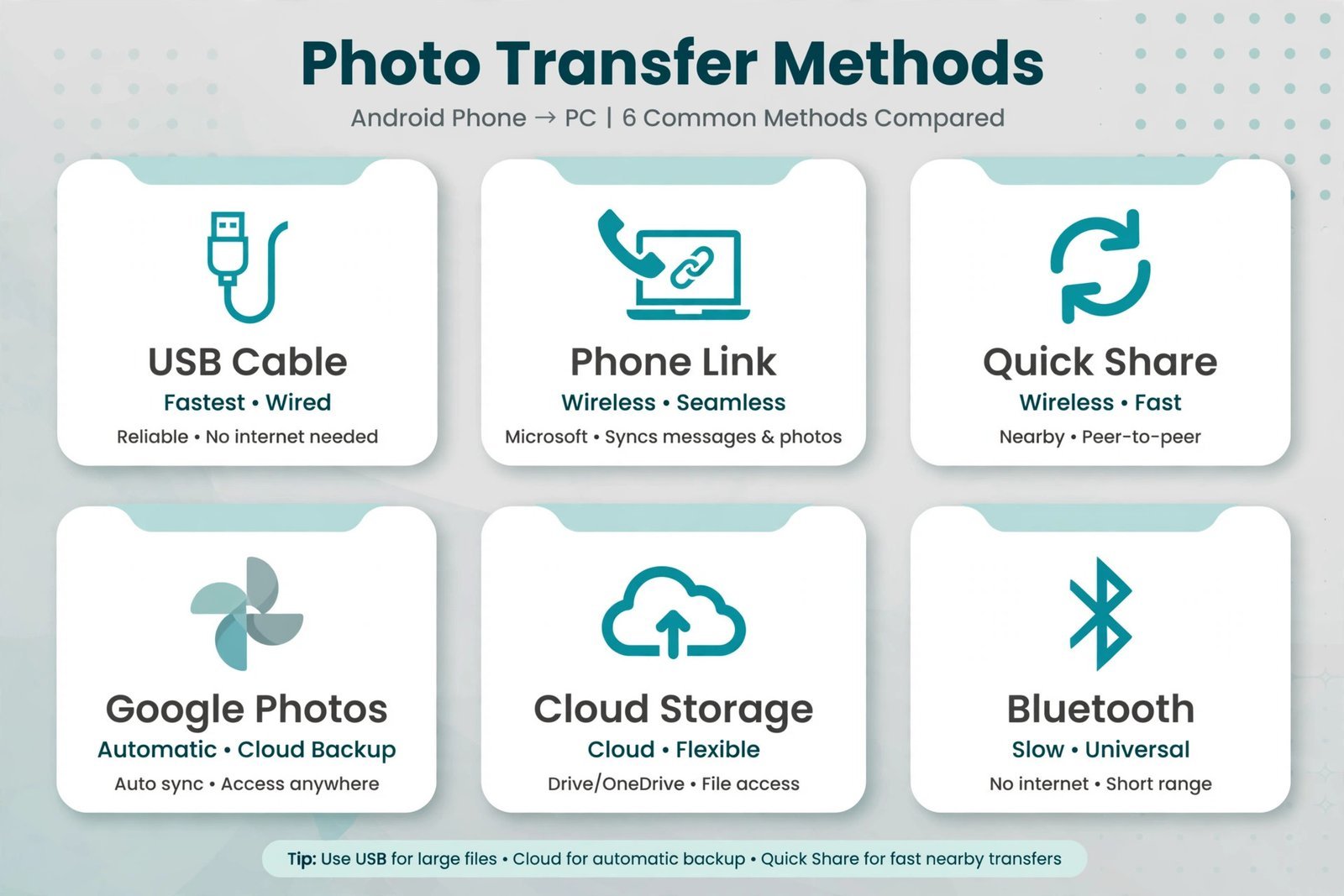
My phone hit the “storage almost full” warning last month, and the culprit was 11,000 photos I had never looked at twice. Moving them to my PC took an evening, and I tried nearly every route doing it. Here is the full menu before we get into the details: a USB cable is the fastest and most reliable way to move thousands of photos at once; Microsoft Phone Link grabs recent photos wirelessly with no cable; Quick Share beams batches of photos straight to a nearby Windows PC; Google Photos backs everything up automatically and lets you download from any browser; OneDrive or Dropbox do the same job if you already live in those ecosystems; and Bluetooth works in a pinch for one or two photos, slowly. Pick the one that fits your situation, they are all equal citizens here.
Method 1: USB Cable
Still the king for big transfers. A cable moves thousands of full-quality photos in minutes, costs nothing, and needs no internet. This is the one to use when you are clearing out years of camera roll.
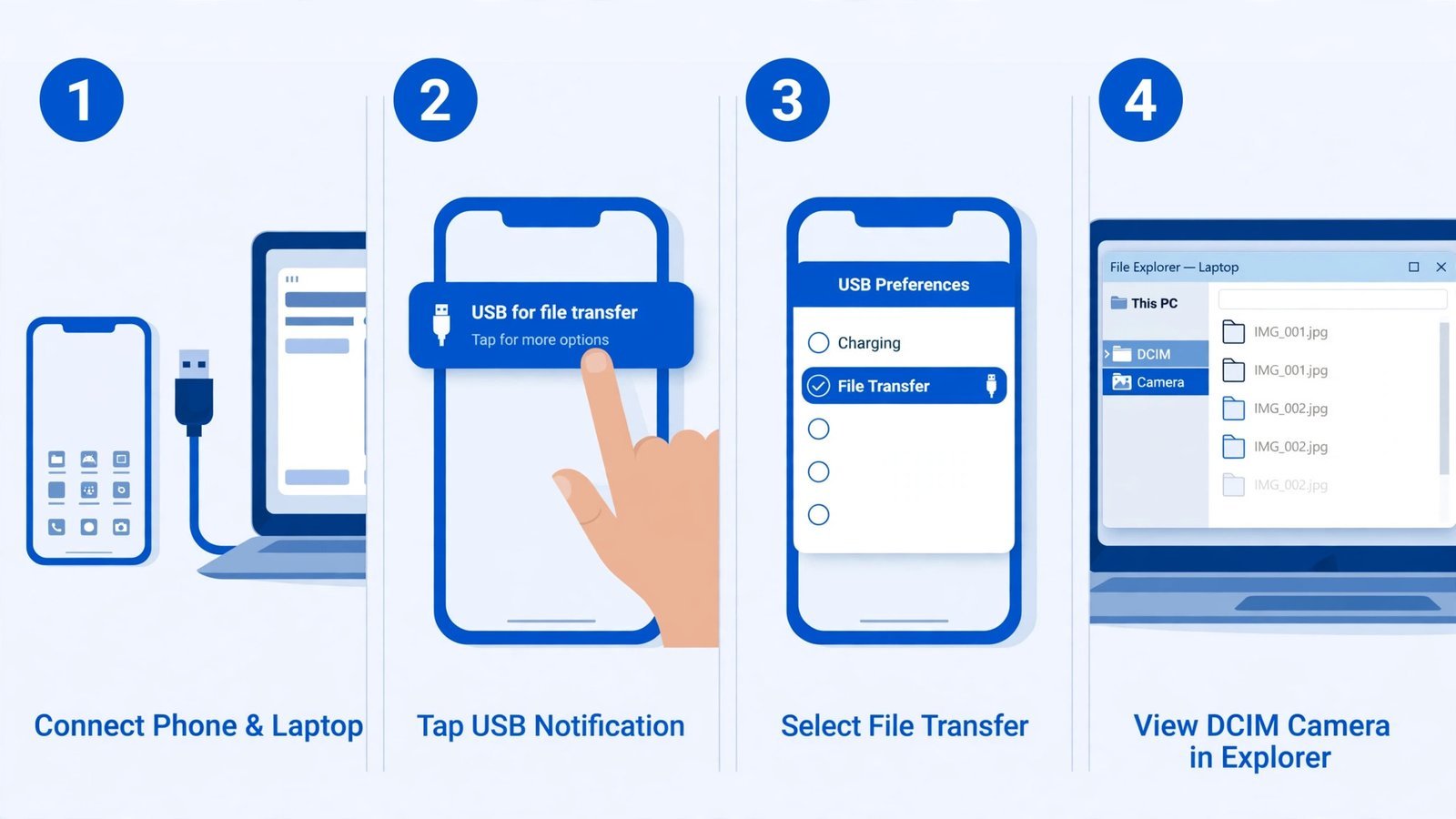
- Connect your phone to the PC with a USB cable, the one that came with your phone is the safest bet, since some cheap cables are charge-only and carry no data.
- Unlock your phone. Swipe down the notification shade and tap the notification that says “Charging this device via USB”.
- Change it to File Transfer (it may say Transfer files or MTP). Your phone defaults to charging-only, so nothing shows up on the PC until you do this.
- On the PC, press Windows key + E to open File Explorer. Your phone appears under This PC in the left sidebar.
- Open the phone, then Internal storage DCIM Camera. That is where your camera photos live.
- Select what you want (Ctrl + A for everything, or hold Ctrl and click for specific shots), right-click, and Copy.
- Paste into a folder on your PC. Use Copy, not Cut, the originals stay safely on your phone until you verify the transfer.
Note: If the DCIM folder does not appear, disconnect and reconnect the cable with the phone unlocked, then re-tap the USB notification. Photos from other apps live elsewhere: screenshots in DCIM/Screenshots or Pictures/Screenshots, WhatsApp shots in WhatsApp/Media/WhatsApp Images. And if your PC does not see the phone at all, the fix is usually a data-capable cable, a different USB port, or a phone restart, if Windows flags the phone as an unknown device, here is how to fix an unrecognized USB device.
One more caveat: some phones save photos as HEIC instead of JPG. Windows 11 opens HEIC only if you have the HEIF Image Extensions installed (free from the Microsoft Store); otherwise switch your camera app’s format to JPEG before shooting, or convert after.
Method 2: Microsoft Phone Link
Phone Link is built into Windows 11 and connects to your Android phone wirelessly, handy when the cable is in another room and you only need a handful of recent photos.
- On the PC, open the Phone Link app (search for it in the Start menu).
- On the phone, install Link to Windows from the Play Store if it is not already there, most Samsung and recent phones have it preinstalled.
- Follow the setup prompts and scan the QR code shown on the PC to pair the two.
- In Phone Link on the PC, click Photos. You will see your recent photos, the latest couple of thousand, not your whole library.
- Right-click any photo and choose Save as to copy it to your PC.
Note: Both devices need to be on and reasonably nearby, and the phone needs an internet connection. Phone Link is a quick-grab tool, not a bulk-migration tool, for your entire library, use the cable or Google Photos instead.
Method 3: Quick Share
Quick Share is Android’s answer to AirDrop, and Google’s Quick Share for Windows app brings it to the PC. Great for sending a few dozen photos at full quality without touching a cable.
- Install Quick Share on your Windows PC from Google’s official download page and sign in with your Google account.
- On your phone, select the photos in your gallery app and tap Share Quick Share.
- Your PC appears as a nearby device, tap it, accept the transfer on the PC, and the photos land in your Downloads folder (you can change the destination in the app’s settings).
Note: Both devices need Wi-Fi and Bluetooth on, and they must be close together. Make sure the PC’s Quick Share visibility is set to receive from your contacts or everyone, or the phone will not see it.
Method 4: Google Photos
The set-and-forget option. Once backup is on, every photo you take lands in the cloud automatically, and you can pull them down to any computer from a browser.
- On the phone, open Google Photos, tap your profile picture Photos settings Backup, and turn Backup on.
- Choose Original quality if you want pixel-perfect copies, or Storage saver for slightly compressed files that use less of your quota.
- Wait for the backup to finish, the first one can take hours on a big library, so leave the phone on Wi-Fi and charging overnight.
- On the PC, go to photos.google.com and sign in with the same Google account.
- Click the checkmark on the photos you want (or select a whole date), click the three-dot menu Download. Large selections arrive as a ZIP file, right-click and Extract all.
Note: You get 15GB free, shared across Photos, Drive, and Gmail. If your library is bigger, the backup stalls until you buy more storage or switch to Storage saver quality. And if some of your oldest shots are scratched, faded, or damaged prints you photographed, here is how to restore old damaged photos once they are on the PC.
Method 5: OneDrive or Dropbox
If you already pay for Microsoft 365 or use Dropbox daily, their camera-upload features do the same automatic-backup job as Google Photos, landing your shots in a folder you already sync to the PC.
- Install the OneDrive or Dropbox app on your phone and sign in.
- Turn on Camera upload (OneDrive: Me Settings Camera upload; Dropbox: Account Camera uploads).
- Let the upload run on Wi-Fi.
- On the PC, open the same service’s folder or website and copy the photos wherever you like.
Note: OneDrive gives 5GB free (more with Microsoft 365), Dropbox 2GB free, both less than Google’s 15GB. This method shines when the PC already syncs these folders, so the photos appear locally with zero extra steps.
Method 6: Bluetooth
The emergency option. No cable, no internet, no apps, just slow. Use it for one or two photos, not a hundred.
- Turn on Bluetooth on both devices and pair them (Settings Bluetooth devices Add device on the PC).
- On the phone, select a photo, tap Share Bluetooth, and choose your PC.
- Accept the incoming transfer on the PC. Files land in the Bluetooth Exchange Folder, usually inside Documents.
Note: Bluetooth moves roughly 2MB per second on a good day. A single 8MB photo takes a few seconds; fifty of them take all afternoon. This is genuinely a last resort.
After the transfer: verify, then free the space
Before deleting anything from your phone, open a few random photos on the PC and check they open at full resolution, spot-check a handful from the start, middle, and end of the batch. Once you are sure, delete the transferred shots from the phone and empty the gallery’s trash or “Recently deleted” folder to actually reclaim the space. If you used Google Photos, its Free up space button does this safely in one tap, removing only shots already backed up.
While organizing, you may notice WhatsApp photos you never meant to keep, if those images are not downloading or syncing properly in the first place, here is how to fix WhatsApp images that will not download.
Read next: How to Restore Old Damaged Photos, now that your library is on the PC, rescue the shots that time was not kind to.

- How to Stop iPhone Apps Asking for Ratings and Reviews - October 23, 2026
- How to Turn Off HDR in Windows 11 When Colors Look Washed Out - October 22, 2026
- What Is Samsung Free and How to Stop It Opening on Your Home Screen - October 21, 2026