
You’re finally ditching Windows Media Player, good call, it’s been on life support for years. The two real successors are VLC and PotPlayer, and here’s my thesis up front: you can’t go wrong with either, but if your media life lives entirely on Windows and you like tweaking things, PotPlayer is the better daily driver. If you want something that just works everywhere, Windows, Mac, your phone, VLC wins. Everything below is the evidence for that call, dimension by dimension.
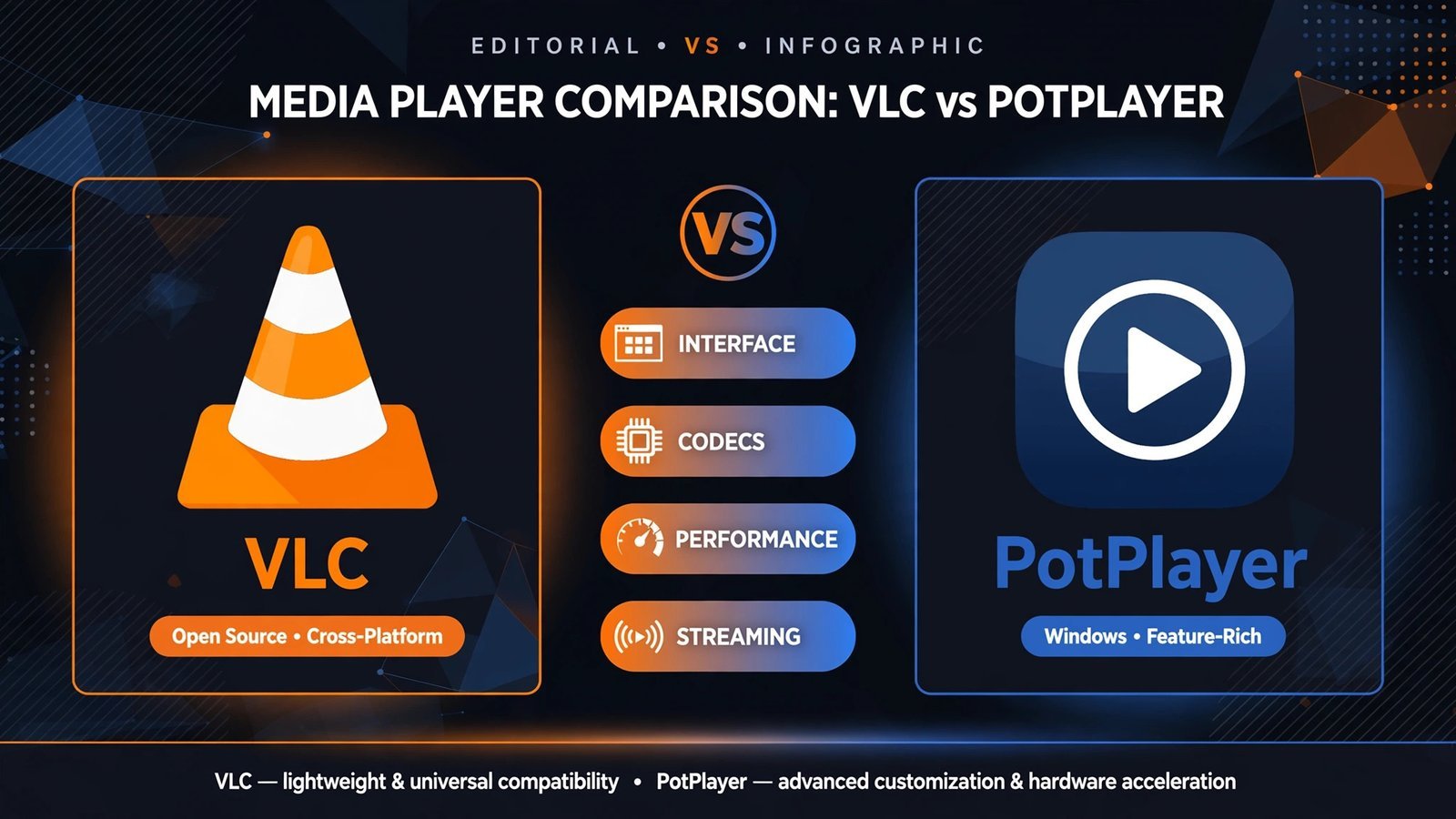
VLC vs PotPlayer: full spec comparison
| VLC | PotPlayer | |
|---|---|---|
| Platforms | Windows, macOS, Linux, Android, iOS | Windows only |
| License | Free, open source (GPL) | Free, proprietary (Kakao) |
| 2026 status | Actively maintained, 3.0.x line (still the current stable) | Actively updated freeware, 1.7.x line |
| Price | Free, no ads, no upsells | Free for personal use |
| Codec support | Excellent built-in codecs; plays damaged/odd files others choke on | Excellent built-in codecs; prompts for extras on install |
| 4K / HEVC / AV1 | Good; can drop frames on older hardware | Excellent; smooth with low CPU usage via DXVA, CUDA, QuickSync |
| Subtitles | Good multi-format support | Excellent, renders styled ASS/SSA subtitles beautifully |
| Hardware acceleration | Platform-dependent, decent | Aggressive and configurable (DXVA/CUDA/QuickSync) |
| Streaming network | Excellent, network streams, IPTV, DLNA, webcams | Limited by comparison |
| Customization | High (GUI + command line) | Extreme, skins, filters, capture, color controls |
| Resource use | Moderate | Low |
| Download | videolan.org, get the 64-bit build (ARM64 for Snapdragon PCs) | potplayer.daum.net, the official site; avoid third-party bundles |
One practical note: grab each player from its official site only. Third-party download portals love to wrap free players in bundled installers, and both of these are free, there’s never a reason to pay or to accept “download manager” extras.
Round 1: Interface ease of use, winner: VLC
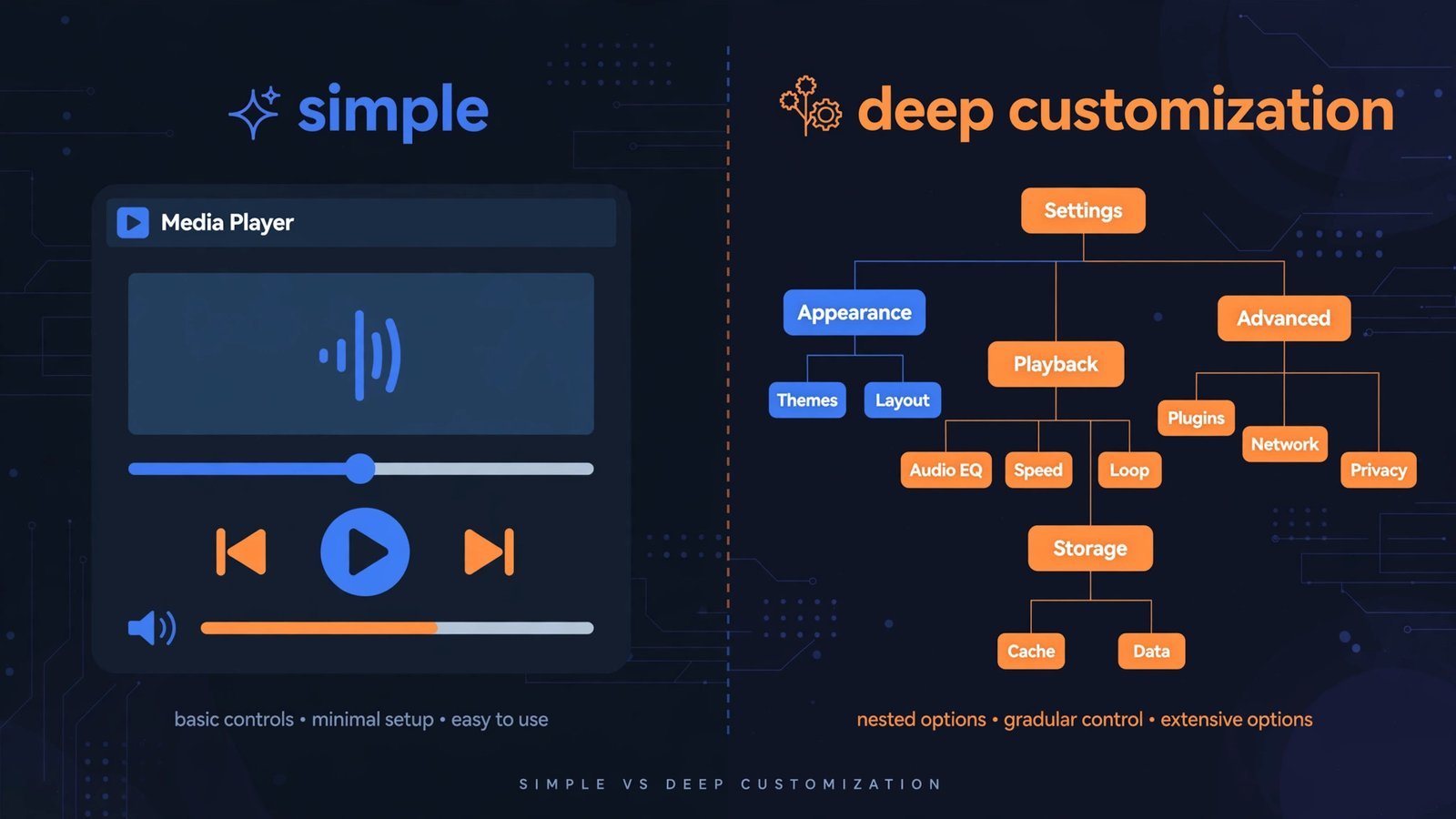
Open VLC and you get a window, a play button, and a menu bar. It looks a little dated in 2026, the interface hasn’t had a dramatic redesign in years, but everything is where you’d expect, and a new user can play a file within seconds of installing. Preferences go deep if you want them (there’s an “All settings” view with hundreds of options), but the defaults are sane.
PotPlayer looks sleeker at first glance, dark theme, modern controls, but open the preferences and you’re staring at a labyrinth. There are settings for things you didn’t know had settings: pixel shaders, broadcast color space, per-file audio sync offsets. Power users love this; everyone else gets lost. PotPlayer also nudges you to fetch additional codecs during installation, which is helpful but adds friction VLC skips entirely.
The differentiator: VLC respects your time on day one. PotPlayer rewards you on day thirty. For a switcher coming from the simplicity of Windows Media Player, VLC’s learning curve is flatter, round to VLC.
Round 2: Playback codec support, winner: PotPlayer
Both players handle the formats that matter, MKV, MP4, AVI, HEVC, VP9, AV1, FLAC, and the alphabet soup of audio codecs, without external codec packs. VLC’s legendary trick is resilience: hand it a half-downloaded file or something with a corrupted header and it will usually play what it can. Nothing else does this as gracefully.
But for clean, modern files, PotPlayer pulls ahead where it counts. 4K HEVC playback is smoother with measurably lower CPU usage thanks to its aggressive hardware acceleration options. And if you watch anime or anything with styled subtitles, the difference is stark: PotPlayer renders ASS/SSA subtitles with their intended fonts, positioning, and effects, while VLC’s rendering is functional but plain. For HDR content, PotPlayer’s color controls give you more ways to make it look right on your display.
The differentiator: VLC is the emergency room for broken files; PotPlayer is the better cinema for good ones. Since most of what you’ll play in 2026 is a good file, round to PotPlayer.
Round 3: Performance resource use, winner: PotPlayer
On a modern desktop, both players are fast enough that you won’t notice. The difference shows up on older or weaker hardware, exactly the machines most likely to still be running Windows Media Player. PotPlayer’s whole pitch is “maximum performance with minimum resources,” and it delivers: with DXVA/CUDA/QuickSync hardware decoding enabled, 4K content plays smoothly on hardware where VLC stutters with its more generic acceleration path.
VLC isn’t heavy by any reasonable standard, but it’s the thirstier of the two, and its interface process carries more overhead. If you’re on a ten-year-old laptop trying to watch a 1080p HEVC file, PotPlayer is simply more likely to keep up.
The differentiator: measured CPU usage during 4K playback is where PotPlayer’s hardware-acceleration tuning pays off, round to PotPlayer. (If your PC is truly ancient, skip both and see MPC-HC below, it’s lighter still.)
Round 4: Streaming network playback, winner: VLC
This is VLC’s home turf and it isn’t close. Paste a network stream URL, point it at an IPTV playlist, browse DLNA servers on your home network, or capture from a webcam, VLC treats the network as just another source. It’s also a competent streaming server if you ever need one, and it handles DVDs and Blu-ray folder structures that PotPlayer barely acknowledges.
PotPlayer can open network streams, but it’s clearly an afterthought: fewer protocols, clunkier playlist handling, and none of VLC’s server-side tricks. If your “media player” needs include anything beyond local files, this round decides itself. (If most of your watching is YouTube rather than files at all, a good ad blocker for YouTube will improve your life more than any desktop player.)
The differentiator: VLC is a media toolkit that happens to play files; PotPlayer is a file player, full stop, round to VLC.
The verdict: which player is yours
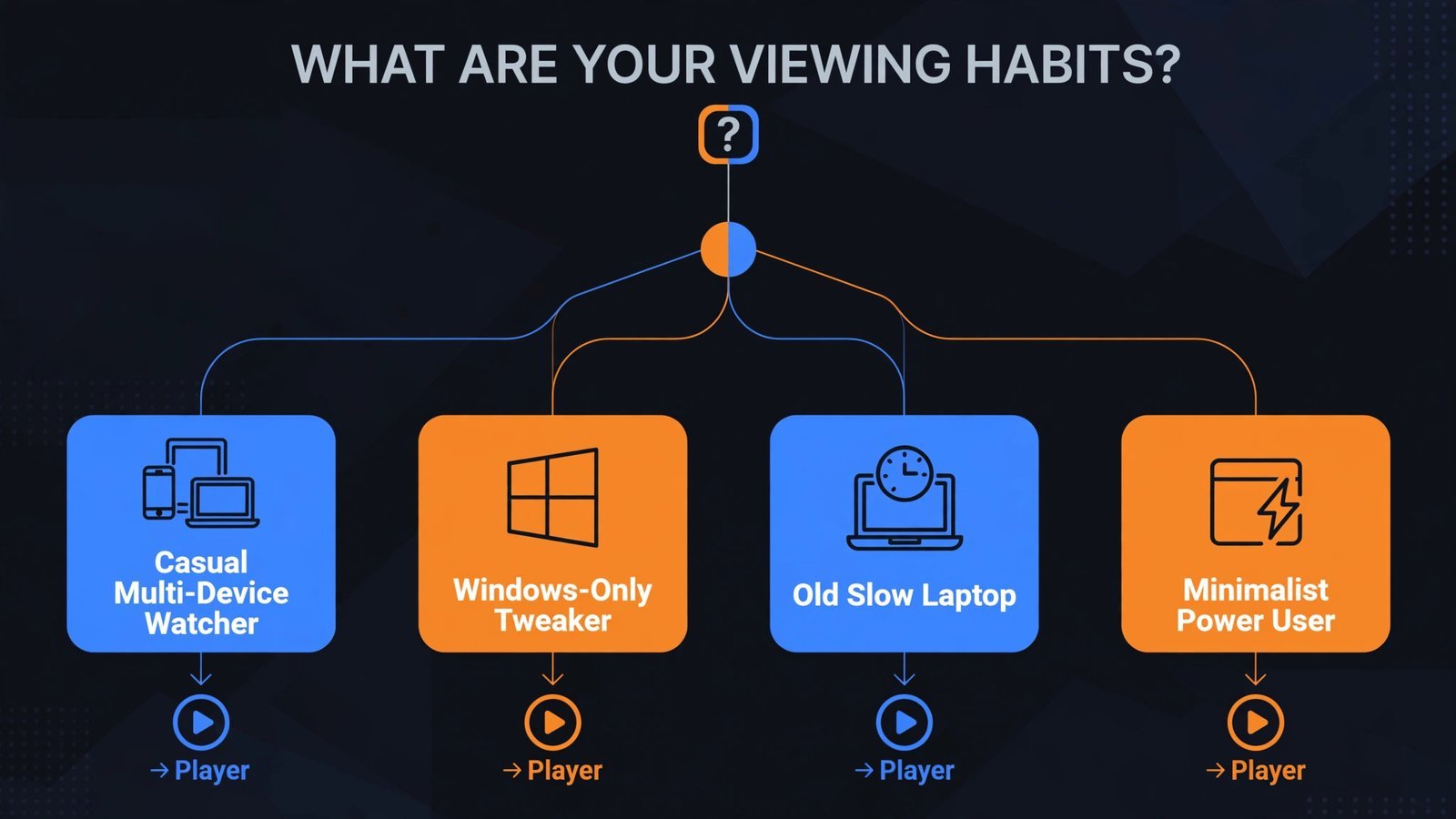
Two rounds each. Here’s how to break the tie:
- The casual switcher, you just want something better than Windows Media Player that works everywhere: pick VLC. It’s free, open source, private by design, runs on every device you own, and handles whatever you throw at it. Download it from videolan.org.
- The Windows tweaker, you live on one PC, watch anime or 4K rips, and enjoy tuning things: pick PotPlayer. Better subtitle rendering, smoother 4K, lower CPU usage, and customization that borders on the absurd. Get it from potplayer.daum.net.
- The old-laptop owner, your machine wheezes opening a browser: pick neither and grab MPC-HC (below).
My personal lean for the classic WMP switcher: PotPlayer, because the person still using Windows Media Player in 2026 is a Windows-only local-file watcher, and that’s precisely the user PotPlayer serves best.
Also consider: MPC-HC, MPV, and the rest
MPC-HC deserves a correction: the internet keeps calling it dead, but the original project ended in 2017 and a community fork (maintained by clsid2) has kept it alive and current, version 2.8.2 landed in September 2026 with bundled LAV Filters and proper HDR rendering. It’s the lightest full-featured player on Windows and the closest spiritual successor to the Windows Media Player 6.4 interface. If minimal resource use is the whole point, it’s still the answer.
MPV is the connoisseur’s choice: open source, cross-platform, scriptable, with arguably the best default picture quality of anything here, and almost no interface at all. It’s the engine inside several other players. Pick it if you configure software for fun; skip it if you want buttons.
KMPlayer still exists, but development has slowed next to the others and there’s no reason to choose it over PotPlayer in 2026. And keep VLC installed as a backup even if PotPlayer becomes your daily driver, when a file won’t play anywhere else, VLC usually will.
Why you can trust this guide
Both players were verified as actively maintained in October 2026, and the comparison is built on how they actually behave, 4K playback smoothness, subtitle rendering quality, settings complexity, and network features, not on feature lists copied from homepages. No player paid for placement; both are free anyway.
Read next: once your playback is sorted, fix the audio side too, the best sound equalizer for Windows 11 can make even laptop speakers listenable, and if you’re archiving discs, check the best screen recorders for Windows 10.

- Windows 11 26H2: What Is New in the 2026 Feature Update - October 15, 2026
- 6 Best Portable Chargers for Travelers in 2026 (Gift Guide) - October 15, 2026
- Best LED Strip Lights for Cozy Rooms in 2026 (Under $30) - October 15, 2026