
Windows 11 gives the Start menu, taskbar, and open windows a frosted glass look, with the wallpaper blurring softly behind them. It looks modern, but it can also make text harder to read, distract on a busy wallpaper, and ask a little more of an older PC. Turning it off is a single switch, and it takes effect the moment you flip it. Open Settings, go to Personalization, Colors, and turn Transparency effects Off. That is the whole job. The rest of this guide explains the second path to the same switch, what changes on screen, and what to do when the switch seems to ignore you.
What transparency effects actually do
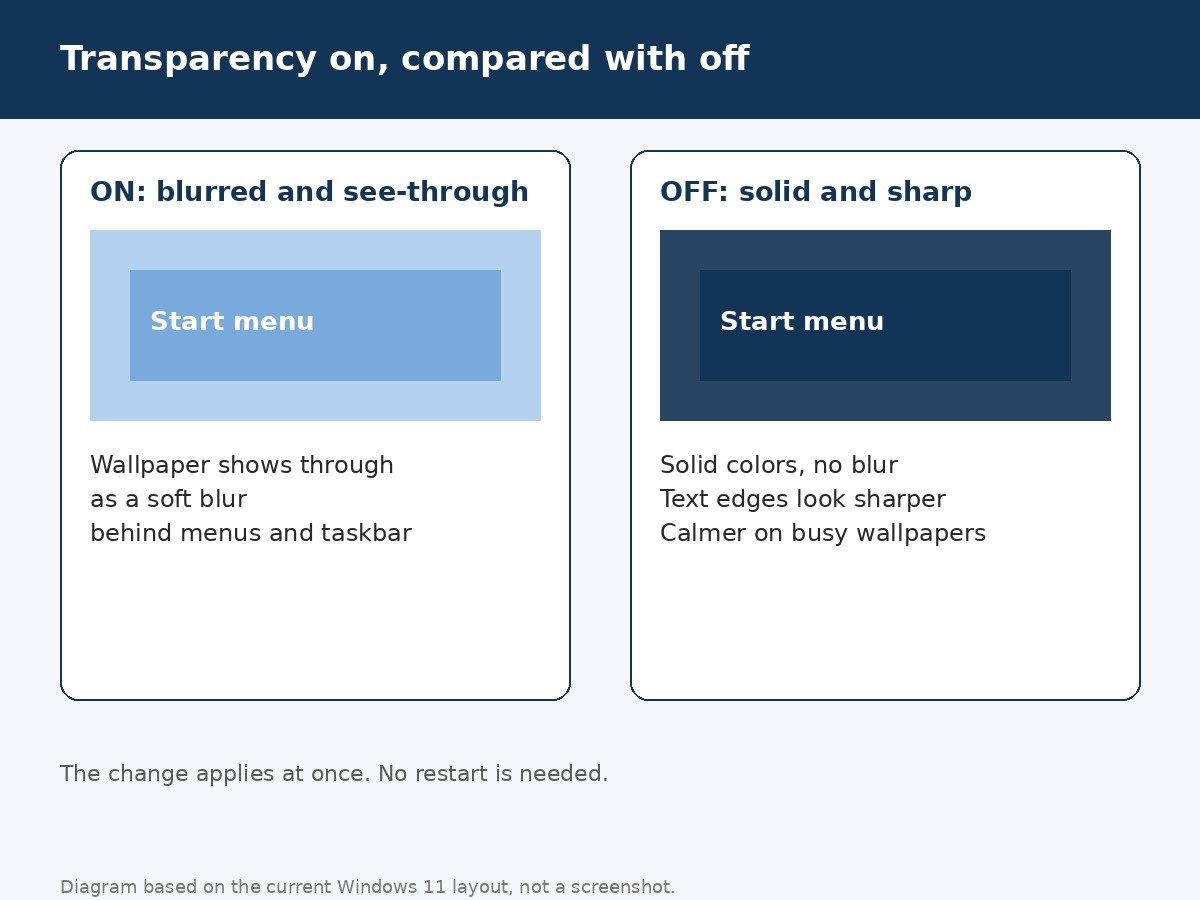
Transparency effects are part of the visual style Windows 11 ships with. When they are on, surfaces like the Start menu and taskbar are not fully solid. They show a blurred version of whatever sits behind them, so the desktop feels layered, with depth between the wallpaper, the windows, and the menus. The effect is strongest on the Start menu, the taskbar, notification flyouts, and context menus, and subtler elsewhere.
Turning the effects off does not change your wallpaper, your accent color, or your light or dark mode. It only removes the see-through blur, so those same surfaces become solid colors. Text on the Start menu and taskbar usually becomes easier to read against a solid background, because there is no blurred wallpaper competing with the letters. If you like the frosted look, there is nothing wrong with leaving it on. This is a taste and readability choice, not a fix for a broken PC, and it is fully reversible in the same place you turned it off.
Turn it off through Personalization
This is the path most people will remember, because it sits with the other appearance settings. It works the same on Windows 11 Home and Pro, and it needs no administrator account.
- Press Windows key + I to open Settings.
- Click Personalization in the left sidebar.
- Click Colors.
- Find Transparency effects and switch it Off.
- Close Settings. The Start menu, taskbar, and open windows change right away, with no restart needed.
Look at the taskbar and open the Start menu after flipping the switch. The blur should be gone, replaced by solid color. If nothing seems to change, first check that you flipped the right switch, since the Colors page holds several toggles close together, including accent color options. Then check the troubleshooting section near the end of this guide, because a high contrast theme or a managed PC can override what you see.
The second path is the same switch, not a second feature
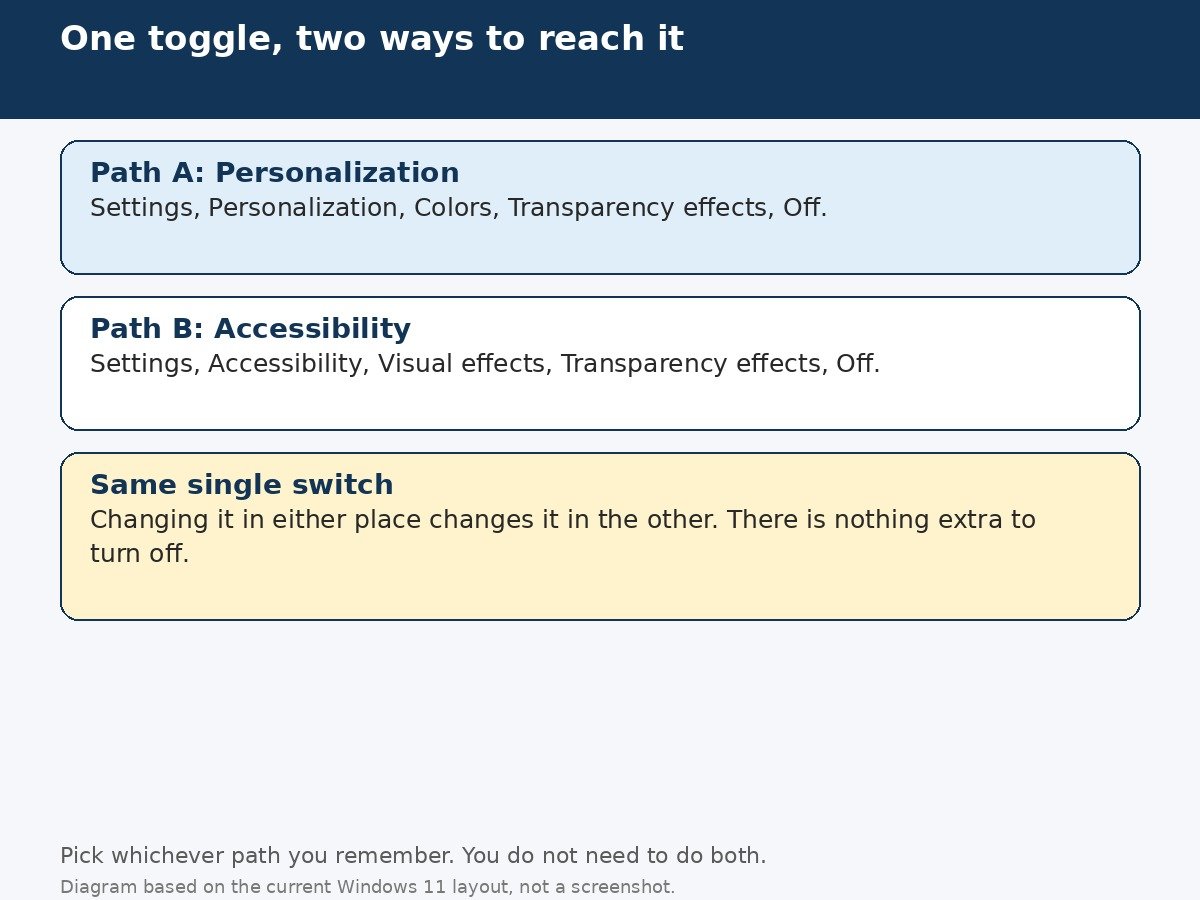
Here is the detail that confuses people, and the reason many guides look like they describe two different settings. The Transparency effects toggle also appears under Settings, Accessibility, Visual effects. It is the same single setting, shown in a second place for people adjusting visuals for comfort or readability. Changing it in either place changes it in the other, because there is only one value behind both toggles.
- Press Windows key + I to open Settings.
- Click Accessibility in the left sidebar.
- Click Visual effects.
- Find Transparency effects and switch it Off.
That means you never need to do both paths. If you turned it off under Personalization, opening the Accessibility page will already show it off, and vice versa. If the two pages ever seem to disagree, the likely cause is that the page was already open when you changed the other one, so close Settings and reopen it, and the two views will agree. The Accessibility page is still worth knowing about, because it also holds Animation effects, which is the separate setting for window motion, covered in the table below.
Why turn it off: readability, calm, and older hardware
Readability is the strongest reason. A blurred wallpaper behind menu text adds visual noise, and on a bright or detailed wallpaper that noise can make small text tiring to read. Solid surfaces give the text a single, steady background, which is easier on the eyes during long sessions. People who use a photo wallpaper, or who keep many windows open at once, tend to notice the difference most.
Calm is the second reason. Transparency adds movement of a quiet kind: every time a window moves, the blur behind it shifts too. On a calm desktop that is pleasant, but on a busy one it can feel restless, especially alongside animations. Turning transparency off, and optionally animation effects too, gives a stiller desktop that some people simply prefer to work on.
Performance is the third reason, and it deserves an honest framing. Transparency effects ask the graphics hardware to composite blurred layers, which is extra work, and on a low-end PC with integrated graphics that work is noticeable. Turning transparency off will not transform a slow PC into a fast one, and it is not a substitute for the bigger performance steps, like freeing disk space or checking what runs at startup. But as part of trimming visual effects on older hardware, it is a sensible, free step, and on a machine that already feels borderline, every bit of compositing work removed helps the desktop feel more responsive.
Related settings people mix up with transparency
| Setting | Where it lives | What it changes |
|---|---|---|
| Transparency effects | Personalization, Colors, or Accessibility, Visual effects | The see-through blur on menus, taskbar, and windows |
| Animation effects | Accessibility, Visual effects | Window motion, like menus sliding and fading in |
| Contrast themes | Accessibility, Contrast themes | High contrast colors for readability; transparency turns off automatically |
| Accent color | Personalization, Colors | The color used for highlights, Start, and taskbar; not the blur itself |
The useful rule is simple. If the problem is blur or see-through surfaces, the transparency toggle is the answer. If the problem is motion, like windows sliding around, the animation toggle is the answer. If text is hard to read even on solid surfaces, a contrast theme is worth trying, and it will switch transparency off on its own, as explained below. Changing the accent color, by contrast, only recolors the solid surfaces, and will not remove the blur.
When the toggle is grayed out or managed
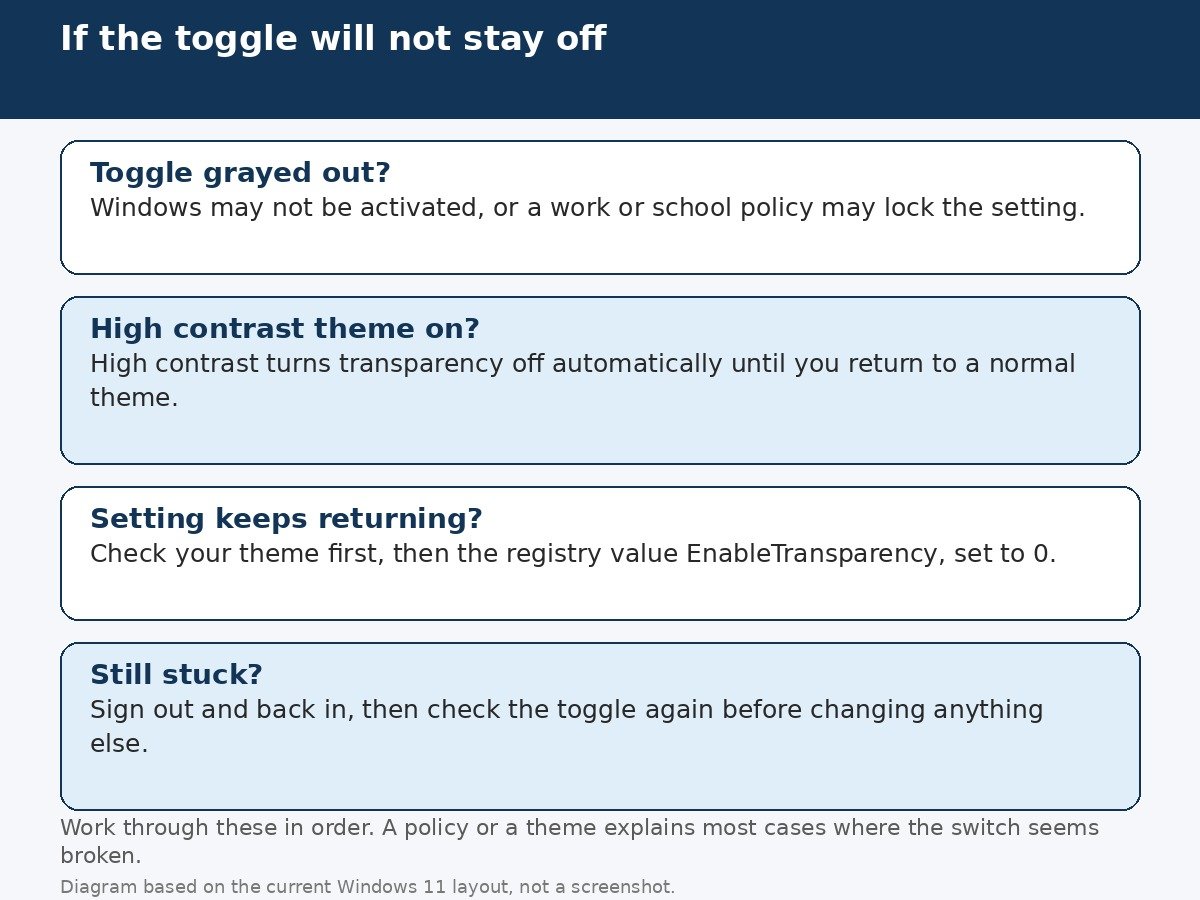
On most personal PCs, the toggle just works. Two situations can lock it. The first is activation: if Windows 11 is not yet activated, the Personalization pages can be greyed out, including the Colors page. Activating Windows restores them. The second is management: on a work or school PC, an administrator policy can lock personalization settings, in which case the toggle may be greyed out or missing entirely. On a managed PC, that policy is the answer, and working around it is not advisable.
When the normal switch is unavailable and the PC is your own, there is a registry fallback, for advanced users only. Back up the registry first, then open Registry Editor and go to HKEY_CURRENT_USER, Software, Microsoft, Windows, CurrentVersion, Themes, Personalize. Find the DWORD value named EnableTransparency. Set it to 0 to turn transparency off, or 1 to turn it back on. Sign out and back in if the change does not show at once. This fallback edits the same underlying value the Settings toggle controls, so it is not a separate hidden feature, just another way to reach the same switch when the usual route is locked. A policy can block this route too, in which case the setting is genuinely managed, and that is the end of the road for local changes.
If transparency keeps turning itself back on
A setting that reverts after a restart usually has a cause outside the toggle itself, and the most common one is a theme. Custom themes can carry their own transparency preference, so switching to a theme can restore the blur even after you turned it off. To test this, switch to a default Windows theme under Personalization, Themes, turn transparency off again, and restart. If it now sticks, the theme was the cause, and you can either keep the default theme or accept that your custom theme reasserts its own look.
High contrast themes deserve a separate note, because they work in the opposite direction. When a high contrast theme is active, Windows turns transparency off automatically, since a blurred background would fight the high contrast colors. That is normal behavior, not a fault, and the effect stays off until you switch back to a regular theme. So if transparency seems stuck off and you cannot turn it on, check whether a contrast theme is active before assuming the toggle is broken. Conversely, if transparency seems stuck on, check that a contrast theme is not involved at all, since it would push the other way.
Battery saver on a laptop can also dim visual effects temporarily, which sometimes looks like transparency changing on its own. That is a power saving behavior, not a settings change, and the effects return when battery saver turns off. For a fuller walkthrough of the Settings and registry routes, including the high contrast interaction, see the detailed guide to turning transparency effects on or off in Windows 11, which covers the same three routes described here.
Turning it back on
Reversing the change is the same single step in reverse. Open Settings, go to Personalization, Colors, or Accessibility, Visual effects, and switch Transparency effects back On. The blur returns at once, with no restart. There is no separate cleanup step, and no setting left behind to undo, because the registry fallback, if you used it, writes the same value the toggle reads. If you switched to a default theme while troubleshooting, remember to return to your preferred theme afterwards, since that choice is separate from the transparency toggle itself.
A plainer desktop, by choice
Transparency effects are a small thing, and that is exactly why they are worth getting right. They sit in front of you all day, on every menu and window, so a look that strains your eyes or distracts you is a daily cost, even if it is a small one. One toggle, in either of two places, removes the blur and leaves everything else untouched. Try it off for a day of real work, not just a minute of looking, and let the calmer, sharper desktop make its own case. If you miss the frosted look, the same toggle puts it straight back.

- How to Turn Off Transparency Effects on Windows 11 - October 30, 2026
- How to Turn Off the Sticky Keys Shortcut Popup on Windows 11 - October 29, 2026
- How to Fix Windows 11 Wi-Fi That Keeps Disconnecting - October 28, 2026