
You can turn off the Recommended section in the Windows 11 Start menu from Settings, and on current builds that is enough to make the whole section disappear. Open Settings, go to Personalization, then Start, and turn off every toggle that feeds recommendations. On Windows 11 24H2 and 25H2 with the redesigned Start menu, the section collapses once all of those toggles are off, leaving more room for your pinned apps. On 23H2 and older builds, the same steps empty the section, but the heading may stay in place. This guide covers both cases, plus how to remove a single item and how Pro and Enterprise users can hide the section with Group Policy.
What the Recommended section actually shows
The Recommended section sits below your pinned apps in the Start menu. It mixes three different kinds of entries: apps you recently added, files you recently opened, and suggestions from Microsoft such as tips and app promotions. That mix is why one switch rarely fixes it. Each kind of entry has its own toggle, so you need to turn them all off to clear the section completely.
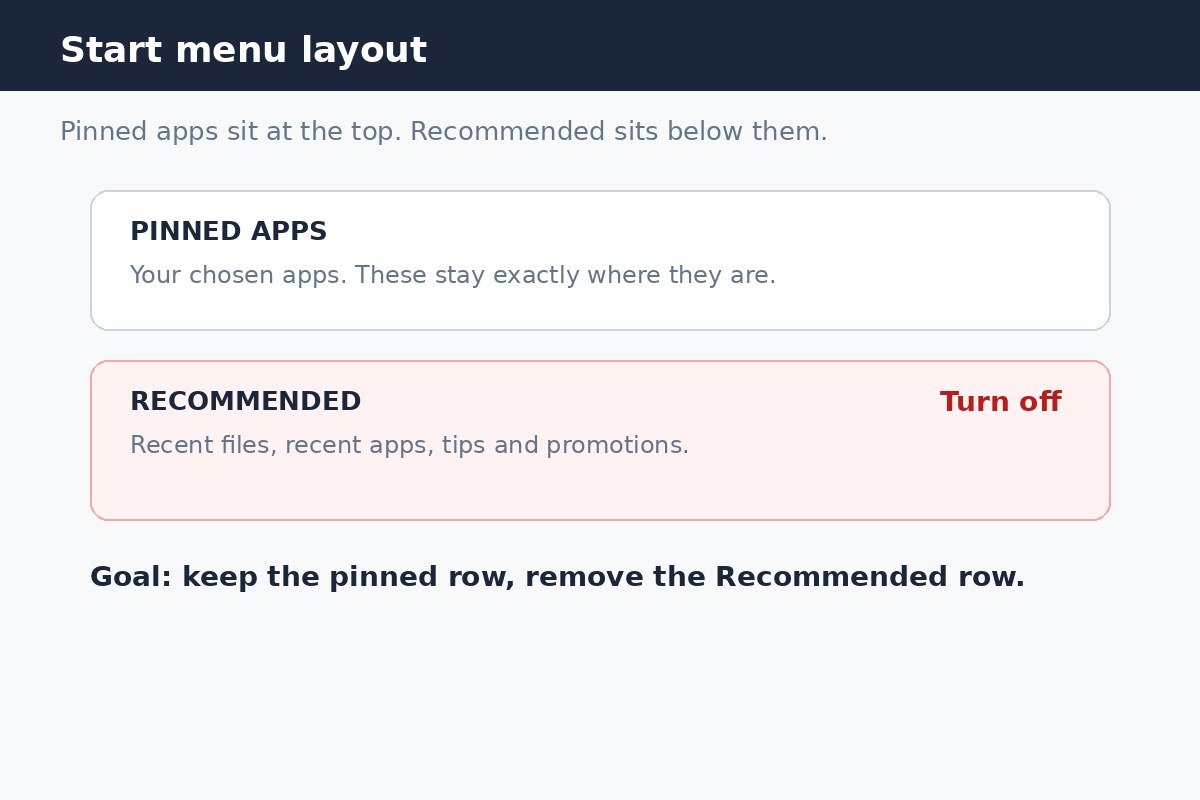
It helps to decide what you actually want before you start. If you like seeing recent files but not promotions, you can turn off only the promotions toggle. If you want the section gone entirely, turn off every recommendation toggle in the steps below. Nothing here deletes your files or uninstalls your apps. It only changes what the Start menu shows.
Turn off the Recommended section in Settings
Follow these steps on any Windows 11 PC. You do not need extra software, and you can undo every change the same way.
- Press the Windows key and I together to open Settings. You can also open Start and select Settings from your pinned apps.
- Select Personalization in the left sidebar.
- Select Start.
- Look for the recommendation toggles on the Start page. On some newer builds, you may see a single section toggle labelled Recent or Recommended. If you see one, turn it off and skip to step 6.
- If there is no single section toggle, turn off each of these toggles: Show recently added apps; Show recommended files in Start, recent files in File Explorer, and items in Jump Lists; Show recommendations for tips, app promotions, and more; and Show websites from your browsing history. Toggle names can vary slightly by build, so turn off every toggle on this page that mentions recommendations, recent files, or recent apps.
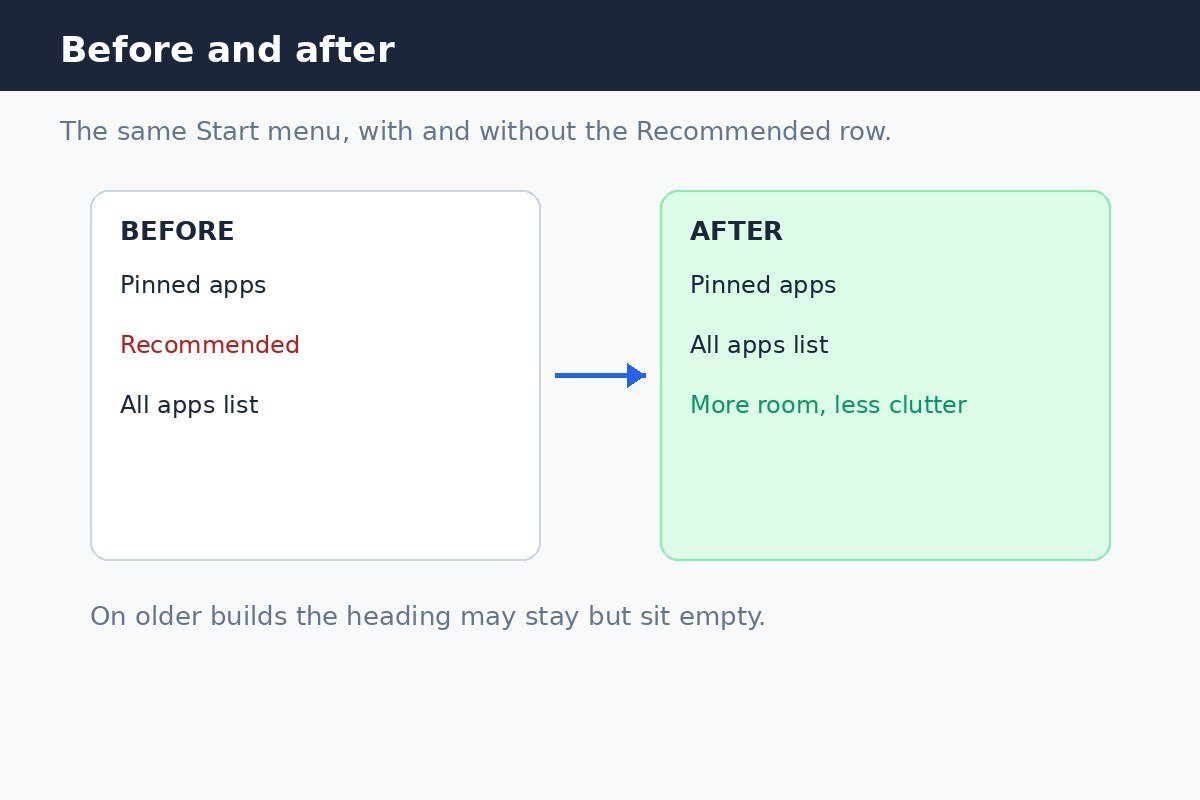
- Open the Start menu and check the result. On a current 24H2 or 25H2 build, the Recommended section should be gone. On an older build, it should be empty.
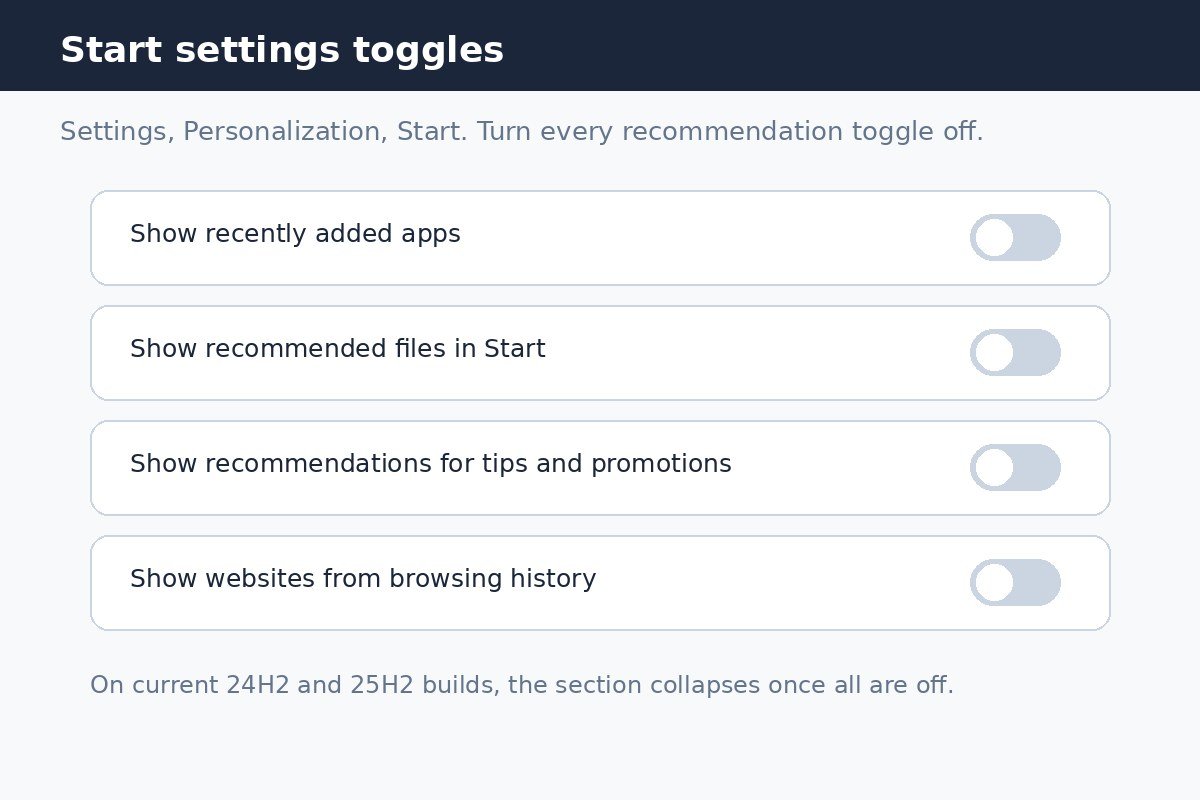
Note that turning off the recent files toggle also affects recent files in File Explorer and Jump Lists. That is normal, because Windows treats those recent lists as one shared history. If you rely on recent files in File Explorer, keep that one toggle on and accept that some entries may still appear in Start.
What changes on your version of Windows 11
Microsoft has been rolling out a redesigned Start menu gradually, so two PCs on the same version number can still look different. The table below sets out what to expect.
| Your build | After turning off every recommendation toggle |
|---|---|
| 24H2 or 25H2 with the redesigned Start menu | The Recommended section collapses and disappears. Pinned apps gain the freed space. |
| Newer builds where the section is renamed Recent | Turning off the Recent toggle hides the section in one step. |
| 23H2 and older | The section stops showing items, but the heading may remain as an empty space. Choosing the More pins layout gives pinned apps an extra row. |
To check your version, open Settings, select System, then About, and look at the Windows specifications. That page also shows your edition, which matters for the Group Policy method later in this guide. If the section is still full after you changed the toggles, recheck the Start page for a toggle you missed. A single toggle left on is the most common cause.
Remove one item without turning everything off
Sometimes only one entry is the problem, such as a document you do not want visible on a shared PC. You do not have to disable the whole feature for that.
- Open the Start menu.
- Find the item in the Recommended section.
- Right-click the item.
- Select Remove from list.
The item disappears at once, but Windows may add new items later as you open other files and apps. Use this method for one-off cleanups, and use the Settings toggles when you want recommendations to stop appearing altogether.
Hide the whole section with Group Policy on Pro and Enterprise
Windows 11 Pro, Enterprise, and Education include a Group Policy setting that removes the Recommended section from the Start menu. Windows 11 Home does not include the Group Policy Editor, so skip this method on Home and use the Settings steps above instead.
- Press the Windows key and R together to open the Run dialog.
- Type gpedit.msc and press Enter. If prompted, confirm with an administrator account.
- Go to Computer Configuration, then Administrative Templates, then Start Menu and Taskbar.
- Double-click Remove Recommended section from Start Menu.
- Select Enabled, then select OK.
- Sign out and back in, or restart Windows Explorer, to apply the change. To restart Explorer, open Task Manager, find Windows Explorer on the Processes tab, right-click it, and select Restart.
To undo the policy later, reopen the same setting and select Not Configured, then sign out and back in again. Note that policy support can vary by edition and build, so if the section stays put on your PC, fall back to the Settings toggles, which work on every edition.
If the section is still there
- Recheck every toggle on the Personalization, Start page. A missed toggle keeps feeding the section.
- Restart Windows Explorer or sign out and back in, since some Start menu changes need a refresh before they show.
- Check for Windows updates. The redesigned Start menu and its section toggle roll out gradually, so an update may bring the newer behaviour to your PC.
- On an older build, accept an empty heading as the limit of Settings alone, and use the More pins layout to shrink the space it takes.
How to turn recommendations back on
Reopen Settings, go to Personalization, then Start, and turn the toggles back on. Recent files and apps will start appearing again as you use them. If you used Group Policy, set Remove Recommended section from Start Menu back to Not Configured first, then adjust the Settings toggles.
A quiet Start menu makes the apps you chose easier to find, and it takes less than five minutes to set up. Turn off the toggles you do not want, keep any you find useful, and revisit the page whenever a future update changes the layout.

- How to Turn Off the Recommended Section in Windows 11 - October 31, 2026
- How to Disable Automatic Driver Updates on Windows 11 - October 30, 2026
- How to Stop OneDrive From Syncing Your Desktop on Windows 11 - October 29, 2026