
Notepad in Windows 11 is still the simplest way to write plain text on a PC, but it does far more than the old blank window most people remember. You can keep several files open in tabs, close the app without saving and find your words waiting when you come back, and check spelling as you type. This guide walks through each of those jobs in order, starting with opening the app and saving your first file.
If you only need the short version, here it is. Press the Windows key, type Notepad, and press Enter. Type what you need, then press Ctrl + S to save it as a file. Press Ctrl + N when you want a second tab. If you close Notepad with unsaved text, that text is still there the next time you open the app, but it is not saved as a file until you press Ctrl + S.
How to open Notepad in Windows 11
There are four ways to open Notepad. Use whichever you remember most easily, because they all open the same app.
- Start search. Press the Windows key, type Notepad, and press Enter. This is the method Microsoft documents on its own help page, and it works on every Windows 11 PC.
- Run box. Press Windows + R, type notepad, and press Enter. This is handy when your hands are already on the keyboard.
- From a folder. Open File Explorer, go to the folder where you want the file, right-click an empty space, and choose New, then Text Document. A new file appears, ready to rename and open.
- Pin it for later. Search for Notepad in Start, right-click it, and choose Pin to taskbar. After that, one click on the taskbar opens it.
Notepad is a separate app that Microsoft updates through the Microsoft Store, rather than through Windows Update. That means two PCs can show slightly different menus. If a menu or setting below does not appear on your screen, open the Microsoft Store, go to Library, select Get updates, and install the Notepad update before going further.
Create and save your first file
When Notepad opens, you get a blank tab with the cursor already blinking. Type or paste your text, and save it as soon as it matters to you.
- Type your text in the blank tab.
- Press Ctrl + S, or open the File menu and choose Save.
- In the Save As box, pick the folder where the file should live, type a file name, and select Save.
The first save asks for a name and a folder. Every save after that just updates the same file, with no questions. If you want a second copy under a different name, use File, then Save As, or press Ctrl + Shift + S. Get into the habit of pressing Ctrl + S whenever you finish a thought. It takes a second, and it is the only step that turns your words into a real file.
Two details in that Save As box are worth knowing. Notepad saves .txt files by default. For a different extension, such as .md or .log, choose All files in the file type list and type the full name including the extension, for example notes.md. The encoding list controls how the text is stored. UTF-8 is the default and the right choice for almost everything, because it handles every language and symbol correctly. Leave it alone unless an old program needs ANSI files.
Use tabs to keep several files open
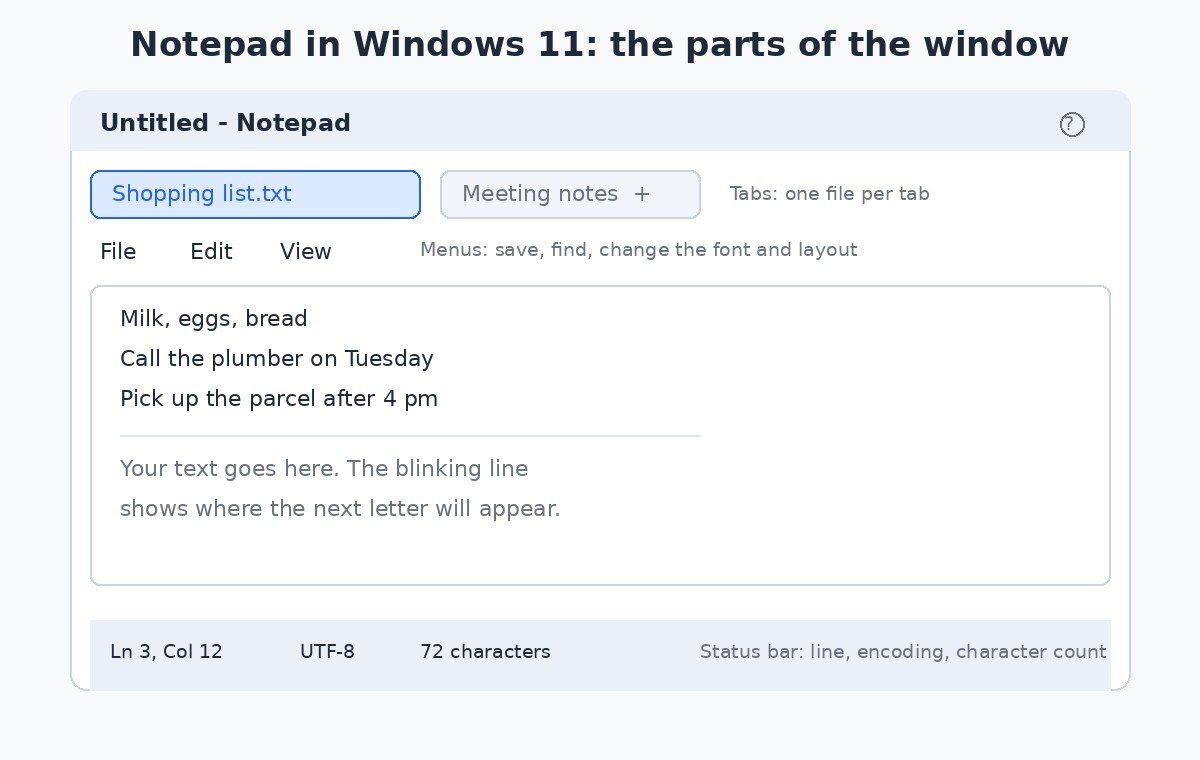
Tabs are the biggest change from the old Notepad. One window can now hold several files at once, much like a web browser, which is useful when you are comparing two lists or copying text between notes. An unsaved tab is marked with a small dot, so you can see at a glance which tabs still need saving.
- Open a new tab: press Ctrl + N, or select the + button beside the last tab.
- Open a file in a tab: press Ctrl + O, pick the file, and it opens in a new tab.
- Move between tabs: press Ctrl + Tab to step through them, or just click the tab you want.
- Close one tab: press Ctrl + W, or click the small x on the tab. If that tab has unsaved changes, Notepad asks whether to save them first.
- Move a tab into its own window: drag the tab out of the tab row and drop it on the desktop.
- Open a separate window: press Ctrl + Shift + N.
Your unsaved work comes back when you reopen Notepad
Here is the behaviour that surprises new users most. Close the Notepad window with unsaved text in a tab and no save prompt appears. Open Notepad again and the same tabs are there, with the same unsaved text, exactly as you left it. Microsoft calls this session restore, and it is on by default.
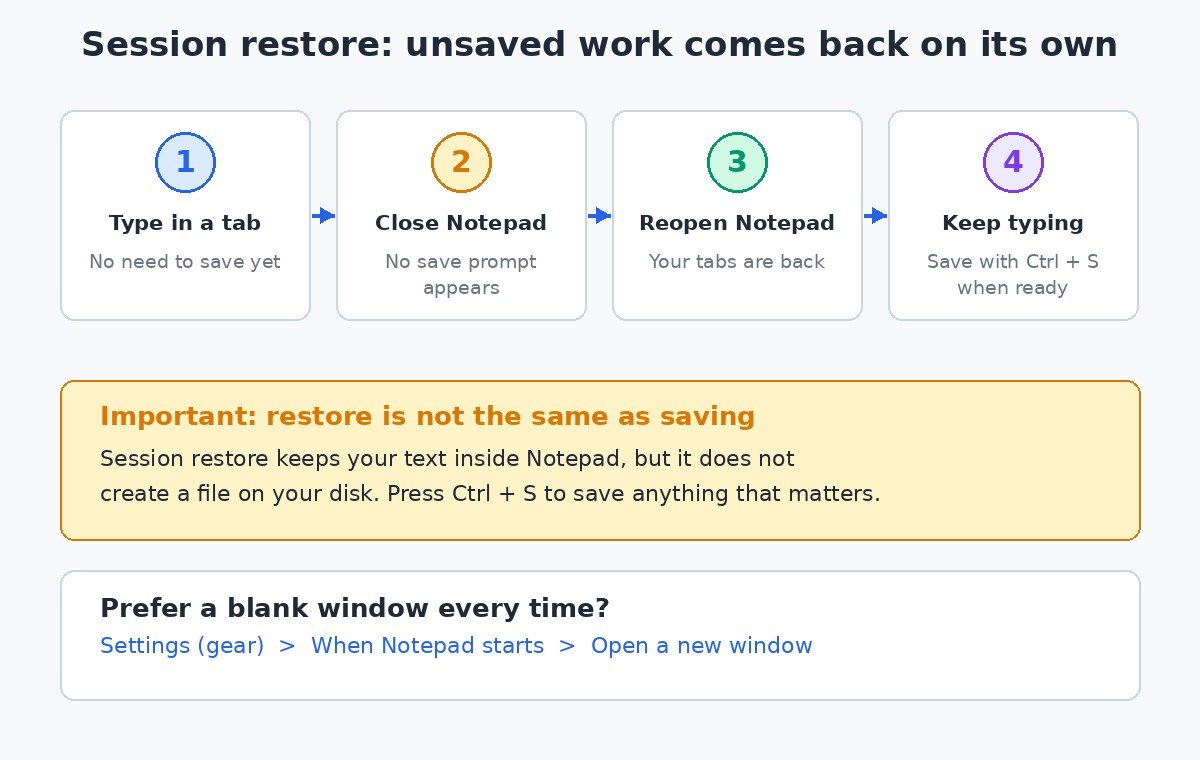
Session restore is easy to misunderstand. It keeps your text inside Notepad, but it does not create a file on your disk, back anything up, or survive a Windows reinstall. Treat it as a safety net for accidental closes, not a filing system. Anything you would miss if it vanished deserves a real save with Ctrl + S.
How to turn session restore off
Some people prefer a blank start every time, especially on a shared PC where others should not see their notes. To change it, open Notepad, select the Settings gear, expand When Notepad starts, and choose Open a new window. On the newest builds the same option may read Start new session and discard unsaved changes.
Format text, headings, and lists
Current versions of Notepad include a formatting toolbar above the text area. You can make headings, bold and italic text, bulleted and numbered lists, links, and even simple tables. This is most useful in Markdown files, which keep the formatting when opened elsewhere, but the toolbar works in ordinary text files too on current builds. If you prefer plain text only, switch formatting off in Settings, under Formatting. If you need page layouts or pictures inside a document, a word processor is the right tool. Notepad is for text that needs to stay simple and portable.
- Heading: use the heading button on the toolbar, or type # followed by a space at the start of a line. More hash marks make smaller headings, so ## is a subheading.
- Bold: select the text and press Ctrl + B, or wrap it in double asterisks, like **important**.
- Italic: select the text and press Ctrl + I, or wrap it in single asterisks, like *note*.
- List: use the bullet or numbered list button, or start a line with a dash followed by a space.
- Link: select the words, use the link button, and paste the web address. In Markdown, the same link looks like [guide title](https://example.com).
- Clear formatting: select the text and choose the clear formatting button to return it to plain text.
Spellcheck, autocorrect, and word wrap
Notepad checks spelling as you type. Misspelled words get a red underline, and the feature is switched on by default for ordinary text files. It stays off by default for code and log files, so configuration files do not fill with red lines.
- Fix a word: right-click the underlined word, or put the cursor on it and press Shift + F10, then pick a suggestion from the list.
- Ignore a word: right-click it and choose Ignore, which stops flagging it in this document. Use Add to dictionary for names and technical terms you use often, so they stop being flagged everywhere.
- Turn it off for one file: right-click anywhere in the text, open Spelling, and choose Turn off spell check. The other tabs are not affected.
- Turn it off everywhere: open the Settings gear, go to the Spelling section, and switch Spell check off. The same page lets you control spellcheck per file type.
Autocorrect is the companion feature. When it is on, Notepad quietly fixes common typos as you type, such as turning “teh” into “the”. That is helpful in notes and harmful in passwords, code, and commands, where an automatic change can break the text. The switch lives in the same Spelling section of the Notepad settings page. If you want to turn autocorrect off for the whole PC, including other apps that use the Windows spelling service, our guide to turning off autocorrect in Windows 11 covers the system setting and the separate Office setting step by step. Word wrap, from the View menu or Alt + Z, folds long lines inside the window without changing the file.
Find and replace text
Find and replace is the fastest way to fix a repeated mistake, such as a name spelled wrong twenty times, or a date that changed after you wrote it.
- Press Ctrl + F to find, or Ctrl + H to find and replace. A small panel opens at the top of the window.
- Type the word you want to find in the Find box.
- For a replacement, type the new word in the Replace with box.
- Select Replace all to change every match at once, or use Replace to change them one at a time and check each one.
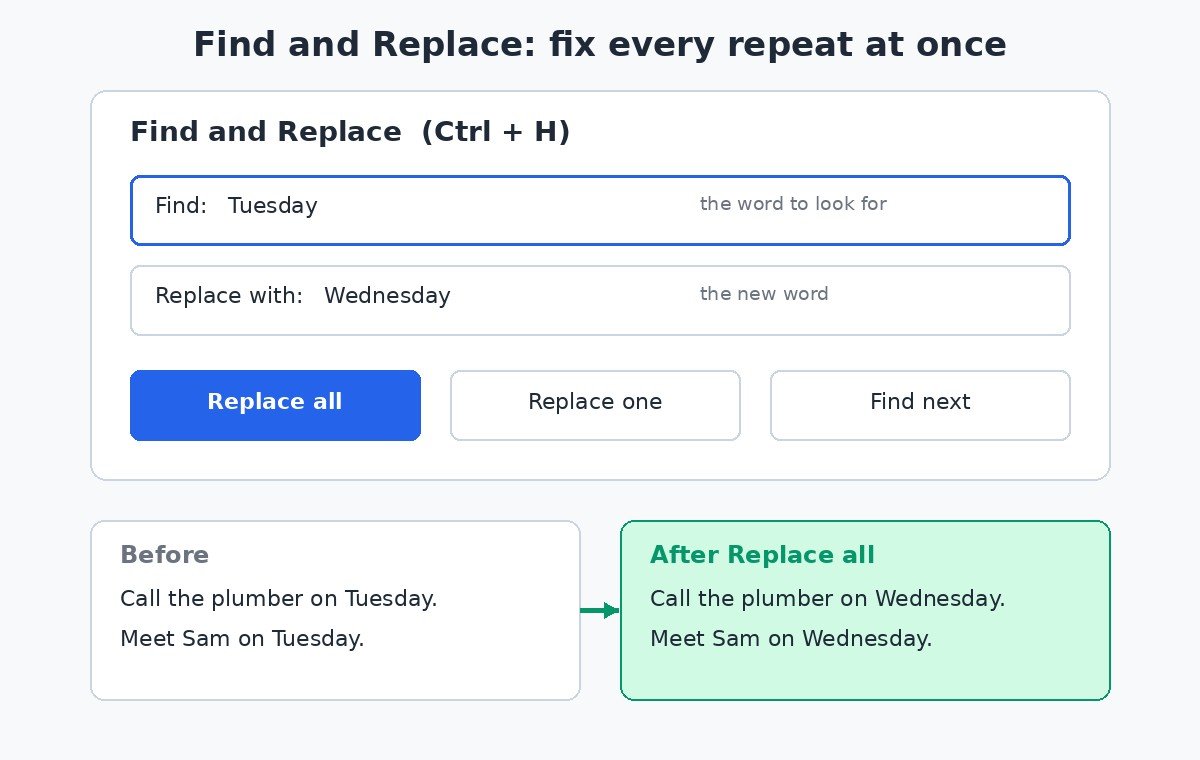
Two habits make Replace all safe. First, save with Ctrl + S before you start, so you can close without saving if the result is wrong. Second, watch for words hidden inside other words. Replacing “art” everywhere would also change “start” and “part”. When in doubt, replace one at a time, or undo with Ctrl + Z and try again.
Print a document
Printing from Notepad is simple. Press Ctrl + P, or open File and choose Print, then pick your printer. Before printing, open File, then Page Setup, to control what appears at the top and bottom of each page.
By default, the file name prints at the top of the page and the page number at the bottom. You can change either box with short codes: &f for the file name, &p for the page number, &d for the date, and &t for the time. Put &l at the start to align left, &c to centre, or &r to align right. Leave a box empty and nothing prints there. Microsoft documents these codes on its Notepad help page. The settings cannot be saved, so you enter them again for the next document.
Write, Rewrite, and Summarize: the AI tools
Current versions of Notepad include three AI writing tools. It is worth knowing exactly what they need before you go looking for them, because they do not appear for everyone yet.
- Write (Ctrl + Q) drafts new text from a short prompt, such as an email or a checklist. Place the cursor where the text should go, or select existing text to use as a reference, then describe what you want.
- Rewrite (Ctrl + D) rewords text you have selected. It can make a passage shorter or longer, clearer, or more formal, and it offers three versions to choose from.
- Summarize (Ctrl + M) condenses selected text into a short, medium, or long summary of the main points.
The requirements are the part most guides skip. Microsoft’s documentation says the AI features need a Microsoft account sign-in, because they run on a cloud service that checks who you are. Generating text also uses AI credits, and Microsoft 365 Personal and Family subscribers get 60 a month. The tools are not offered in China, Macao, or Russia. On a Copilot+ PC they can run on the device itself without a subscription, though that path is English only at present. Availability is still rolling out, so a fully updated PC can still lack the tools. If they are missing on yours, update Notepad from the Microsoft Store and check again later.
Two honest cautions apply. Generated text can sound confident while being wrong, so read anything the AI writes before you send it or rely on it, especially names, dates, and numbers. The cloud version also sends your selected text to Microsoft’s online service, so do not use it on private or sensitive notes. If you would rather not have the tools at all, open the Notepad Settings gear, find the AI features section, and switch the Copilot toggle off. Microsoft’s guide to AI writing in Notepad lists the current requirements and regional limits in full.
Small extras that save time
A few smaller features are easy to miss, and each one solves a real, specific job. Press F5 anywhere in a document and Notepad inserts the current date and time at the cursor, which is handy for diary entries and meeting notes.
The second is the log file trick, which Microsoft has documented for years. Type .LOG on the first line of a new file and save it. Every time you open that file afterwards, Notepad adds the current date and time at the end, ready for your next entry.
The status bar at the bottom shows the line and column of your cursor, the file encoding, and the character count, or the count for your selection if you have highlighted text. If it is missing, switch it on from the View menu. Notepad also follows the Windows theme by default, so dark mode in Windows means dark mode in Notepad.
Troubleshooting: three common Notepad problems
Notepad will not open
Start with the simplest fix. Open the Microsoft Store, go to Library, select Get updates, and install any Notepad update, then restart the PC and try again. If it still refuses to open, repair the app. Open Windows Settings, go to Apps, then Installed apps, search for Notepad, select the three-dot menu beside it, and choose Advanced options. Select Repair first, because it fixes the app while keeping your settings. If that does not help, select Reset on the same page, which clears the app data and restores its defaults. Save open work first, because Reset clears the restored session.
Notepad is missing
If Notepad does not appear in Start search at all, it may have been removed from the PC. Open the Microsoft Store, search for Notepad, and install it. If the Store does not offer it, run Windows Update from Settings, then Windows Update, and check the Store again. On a work or school PC, an administrator may have removed the app, in which case only they can restore it.
Text looks garbled
Garbled text, with strange symbols or question marks in place of letters, almost always means the file was saved in a different encoding from the one Notepad expects. Notepad normally detects the encoding on its own, so this usually happens with files from another computer or a very old program. The fix is a fresh copy in the right encoding. Open the file, choose File, then Save As, and make sure the encoding list shows UTF-8 before saving. If the text is already garbled on screen, the damage happened when the file was saved, so ask the sender for a fresh copy saved as UTF-8, or retype the damaged lines. Changing the font will not help, because the problem is the stored characters, not how they are drawn.
Notepad keyboard shortcuts worth remembering
You can run Notepad entirely with the mouse, but a handful of shortcuts cover nearly everything in this guide.
| Shortcut | What it does |
|---|---|
| Ctrl + N | Open a new tab |
| Ctrl + O | Open a file |
| Ctrl + S | Save the current file |
| Ctrl + Shift + S | Save As, under a new name |
| Ctrl + W | Close the current tab |
| Ctrl + F | Find text in the document |
| Ctrl + H | Find and replace text |
| Ctrl + B / Ctrl + I | Bold / italic (when formatting is on) |
| Alt + Z | Turn word wrap on or off |
| F5 | Insert the current date and time |
Notepad rewards a light touch. Open it, write what you need, and save what matters. Let tabs keep your files organised and let session restore catch the accidental close, but remember that only Ctrl + S turns your words into a file that is truly yours. Once those habits are in place, the rest of the app, from spellcheck to the AI tools, is there when you need it and easy to ignore when you do not.

- How to Use Notepad in Windows 11 - November 20, 2026
- How to Turn Off Journaling Suggestions on iPhone - November 18, 2026
- How to Turn Off Video Call Effects on Samsung Galaxy - November 17, 2026