
To turn off autocorrect in Windows 11, open Settings, go to Time and language, then Typing, and switch off Autocorrect misspelled words. The change takes effect right away, with no restart needed. Here is the catch most guides skip: that switch only controls the Windows system autocorrect. Word and Outlook have their own AutoCorrect settings, so they will keep fixing your words until you turn those off too. The steps for both are below, and they take about two minutes in total.
Two different autocorrects live on your PC
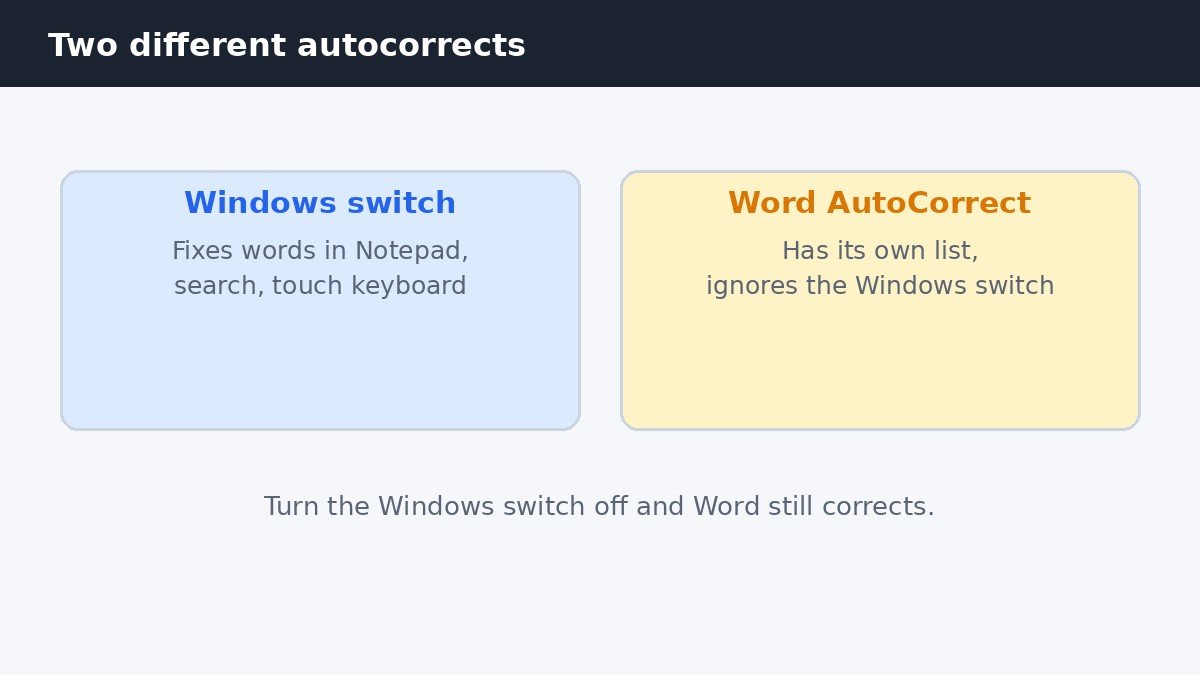
Autocorrect in Windows 11 is not one feature. It is two separate systems that happen to share a name. The first is the system autocorrect built into Windows itself. It fixes words as you type in apps that use the Windows spelling service, such as Notepad, the search box, and the touch keyboard. The second is the AutoCorrect built into Microsoft Office. Word, Outlook, and the other Office apps carry their own correction list and their own settings, and they ignore the Windows switch completely.
That split explains the most common complaint about this setting. People turn the Windows switch off, open Word, type a word, and watch Word change it anyway. Nothing went wrong. The Windows switch did its job, and Word simply never listened to it. If Word is where the unwanted corrections happen, the Office steps later in this guide are the ones that matter, not the Settings toggle. Microsoft’s own community thread on text that keeps auto-correcting shows how many people hit the same wall.
Turn off autocorrect in Windows 11 Settings
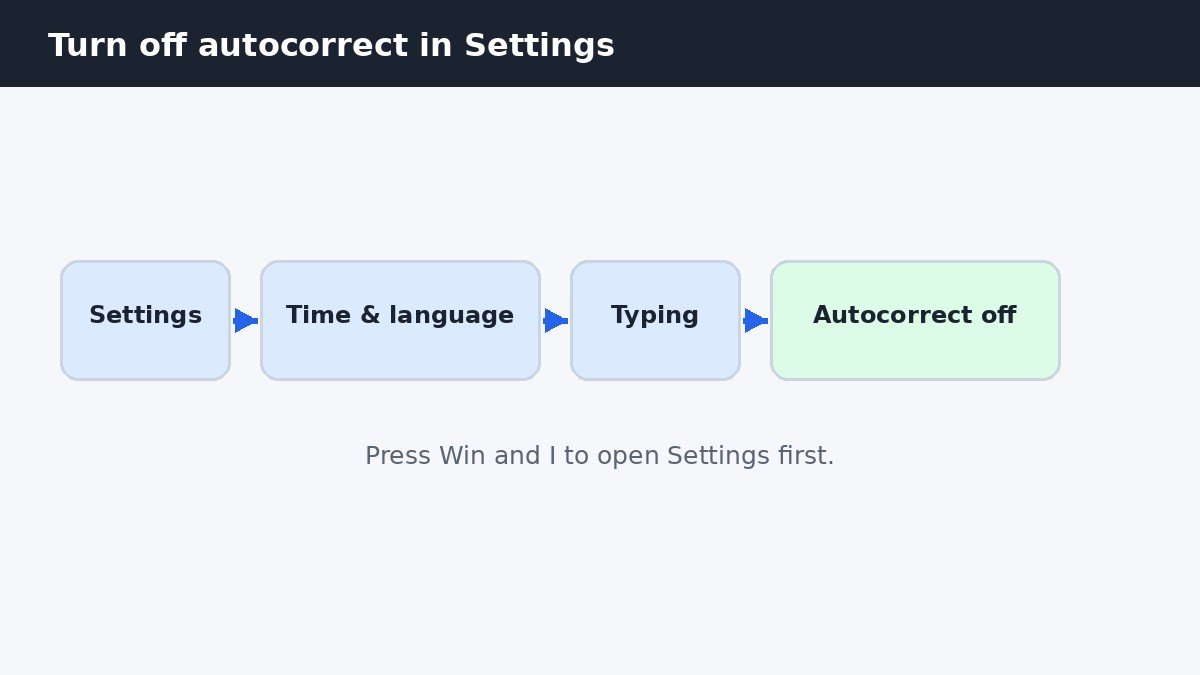
Press Win and I together to open Settings. Click Time and language in the left sidebar, then choose Typing. Near the top of the page you will see Autocorrect misspelled words. Switch it off. That is the whole job for the system side. Windows applies the change the moment you flip the switch, so there is no save button and no restart to wait for.
The setting is per user account, so it only affects the person signed in right now. If two people share the PC, each account keeps its own choice, and switching it off on one account leaves the other untouched. The same page holds two related switches worth knowing about. Show text suggestions when typing on the physical keyboard offers word predictions as you type, and it stays on unless you switch it off separately. The touch keyboard has its own autocorrect too, so check its settings if the on-screen keyboard still changes your words.
Stop Word and Outlook correcting your words
If Word still changes your words after the Windows switch is off, open Word and go to File, then Options, then Proofing. Click AutoCorrect Options. On the AutoCorrect tab, clear the checkbox labelled Replace text as you type, then click OK twice to close both windows. From that moment Word stops replacing words as you type, in every document on that PC.
Outlook follows the same path with one small detour. Go to File, then Options, then Mail, then Editor Options, then Proofing, and click AutoCorrect Options. Clear Replace text as you type there too. The AutoCorrect list is shared across Office, so turning it off in Word or Outlook covers the other Office apps as well, and Microsoft documents each AutoCorrect checkbox if you want to fine tune the behaviour instead of switching everything off.
Keep the red underlines and stop the silent changes
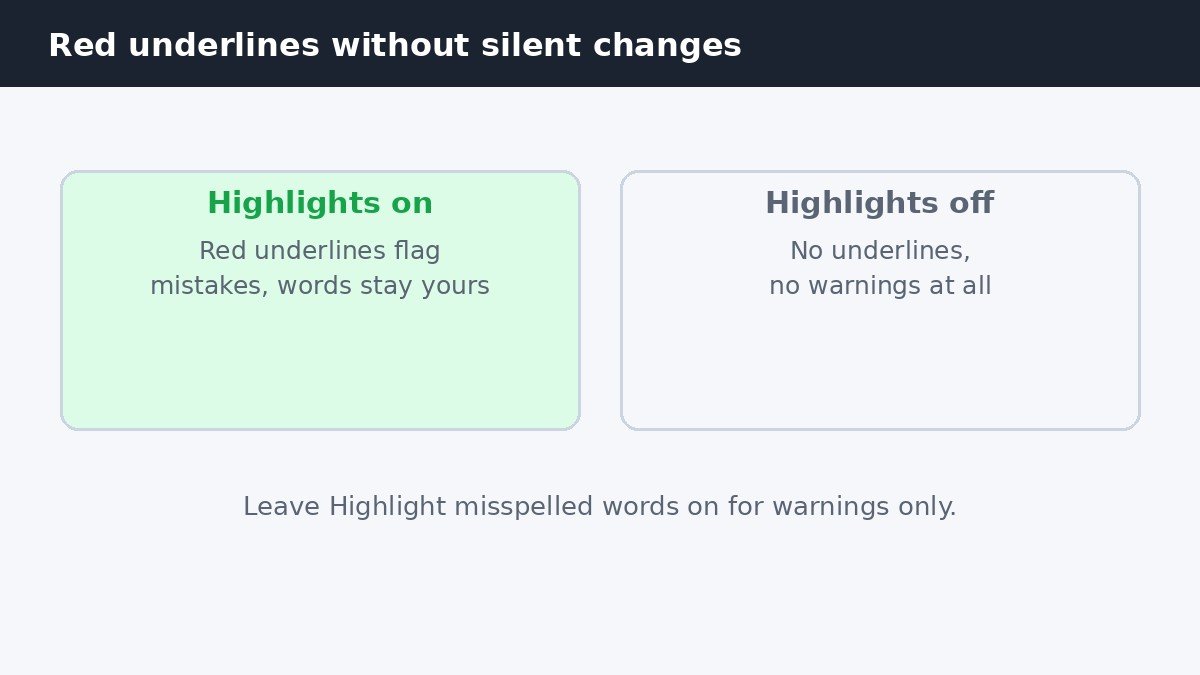
Some people do not want autocorrect gone entirely. They want Windows to flag mistakes without changing words on its own. That is exactly what the Highlight misspelled words switch does, and it sits on the same Typing page, just below the autocorrect switch. Leave that one on and turn autocorrect off, and misspelled words get a red underline while your typed words stay exactly as you wrote them.
This middle setting suits people who type names, technical terms, or words from another language that autocorrect keeps rewriting. The underline tells you a word looks wrong, and a right-click shows suggestions, but nothing changes until you choose it. If even the underlines annoy you, switch Highlight misspelled words off as well, and the Typing page goes quiet entirely.
Turn it off for every account on the PC
The Settings toggle only affects the account that flips it. On a work or school PC, an administrator can switch autocorrect off for everyone at once with Group Policy, which is available in the Pro, Enterprise, and Education editions of Windows 11. Open the Group Policy Editor and go to User Configuration, then Administrative Templates, then Control Panel, then Regional and Language Options. Open Turn off autocorrect misspelled words and set it to Enabled. In Group Policy language, Enabled means the policy is active, so enabling this policy turns autocorrect off. The change applies at the next sign-in.
Home edition does not include the Group Policy Editor, so home users who need the same result can use the registry instead. This is an advanced step, so back up the registry or create a restore point first. Open Registry Editor, go to HKEY_CURRENT_USER, Software, Microsoft, Control Panel, International, and set the TurnOffAutocorrectMisspelledWords value to 1. A value of 0, or deleting the value, turns autocorrect back on. A wrong registry edit can cause real problems, so use this route only if the Settings toggle is unavailable, and leave the registry alone otherwise.
| Where you change it | Who it affects | Edition needed |
|---|---|---|
| Settings toggle | Your account only | All editions |
| Group Policy | Every account | Pro, Enterprise, Education |
| Registry value | Your account only | All editions |
Turn autocorrect back on if you miss it
Autocorrect is easy to miss once it is gone. Turning it back on is the same path in reverse. Open Settings, go to Time and language, then Typing, and switch Autocorrect misspelled words back on. In Word, go back to File, Options, Proofing, AutoCorrect Options, and tick Replace text as you type again. If Group Policy or the registry was used, reverse that change instead, because the Settings toggle will not override a policy or a registry value that is still in place.
Autocorrect is meant to help, and for many people it does, right up until it changes a name, a password, or a word in another language into something else entirely. Now you know where the real switch lives, why Word kept correcting after you flipped it, and how to keep the helpful red underlines without the silent rewrites. Set it the way that suits how you type, and change it back any time.

- How to Turn Off Autocorrect in Windows 11 - November 11, 2026
- How to Turn Off Advertising ID in Windows 11 - November 10, 2026
- How to Turn Off Emergency Alerts on iPhone - November 9, 2026