
- Key fact: Microsoft’s Windows ISOs ship with
install.esd, a compressed image you can install from but cannot easily service or mount. - Key fact: Converting it to
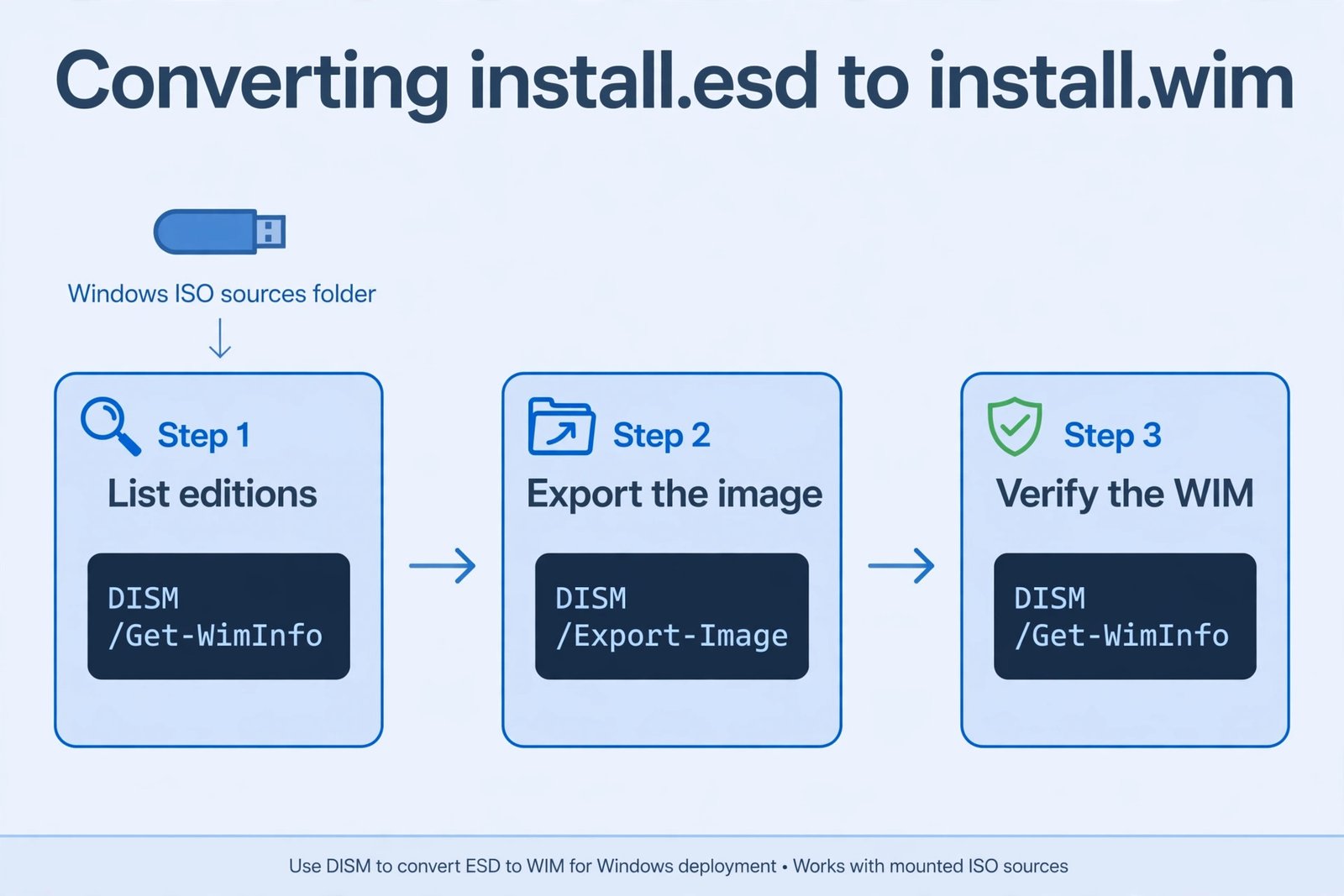
install.wimuses the built-in DISM tool, takes 10 to 30 minutes, and needs no extra downloads. - Key fact: You convert one edition at a time, so you must know the index number of the edition you want before you export.
- Key fact: If the resulting WIM is over 4 GB, split it before copying it to a FAT32 USB drive, or UEFI boot will fail.
I have built a lot of custom Windows install USBs over the years, and the ESD-to-WIM conversion is the step that trips people up most. The file names look similar, the commands look cryptic, and picking the wrong edition index wastes half an hour. This guide walks through the whole conversion, explains why each step exists, and shows you both the Command Prompt and PowerShell methods so you can use whichever you prefer.
In this guide you will: find the install.esd file on your Windows media, identify the exact edition index you need, convert it to install.wim with DISM, verify the result, and handle the 4 GB FAT32 problem. Methods covered: DISM from an elevated Command Prompt (the standard way) and the PowerShell equivalent.
What You Need Before Starting
- Your Windows installation media: a mounted ISO or a USB drive containing a
sourcesfolder withinstall.esdin it. - At least 15 GB of free space on your C: drive, since the conversion creates large temporary files.
- An administrator account, because DISM refuses to run without elevated permissions.
- Patience: the export typically takes 10 to 30 minutes depending on your disk and CPU.
Step 1: Mount the ISO and Find install.esd
If you have a Windows ISO file, double-click it. Windows 11 mounts it as a virtual drive automatically, and it gets a drive letter such as E: or F:. Open that drive, go into the sources folder, and confirm you see install.esd. Note the drive letter; you will need it in the next steps.
Quick tip: if your media already has install.wim instead of install.esd, you do not need this guide at all. Your media is already in the serviceable format.
Step 2: Open an Elevated Command Prompt
Press Windows key + R, type cmd, then press Ctrl + Shift + Enter. Click Yes on the permission prompt. The title bar should say “Administrator” — if it does not, DISM will fail, so do not skip this.
Step 3: List the Editions Inside the ESD
A single install.esd usually contains several Windows editions (Home, Pro, Education, and so on), each with its own index number. Run this command, replacing E: with your actual drive letter:
DISM /Get-WimInfo /WimFile:E:\sources\install.esdThe output lists every edition with its index. Write down the index number of the edition you want. In most retail Windows 11 media, Home is index 1 and Pro is around index 6, but you should confirm on your own media rather than guessing, because the order varies between ISO builds.
Step 4: Create a Folder for the Output
Create a working folder on your C: drive, for example C:\WimImage. Keeping the output off the installation media itself avoids permission problems and gives DISM fast local disk to work with.
Step 5: Export the Edition to a WIM File
Now the actual conversion. This command pulls your chosen edition out of the ESD and writes it as a WIM file with maximum compression and integrity checking:
DISM /Export-Image /SourceImageFile:E:\sources\install.esd /SourceIndex:6 /DestinationImageFile:C:\WimImage\install.wim /Compress:max /CheckIntegrityReplace 6 with the index you wrote down in Step 3. The /CheckIntegrity switch cancels the conversion if the source ESD is damaged, which saves you from building install media from a corrupt image.
Quick tip: let it run. The progress bar may sit at the same percentage for several minutes on slower machines. Closing the window mid-export leaves a half-written file you will have to delete and redo.
Step 6: Verify the New WIM File
When you see “The operation completed successfully,” check that the WIM is healthy:
DISM /Get-WimInfo /WimFile:C:\WimImage\install.wimYou should see your edition listed with index 1. If the command errors out or the file is missing, the export failed and you should re-run Step 5.
Step 7: The PowerShell Alternative
If you prefer PowerShell, open it as administrator and use these two cmdlets. They do exactly what the DISM commands above do:
Get-WindowsImage -ImagePath "E:\sources\install.esd"
Export-WindowsImage -SourceImagePath "E:\sources\install.esd" -SourceIndex 6 -DestinationImagePath "C:\WimImage\install.wim" -CompressionType Max -CheckIntegrity
Step 8: Split the WIM if It Is Over 4 GB
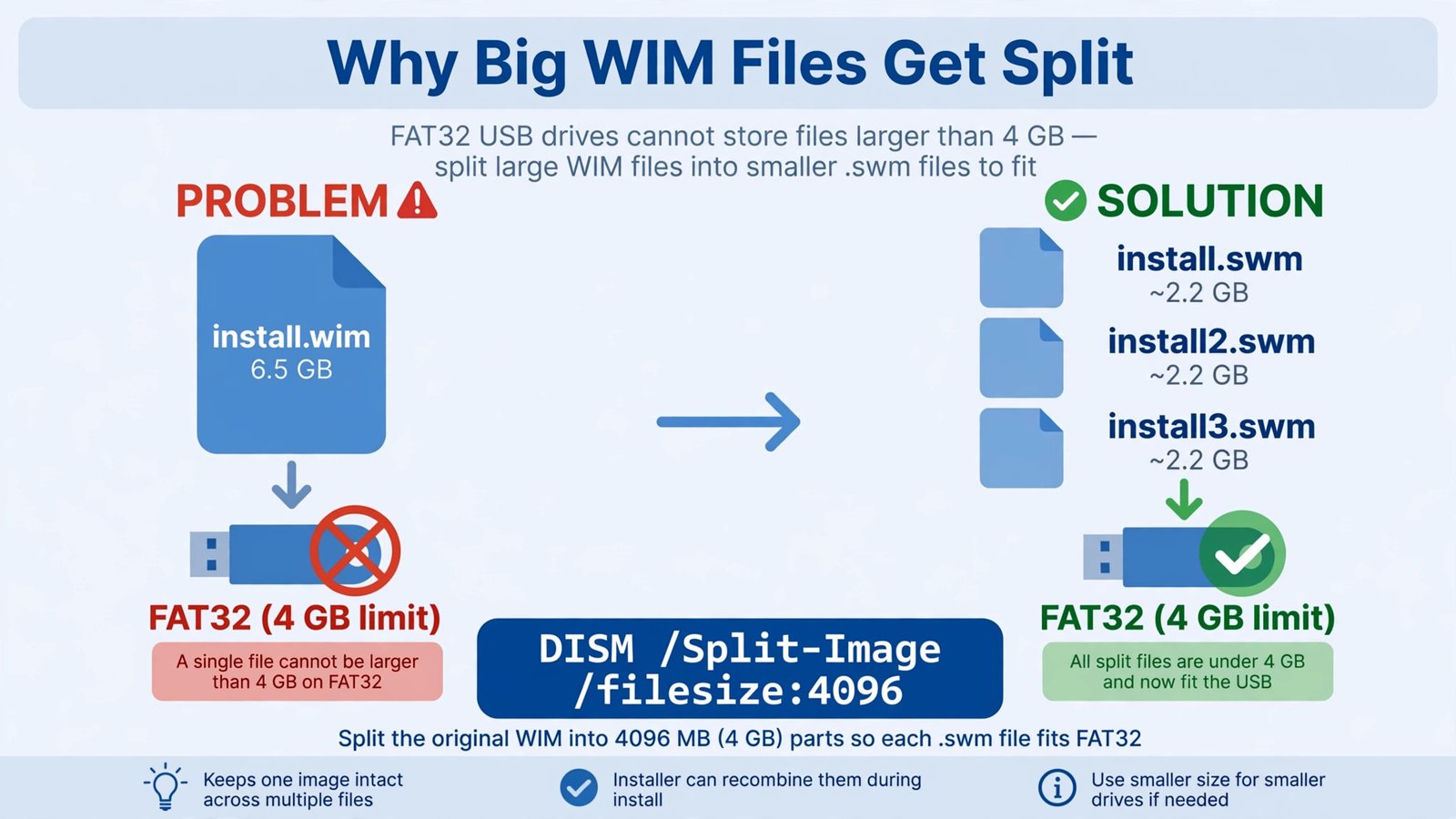
Here is the step almost every guide forgets. UEFI computers boot from USB drives formatted as FAT32, and FAT32 cannot hold files larger than 4 GB. Converted install.wim files routinely land between 5 and 7 GB, so you must split yours:
DISM /Split-Image /ImageFile:C:\WimImage\install.wim /SWMFile:C:\WimImage\install.swm /FileSize:4096This creates install.swm, install2.swm, and so on. Copy all of the SWM files into the sources folder of your USB drive, and Windows Setup will read them as one image. Microsoft documents this split process in the DISM command-line reference.
Our Take
The Command Prompt method is the one to learn: it is the exact sequence IT technicians use, it works on every Windows 11 build including 24H2 and 25H2, and the commands have not changed in years. Use PowerShell only if you are already scripting the rest of your media build. And never skip the integrity check or the FAT32 split, because those two details are where nearly every failed conversion comes from.
Building full install media from here? Our walkthrough on formatting and reinstalling Windows on a laptop picks up where this guide leaves off.
Frequently Asked Questions
Why convert ESD to WIM at all?
ESD files are highly compressed and read-only in practice. WIM files can be mounted, have drivers and updates injected, and then unmounted, which makes them the format of choice for custom install media and offline servicing.
Can I convert without admin rights?
No. DISM requires an elevated Command Prompt or PowerShell session. Without it, the export fails immediately with an access error.
How do I convert multiple editions into one WIM?
Export the first edition to a new WIM file as shown above, then run the export again for each additional edition, pointing /DestinationImageFile at the same WIM. DISM appends each one as a new index.

- How to Fix an SD Card Not Detected on Windows 11 - October 25, 2026
- How to Fix Windows 11 Search Not Finding Files - October 24, 2026
- How to Fix Windows 11 Clock Showing the Wrong Time - October 23, 2026