
If your Windows 11 PC locks itself every time you walk to the kitchen with your phone in your pocket, Dynamic Lock is almost certainly the cause. It watches the Bluetooth signal from your paired phone and locks the PC when the signal fades. It is a handy security feature on a shared office desk, and a constant annoyance on a PC that only you ever touch.
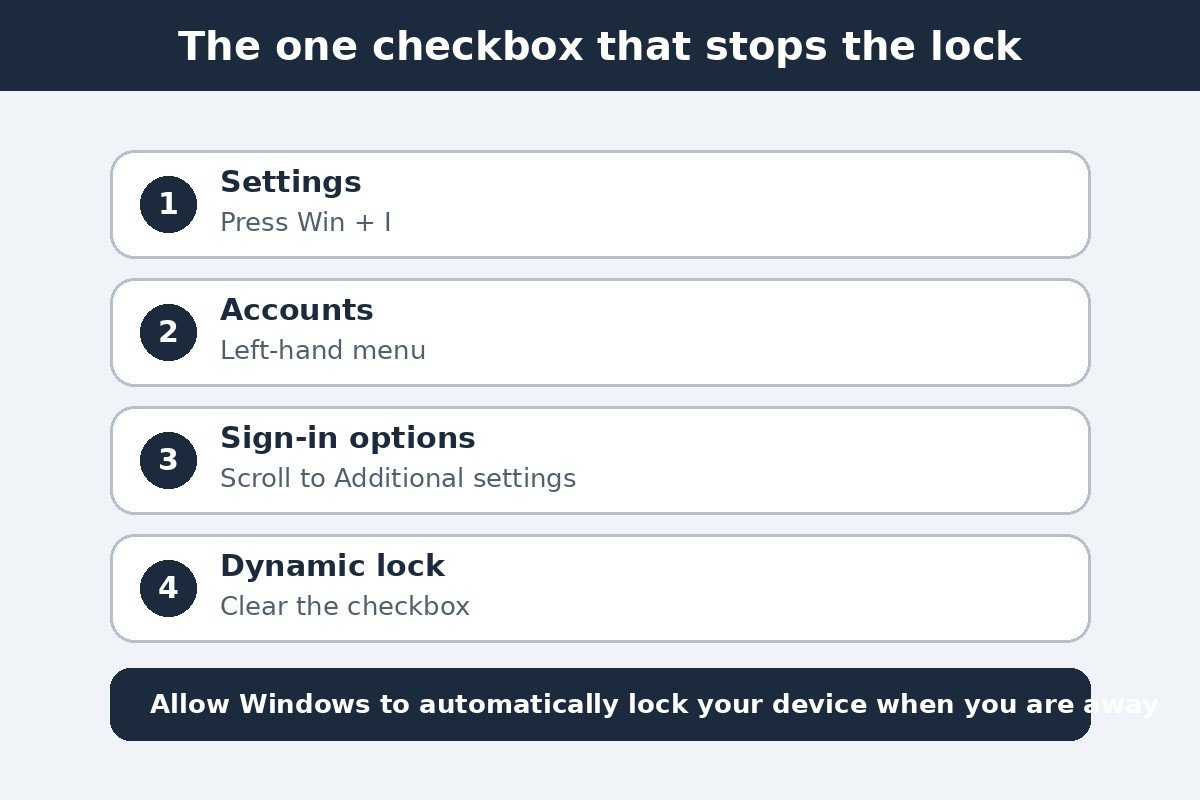
The short version: open Settings, go to Accounts, then Sign-in options, scroll down to Dynamic lock, and clear the checkbox labelled “Allow Windows to automatically lock your device when you’re away”. That is the whole fix. The rest of this guide covers a missing or greyed-out checkbox, and the two other locks people confuse with Dynamic Lock. These steps match Microsoft’s current Sign-in options guidance for Windows 11, current as of November 2026.
Turn off Dynamic Lock in 30 seconds
Dynamic Lock lives on the Sign-in options page, under Additional settings. There is no save button, so the change takes effect the moment you clear the checkbox.
- Press Win + I to open Settings. You can also open the Start menu and click the gear icon.
- Click Accounts in the left-hand menu.
- Click Sign-in options on the right. If you want to jump straight there, press Win + R, type ms-settings:signinoptions, and press Enter.
- Scroll down to Additional settings and expand Dynamic lock if it is collapsed.
- Clear the checkbox next to “Allow Windows to automatically lock your device when you’re away”. On some builds this appears as a toggle instead of a checkbox.
That is all it takes. Your phone stays paired for everything else, because the checkbox only stops the automatic lock. There is no distance slider for Dynamic Lock, so you cannot tune how far away the phone has to be before the lock fires. Microsoft documents the feature on its Sign-in options in Windows support page, which says the PC locks within a minute after the phone moves out of Bluetooth range.
Why Dynamic Lock only works with a paired phone
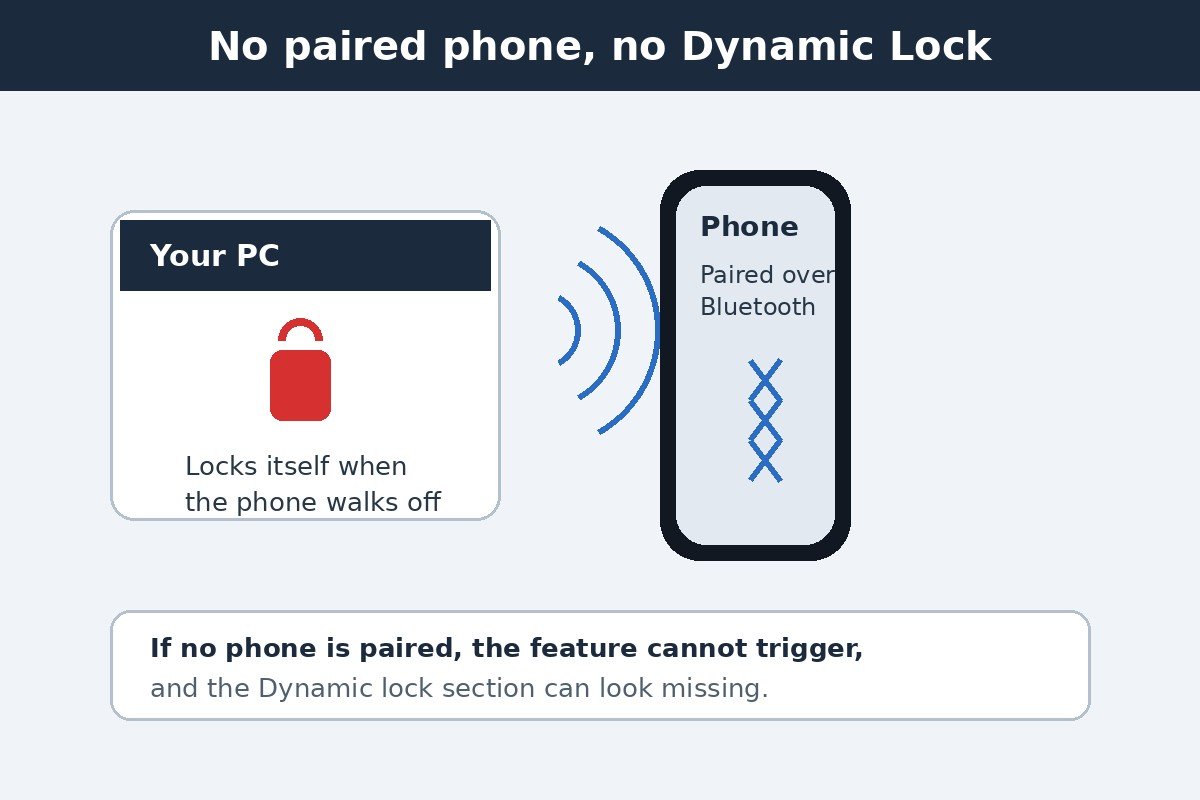
Dynamic Lock has one hard requirement: a phone paired with the PC over Bluetooth. It does not watch your watch, your earbuds, or your fitness band. Microsoft’s admin documentation lists a phone as the only supported device type, so pairing another Bluetooth gadget will not make the feature work.
This is also why the Dynamic lock section sometimes looks missing: with no phone paired, Windows has nothing to watch. Check the pairing before hunting for a missing checkbox.
- Open Settings, then click Bluetooth and devices in the left-hand menu.
- Look at the list under Devices. Your phone should appear there with a Connected or Paired status.
- If your phone is not listed, click Add device, choose Bluetooth, and put your phone in pairing mode. Accept the pairing code on both devices.
- Go back to Accounts, then Sign-in options, and open Dynamic lock again. The checkbox should now be available.
If the phone is paired and the checkbox is still greyed out, a work or school policy may be controlling the setting. On a managed PC, an administrator can force Dynamic Lock on or off, and the checkbox stays locked for the user. The registry route below will not help either, because the policy wins. On a home PC, a greyed-out checkbox with a paired phone is rare, and the registry route in the next-but-one section is the usual way around it.
Dynamic Lock vs the other two locks
Most guides treat every automatic lock as one problem, and that is why so many people turn off Dynamic Lock and find the PC still locks itself. Windows 11 has three separate locks, each with its own trigger and its own switch. Turning off one never turns off the others, so match your symptom to the right lock before changing anything.
| Lock | What triggers it | Where its switch lives |
|---|---|---|
| Dynamic Lock | Your paired phone moves out of Bluetooth range | Settings, Accounts, Sign-in options, Dynamic lock |
| Require sign-in after sleep | The PC wakes from sleep | Settings, Accounts, Sign-in options, “If you’ve been away, when should Windows require you to sign in again?” |
| Screen saver lock | The screen sits idle until the screen saver timer runs out | Classic Screen Saver Settings window, “On resume, display logon screen” |
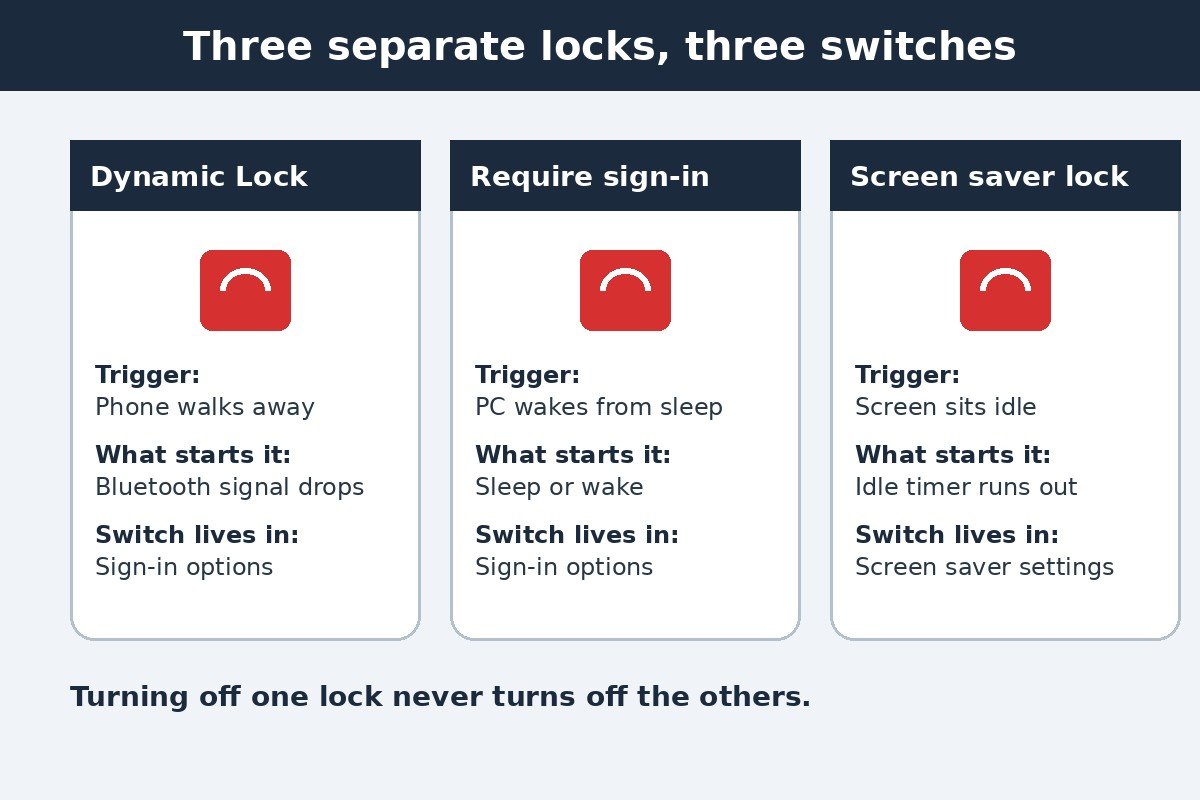
If the PC locks while you are sitting at it with your phone in another room, that is Dynamic Lock. If it only asks for a sign-in after it wakes from sleep, that is the require sign-in setting, and our guide to turning off require sign-in after sleep in Windows 11 covers that switch. If the screen goes to a moving pattern or a blank display first and then asks for a sign-in, that is the screen saver lock, covered in our guide to turning off the screen saver in Windows 11.
One more lock can appear on some newer laptops: presence sensing. If your laptop has a presence sensor, Settings has a Presence sensing page, and a “Lock my device when I leave” option there can lock the PC when you step away, with no phone involved at all. It only exists on laptops with the sensor hardware. If you see it and your PC still locks after Dynamic Lock is off, turn that option off too.
When the checkbox is greyed out: the registry route
On a home PC, the usual reason the Dynamic Lock checkbox is greyed out is that the setting behind it is stuck. The checkbox and the value behind it can fall out of step after an update. The way around it is to set the value directly. This route is widely documented by independent Windows guides, but Microsoft does not publish a registry value for Dynamic Lock, so treat it as community-corroborated rather than officially supported, and back up the registry first.
- Press Win + R, type regedit, and press Enter. Click Yes if Windows asks for permission.
- Before changing anything, click File, then Export, and save a copy of the registry somewhere safe. That copy is your undo button.
- In the address bar at the top of Registry Editor, paste HKEY_CURRENT_USER\Software\Microsoft\Windows NT\CurrentVersion\Winlogon and press Enter.
- Look for a value called EnableGoodbye in the right-hand pane. If it is not there, right-click in the empty space, choose New, then DWORD (32-bit) Value, and name it EnableGoodbye.
- Double-click EnableGoodbye and set its Value data to 0 to turn Dynamic Lock off. A value of 1 turns it back on.
- Click OK, close Registry Editor, and restart the PC, then check the checkbox now shows as cleared.
Be careful with the path. The key sits under Windows NT, not under the plain Windows folder, and a value created in the wrong place does nothing. If the checkbox is greyed out because a work or school policy controls it, this edit will not stick, because the policy reapplies itself. In that case the setting is your employer’s decision, not a glitch.
On Windows 11 Pro or a domain-joined PC, an administrator can manage the same feature through Group Policy instead: the “Configure dynamic lock factors” policy under Computer Configuration, Administrative Templates, Windows Components, Windows Hello for Business. Microsoft documents the equivalent device-management settings in its PassportForWork configuration service provider reference, which includes the DynamicLock settings used by Intune.
What Dynamic Lock does not do
Dynamic Lock only locks the PC. It never unlocks it. When you walk back into Bluetooth range, the PC stays locked, and you sign in with your PIN, password, or Windows Hello exactly as you would after locking it yourself with Win + L. That is by design: unlocking on proximity would let anyone carrying your phone walk straight in.
It is also not instant. Microsoft says the PC locks within a minute after the phone moves out of range, and in practice the lock waits a short while to confirm the phone is really gone rather than a brief Bluetooth dropout. A phone left on the desk next to the PC will not trigger it at all.
Finally, Dynamic Lock is not a replacement for locking the PC yourself. Bluetooth range in a home is generous, so the PC can stay unlocked long after you have left the room if the phone is still in range. If you step away from a PC that holds anything sensitive, press Win + L.
Check it worked, and what to do if the PC still locks
Test the change before you trust it. Leave the PC on, take your phone with you, and walk well out of Bluetooth range, to another room or down the hall. Wait two minutes. If the PC stays unlocked, Dynamic Lock is off.
| Problem | Likely cause | Fix |
|---|---|---|
| PC still locks when you walk away with your phone | Checkbox re-checked, or presence sensing is on | Confirm the box is still clear; check Presence sensing |
| PC locks only after waking from sleep | Require sign-in after sleep, not Dynamic Lock | Set “If you’ve been away, when should Windows require you to sign in again?” to Never |
| PC locks after sitting idle | Screen saver lock, or sleep timers | Clear “On resume, display logon screen” in Screen Saver Settings |
| Dynamic lock section is missing entirely | No phone paired, or no Bluetooth radio | Pair a phone under Bluetooth and devices |
| Checkbox is greyed out | Stuck setting, or a work or school policy | Use the EnableGoodbye registry route; if a policy controls it, ask your IT admin |
Most “it still locks” cases turn out to be a different lock, not Dynamic Lock refusing to switch off.
Dynamic Lock is a small feature with an outsized annoyance factor, because it fires at the exact moment you step away and feel safe leaving the PC. One checkbox stops it, and knowing which lock is responsible stops you chasing the wrong setting. Turn it off, test it with a walk to another room, and your PC will stay where you left it until you come back to sign in.

- How to Turn Off Dynamic Lock in Windows 11 - November 17, 2026
- How to Screen Record on iPhone - November 16, 2026
- How to Make the Windows 11 Taskbar Smaller - November 15, 2026