
Voice Access is the Windows 11 feature that lets you control your whole PC by speaking: open apps, click buttons, move windows, and dictate text. It is useful when you need it, and annoying when it keeps appearing after you thought you had switched it off. The frustration usually has one cause. Closing the Voice Access bar is not the same as turning Voice Access off, so the feature quietly starts again at the next sign-in. The fix is short: open Settings, then Accessibility, then Speech, set the Voice access switch to Off, and clear the two boxes underneath it that start Voice Access before and after you sign in. That is the only combination that stops it for good. The steps below follow the path Microsoft documents for Windows 11 version 22H2 and later, current as of November 2026.
Close the bar when you only need a break
Sometimes you do not want Voice Access gone forever, only out of the way for now. The fastest way is to say, “Turn off voice access”. Microsoft lists that phrase, along with “Stop voice access” and “Close voice access”, as commands that close the feature. You can do the same thing with the mouse: click the gear-shaped Settings button at the right end of the Voice Access bar, then choose Turn off voice access. The bar disappears from the top of your screen and Voice Access stops listening.
Closing the bar ends the current session, but the Voice access switch in Settings stays on. That means Voice Access can return at the next sign-in. If you only closed the bar and it came back the next morning, nothing is broken. You used the temporary off, not the real one.
There are two even lighter stops for moments when you want Voice Access open but quiet. Saying “Turn off microphone”, or pressing Alt + Shift + C, switches the microphone off while the bar stays on screen. Saying “Voice access sleep”, or pressing Alt + Shift + B, puts it to sleep, and saying “Voice access wake up” brings it back. Clicking the microphone button on the bar does the same job as the sleep shortcut, while pressing and holding the button switches the microphone off.
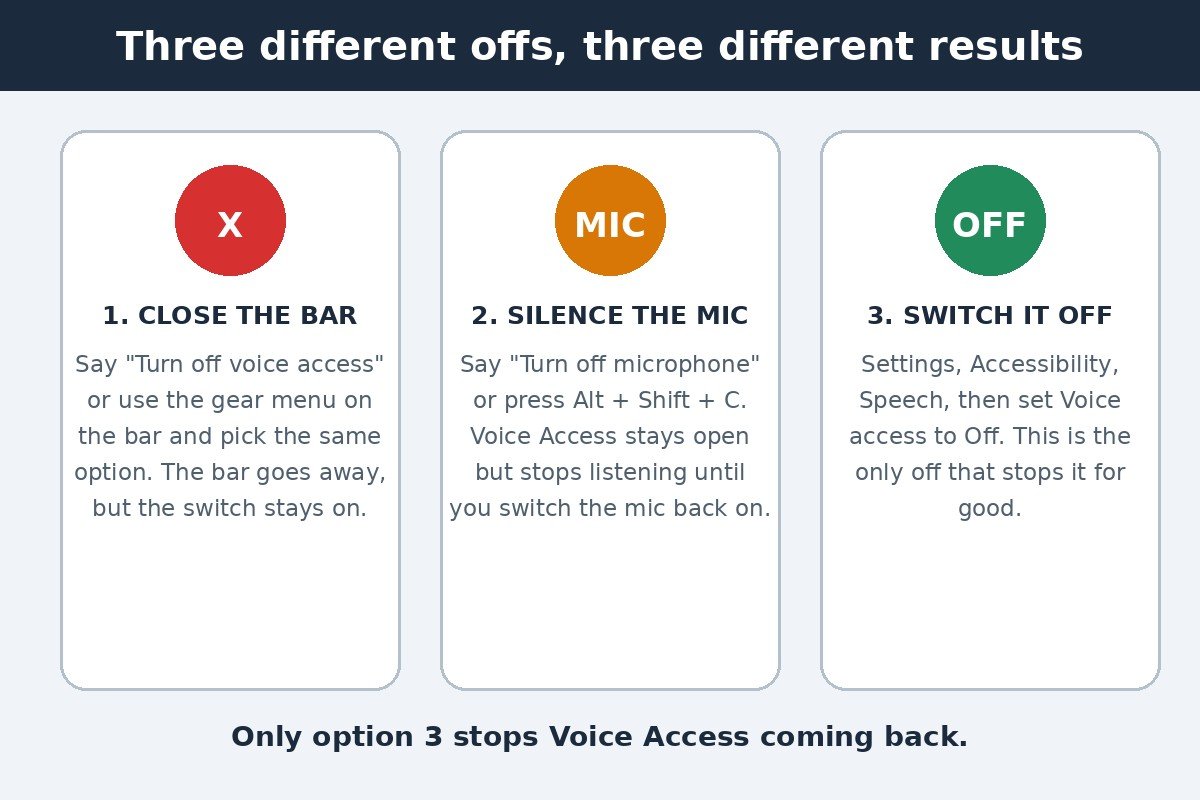
The distinction matters because each off answers a different complaint. If the bar is in your way, close it. If Voice Access keeps acting on background noise, silence the microphone. If you never want to see it again, only the Settings switch does that.
Turn Voice Access off in Settings
This is the real off switch, and it takes less than a minute. It works on Windows 11 version 22H2 and later. If you cannot find the Speech section below, check your version under Settings, then System, then About, and install any pending Windows updates.
- Press the Windows key + I to open Settings. You can also open the Start menu and select Settings.
- Select Accessibility in the left sidebar.
- Select Speech on the right side of the window.
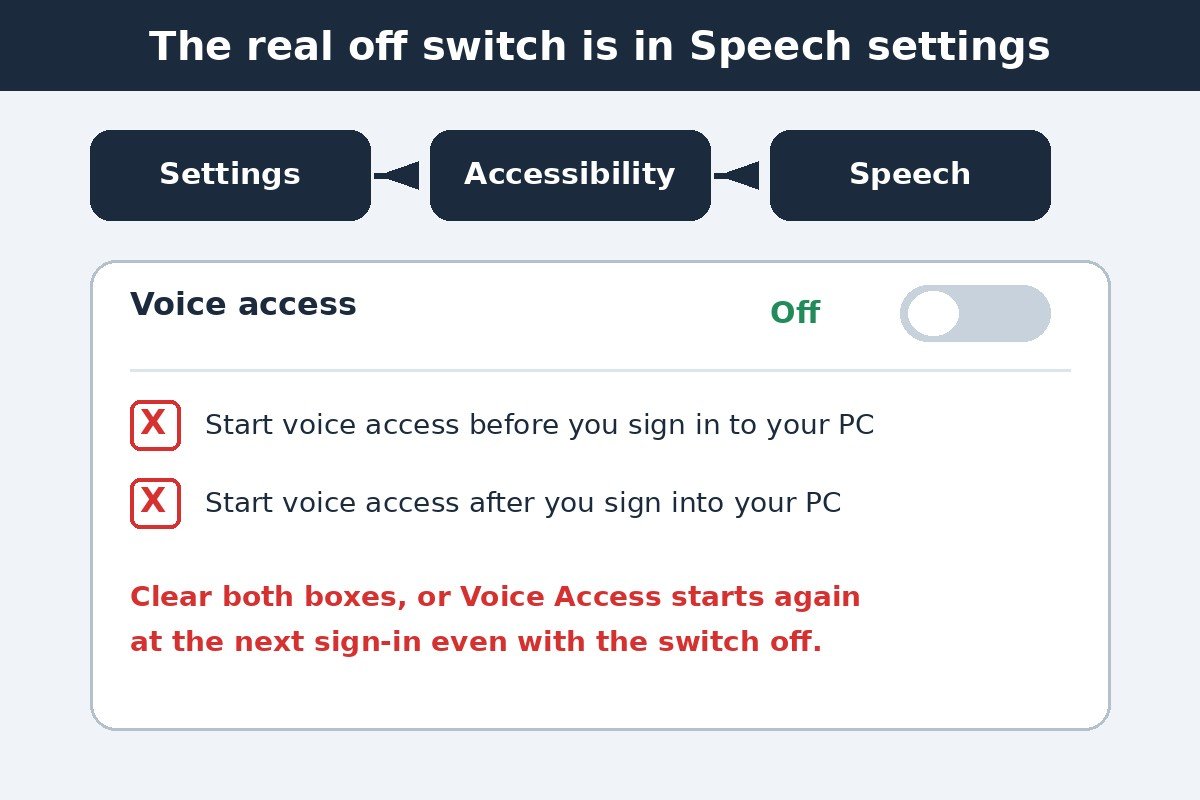
- Set the Voice access switch to Off. The Voice Access bar disappears from the top of your screen straight away, and Windows stops listening. You do not need to restart the PC.
Microsoft documents this path in its set up voice access guide. Voice Access shares its Speech settings page with Live Captions, which puts spoken words on screen as text. If that one is also running when you do not want it, our guide to turning off Live Captions in Windows 11 walks through its own switch.
Turning the switch off does not delete anything. The language files Windows downloaded when you first set Voice Access up stay on the PC, so switching it back on later is usually quick, with no fresh download. The next section covers the one thing that can undo this switch on its own.
Stop it starting again at every sign-in
Here is the part most guides skip, and the reason Voice Access keeps coming back. On the same Speech settings page, under the Voice access switch, sit two checkboxes: “Start voice access before you sign in to your PC” and “Start voice access after you sign into your PC”. While either box is ticked, Windows launches Voice Access at that point in every boot.
- Open Settings, then Accessibility, then Speech, as in the section above.
- Make sure the Voice access switch is set to Off.
- Clear the box labelled “Start voice access before you sign in to your PC”. This stops Voice Access appearing on the sign-in screen. Microsoft notes that signing in by voice needs Windows 11 version 23H2 or later, so older builds may not show this box.
- Clear the box labelled “Start voice access after you sign into your PC”. This stops it loading every time you reach the desktop.
- Sign out and sign back in once to confirm. Voice Access should stay silent, with no bar at the top of the screen.
If Voice Access still appears on the sign-in screen after you clear the first box, open the Accessibility menu on the sign-in screen itself and check whether Voice Access is switched on there. Some builds show a Voice Access switch in that menu, and switching it off there, plus clearing both boxes in Settings, covers every documented way the feature starts on its own.
Voice Access is not voice typing or Speech Recognition
Some confusion around switching Voice Access off comes from Windows having three voice features with similar names. They live in different places and need different off switches, so turning off the wrong one changes nothing.
| Feature | What it does | How to start it | How to stop it |
|---|---|---|---|
| Voice Access | Controls the whole PC by voice and dictates text | Settings, Accessibility, Speech | Set Voice access to Off on the same page |
| Voice typing | Dictates text into the box you are typing in, nothing else | Windows key + H | Close the voice typing menu |
| Windows Speech Recognition | The older command and dictation tool | Control Panel on older Windows versions | Replaced by Voice Access on Windows 11 version 22H2 and later |
Voice typing is the one most people meet by accident. Pressing Windows key + H opens a small dictation menu, and that menu has nothing to do with the Voice Access bar. If a microphone icon is floating over your work while you type, that is voice typing, and closing its menu is the fix.
Windows Speech Recognition is the older tool, and Microsoft has replaced it with Voice Access on Windows 11 version 22H2 and later. If you followed an old tutorial that sends you to Control Panel, then Ease of Access, then Speech Recognition, you are reading instructions for the retired feature. Microsoft explains the differences in its Voice Access frequently asked questions. If the voice feature you actually want rid of is the Copilot assistant rather than full voice control of the PC, that is a different switch again. Our guide to turning off Copilot in Windows 11 covers it.
Turn it back on later, and the language download
Turning Voice Access off is not permanent. To use it again, open Settings, then Accessibility, then Speech, and set the switch back to On. You can also open Windows search, type “voice access”, and select Open. The bar returns to the top of your screen.
The first time you ever turn Voice Access on, Windows shows a welcome screen and asks you to pick a language. It then downloads the language files for on-device speech recognition, which needs an internet connection and can take a few minutes. After that download finishes, recognition happens on the PC itself, and Voice Access keeps working without an internet connection. The language list covers English in several dialects, Spanish, German, French, Chinese, Japanese, and Italian. You can switch languages later from the Languages menu in the Voice Access settings.
After the download, Windows shows a microphone setup screen so you can confirm it is listening to the right device. That step is followed by a short optional guide that teaches the basic commands. You can skip the guide and start using Voice Access straight away, or open it later from the Help button on the bar. If you turn Voice Access off and back on again after setup is complete, you do not repeat the download or the microphone screen.
Fix it when Voice Access keeps coming back
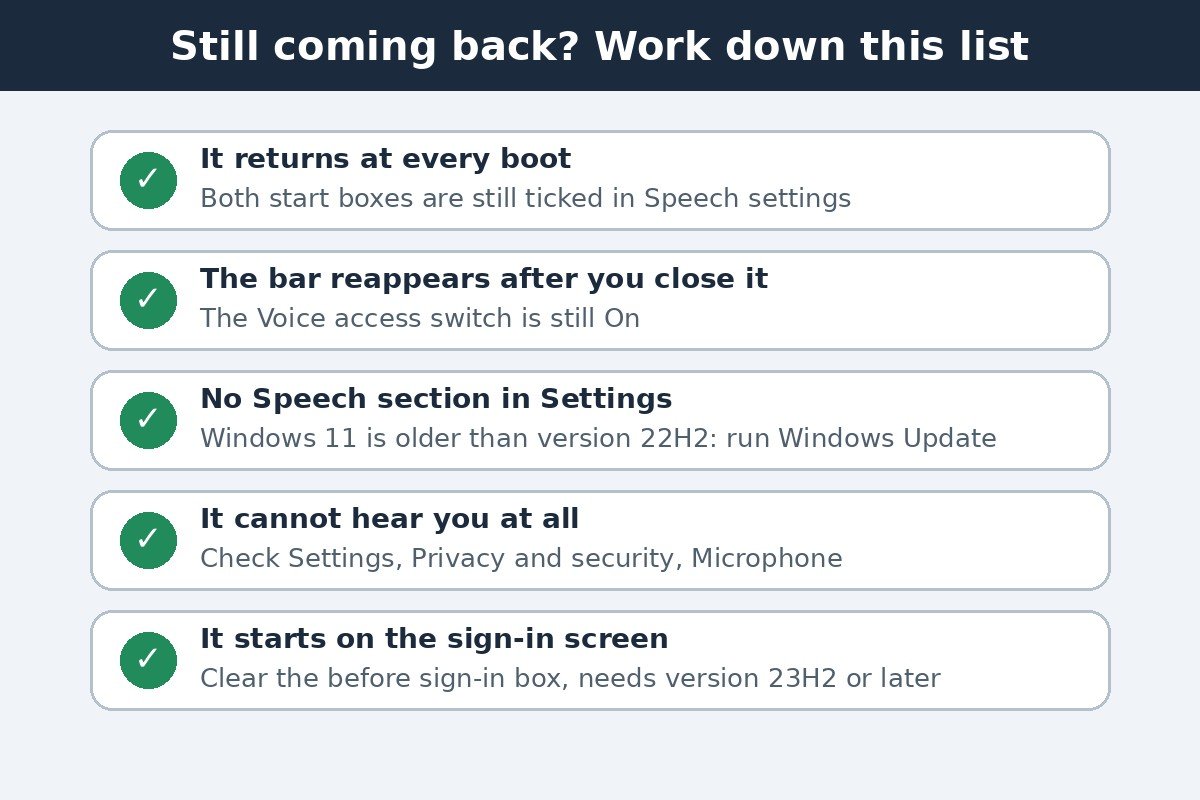
If you have switched it off and it still returns, match your symptom to its cause in the table below. In almost every case the answer is one of the two start boxes, the switch itself, or a mix-up with a different voice feature.
| Problem | Likely cause | Fix |
|---|---|---|
| It returns at every restart | A start box is still ticked | Clear both boxes in Settings, Accessibility, Speech |
| The bar reappears after you close it | The Voice access switch is still on | Set Voice access to Off in Settings |
| No Speech section in Settings | Windows 11 is older than version 22H2 | Install Windows updates, then look again |
| Voice Access cannot hear you | Microphone access is blocked | Check Settings, Privacy and security, Microphone |
| It starts on the sign-in screen | The before sign-in box is ticked | Clear it; sign-in use needs version 23H2 or later |
A microphone that Voice Access cannot hear is a different problem. Open Settings, then Privacy and security, then Microphone, and check that microphone access is allowed, including the option that lets desktop apps use the microphone.
You may also read about a Windows key + Ctrl + S shortcut that toggles Voice Access. Microsoft does not list it in the stable setup guide, so treat it as unreliable and use Settings instead. The shortcuts Microsoft does document are Alt + Shift + B to sleep and wake, and Alt + Shift + C for the microphone. Neither turns the feature itself off.
Once the switch is off and both start boxes are clear, Voice Access stays off. Closing the bar gives you quiet for an afternoon, silencing the microphone gives you quiet for a meeting, and the Settings switch plus the two cleared boxes gives you quiet for good.

- How to Turn Off Voice Access in Windows 11 - November 17, 2026
- How to Turn Off the Screen Saver in Windows 11 - November 16, 2026
- How to Turn Off Tap to Click on Mac - November 15, 2026