
Edge Lighting is the glow around the edge of the screen when a notification arrives. It is a nice touch at first, but it soon feels like a distraction, so you turn it off. Then a message comes in and the edge lights up again. The reason is simple: more than one setting can light the edge, so switching off one of them is often not enough.
Here is the quick answer. Open Settings, then Notifications, then Notification pop-up style. Tap Add lighting effect and pick None. On older versions of One UI the same screen is called Edge lighting style, and None is the choice there too. If the glow still appears, check the Accessibility flash notification and any routine or Good Lock effect.
Why the glow keeps coming back
The most common mistake is treating Edge Lighting as a single switch. On a current Galaxy phone it is really three separate things that can look alike. The lighting effect itself lives in the notification settings. A second feature, flash notification, can flash the screen or blink the camera light for the same alerts. A third cause is a routine, or an add-on effect from Samsung’s Good Lock app, that applies a lighting effect again after you removed it.
| What you see | Likely cause | Where to fix it |
|---|---|---|
| A coloured glow runs around the screen edge when a message arrives | The lighting effect is still set | Notification pop-up style |
| The whole screen flashes, or the camera light blinks | Flash notification is on | Accessibility, then Flash notification |
| The glow returns at certain times, or after a restart | A routine or a Good Lock effect is re-applying it | Modes and Routines, or Good Lock |
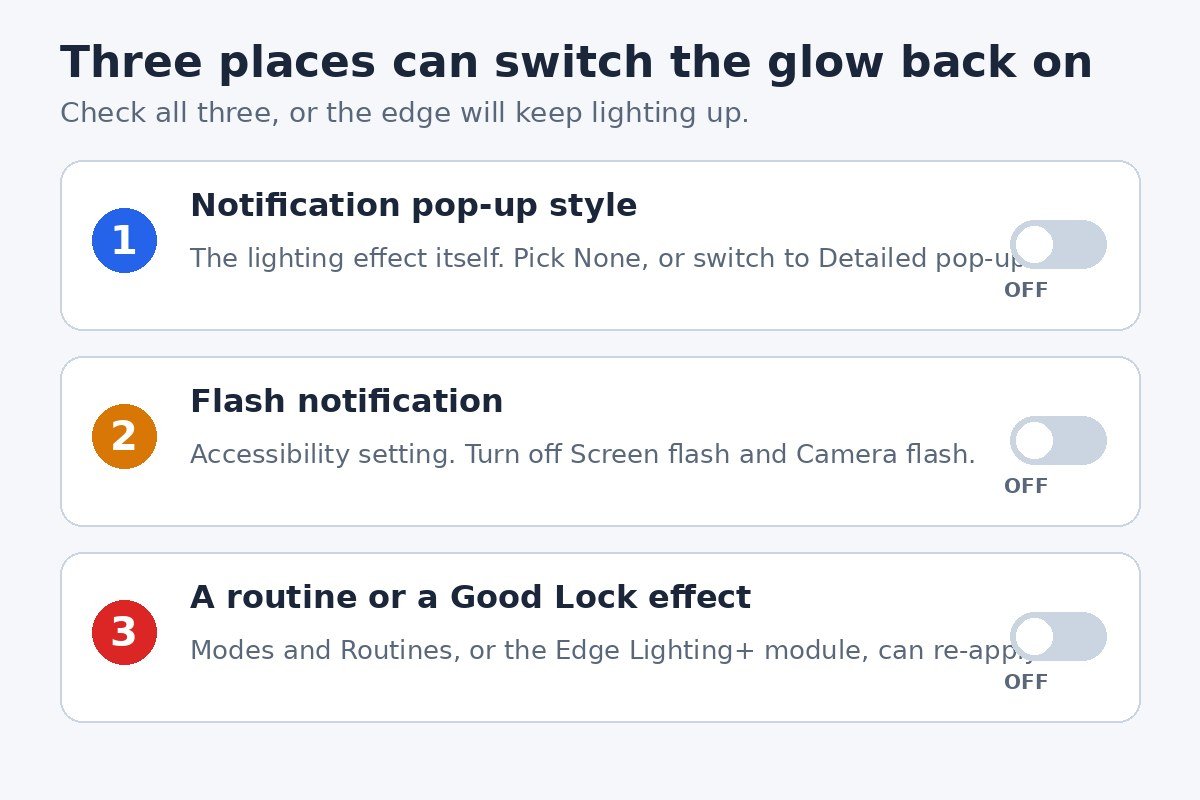
Turn off the lighting effect in your notification settings
This is the main fix, and it is the one to try first. Samsung changed the name of this feature in One UI 8, which is why many guides send readers to a menu that no longer exists. In One UI 8 it is called Lighting effect, and it lives inside the notification pop-up settings. Samsung’s own One UI 8 guide confirms the path and notes that searching Settings for Edge or Edge lighting may no longer find it.
- Open Settings, then tap Notifications.
- Tap Notification pop-up style.
- Make sure Brief pop-up is selected. Some lighting effects are limited when Detailed pop-up is in use.
- Tap Add lighting effect.
- Pick None from the list of effects, then confirm with Done if your phone shows that button.
That is the whole fix for most phones running One UI 8. On One UI 7 or earlier, the same screen has the older name. Go to Settings, then Notifications, then Notification pop-up style, then Edge lighting style, and choose None. None sits at the top of the same effect list.
One more detail matters on older versions. Some phones have a separate option to show the glow even while the screen is off. If the edge lights up when the phone is sitting face up with a dark screen, open the same Edge lighting style screen and turn that option off as well.
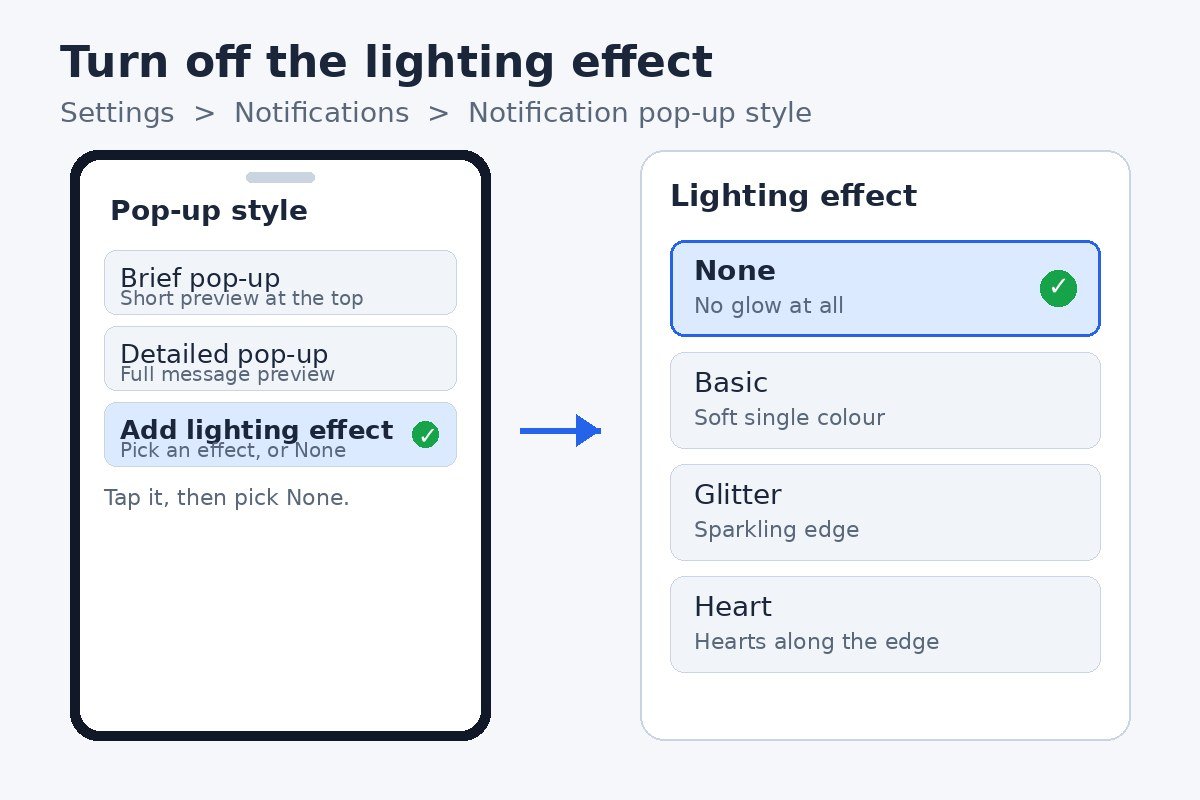
Samsung’s One UI 8 notification guide shows the same path: Settings, then Notifications, then Notification pop-up style, then Add lighting effect. See Samsung’s guide to notification settings in One UI 8 for the official steps.
Check the Accessibility flash notification
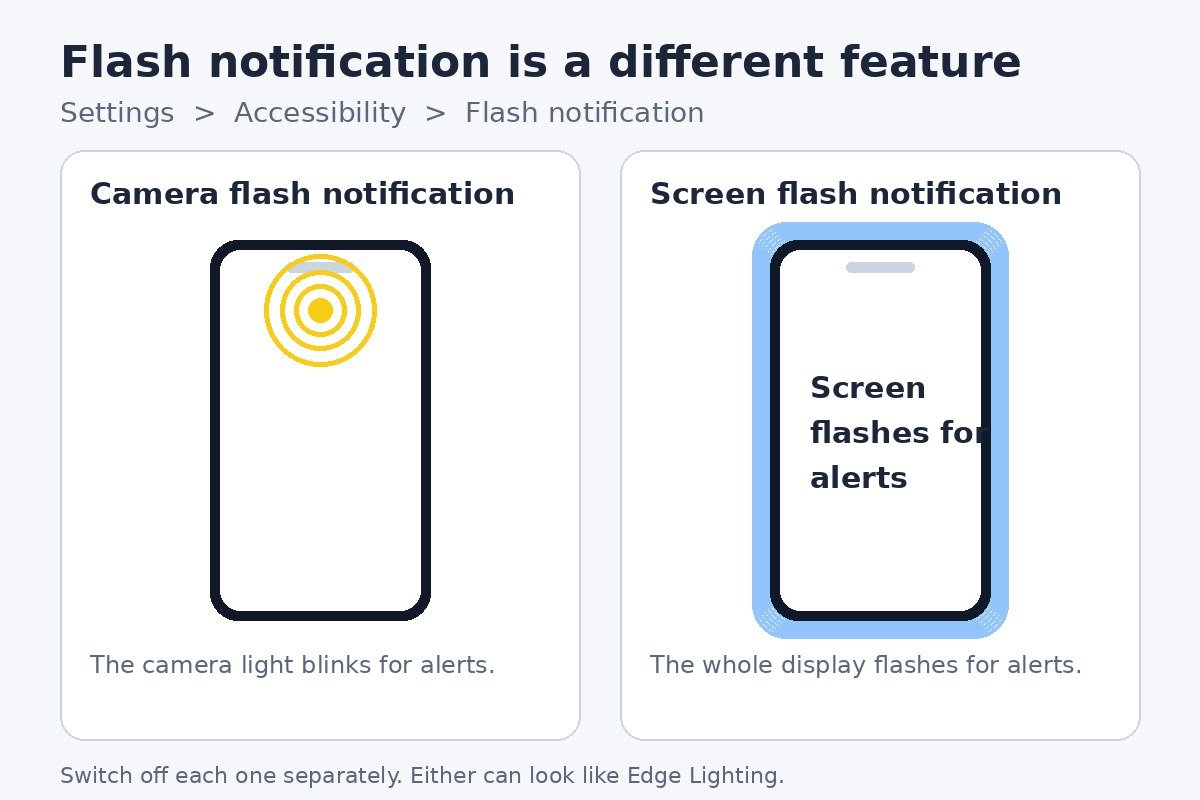
If the lighting effect is set to None and the phone still flashes when a message arrives, the cause is usually a different feature with a similar look. Flash notification is an Accessibility setting that flashes the whole screen or blinks the camera light for alerts, and either one is easy to mistake for Edge Lighting.
- Open Settings, then tap Accessibility.
- Tap Hearing enhancements. On older phones, tap Advanced settings instead, since Samsung moved this menu between versions.
- Tap Flash notification.
- Turn off Screen flash notification to stop the display flashing for alerts.
- Turn off Camera flash notification as well if the camera light blinks when messages arrive.
The two switches work independently, so turn off each one you do not want. Samsung’s support page describes both switches and the two menu locations. See Samsung’s guide to flash notifications for the official steps.
One related setting is worth knowing about. If your phone repeats the same alert a few minutes later, that is notification reminders, a separate feature that replays alerts rather than lighting the edge. Our guide to turning off notification reminders on a Samsung Galaxy phone covers that switch. It will not fix Edge Lighting, but it stops the repeated alerts many readers blame on it.
Stop a routine or a Good Lock effect from switching it back on
Sometimes the glow is off all day and returns at the same time every evening, or right after a restart. That points to something re-applying the effect: a routine in Modes and Routines, or an effect in Samsung’s Good Lock app.
Start with routines. Open Settings, then Modes and Routines, and look for a routine that runs when the glow appears, such as a sleep, driving, or work routine. Open it and read its actions. If any action changes notification settings, remove it or turn the routine off. Samsung’s own documentation does not list a specific Edge Lighting action inside Modes and Routines, so check for any routine action that touches notifications.
Next, check Good Lock. Good Lock is Samsung’s own customisation app, and one of its modules, Edge Lighting+, lets you set custom lighting effects, including effects such as falling hearts. If you installed it and set an effect there, that effect can outlive the main setting. Open the Good Lock app, open the Edge Lighting+ module, and remove the custom effect or switch back to the default. Removing Good Lock disables the Edge Lighting+ effect, so uninstalling Good Lock also clears it.
After clearing both places, restart the phone. A restart clears any half-applied effect still in memory, and it gives you a clean test: send yourself a message, and the edge should stay dark.
Keep the glow for calls only
Not everyone wants the glow gone completely. Some readers like it for calls, where the phone may be face down on a table, but find it distracting for every chat message. The fix is to narrow the effect down to the apps you care about.
On One UI 8, the pop-up style can be set per app. Open Settings, then Notifications, then App notifications, and tap the app you want to change. Tap Notification pop-up style and choose Brief pop-up or Detailed pop-up for that app.
On older One UI versions, the control is a simple list. Open Settings, then Notifications, then Notification pop-up style, then Edge lighting style, and look for Choose apps. Tick only the ones you want, such as Phone for calls, and leave the rest unticked. Chat apps will then arrive as normal notifications with no light around the edge, while calls still glow.
If the setting is missing on your phone
Some readers search for Edge Lighting and find nothing at all. There are two common reasons, and neither one means the phone is broken. First, the old menu really is gone on some phones. Years ago the setting lived under Settings, then Display, then Edge screen, then Edge lighting. That Edge screen menu only ever appeared on Galaxy models with a curved display, because it was built for the curved edge itself. On a flat-screen Galaxy there is no Edge screen menu to find, and that is normal. Samsung moved the feature into the notification settings in One UI 8 with no curved-screen limit, so the Notifications path in this guide is the one to use on a flat-screen phone.
Second, the name changed. On One UI 8 the feature is called Lighting effect, and Samsung warns that searching Settings for Edge or Edge lighting may return nothing. If search fails, open Settings, then Notifications, then Notification pop-up style, and look for Add lighting effect by hand. The swipe-in app panel from the same Edge screen area is a different feature, and our guide to turning off Edge Panels on a Samsung Galaxy phone covers it separately.
If your menus still do not match, check for a software update under Settings, then Software update. Menus vary by model, region, and version.
- Lighting effect set to None in Notification pop-up style.
- Brief pop-up selected, so the full effect list is available.
- Screen flash and camera flash notifications off in Accessibility.
- No routine in Modes and Routines changing notifications.
- No custom effect left in the Good Lock Edge Lighting+ module.
Run through that list once, and the edge should stay dark. In most cases the first item is the whole fix. Once all three places are off, notifications still arrive in the usual way, and nothing will light up the edge until you switch it back on.

- How to Turn Off Edge Lighting on a Samsung Galaxy Phone - November 16, 2026
- How to Turn Off Tap to Wake on iPhone - November 15, 2026
- How to Turn Off iPhone App Library (and What to Do Instead) - November 14, 2026