
You can turn off read receipts on a Samsung Galaxy phone in under a minute, once you are in the right app. That last part is where most people get stuck. Samsung Galaxy phones can have two messaging apps, Samsung Messages and Google Messages, and the read receipt switch sits in a different place in each one. Google Messages is now the default messaging app on most Galaxy phones, so many people search through Samsung Messages for a switch that is not there. Check which app your phone uses first, then follow the steps for that app. The steps below take less than a minute once you know which app to open.
First, find out which messaging app you use
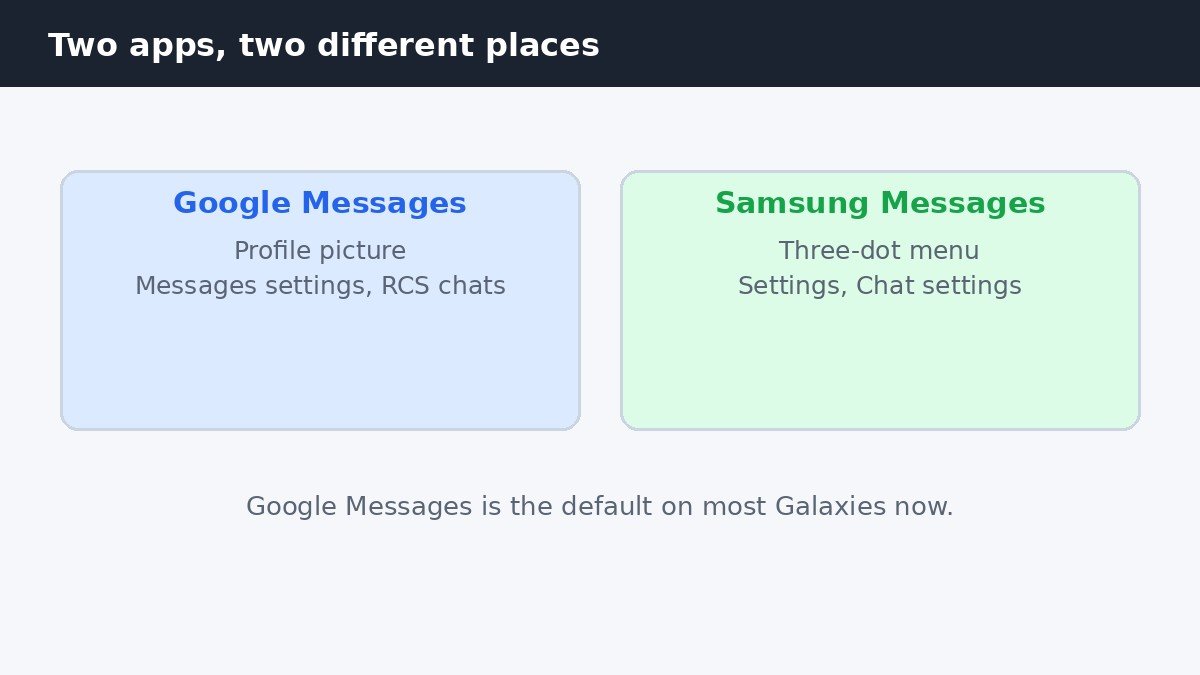
Your phone can only have one default messaging app, and that is the app that sends and receives your text messages. If Google Messages is the default, its read receipt setting is the one that matters. If Samsung Messages is the default, its setting is the one that matters. Changing the switch in the other app will not change anything.
Open Settings on your phone, then look for the default apps list and check which app is listed for text messages. If you want to change the default, see our guide to how to change the default messaging app on Android 16. Once you know which app is the default, use the matching section below and ignore the other one.
Turn them off in Google Messages
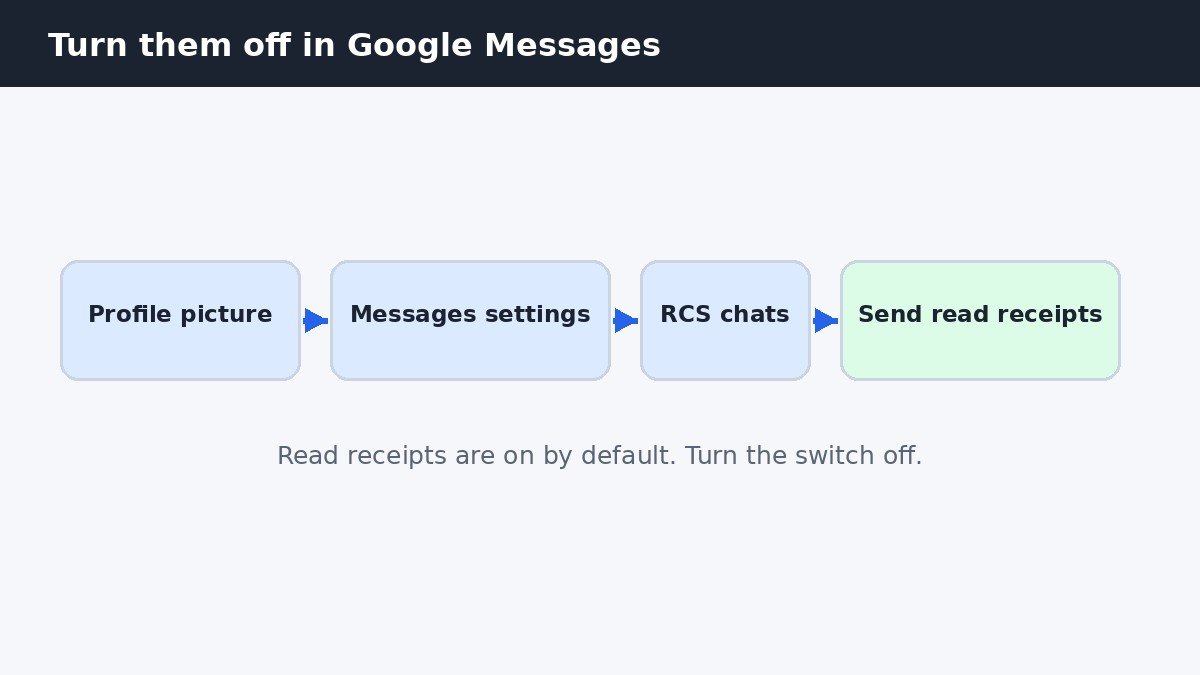
If Google Messages is your default messaging app, this is the path to follow. Open Google Messages, then tap your profile picture at the top of the screen. Tap Messages settings, then tap RCS chats. There you will find Send read receipts. Turn that switch off. Read receipts are on by default in Google Messages, so if you have never changed this setting before, it will be on when you arrive. The change takes effect straight away, with nothing else to save or confirm.
That one switch covers your RCS chats in Google Messages. It does not cover plain SMS or MMS chats, because those chats have no read receipts in the first place. For a second view of the same steps, see SamMobile’s guide to read receipts on Android.
Turn them off in Samsung Messages
If Samsung Messages is your default messaging app, the switch is in a different place. Open Samsung Messages, then tap the three-dot menu. Tap Settings, then tap Chat settings. There you will find Send read receipt. Turn that switch off. On older Galaxy setups this is the setting that controls read receipts for RCS chats in Samsung Messages.
While you are in the Samsung Messages settings, you may also see two related options under More settings. Under Text messages there is Show when delivered, and under Multimedia messages there is Show when read. These are separate settings from the main read receipt switch.
What changes when you turn them off
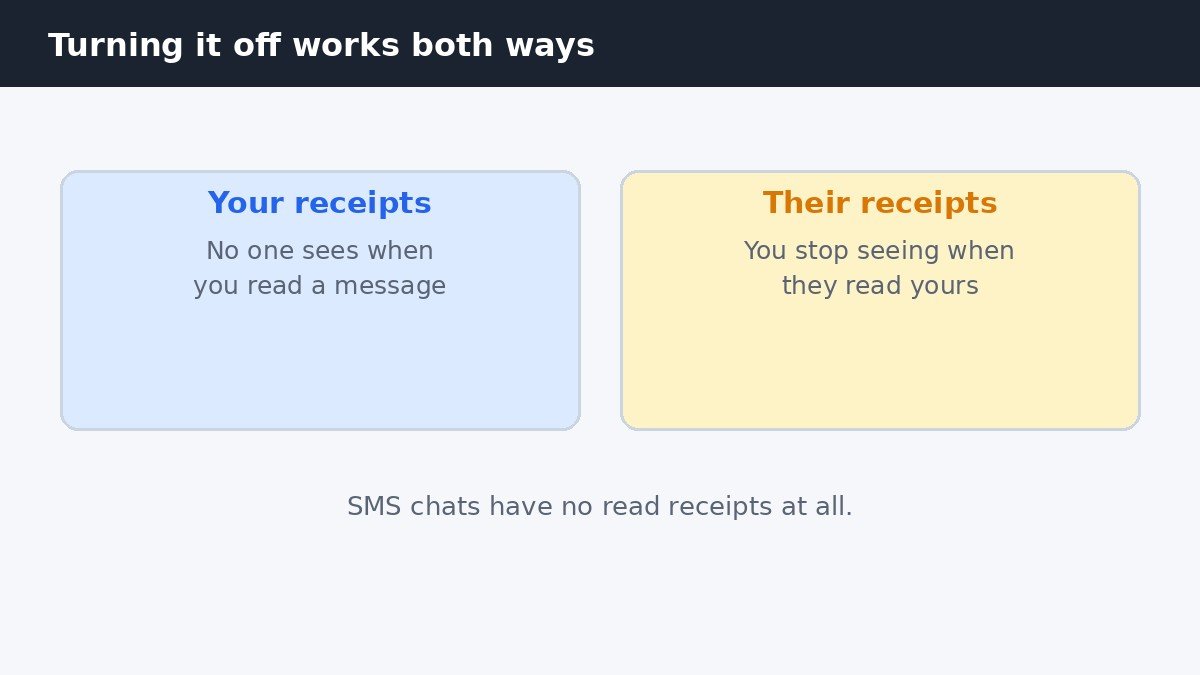
Turning read receipts off is a two-way street, and this is the part most guides skip. When you turn the switch off, you stop sending read receipts to other people, and you also stop seeing read receipts from them. Your friends will no longer see when you have read their messages, and you will no longer see when they have read yours. That trade is the whole point of the setting for many people, but it is still a trade, so it is worth knowing before you change it.
There is one more limit to know. There is no per-contact toggle on Android, so you cannot turn read receipts off for one person and leave them on for everyone else. The switch applies to all of your RCS chats at once, and you cannot pick and choose which chats keep read receipts.
| What you see | Before: read receipts on | After: read receipts off |
|---|---|---|
| Other people see when you read a message | Yes, they see it | No, they do not see it |
| You see when other people read a message | Yes, you see it | No, you do not see it |
| SMS and MMS chats | No read receipts at all | No change, still none |
| Control for one contact only | Not available | Not available |
If the setting is missing
If you follow the steps above and the read receipt switch is not there, the most likely reason is that the setting does not apply to your current setup. Read receipts only work for RCS chats, so if your carrier does not support RCS, the switch may not appear. The same thing can happen if Google Messages is not set as your default messaging app, because the RCS setting lives in the default app. Check the default app first, using the steps in the first section.
If the setting is still missing after that, check with your carrier whether RCS is supported on your plan and in your area. There is no second copy of the setting elsewhere on the phone.
Read is not the same as delivered
A read receipt is not the same as a delivery report, and mixing the two up causes a lot of confusion. Delivered means the message arrived on the other phone. Read means the other person opened the message and looked at it. A message can be delivered without being read, for example when the other phone is receiving messages but the person has not opened the chat yet. Turning off read receipts only hides the read part. It does not hide delivery, and it does not stop messages from arriving.
Show when delivered tells you a message arrived, while Show when read tells you it was opened. In Google Messages, Send read receipts covers the read part for RCS chats.
Turning off read receipts on a Samsung Galaxy phone comes down to one choice: work out which messaging app your phone uses, then turn off the switch in that app. In Google Messages it is under Messages settings and RCS chats, and in Samsung Messages it is under Chat settings. Remember that the change works both ways, and that it only affects RCS chats, because SMS and MMS chats have no read receipts.

- How to Turn Off Read Receipts on Samsung Galaxy - November 8, 2026
- How to Turn Off Night Shift on Mac - November 7, 2026
- How to Stop “Background Items Added” Notifications on Mac - November 6, 2026