
Changing the default messaging app on Android takes about a minute, and it is one of those settings that hides behind a name you would not guess. Android calls it the SMS app, even though the app you pick also handles modern chat features, photos, and group messages. Pick a new default, and that app becomes the one that sends and receives your texts, opens when you tap a message notification, and shows up when you share a contact. Everything else stays installed, and you can switch back just as easily.
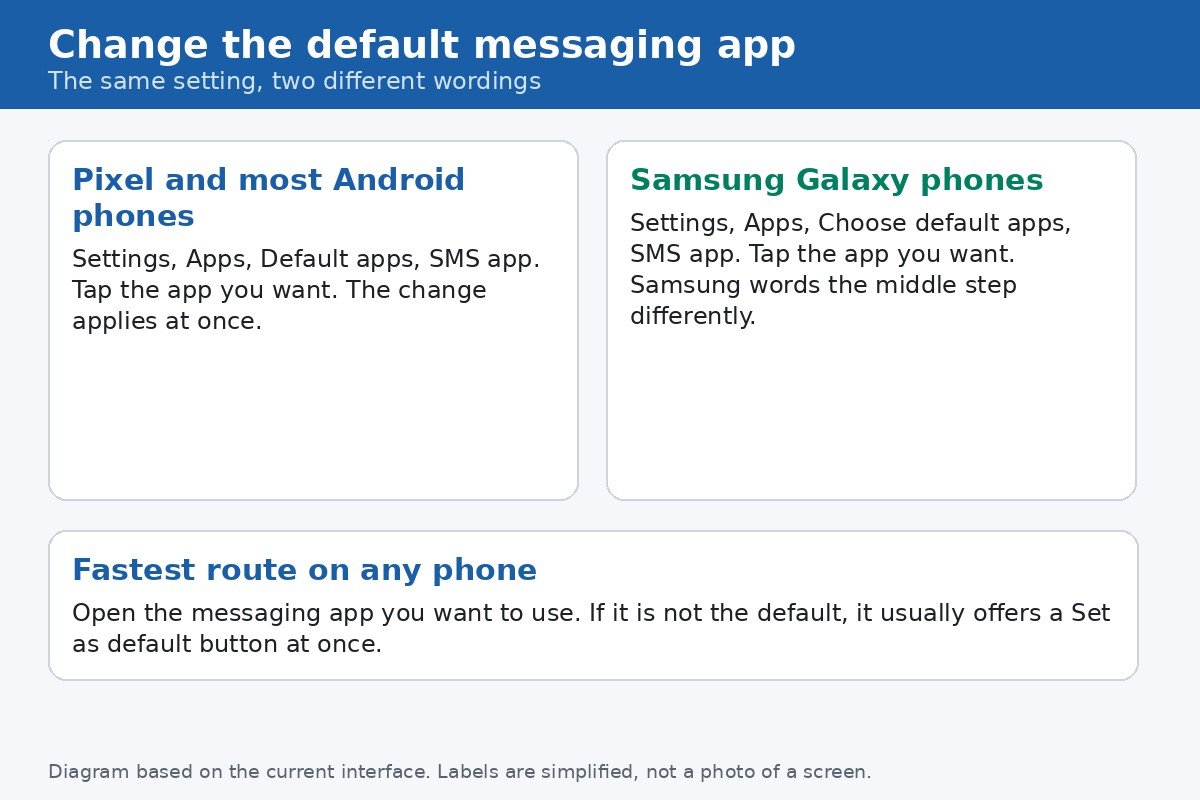
- The setting is Settings, Apps, Default apps, SMS app on a Pixel, and Settings, Apps, Choose default apps, SMS app on a Samsung phone.
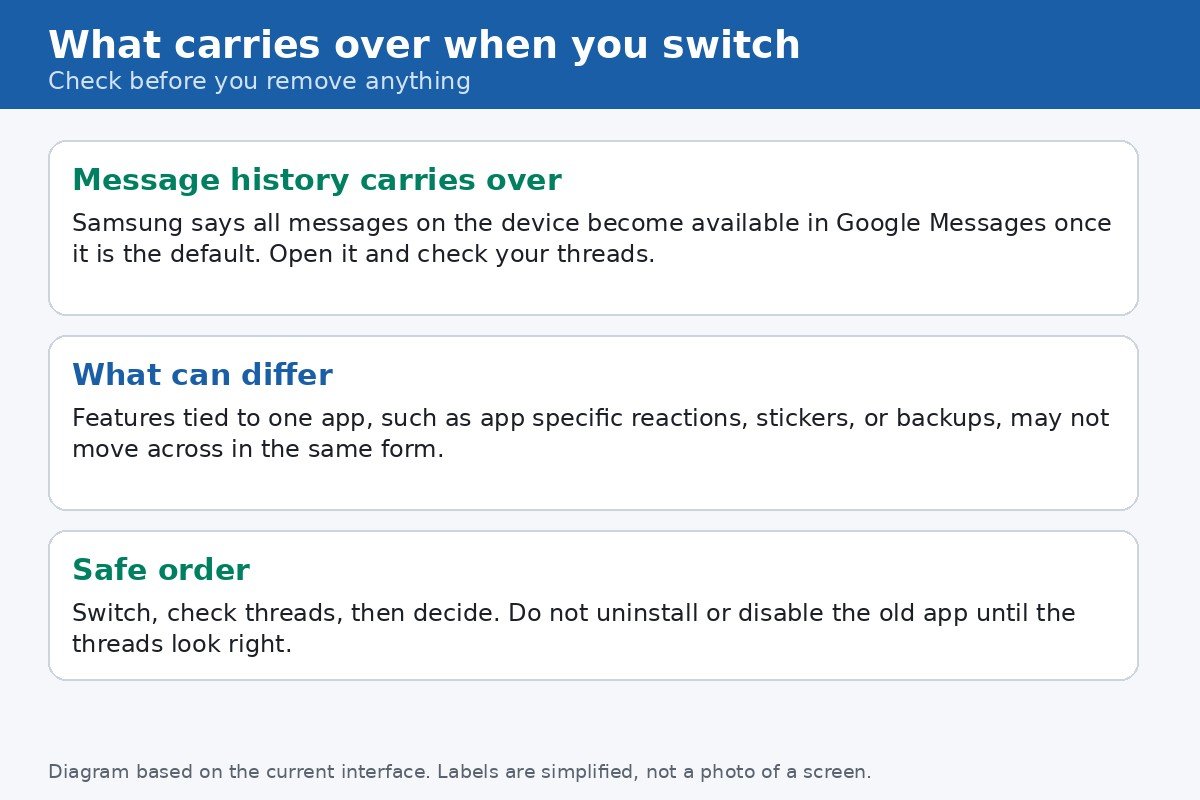
- Your message history carries over: Samsung says all messages on the device become available in the new app once it is the default, so check your threads before you remove anything.
- Only one app can be the default at a time, but the old app stays installed and keeps its own features until you decide otherwise.
- If the app you want is not installed yet, install it first, then open it, because most messaging apps offer a Set as default button on first launch.
What changing the default actually changes
Android lets many apps send messages, but only one app holds the SMS role. That role decides which app receives incoming texts, which app sends when you reply from a notification, and which app other apps hand a message to when you tap a message action. Changing the default does not move your SIM, change your phone number, or cancel your carrier plan. It simply points that role at a different app. Your contacts stay where they are, because contacts live in the Contacts app and your Google account, not inside the messaging app.
The reason this matters most right now is the Samsung to Google Messages move. Newer Galaxy phones ship with Google Messages preinstalled, and Samsung own support pages now walk users through switching to it. If you bought a Galaxy phone recently and found two apps both called Messages, you are not imagining things. One is Samsung Messages, the other is Google Messages, and only one of them is the default. The steps below cover both, plus the Pixel route, which is the same setting with slightly different wording.
On a Pixel and most other Android phones
- Open Settings.
- Tap Apps.
- Tap Default apps. On some older versions you may need to tap Advanced first to reveal it.
- Tap SMS app.
- Tap the app you want to use. The change applies at once, with no extra confirmation screen on most phones.
Google Messages is the preinstalled default on Pixel phones and on most Android phones that ship with Google apps, so Pixel owners usually make this change to move away from Google Messages, toward an app such as Samsung Messages, Textra, or another messaging app they prefer. The route is identical in either direction. If the app you want does not appear in the list, it is not installed, or it does not support the SMS role, and installing it from the Play Store will add it to the list.
On a Samsung Galaxy phone
- Open Settings.
- Tap Apps.
- Tap Choose default apps. This is the Samsung wording for the same screen Pixel calls Default apps.
- Tap SMS app.
- Tap the app you want. In Samsung examples, Google Messages is shown with a blue chat bubble icon, which helps when both apps are named Messages.
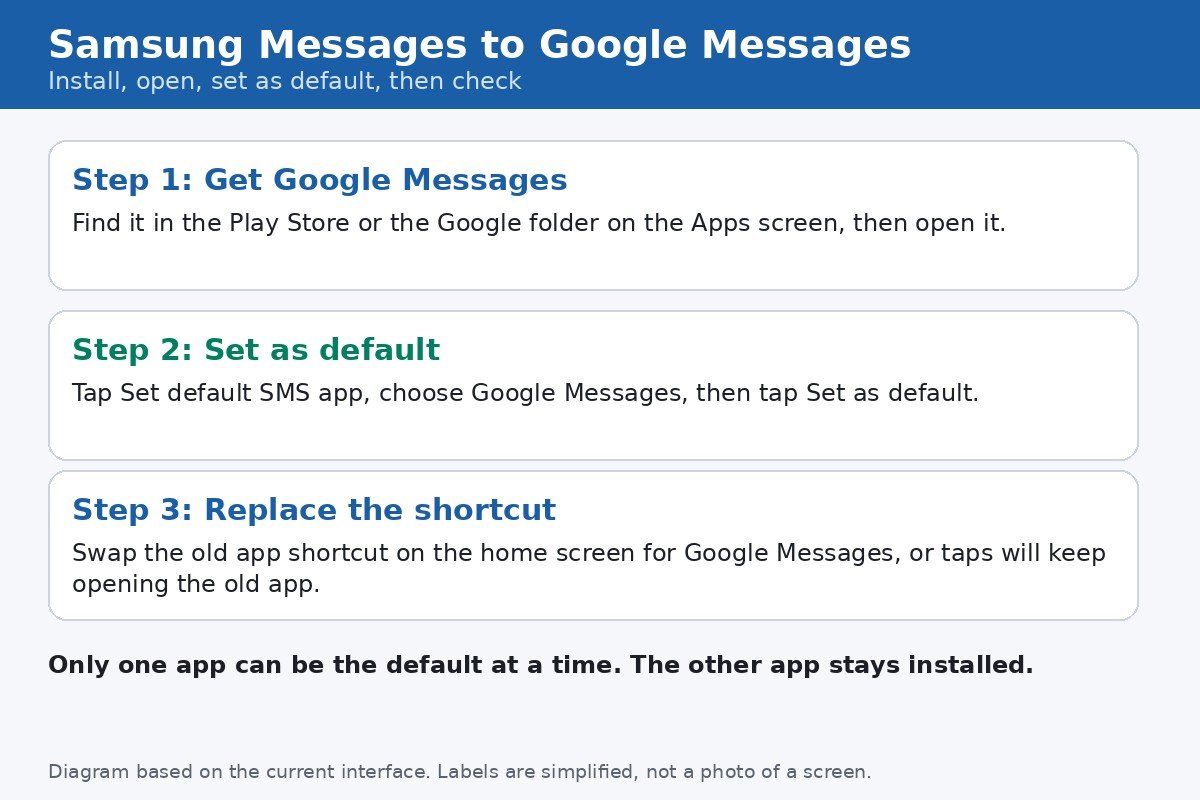
There is a faster route that works on Samsung and most other phones, and it is the one Samsung own support page leads with. Open the messaging app you want to use. If it is not the default, it usually shows a prompt at once, asking you to set it as the default messaging app. Tap Set default SMS app, choose the app, then tap Set as default. That prompt does the same thing as the Settings route, with fewer taps, and it is worth trying first. Note that some apps only show this prompt on first launch, so if you dismissed it earlier, use the Settings route instead.
Moving from Samsung Messages to Google Messages
- Install Google Messages from the Play Store if it is not already on the phone. On newer Galaxy phones it is preinstalled, often in the Google folder on the Apps screen.
- Open Google Messages and accept the Set as default prompt, or use the Settings route above if no prompt appears.
- Grant the permissions the app asks for, such as SMS, Contacts, and Media, because without them it cannot show your conversations or send messages properly.
- Open Google Messages and scroll through your conversations. Samsung says all messages on the device will be automatically available in Google Messages once it is set as the default, and the support page repeats that all your texts will be available instantly in any app.
- Replace the home screen shortcut. Samsung own notes warn that a shortcut to the old app will keep opening the old app, even after the default changes, so swap it for a Google Messages shortcut.
A note on RCS, the modern chat layer that adds typing indicators, read receipts, and larger photos on top of plain SMS. RCS works through the default messaging app, and Google Messages handles it once the app is the default and RCS chats are enabled in its settings. If a conversation still sends as plain SMS after switching, check that RCS is turned on in Google Messages, and that the person you are messaging also has RCS available, because both sides need it. A message falling back to SMS is not a sign that the switch failed, it is how RCS behaves when the other side cannot receive it.
What carries over, and what does not
This is the question that stops most people from switching, so here is the supported answer, and its limit. Samsung support states that all messages on the device will be automatically available in Google Messages when it is set as the default app. In practice, that means your SMS and MMS conversation history shows up in the new app, because both apps read from the same on device message store. That claim is supported by Samsung own pages, and it is the reason you do not need an export step for ordinary texts.
What does not necessarily carry over in identical form is anything tied to one app alone. App specific reactions, stickers, custom themes, scheduled messages set inside the old app, and backups stored inside one app account may not appear in the other app in the same form. Treat those as app features, not as messages, and check them before you disable anything. The safe order is simple: switch, check your threads, use the new app for a day or two, and only then decide whether to disable or remove the old app. Switching back is the same one minute process in reverse, and your history is still there, because changing the default never deletes it.
If the new app does not work after switching
- Confirm the default actually changed. Go back to Settings, Apps, Default apps, SMS app, and check which app is selected, because a dismissed prompt can leave the old app in place.
- Check permissions. Open the app info page for the new app and confirm SMS, Contacts, and Phone permissions are allowed, since a messaging app without SMS permission cannot receive texts.
- Restart the phone. A restart clears any stuck routing after a default change, and it costs nothing.
- Check for an app update in the Play Store, and check that mobile data or Wi-Fi is working, because RCS features need a data connection and fall back to SMS without one.
- If messages arrive in the old app but not the new one, the default almost certainly did not change, so repeat the Settings route and watch for the selection to stick.
One last detail, for readers switching on a Samsung phone: Samsung own guide to changing the default messaging app is the source for the Settings wording and the history claim in this article, and it is worth opening if your menus look different, because Samsung updates its wording between One UI versions. The core idea never changes, though: one app holds the SMS role, you pick it in Default apps, and your history follows the role, not the icon on your home screen.
That is the whole job. Pick the app you actually want to open when a message arrives, set it once, check your threads, and swap the shortcut. Everything else, including switching back, takes the same minute, so there is no reason to stay with a default you did not choose.

- How to Change the Default Messaging App on Android 16 - October 28, 2026
- How to Turn Off App Suggestions on Your Android Home Screen - October 25, 2026
- How to Stop Android Auto-Connecting to Open Wi-Fi Networks - October 24, 2026