
A password manager is an app that creates strong passwords, stores them in an encrypted vault, and fills them in for you, all unlocked by one master password that you memorize. On Android that means signing into apps and websites with your fingerprint instead of reusing the same password everywhere. This guide explains when a password manager is worth trusting, compares the five best Android options for 2026 with verified pricing, and then walks you through setting up the best free pick step by step.
What a Password Manager Actually Does on Android
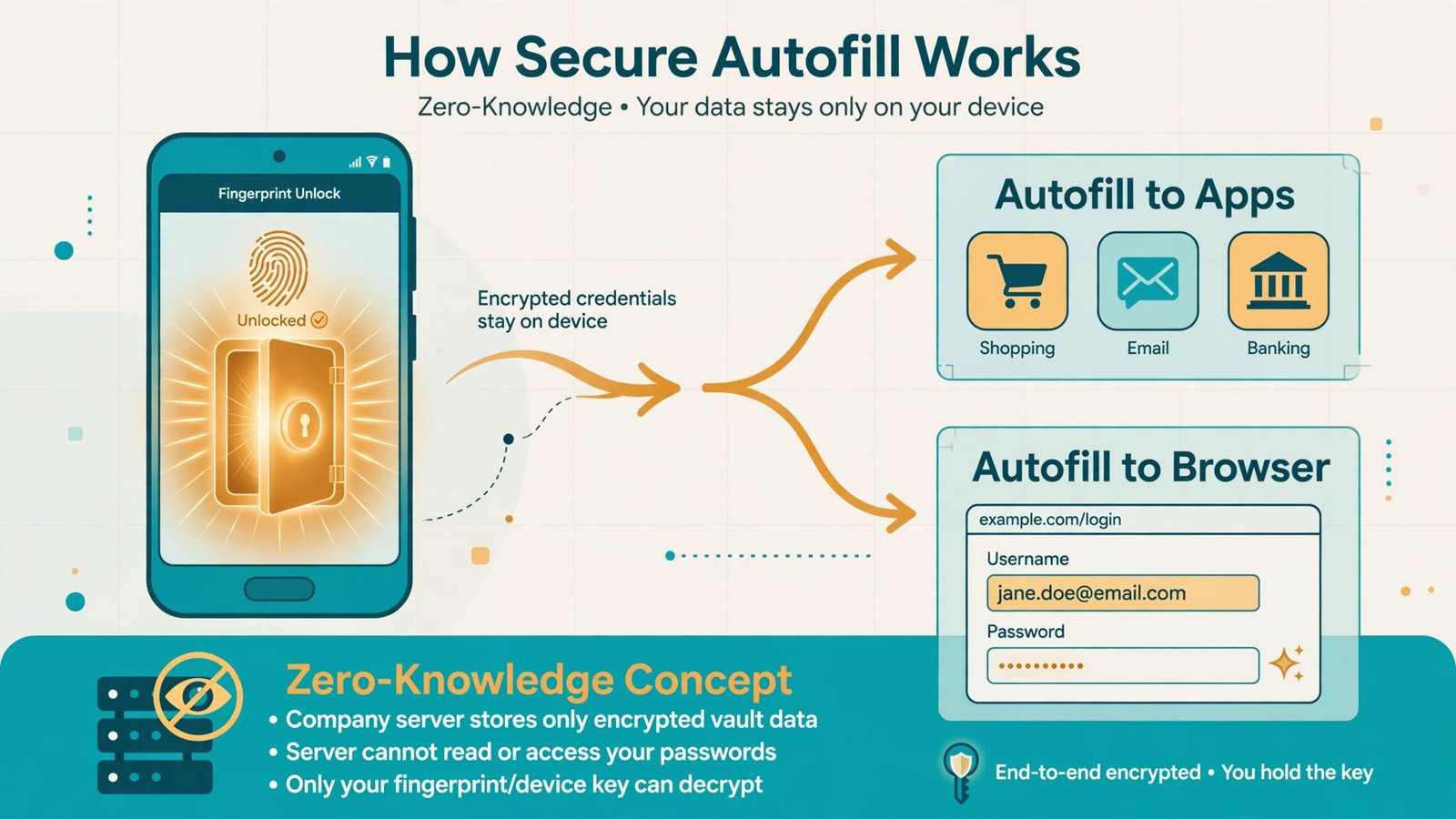
Every password manager does the same three jobs. First, it generates long random passwords you could never remember, one per account. Second, it stores them in a vault encrypted on your phone, so the company itself cannot read them (this is called zero-knowledge encryption). Third, it fills them in for you through Android’s autofill service, which pops the right login up above your keyboard when you open an app or website.
The modern ones also store passkeys, the fingerprint-or-face logins that are replacing passwords on sites like Google, Apple, and Microsoft. All five apps below support passkeys on Android in 2026, so whichever you pick, you are covered as the web moves past passwords.
When to Trust One (and When Not To)
A password manager is only as trustworthy as the habits around it. These are the rules that matter:
- Trust the real app, not a lookalike. Only install the vendor’s official app from the Google Play Store and check the developer name (for example, “Bitwarden Inc.”). Copycat apps with similar names and icons exist.
- Turn on two-factor authentication on the vault itself. Your password manager becomes the keys to everything, so protect the vault with an authenticator app, not just the master password.
- Make the master password unique and memorable. A passphrase of four or five random words works well. Never reuse it anywhere, and never store it inside the vault it unlocks.
- Know the phishing limit. A manager will not fill your bank login on a fake bank site, which actually protects you, but you still need to spot scams yourself. If you are unsure about a site, learn how to check whether a website is safe before signing in.
The 5 Best Password Manager Apps for Android in 2026
Prices below were verified in October 2026. Vendors change prices and run promotions, so treat these as the current baseline and confirm at checkout before you pay.
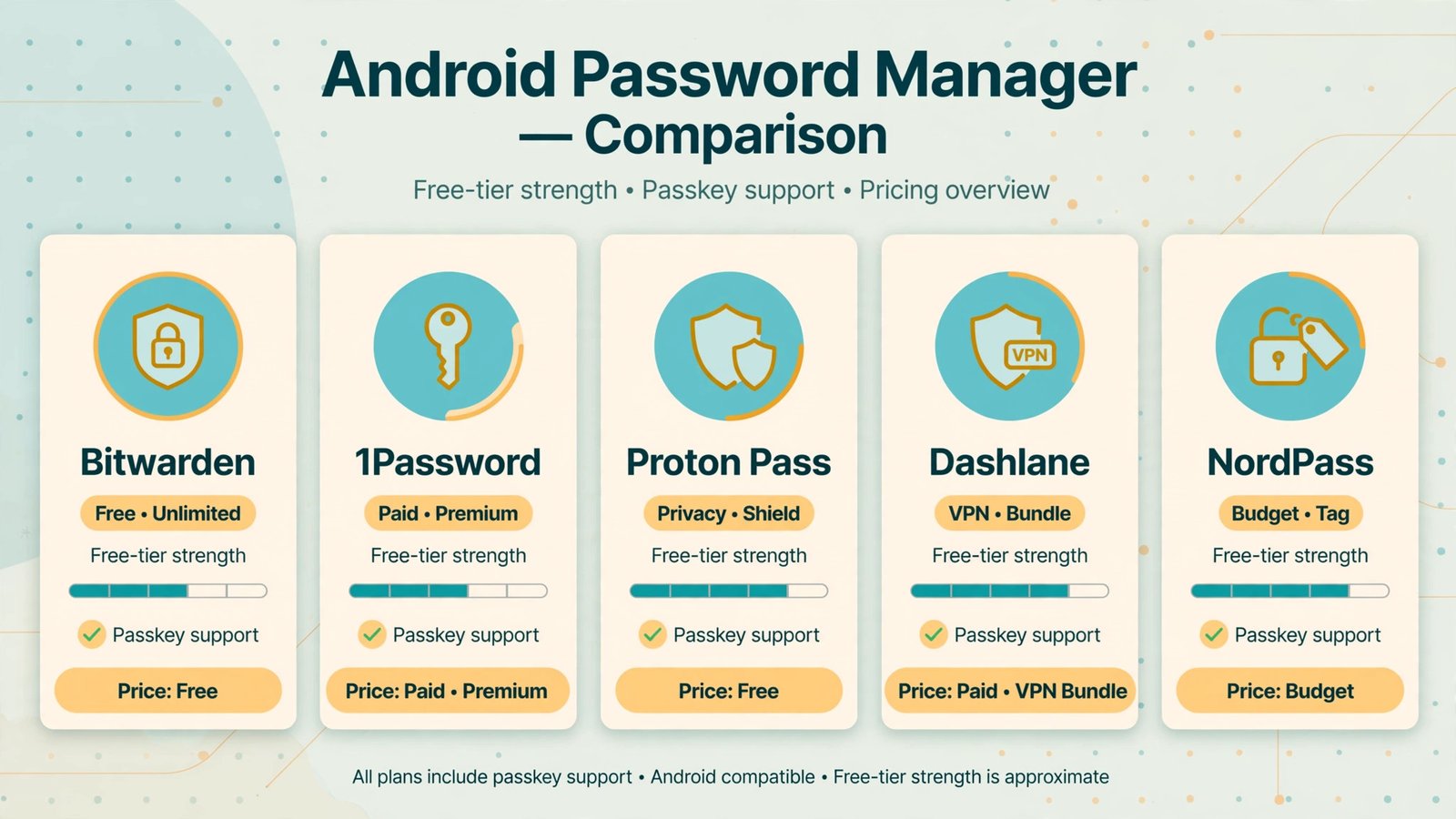
| App | Free tier | Paid price (2026) | Passkeys | Best for |
|---|---|---|---|---|
| Bitwarden | Unlimited passwords and devices | Premium $19.80/yr; Families $47.88/yr (6 users) | Yes | Best free plan; open source |
| 1Password | None (14-day trial) | Individual $47.88/yr; Families $71.88/yr (5 users) | Yes | Most polished paid app |
| Proton Pass | Unlimited logins and devices, 10 email aliases | Plus from ~$2.49/mo annual; Family ~$4.19/mo (6 users) | Yes | Privacy-first free alternative |
| Dashlane | Effectively none (trial or heavily capped) | Premium ~$4.99/mo; Family ~$7.49/mo | Yes | Bundled VPN |
| NordPass | One device only | Premium ~$1.49/mo (promotional) | Yes | Cheapest paid option |
1. Bitwarden: the best free pick
Bitwarden’s free plan is the real deal: unlimited passwords, unlimited devices, and passkey support at no cost, with open-source code anyone can inspect. The paid Premium tier ($19.80/year after the January 2026 price increase) adds vault health reports, an integrated authenticator, and file attachments. The honest negative: the interface is less polished than 1Password’s, and support is email and community only.
2. 1Password: the best paid pick
1Password is the smoothest password manager on Android, with the best autofill, family recovery tools, and a Travel Mode that hides sensitive vaults at borders. There is no free tier, only a 14-day trial, and prices rose in March 2026 to $47.88/year for individuals and $71.88/year for families. The honest negative: you are paying two to three times Bitwarden’s price for polish, and the price hikes are now a pattern.
3. Proton Pass: the best privacy pick
From the Swiss company behind Proton Mail, Proton Pass pairs a strong free plan with unlimited hide-my-email aliases on paid plans, which is genuinely useful for signing up for sites without giving out your real address. The honest negative: it is a younger product, so advanced team features lag behind Bitwarden and 1Password, and exact pricing varies by region.
4. Dashlane: the best extras pick
Dashlane bundles a VPN with its Premium plan, which is a real differentiator if you would pay for a VPN anyway, and its dark-web monitoring is excellent. The honest negative: the meaningful free plan was discontinued in 2025, so there is no free on-ramp left, and at roughly $60/year it is the priciest individual plan here.
5. NordPass: the cheapest paid pick
NordPass often sells Premium for around $17 a year on promotion, making it the cheapest way to get a polished paid manager, and its Android autofill is noticeably reliable. It also pairs with spam and scam call blocker apps nicely if you are hardening your phone against scams in general. The honest negative: the free tier is limited to a single device, so it is a paid product in practice.
How to Set Up Bitwarden on Android
Bitwarden is the pick I recommend for most people, because the free plan covers everything and you can upgrade later without switching apps. Here is the full setup.
- Step 1: Install the official app. Open the Google Play Store, search for Bitwarden, and confirm the developer is Bitwarden Inc. before installing.
- Step 2: Create your account and master password. Open the app and tap Create Account. Choose a master password you have never used anywhere else, something long you can remember, like five random words. Checkpoint: Bitwarden will show a password-strength meter; aim for the top rating.
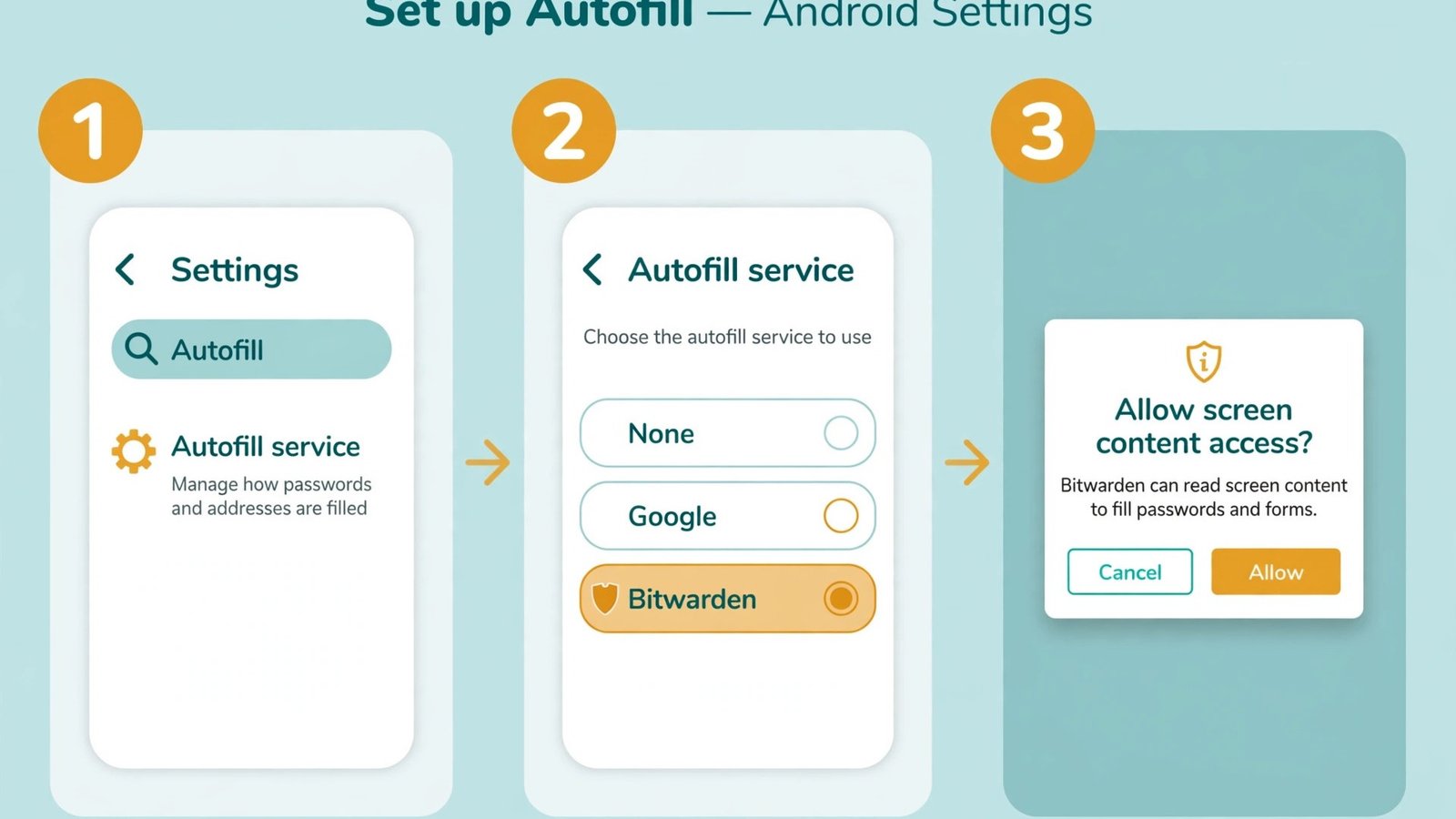
- Step 3: Make Bitwarden your autofill service. Open Android Settings and search for “Autofill”. Under the autofill service setting, select Bitwarden. On most phones the path is Settings, then System, then Languages and input, then Autofill service. Checkpoint: Android will warn that Bitwarden can see screen content; this is normal and required for any password manager to fill logins.
- Step 4: Save your first login. In Bitwarden, tap the plus button and add a site you use daily. Tap the dice icon next to the password field to generate a strong random password, then save. If the old password was weak or reused, change it to the new generated one on the site itself.
- Step 5: Test autofill. Open Chrome and go to that site’s login page. Tap the username field; a Bitwarden prompt should appear above the keyboard. Tap it, unlock with your fingerprint, and the login fills in. Checkpoint: if no prompt appears, go back to Step 3 and confirm Bitwarden is still selected as the autofill service.
- Step 6: Lock down the vault. In Bitwarden, go to Settings, then Security, and turn on two-factor authentication with an authenticator app. Warning: if you forget your master password, Bitwarden cannot recover your vault. Paid plans add emergency access for exactly this situation, so set that up if anyone depends on your accounts.
Your Passwords, Finally Under Control
Start with Bitwarden’s free plan and give it a month; for most people it is all they will ever need. Pay for 1Password if your family needs the smoothest shared vaults and recovery, or pick Proton Pass if you already live in the Proton ecosystem and want email aliases built in. Whichever you choose, the setup above takes about fifteen minutes, and every login after that takes one fingerprint. That is the whole point.

- How to Turn Off Stage Manager on Mac - October 23, 2026
- How to Reset Your Private Space PIN on Android If You Forgot It - October 22, 2026
- How to Turn Off Hot Corners on a Mac - October 21, 2026