
Most people judge a website the lazy way: they see the little padlock icon in the address bar and decide the site is safe. Here is the problem: that padlock only means your connection is encrypted. It says nothing about whether the person on the other end is honest. Phishing sites, the fake login pages that steal passwords and card numbers, use encryption too. The difference between getting fooled and staying safe is not the padlock. It is knowing how to actually check a site, which is what this guide will teach you using Microsoft Edge’s built-in tools.
Things you need to know first
Edge ships with several layers of protection, and they work best when you understand what each one does and where it stops. Microsoft Defender SmartScreen checks sites and downloads against Microsoft’s database of known threats and warns you before you open something dangerous. Website typo protection watches for typosquatting: if you mistype a familiar address, Edge warns you before loading the lookalike site. Password Monitor watches your saved logins and alerts you if they appear in known data breaches. These are genuinely useful, but they are filters, not guarantees. New scam sites appear faster than any database can list them, so the final check is always you.
These are the rules that keep you safe. Read them as statutes, because each one exists for a reason:
- 1. A padlock only means encrypted, not honest. Anyone can get a certificate for a scam domain in minutes. If you trust a site because of the padlock, you have checked nothing at all, and phishing kits know it.
- 2. Lookalike domains are the whole trick. Attackers register domains one letter off from real brands, or add words like “secure,” “verify,” or “billing” to sound official. If you do not read the address bar character by character, you will not catch it, and your login goes straight to a stranger.
- 3. Urgency is a weapon. “Your account will be locked in 24 hours” and “unusual sign-in detected” are designed to make you click before you think. Real companies do not demand instant action through a link in an email or text; the rush you feel is the scam working.
- 4. The sender is part of the evidence. A link is only as trustworthy as the message carrying it. Unexpected password-reset emails, delivery texts for packages you did not order, and “support” agents who contact you first are all classic delivery methods for phishing. Check the message before you check the site.
- 5. Typing the address yourself beats clicking. A link can say one thing and lead somewhere else. When money or credentials are involved, close the message and type the address you know into the browser yourself, or use your own bookmark. It is the single most effective habit on this list.
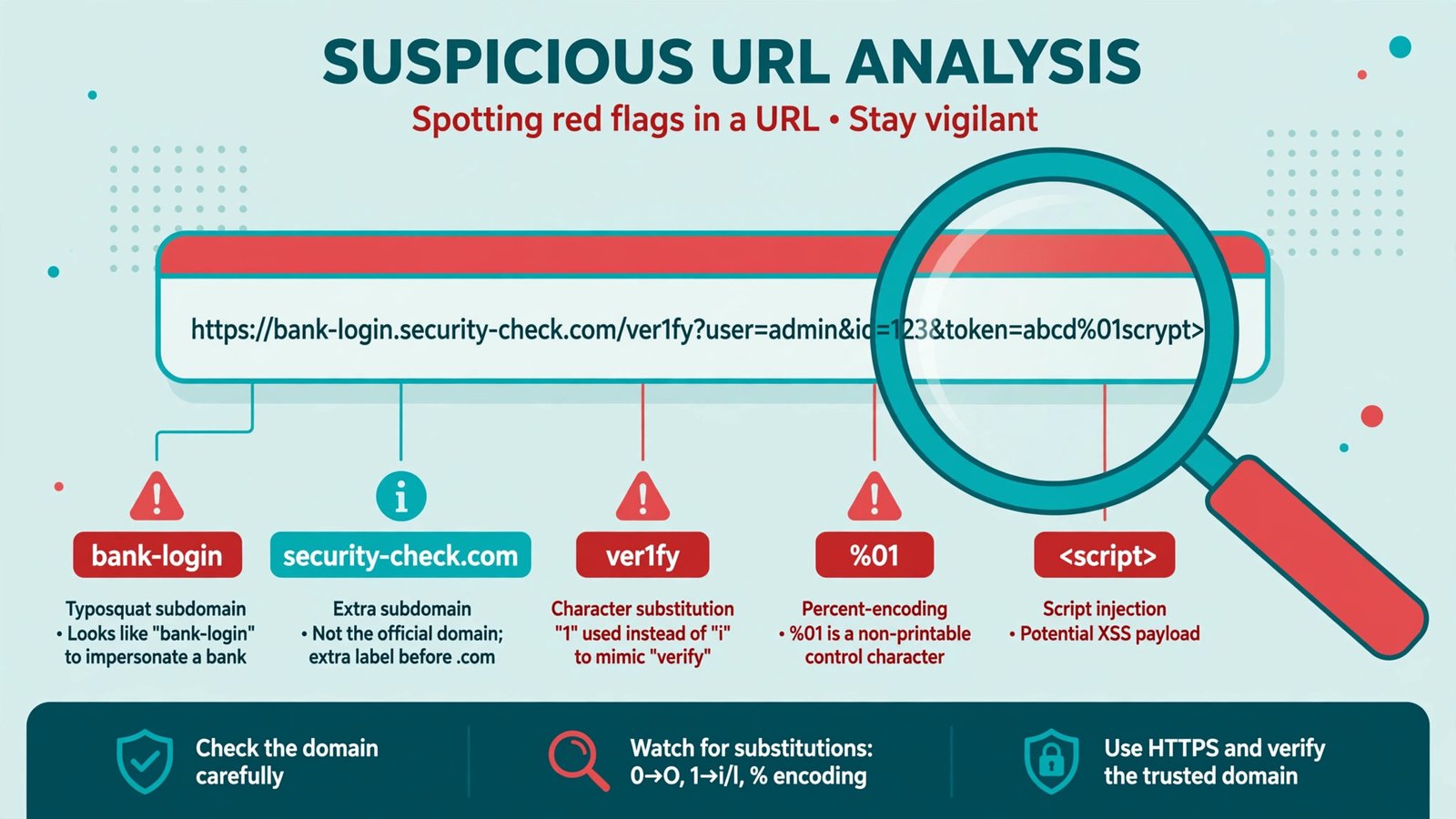
Try this test: dissect a suspicious URL
Below is a fabricated example of the kind of link phishing emails use. It is not a real site; do not try to visit anything resembling it. Read it slowly, left to right, the way you should read any unexpected link:
https://secure-micorsoft365-verify.net/login?account=billingNow the dissection. First, https:// only tells you the connection is encrypted; it proves nothing about the owner. Second, look at the domain itself, which is everything between https:// and the first single slash: secure-micorsoft365-verify.net. That is the real destination, and nothing else in the link matters as much. Third, inside that domain, find the misspelling: micorsoft, missing the second “r” in Microsoft. Fourth, notice the hyphens and the words “secure” and “verify”: real companies do not stack reassuring words with dashes into their domain names; scammers do, because it looks official at a glance. Fifth, the ending is .net, not .com, and the part after the slash, /login?account=billing, is just a path the attacker chose, designed to make you think about billing instead of the domain. The whole link is engineered so that a quick reader sees “secure,” “microsoft365,” and “billing,” while the actual address is a stranger’s .net domain.
Practice this on real links you receive: isolate the domain, read it character by character, and ask who actually owns it. Ten seconds of this habit defeats most phishing.
The easy way: let Edge protect you
Edge’s built-in protections handle the threats you should not have to think about. Set these up once:
- 1. Keep Microsoft Defender SmartScreen on. It is enabled by default and checks every site and download against Microsoft’s threat database. If Edge shows a red warning page saying a site was reported as unsafe, believe it and go back. You can find the toggle under Settings, then Privacy, search, and services.
- 2. Leave website typo protection enabled. This SmartScreen feature specifically catches typosquatting: mistype a bank’s address and Edge warns you before loading the impostor site, asking you to confirm where you meant to go. It is your safety net for the exact attack dissected above.
- 3. Turn on Password Monitor. Go to Settings, then Profiles, then Passwords, and enable it. Edge will check your saved passwords against known breach databases and warn you when one has leaked, so you can change it before anyone uses it. Pair it with the built-in password generator when creating new accounts, so every site gets a unique password.
The safe way: verify by hand
Automation covers the known threats; your judgment covers the new ones. Make these habits permanent: type important addresses yourself instead of clicking links in messages; hover over links (or long-press on touch screens) to preview the real destination before tapping; be suspicious of any message that manufactures urgency; keep Edge updated so SmartScreen’s database stays current; and never enter credentials on a page you reached through an unexpected message. None of this takes more than a few seconds, and together it closes the gap no filter can fully close.
Verdict
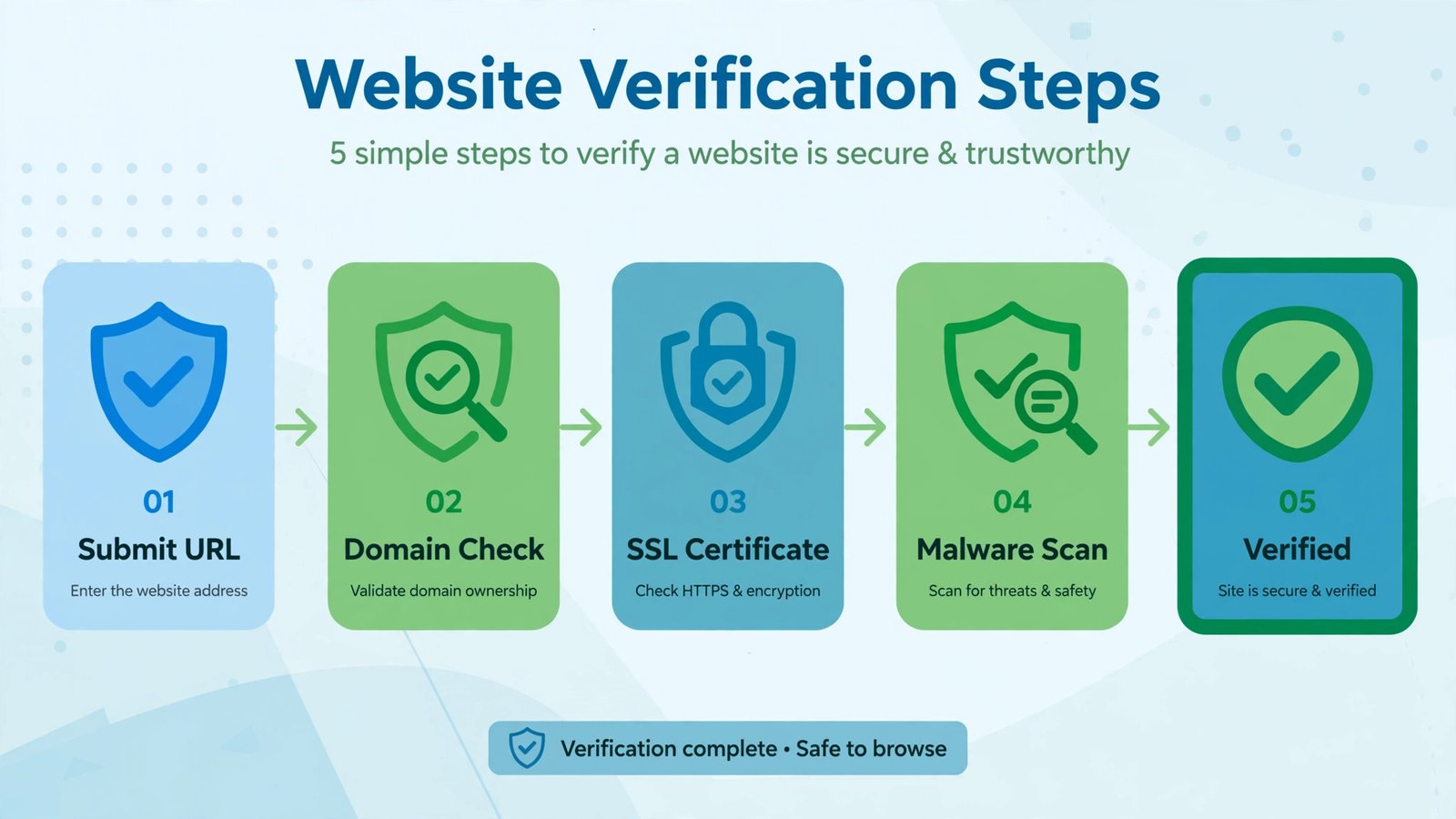
You do not need to become a security expert to avoid phishing; you need to stop trusting the padlock and start reading the address bar. Edge’s SmartScreen, typo protection, and Password Monitor are a strong first line, but the habit that saves people is manual verification: isolate the domain, read it slowly, and type it yourself when it matters. The scammers are counting on you not bothering. Prove them wrong.
For the bigger picture on staying safe online, Microsoft’s own guide to staying safer with Edge and the Edge security features overview document these protections in full. For related reading, see our guides on avoiding crypto scams in 2026 and the advantages and disadvantages of cybersecurity measures.

- How to Fix Windows 11 Search Not Finding Files - October 24, 2026
- How to Fix Windows 11 Clock Showing the Wrong Time - October 23, 2026
- How to Fix File Explorer Slow to Open in Windows 11 - October 22, 2026