
Your Mac screen keeps getting brighter and dimmer on its own, and it always seems to pick the wrong moment. The cause is usually one small setting: Automatically adjust brightness, which lets the ambient light sensor in your Mac change the screen to match the room. Turning it off takes less than a minute, and after that the brightness stays exactly where you leave it, until you change it yourself.
Before you switch it off, it helps to know when disabling it is actually the right call, and when a different setting is the real culprit. If you edit photos, grade video, or compare colours for print, a fixed brightness is not a preference, it is part of the job, because a screen that drifts with room light makes colour judgement unreliable. If you use an external display, the same logic applies, though the control lives on that display settings page, not on the built in display page. And if your screen still dims after you switch auto brightness off, the cause is almost always True Tone, battery dimming, or Low Power Mode, which are covered near the end of this guide.
Turn it off in Displays settings
- Click the Apple menu in the top left corner of the screen, then choose System Settings. On macOS Monterey and earlier, the app is called System Preferences instead, but the Displays page works the same way.
- Click Displays in the sidebar. You may need to scroll down the sidebar to find it.
- If more than one display is connected, select the display you want to change at the top of the window. Each display has its own brightness controls.
- Find Automatically adjust brightness, near the Brightness slider, and turn the switch off.
- Drag the Brightness slider to the level you want. From now on, that level holds until you move the slider, press a brightness key, or use Control Center.
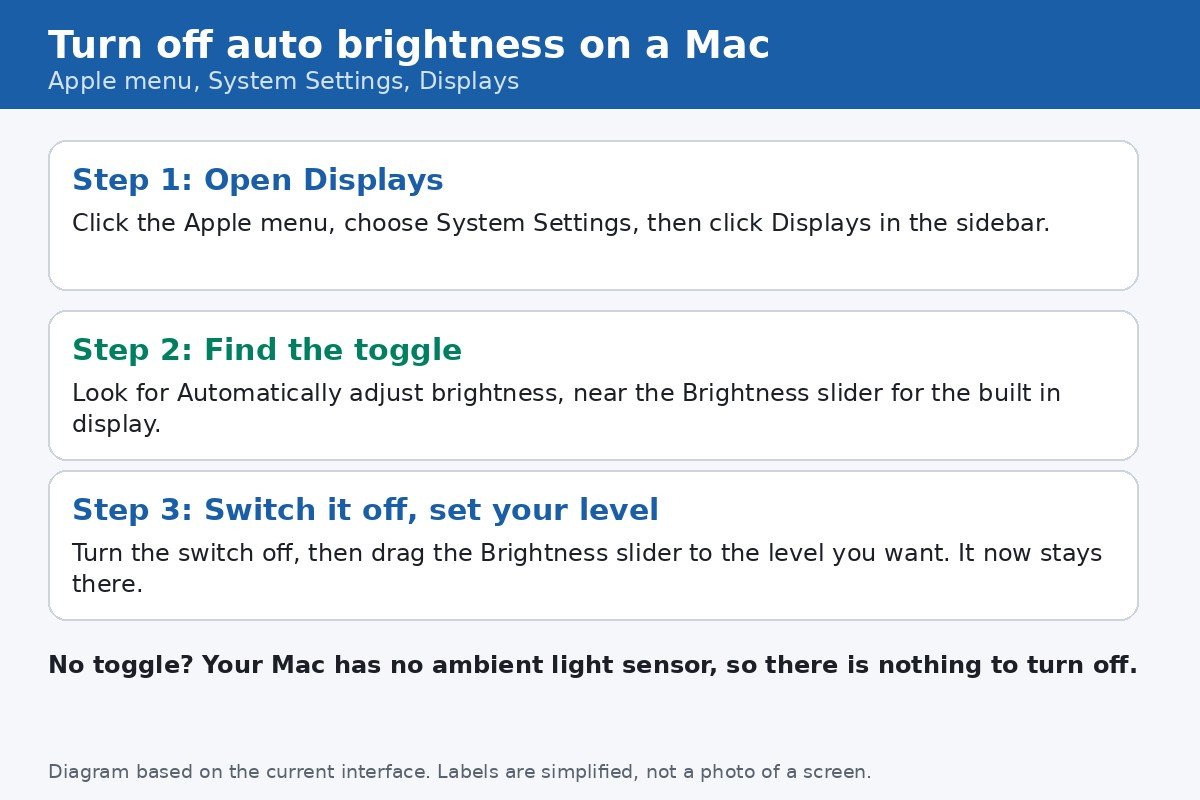
Apple own Displays preferences reference describes this option in plain terms: the display brightness and black level adjust automatically based on current ambient lighting conditions. That description is also the clue to how the sensor behaves, because it reacts to light, not to what you are doing. A bright window behind you, a lamp switched on, or a shadow falling across the top of the display can all move the brightness, even though nothing about your work changed.
How the ambient light sensor behaves
The sensor sits near the top of a MacBook display, close to the camera, and it samples the light in the room. In a bright room it raises brightness so the screen stays readable, and in a dark room it lowers brightness so the screen does not glare. That sounds helpful, and for general use it is, but it has two weaknesses worth knowing. First, it reacts to light at the sensor, not light at your eyes, so a shadow over the sensor, a privacy cover near the camera, or sitting with a bright window behind you can fool it into the wrong level. Second, it changes brightness gradually, which means you may not notice a single change, only that the screen never looks quite the same twice.
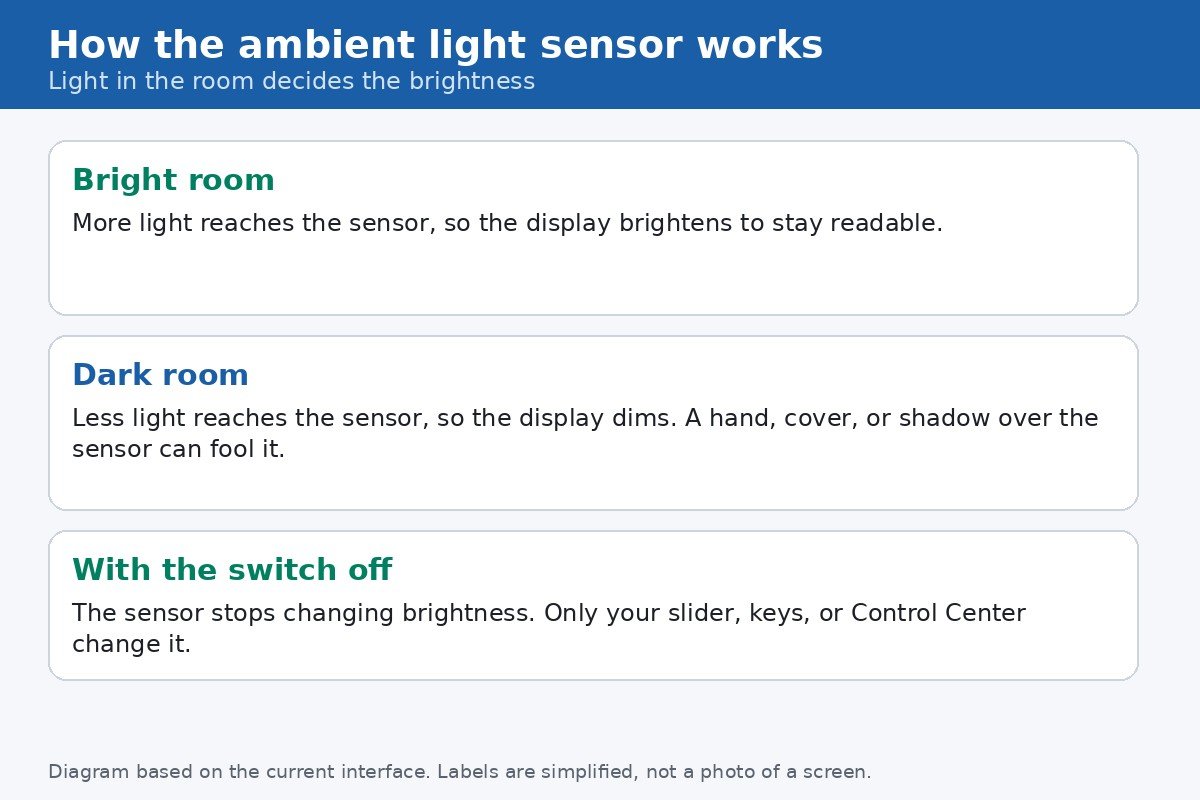
With the switch off, the sensor stops changing brightness altogether. Your brightness keys still work, the slider still works, and Control Center still works. Nothing else about the display changes, and you can switch auto brightness back on at any time from the same page if you miss it.
When disabling it actually helps
- Colour work. Photo editing, video grading, and print proofing need a stable screen, because a drifting brightness changes how colours read, even when the colour settings are untouched.
- External displays. If you judge work on an external monitor, set that display brightness manually too, using its own page in Displays settings, or the monitor own controls for a third party display.
- Presentations and calls. A screen that dims mid presentation looks like a fault to the audience, and a fixed level removes that distraction.
- Rooms with tricky light. If your desk sits beside a window, or your light changes through the day, a fixed level stops the constant small adjustments that draw the eye.
When keeping it on is the better choice is also worth saying. If you move between rooms all day, work outdoors, or simply never think about brightness, auto brightness saves battery and spares you constant manual adjustments. There is no right answer for everyone, only the answer that fits how you use the Mac, and the switch is easy enough to flip back that trying the fixed level for a week costs nothing.
Adjust brightness manually after switching off
- Press the brightness keys on the keyboard, usually F1 to dim and F2 to brighten. If those keys do nothing, hold Fn while pressing them, because the keys may be set to act as standard function keys.
- Open Control Center from the menu bar and drag the Display brightness slider there for a quick change without opening System Settings.
- Go back to Apple menu, System Settings, Displays, and drag the Brightness slider for fine control, especially when you want an exact level for colour work.
- On a MacBook Pro with a Touch Bar, swipe on the brightness control in the Control Strip at the right end of the Touch Bar.
If the screen still dims afterwards
Switching off auto brightness does not stop every kind of dimming, and this is where most follow up confusion comes from. Three other settings can still change how the screen looks, and each one has its own fix. Check them in order, because the first one is the most commonly mistaken for auto brightness.
| What you see | Likely cause | Where to check |
|---|---|---|
| Colours shift warmer or cooler, brightness looks different | True Tone adjusting colours to room light | System Settings, Displays, True Tone switch |
| Screen dims slightly on battery only | Slightly dim the display on battery | System Settings, Battery |
| Screen dims and the Mac feels slower on battery | Low Power Mode or Energy Mode set to Low Power | System Settings, Battery, Energy Mode |
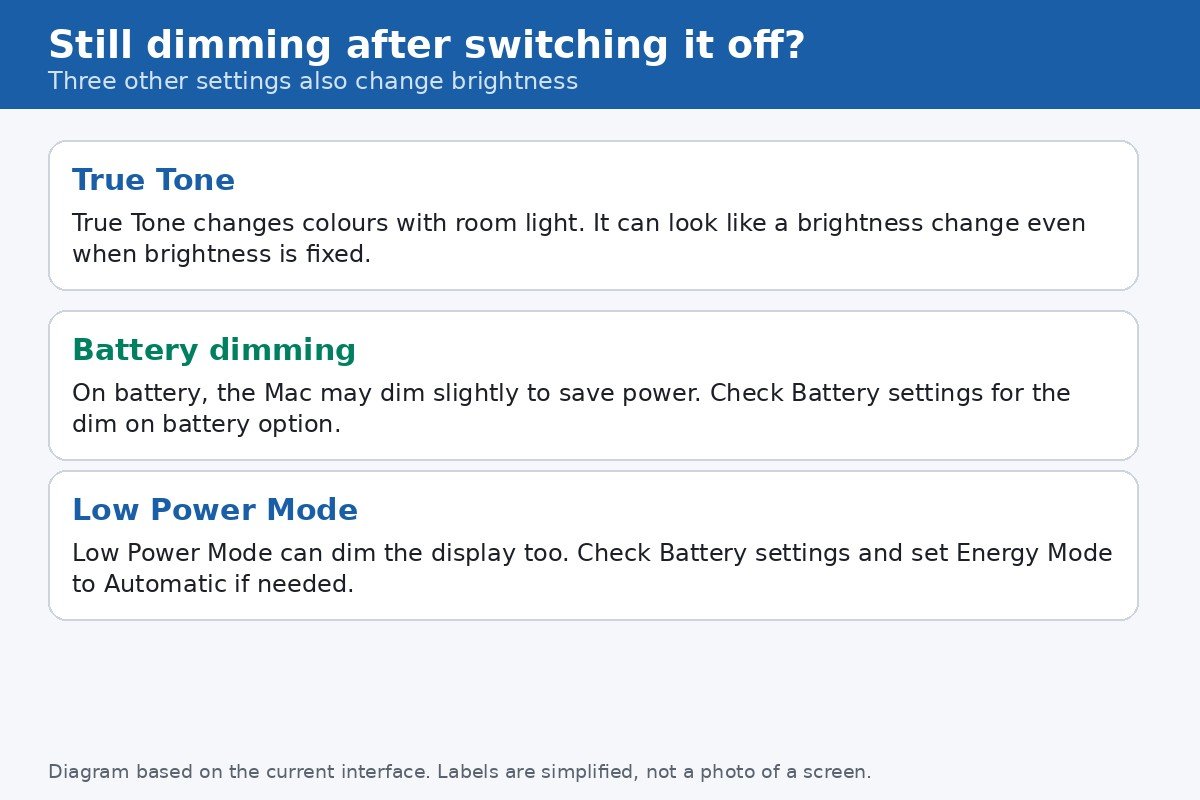
True Tone deserves a special note, because it is the setting people confuse with auto brightness most often. True Tone adjusts colours to match room lighting, which Apple describes as automatically adjusting colours based on ambient light, and that colour shift can read as a brightness change even when the brightness slider has not moved. If your screen looks warmer in the evening and cooler in daylight after auto brightness is off, True Tone is doing that, and switching it off in Displays settings will hold colours steady too. For colour critical work, switch off both, because either one alone leaves the screen drifting.
What if there is no Automatically adjust brightness option
Some Macs simply do not show the option, and that is normal, not a fault. The setting only appears on a Mac with an ambient light sensor, which means most MacBooks show it, while a Mac mini, Mac Studio, or Mac Pro without a compatible display does not. If you use one of those Macs with an Apple Studio Display, the option can appear for that display, because the display itself carries the sensor. For a third party external display, brightness is usually controlled by the monitor own buttons or on screen menu, not by macOS, so no macOS toggle will appear at all.
Apple Displays preferences reference lists Automatically adjust brightness alongside Brightness and True Tone, and notes that not all options appear for all Mac models or displays. If your Mac shows the option, the steps at the top of this guide apply. If it does not, there is nothing to switch off, and the manual controls above are the way to set your level.
That is the full picture. Switch off Automatically adjust brightness in Displays settings, set the level you want, and check True Tone and Battery settings if the screen still seems to move on its own. After that, brightness changes only when you change it, which is exactly what colour work, presentations, and a steady desk setup need.

- How to Turn Off Auto Brightness on Your Mac - October 28, 2026
- How to Rebuild the Spotlight Index on Mac - October 25, 2026
- How to Change the Screenshot Save Location on Mac - October 24, 2026