
If every file you save to your Desktop ends up in OneDrive, that is not an accident. During Windows 11 setup, OneDrive folder backup moves your Desktop, Documents, and Pictures folders into OneDrive so they sync to the cloud. It is a handy safety net, but it is not what everyone wants. Maybe your OneDrive storage is full, maybe you prefer your files to live only on your own PC, or maybe you just do not want a cloud icon on every Desktop file. Whatever the reason, you can stop Desktop backup without losing your files, as long as you do the steps in the right order and read one prompt carefully.
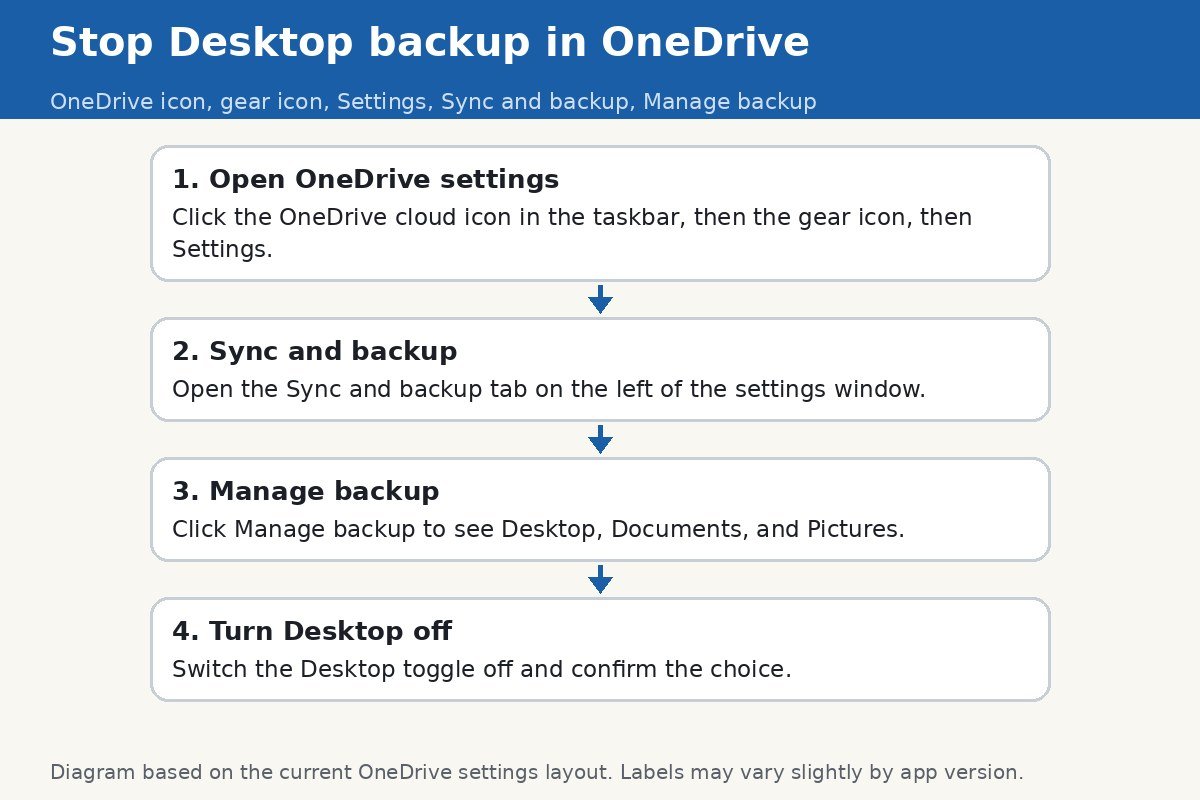
The short version: open OneDrive settings, go to Sync and backup, click Manage backup, and switch Desktop off. Then choose to keep the files only on your PC. That last choice is the one that matters. Pick the wrong option and your files leave your PC instead of coming back to it.
What turning off Desktop backup actually does
When Desktop backup is on, your Desktop folder does not really live in the usual place any more. Windows points it at the OneDrive folder instead, so anything on your Desktop is also a file in OneDrive. Turning backup off reverses that: Windows points your Desktop back at the local folder in your user profile, and moves the files back with it. Your files are not deleted in the process. What changes is where they live and whether new files on your Desktop get uploaded.
Turning off Desktop backup does not turn off OneDrive itself. OneDrive keeps running, and anything you deliberately save inside the OneDrive folder still syncs. If your goal is to stop all syncing, that is a separate step, covered near the end of this guide. Most people only want the Desktop back, and for them the Manage backup switch is the whole fix.
Before you switch anything off: check for cloud-only files
OneDrive has a space-saving habit called Files On-Demand. Some of your Desktop files may exist only in the cloud, with a small cloud icon next to them, and download only when you open them. If you turn off backup while files are still cloud-only, OneDrive may report that some files could not be moved, and those files would not end up on your PC.
The safe move takes a minute. Open File Explorer, go to your OneDrive Desktop folder, select everything in it, right-click, and choose Always keep on this device. Then wait until the downloads finish and the cloud icons change to green check marks. Only then turn off the backup. This step costs a little disk space and a little time, but it removes the one real risk in this whole process: a file that exists nowhere except the cloud when you break the link.
Stop Desktop backup, step by step
- Click the OneDrive cloud icon in the taskbar, near the clock. If you do not see it, click the up arrow to show hidden icons.
- Click the gear icon for Help and Settings, then choose Settings.
- In the settings window, click the Sync and backup tab on the left.
- Click Manage backup. A window appears showing Desktop, Documents, and Pictures, each with its own switch.
- Switch Desktop off and confirm when asked.
Read the choice before you tap it
After you switch Desktop off, OneDrive asks what should happen to the files. This prompt is the whole ballgame, and it is easy to rush past it. One option keeps the files only on your PC, which moves them back to your local Desktop folder and removes them from OneDrive. The other keeps them only in OneDrive, which removes them from your PC. Both options are phrased politely, and they do opposite things.
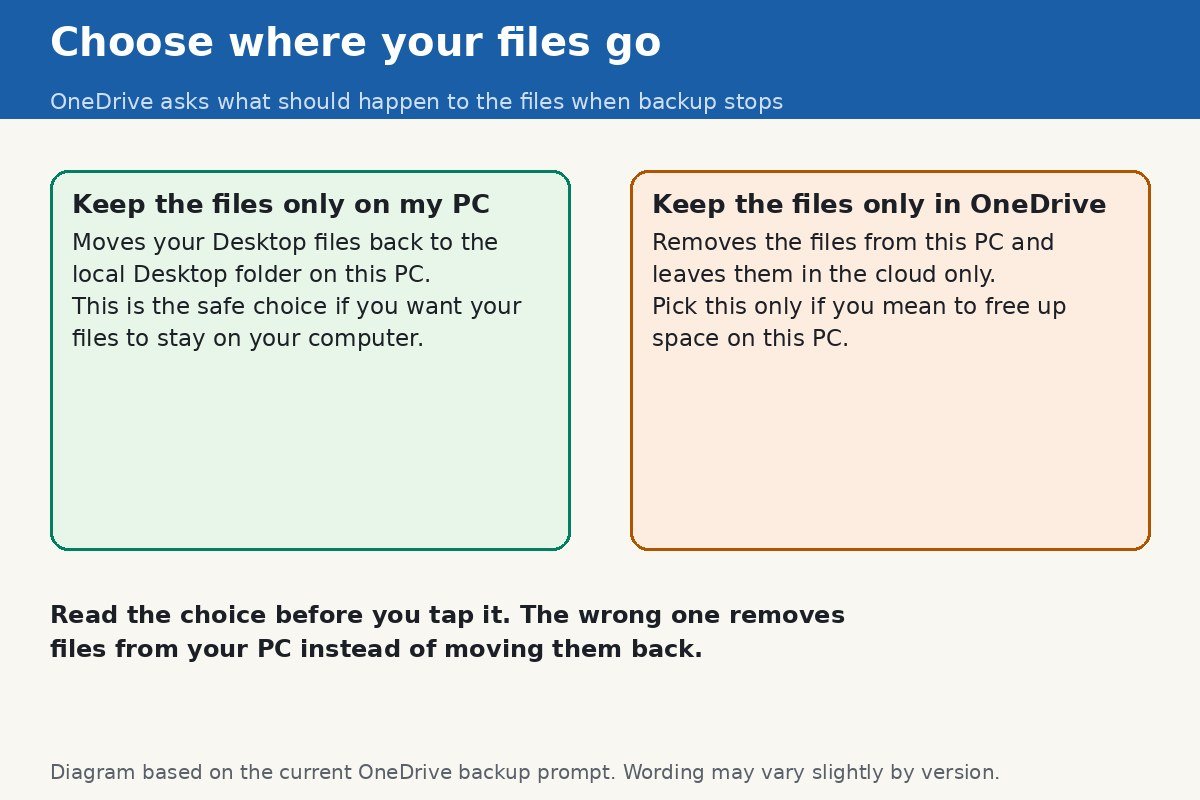
Choose Keep the files only on my PC if you want your Desktop files to stay on your computer. Wait for the move to finish, then open your Desktop and check that everything is there. If anything is missing, do not delete anything yet. Sign in at OneDrive on the web and check whether the file is still in the cloud copy of your Desktop, and download it from there.
Desktop, Documents, and Pictures are separate
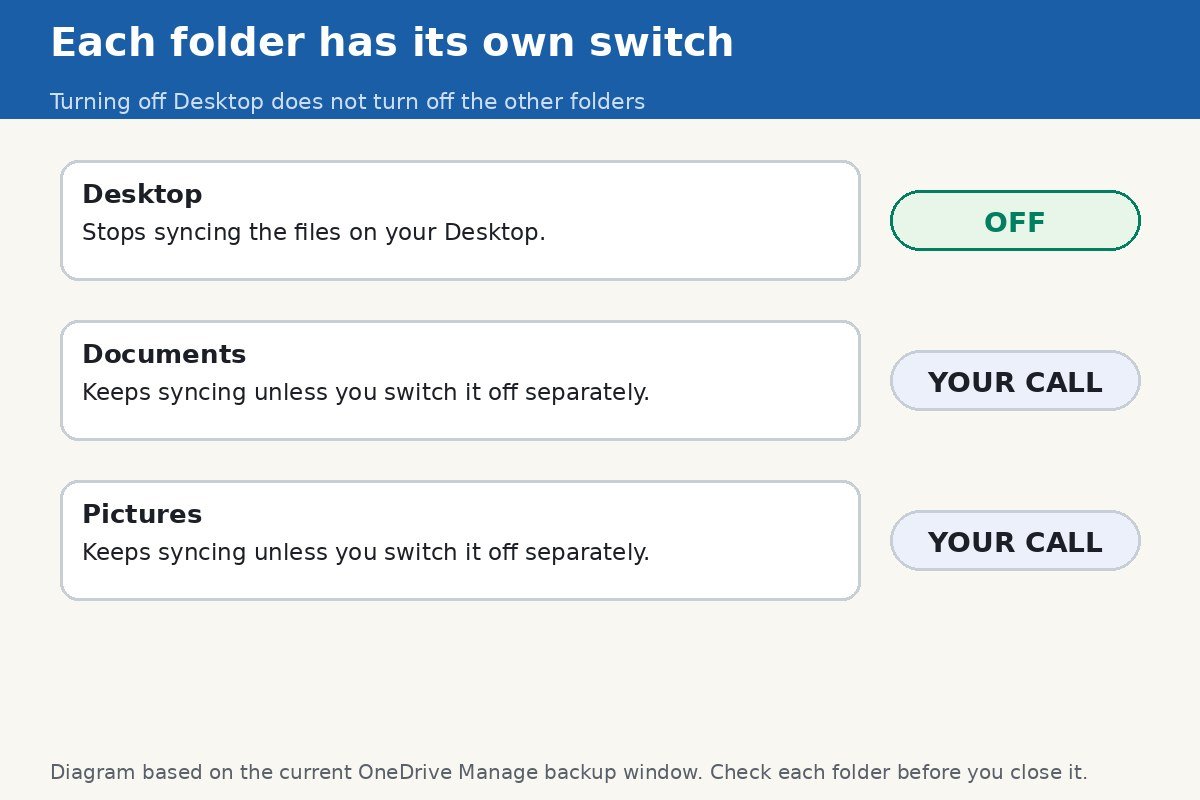
One common surprise: turning off Desktop does not touch Documents or Pictures. Each folder has its own switch in the same Manage backup window, and each one must be switched off on its own if you want it off. This is actually good design, because it lets you keep the backup you value. Plenty of people want Documents backed up but want their Desktop left alone, or the other way around.
| Folder | What switching it off does | What stays the same |
|---|---|---|
| Desktop | New Desktop files stop uploading, and existing files move back to the local Desktop | Files already in your OneDrive folder keep syncing |
| Documents | Same, for the Documents folder only | Desktop and Pictures are untouched |
| Pictures | Same, for the Pictures folder only | Desktop and Documents are untouched |
If OneDrive says some files could not be moved
Sometimes, after switching a folder off, OneDrive reports that some files could not be moved to the local folder. The usual cause is the cloud-only problem described above: a file that was never downloaded cannot be moved onto your PC. The fix is to set those files to Always keep on this device, wait for the download, and then repeat the Manage backup step for that folder. Microsoft’s own support forum threads describe the same failure and the same remedy, and they stress the same rule: do not delete anything until you have confirmed the files exist in both places. If a file still refuses to move, check its name for characters OneDrive rejects, or a path that is unusually long, since both can block a move.
There is one more situation worth knowing about. If the Manage backup switches are greyed out and cannot be clicked at all, your PC may be managed by a work or school account whose administrator controls backup settings. On a personal PC that is unusual, but on a work laptop it is common, and in that case the setting is not yours to change without your IT administrator. On a personal PC, signing out and back into OneDrive, or restarting the OneDrive app from the taskbar icon, usually restores the switches.
If your OneDrive storage is full
A full OneDrive is one of the most common reasons people go looking for this setting. When storage fills up, new Desktop files stop syncing, OneDrive shows warnings, and sometimes files sit in a half-synced state. Turning off Desktop backup stops new uploads from the Desktop, which stops the warnings from getting worse, but it does not free up the space already used. To actually recover space, open OneDrive on the web after the backup is off, and delete or download the large files you no longer need in the cloud. Alternatively, move big files out of the OneDrive folder on your PC into a plain local folder, which removes them from the cloud copy as well. Either way, check the storage meter in OneDrive settings afterwards to confirm the number moved.
What about unlinking OneDrive or uninstalling it
Unlinking your PC, under OneDrive Settings, Account, Unlink this PC, stops all syncing between your PC and OneDrive. Your files stay on your PC, but nothing syncs any more, including files you deliberately keep in the OneDrive folder. Only unlink if you want OneDrive fully out of the picture. The same logic applies to uninstalling OneDrive from Settings, Apps, Installed apps. Both are bigger hammers than most people need, and both should wait until you have already moved your Desktop, Documents, and Pictures files back to local folders, using the Manage backup steps above. Done in that order, unlinking or uninstalling is safe. Done first, it can strand files in the cloud that you assumed were local.
One last check after everything is done: restart your PC, open File Explorer, and confirm your Desktop files open normally without any cloud icons or sync warnings. If they do, the job is finished. Your Desktop is yours again, your files are on your own drive, and OneDrive is still there for anything you deliberately choose to put in it.

- How to Stop OneDrive From Syncing Your Desktop on Windows 11 - October 29, 2026
- How to Turn Off Xbox Game Bar on Windows 11 - October 28, 2026
- How to Fix an SD Card Not Detected on Windows 11 - October 25, 2026