
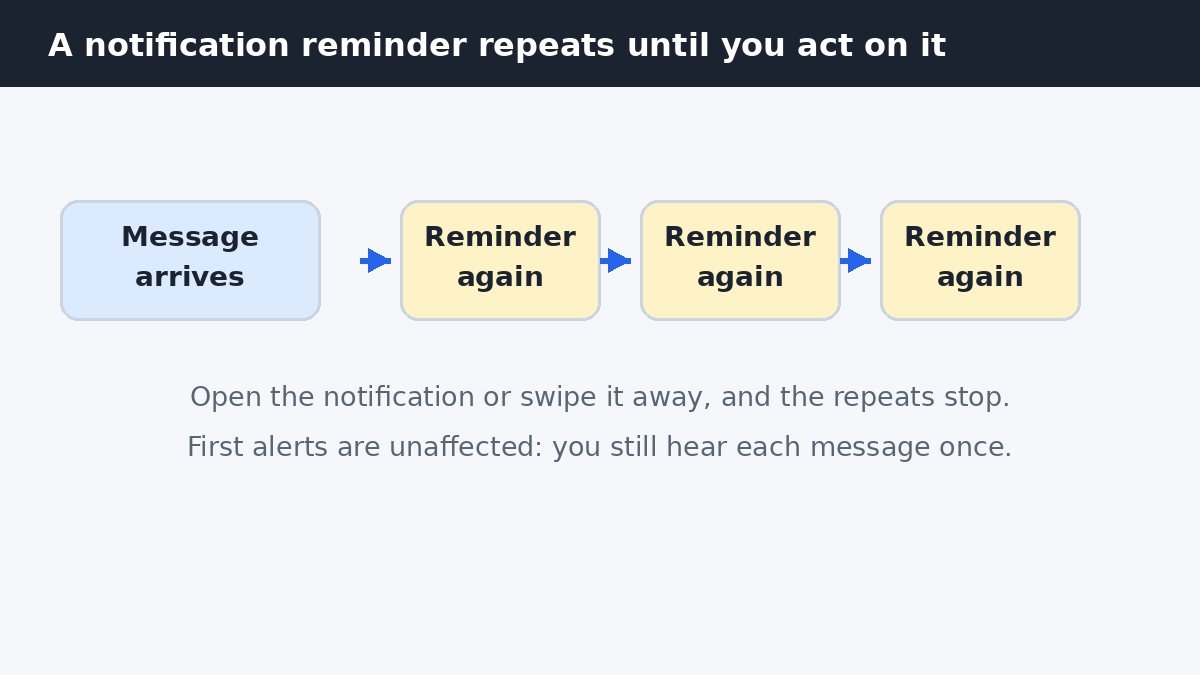
Your Galaxy phone buzzes about a message. You ignore it. Minutes later it buzzes again about the same message, and again after that. That repeat is almost always one Samsung feature doing exactly what it was set to do. It is called Repeat notification alerts on newer One UI versions, and Notification reminders on older ones. Switch it off and each notification sounds once, like on most other phones, while nothing else about your alerts changes.
First, check which kind of repeat you have
Not every repeated buzz comes from this setting, and fixing the wrong one wastes your time. Match what you are seeing to this table before you change anything.
| What you notice | Likely cause | Fix |
|---|---|---|
| The same alert sounds again every few minutes until you open it | Samsung’s repeat notification alerts | Turn off the switch in this guide |
| A number sits silently on the app icon, with no sound | An icon badge, which is not a repeat at all | Leave it, or turn off badges separately if you dislike them |
| Only one app repeats, and it does so on other phones too | That app’s own in-app reminder setting | Change it inside the app’s own settings |
| Every alert repeats, including calls and alarms | A reminder or accessibility setting beyond notifications | Check the app’s settings and any accessibility alerts you enabled |
If your symptom is the first row, the rest of this guide is your fix. If it is the third row, skip to the section on in-app repeats near the end, because the system switch will not help you there.
Turn off repeat notification alerts
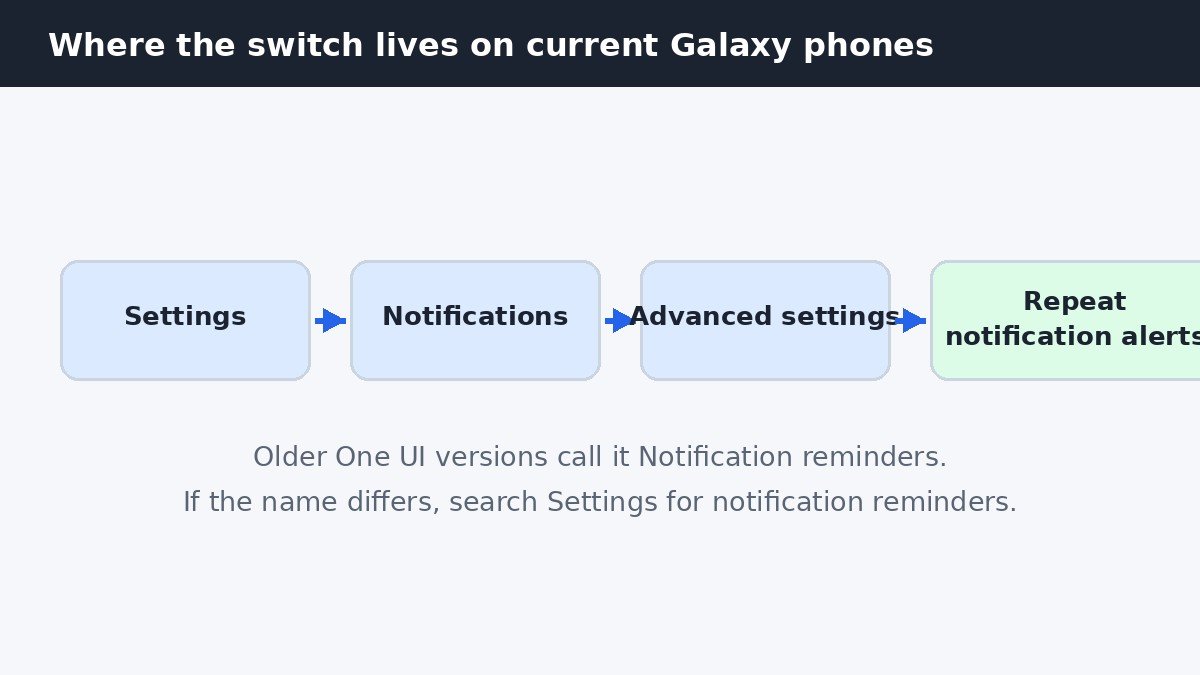
- Open Settings.
- Tap Notifications.
- Tap Advanced settings.
- Tap Repeat notification alerts. On older One UI versions this screen is called Notification reminders instead.
- Switch the toggle at the top off.
That is the whole fix for most people. Your phone still notifies you once for every new message, email, and alert. Only the repeats stop. Opening a notification or swiping it away used to stop the repeats too, but only for that one alert. The switch stops them for all of them.
Keep repeats for some apps only
You may not want to lose repeats entirely. A missed message from a family member might be worth a second buzz, while a shopping app’s daily deal is not. On the same Repeat notification alerts screen, leave the main switch on and use the app list instead: select only the apps you want repeated alerts for, and leave everything else unselected. Only checked apps get follow-up alerts. This is the better setup for most people, since it keeps the safety net where it matters and silences it everywhere else.
About the repeat interval, and a naming warning
Samsung’s labels for this feature have changed across One UI versions, and sources disagree on one detail, so here it is plainly. On newer builds the screen is titled Repeat notification alerts, with an app list called Apps to repeat alerts and an interval choice labeled Repeat interval. On older builds the same screen is Notification reminders, with an app list and a Remind every interval. On some builds the interval is a choice you make, and on others it is fixed by the system with no option to change it. If your phone shows no interval option, that is normal for your build, not a fault, and the on or off switch plus the app list are still the controls that matter. If you cannot find the screen at all, tap the search icon at the top of Settings and type notification reminders: that search finds it under either name. To confirm which One UI version you have, go to Settings, then About phone, then Software information, and look for One UI version.
Reminders, badges, and in-app repeats are three different things
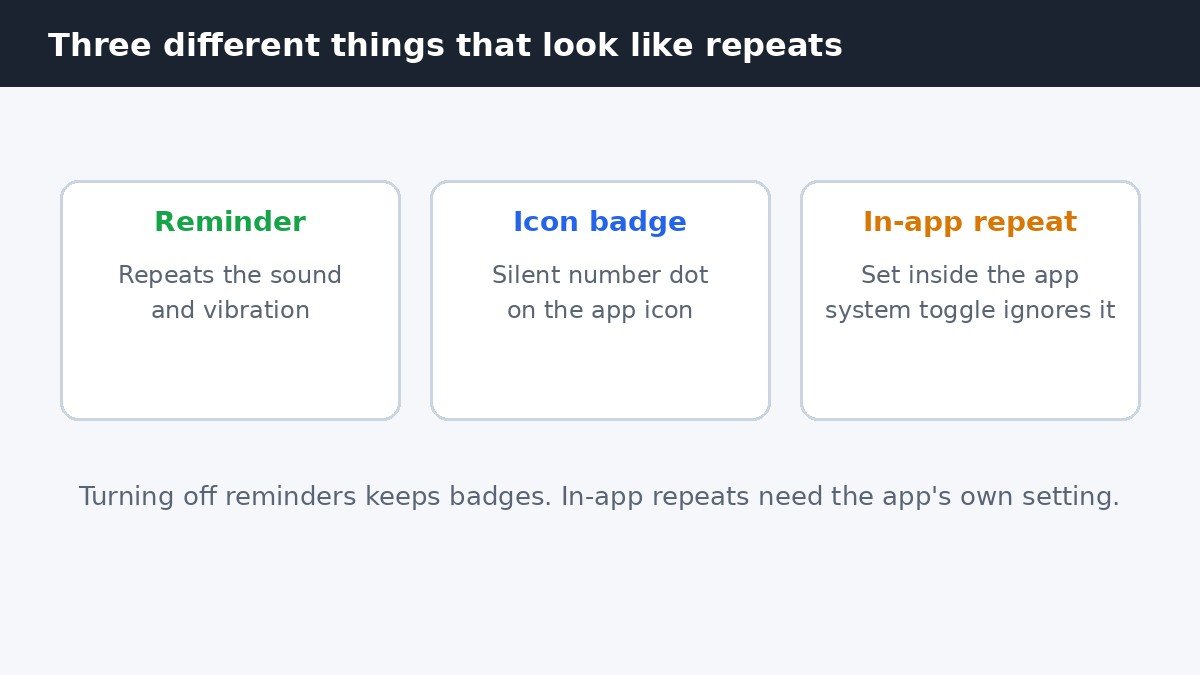
This is the distinction that clears up most confusion about repeated alerts. A reminder repeats the sound or vibration for an unread notification. An icon badge is only a silent number on the app icon, and turning off reminders leaves badges exactly as they are, which is fine: badges never interrupt you. An in-app repeat is set inside the app itself, in its own Notifications or Alerts section, and the system toggle does not override it. Messaging and email apps are the usual cases. If one app keeps repeating after you switched the system setting off, open that app, look for its own notification or reminder setting, and switch it off there.
What not to do
Do Not Disturb will silence the repeats, but it also silences everything else, so it is a poor long-term fix for one noisy behavior. Turning off all notifications for an app is also overkill if the app’s first alerts are useful to you. The repeat switch exists precisely so you do not have to choose between hearing an app once and hearing it forever.
The fix is small, but the relief is out of proportion to it. One switch, or a short app list if you want to keep repeats for a few important contacts, and your phone goes back to telling you things once.

- How to Turn Off Notification Reminders on a Samsung Galaxy Phone - November 2, 2026
- How to Turn Off StandBy Mode on iPhone - November 1, 2026
- How to Turn Off Live Voicemail on iPhone - October 31, 2026