
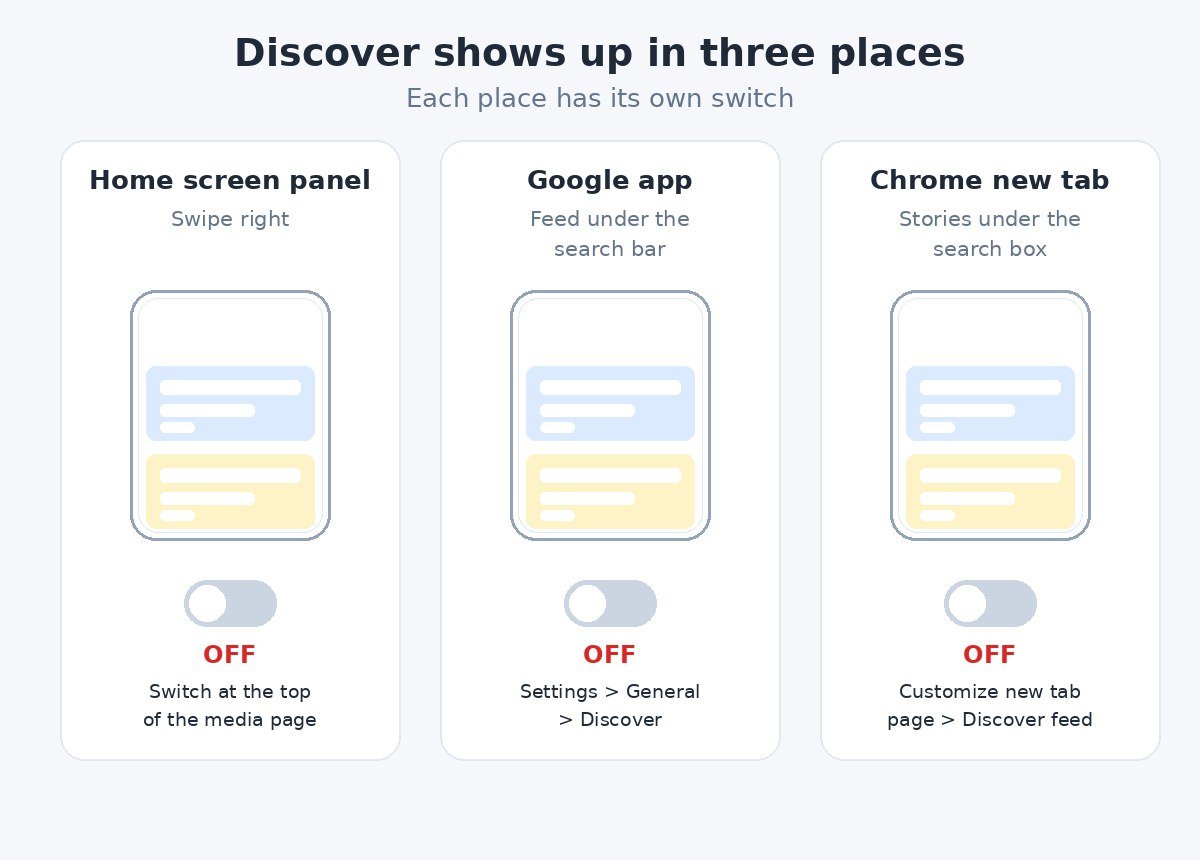
Google Discover is the news feed that keeps showing up on a Galaxy phone in places you did not ask for. Swipe right from the home screen and there it is. Open the Google app and it sits under the search bar. Open a new tab in Chrome and the same kind of stories fill the page below the search box.
The part most guides skip is that those are three separate feeds with three separate switches. Turning off one leaves the other two running, which is why the feed seems to come back after you thought you had killed it. This guide covers all three, and it starts with the naming confusion that makes the home screen panel hard to search for, because Samsung has called the same panel Samsung Free, Samsung News and Google Discover at different times.
Turn it off in 30 seconds
If the swipe-right panel is the only feed bothering you, this is the whole job. Touch and hold a blank spot on the home screen, swipe right to the leftmost page, and tap the switch at the top to turn it off. Swipe right again and the feed should be gone. The rest of this guide covers the other two places Discover appears, what each switch leaves behind, and what to do when the switch is not where you expect it.
Why the panel has three different names
The leftmost home screen page on a Galaxy phone is called the media page, and Samsung has filled it with a different feed depending on the phone, the carrier, the region and the software version. Older Galaxy phones show Samsung Free. Samsung renamed that feed Samsung News in April 2023, and Samsung’s own community pages describe Samsung News as the refreshed version of Samsung Free. Newer Galaxy phones offer Google Discover in the same slot, and Samsung’s current home screen support page describes the panel as Samsung Free or Google Discover. So the name on your phone depends on which of those your phone shipped with and which updates it has had.
Samsung has not published a list that maps each One UI version to a panel name, so this guide does not guess one. What Samsung does publish is the gesture, and the gesture is the same whichever name is showing. Touch and hold a blank spot on the home screen, swipe right to the leftmost page, and tap the switch at the top. That sequence turns off the panel whether it is called Google Discover, Samsung News or Samsung Free. To find out which one you have, swipe right from the home screen and read the name at the top of the page.
On much older Galaxy phones the same panel was called Samsung Daily, and before that Bixby Home. Samsung Free replaced Samsung Daily when One UI 3 arrived with Android 11, and Samsung News then replaced Samsung Free. If you are still on one of those older phones, the gesture below still applies, and the switch still sits at the top of the page.
The Samsung version of this panel has its own history, and if the panel on your phone is the Samsung one, the same steps are covered in detail in our guide to stopping Samsung Free from opening when you swipe left on the home screen.
One more thing the name changes: nothing about the other feeds. The feed on the panel is tied to the panel, not to the Google app. Turning off the panel does not turn off Discover inside the Google app, and turning off Discover in the Google app does not remove the panel. Each surface needs its own switch, which is what the next three sections cover, one at a time.
Method 1: Turn off the home screen panel
This is the switch most people are looking for. It removes the whole leftmost page, whichever feed is filling it. Your other home screen pages, widgets and app icons do not change. Only the leftmost page goes away.
- Touch and hold a blank spot on the home screen until the screen enters edit mode. Any empty area works. Do not hold an app icon, or you will get that app’s menu instead.
- Swipe right until you reach the leftmost page. This is the media page, and it shows Google Discover, Samsung News or Samsung Free at the top.
- Tap the switch at the top of the page to turn it off. The switch turns grey, and the page is off.
- Tap a blank area or press Back to leave edit mode, then swipe right from the home screen to check. The feed should no longer open.
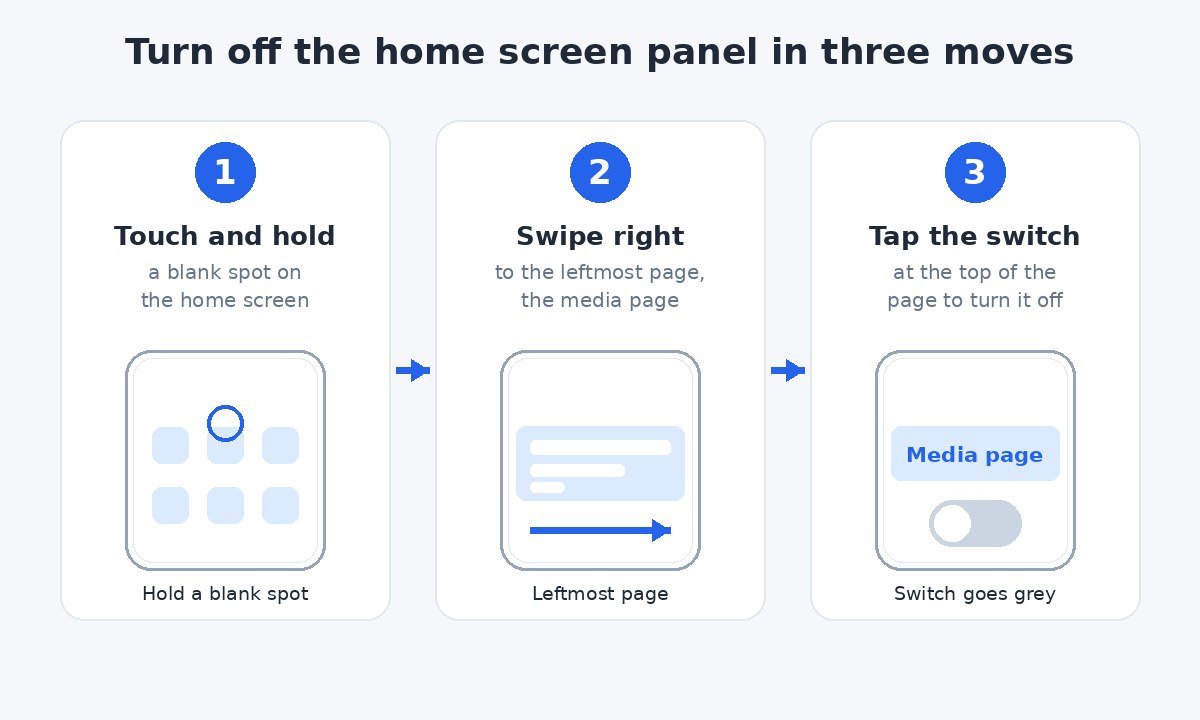
You cannot delete this page, only switch it off. Samsung’s own support pages say the same thing: the feed can be disabled so it no longer appears when you swipe right, but the page itself stays available to switch back on. That is useful rather than annoying, because turning it back on later takes the same three moves. Samsung’s own guide to organizing the Galaxy home screen describes the same switch.
On some newer Galaxy phones the same control also appears in Settings. Open Settings, tap Home screen, and look for Add media page to Home screen. Turning that off removes the page too. If your phone does not show that row, use the touch and hold route above, which is the one Samsung documents on its support pages.
Keep the panel but change which feed it shows
Turning the page off is not the only option. If you like having headlines one swipe away but you want Google’s picks instead of Samsung’s, or the other way round, you can swap the feed without turning the page off.
- Touch and hold a blank spot on the home screen.
- Swipe right to the leftmost page.
- Tap Google Discover or Samsung News to pick which feed fills the page.
Samsung describes this choice on its Samsung News support page: tap the switch to activate the media page, then select Samsung News. The same page offers Google Discover as the other choice. The feed you pick appears the next time you swipe right. This is worth knowing because a lot of searches for turning off Discover are really searches for getting rid of one feed while keeping the other, and swapping is faster than turning the page off and wishing it was still there.
Method 2: Turn off Discover inside the Google app
The panel switch does nothing to the feed inside the Google app. If you open the Google app and still see stories under the search bar, that feed has its own switch, and Google documents it on its own help page.
- Open the Google app.
- Tap your profile picture or initial at the top right, then tap Settings, then tap General.
- Turn off Discover.
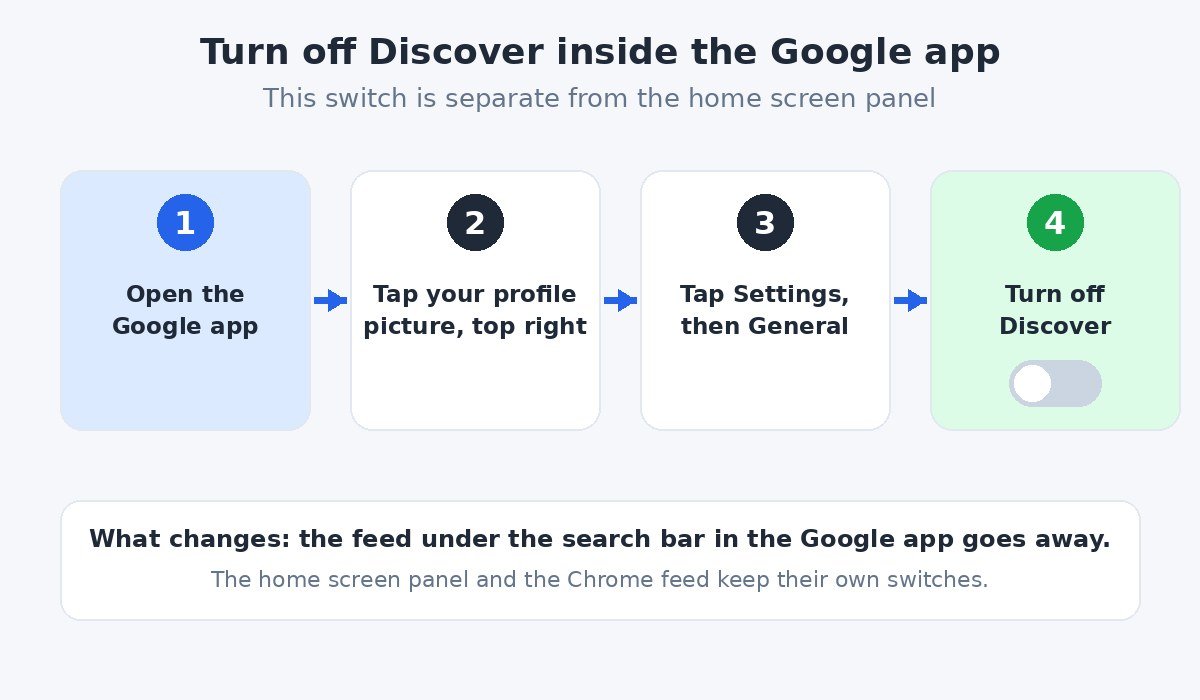
The feed under the search bar disappears. Google notes that Discover is not available in all countries or languages, so if the Discover row is missing from General settings, that is the likely reason, and there is nothing to switch off. Google’s own Discover help page lists the same steps.
If you open Discover from the Google search widget on the home screen, you are opening the Google app, so this is the switch that controls that feed too. The widget itself stays on the home screen either way, since it is only a shortcut to search, and the feed underneath it is what this switch turns off.
Method 3: Turn off the Discover feed in Chrome
Chrome shows its own Discover stories on a new tab, and neither of the two switches above touches it. Google’s Chrome help page covers this feed under its new tab settings, and the control lives on the new tab page itself rather than in Chrome’s main settings.
- Open Chrome and open a new tab.
- Tap the three-dot More menu at the top right.
- Tap Customize new tab page, then tap Discover feed.
- Turn the Discover feed toggle off.
The new tab page then shows only the search box and your shortcuts. Google notes that customizing the new tab page requires being signed in to your Google Account and using Google as your default search engine, so if the Customize new tab page option is missing, check those two things first.
On some Chrome versions there is a shorter route. On a new tab, tap the settings icon next to the Discover heading and choose Turn off. If your Chrome build shows that icon, it does the same job as the steps above. If it does not show the icon, use the Customize new tab page route, which is the current one Google documents.
What stays after each switch
Each switch is independent, so it helps to know exactly what each one leaves behind before you start tapping. Most people only need the panel switch. Turn off the Google app switch as well if you open the Google app and still see stories there, and turn off the Chrome switch if you open new tabs in Chrome and still see stories there. Turn off only the ones you use.
| Where you see the feed | Switch that controls it | What stays after you turn it off |
|---|---|---|
| Home screen panel, when you swipe right | The switch at the top of the media page | The panel disappears and swiping right does nothing. Discover keeps working in the Google app and in Chrome. |
| Google app, under the search bar | Settings, then General, then Discover | The feed in the Google app goes away. The home screen panel and the Chrome feed keep working. |
| Chrome new tab, under the search box | Customize new tab page, then Discover feed | The stories on new tabs go away. The Google app feed and the home screen panel keep working. |
| Google homepage in a browser, at google.com | More settings, then Other settings, then Show Discover on home page | The feed on Google’s homepage goes away. The app, the panel and Chrome keep their own settings. |
The fourth row in the table is the one people meet least. On google.com in a mobile browser, tap your profile picture or initial at the top right, then tap More settings, then tap Other settings, and turn off Show Discover on home page. That switch controls only the feed on Google’s homepage, and it leaves the app, the panel and Chrome alone, just like the others.
The pattern is simple: one switch per surface, and switching one off never touches the others. If the feed still appears somewhere after you have been through this guide, check the table, find the surface where it still shows, and use that surface’s switch.
If the switch is missing or the feed comes back
No switch at the top of the media page: first check that you are on the leftmost page and not on an ordinary home screen page. The switch only appears on the media page itself. If you are on the right page and there is still no switch, your phone, carrier or region may not offer the feed at all. Samsung’s own pages carry the note that screens and settings vary by wireless service provider, software version and device model, and Google says the same about Discover availability by country and language. If there is no feed when you swipe right, there is nothing to turn off.
The feed came back after an update: software updates can reset home screen settings, so go through the panel steps again and check the switch is still off. It takes less than a minute, and it is the first thing to check whenever the feed reappears.
The Samsung News app is still on the phone: turning off the panel does not uninstall the app, and it does not remove a Samsung News widget sitting on a home screen. To remove a widget, touch and hold it and tap Remove. The app itself stays installed and can be opened from the app drawer whenever you want it.
Turning it back on: repeat the same gesture and tap the switch on again. Samsung’s support pages confirm the switch works both ways, so nothing about turning the panel off is permanent.
Discover is only the news feed. It is not the voice assistant, so switching it off changes nothing about Google Assistant or voice search. If the assistant is the thing that keeps waking up on your Galaxy, that is a separate switch, covered in our guide to turning off Google Assistant on a Samsung Galaxy.
Keep Discover but see less of the junk
If you like the idea of the feed but not what it shows you, turning it off is not the only fix. You can train it instead, and the controls for that are on the stories themselves.
- On any story you do not want, tap More at the bottom of the card and choose Hide this to remove that one story.
- To stop a topic, choose Not interested in that topic from the same menu.
- To stop a publisher entirely, choose Don’t show content from that source.
Google’s Chrome help page describes the Hide this control, and the same menu sits under stories in the Google app. A few minutes of hiding the worst offenders usually changes the feed more than any setting, because Discover learns from what you tap and what you skip. If the feed still feels like clickbait after that, the switches above are still there.
That is the whole job. One gesture switches off the home screen panel, whichever name it carries on your phone. Two more switches, one in the Google app and one in Chrome, take care of the other two places the feed appears. Each switch works on its own surface and leaves the others alone, so turn off the ones you use and leave the rest. If you change your mind later, every switch here works in reverse.

- How to Turn Off Google Discover on Samsung Galaxy - November 21, 2026
- How to Use Notepad in Windows 11 - November 20, 2026
- How to Turn Off Journaling Suggestions on iPhone - November 18, 2026