
Filter Keys is a Windows 11 accessibility feature that changes how the keyboard responds. When it is on, Windows ignores brief or repeated keystrokes, so keys you tap quickly may not register at all and typing can feel slow or broken. It is genuinely useful for people who need it, but when it switches on by accident it feels like the keyboard itself has failed.
The frustrating part is that turning the switch off is often not the end of it. Windows has a built-in shortcut, holding the right Shift key for eight seconds, that can switch Filter Keys back on without you ever opening Settings. That is why the feature seems to return on its own, sometimes in the middle of a game or a long typing session. This guide turns it off properly: the main switch, the shortcut that keeps bringing it back, and the two other places the setting can hide.
Quick answer: open Settings, go to Accessibility, then Keyboard, and set the Filter keys switch to Off. Then click the Filter keys row to expand it and turn off Keyboard shortcut for Filter keys, so holding right Shift can no longer switch it back on. That second step is the one most guides leave out, and it is the one that keeps it off.
| Goal | Where to do it |
|---|---|
| Turn Filter Keys off | Settings, Accessibility, Keyboard, Filter keys switch to Off |
| Stop it coming back | Same page, expand Filter keys, turn off Keyboard shortcut for Filter keys |
| Keyboard still wrong before sign-in | Sign-in screen, Accessibility icon, Filter keys to Off |
| Older route to the same settings | Control Panel, Ease of Access Center, Make the keyboard easier to use |
Turn off Filter Keys in Settings
Settings is the main place to manage Filter Keys on current Windows 11 versions, including 24H2 and 25H2. The path below is the one Microsoft documents for the Keyboard page, and the switch takes effect right away, with no restart needed.
- Press the Windows key + I to open Settings. You can also press the Windows key + U, which opens the Accessibility settings directly.
- Select Accessibility in the left-hand menu.
- Select Keyboard under Interaction.
- Find Filter keys and set the switch to Off.
- Click into any text box and type a few words with quick taps. If every key registers normally again, the feature is off.
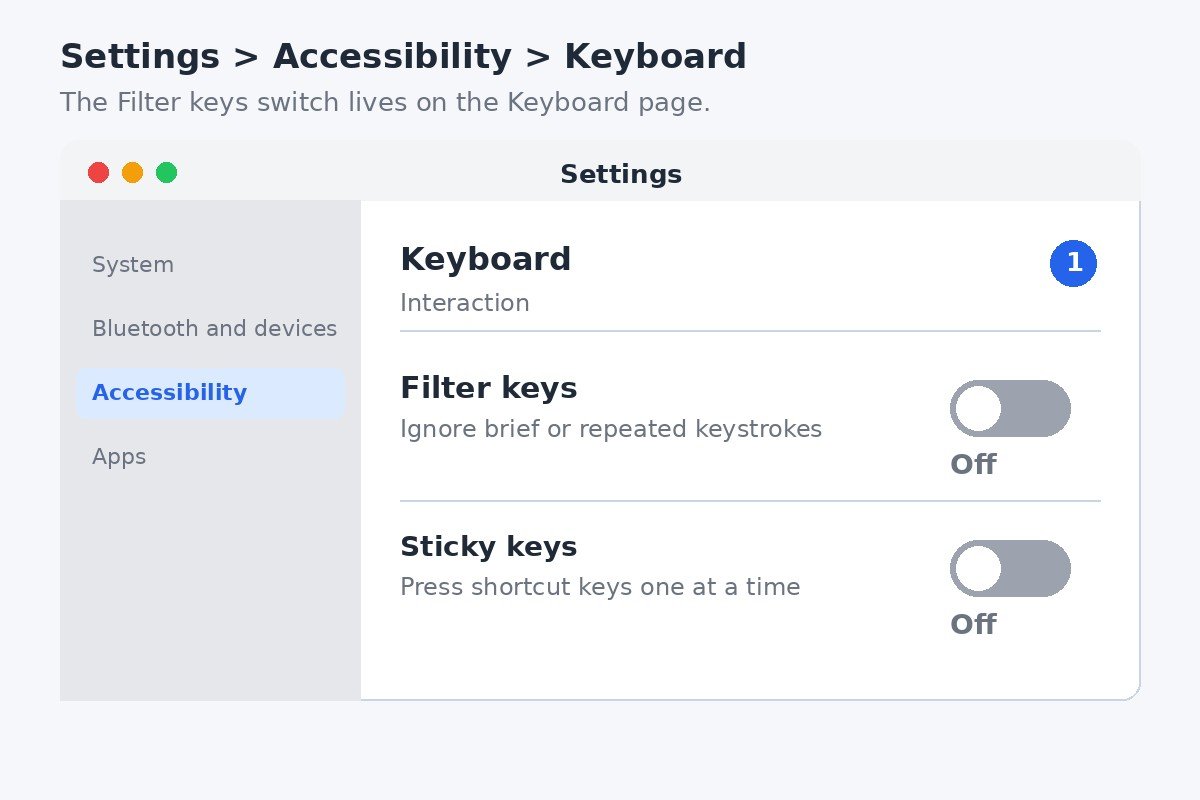
Microsoft lists the Filter keys switch on the same Keyboard page as Sticky keys, Toggle keys, and the on-screen keyboard, which is worth knowing because the three features sit side by side and are easy to confuse. Microsoft’s guide to making the keyboard easier to use describes the switch as a way to set keyboard sensitivity so Windows can ignore brief or repeated keystrokes. If the switch was already Off when you arrived here, Filter Keys was not the cause of the typing trouble, or it was switched on by the shortcut described next.
One detail to watch: clicking the Filter keys row itself, rather than the switch, opens extra options. Those options matter, because one of them controls the shortcut. That is the next step, and it is the step that stops the feature from returning.
Stop the shortcut that turns it back on
This is the part most guides skip, and it is the reason Filter Keys keeps coming back. Windows has a built-in keyboard shortcut for this feature: hold the right Shift key for eight seconds and Filter Keys switches on or off. Microsoft lists it in its accessibility shortcuts as turning Filter Keys on and off, and the same hold works from anywhere in Windows, including while a game or another full-screen app is running.
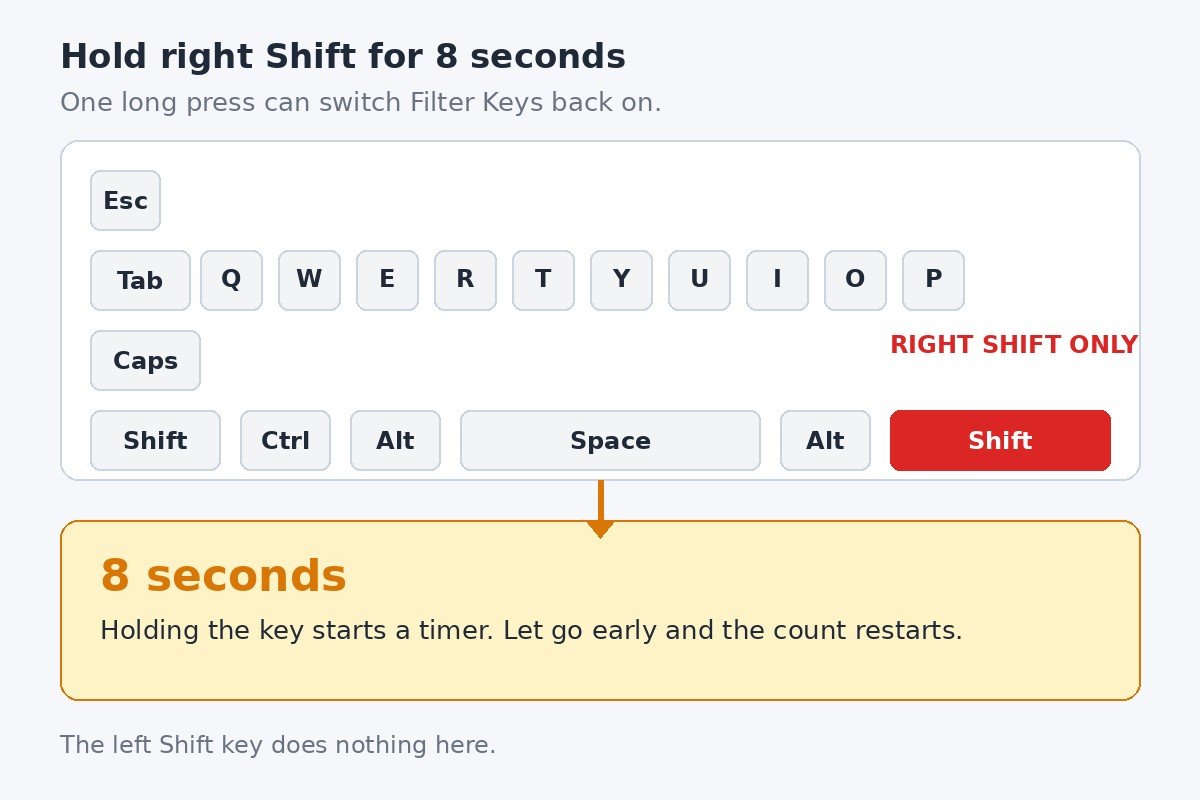
That explains the pattern people report most often. A finger rests on the right Shift key during a game, or something presses against it, and eight seconds later typing changes. Nothing in Settings was touched, yet Filter Keys is on again. The fix is to turn the shortcut itself off, which is a separate setting from the main switch. Turning off the feature does not turn off its shortcut.
- Open Settings, go to Accessibility, then Keyboard.
- Click the Filter keys row, not the switch, to expand its options.
- Turn off Keyboard shortcut for Filter keys. On some builds the same option is worded as allowing the shortcut key to start Filter Keys.
- Close Settings. Holding the right Shift key now does nothing.
If a prompt appears while you hold the key, asking whether to turn Filter Keys on, click No to leave things as they are. Once the shortcut is off, that prompt stops appearing. Microsoft’s list of Windows accessibility shortcuts confirms the eight-second hold, and it also lists the other accessibility shortcuts, so you can check which key combinations do what before changing anything else.
Keep the distinction clear. The main switch decides whether Filter Keys is on right now. The shortcut setting decides whether a long press of right Shift can change that. Both need to be off before the feature stays off.
Check the Filter Keys switch on the sign-in screen
Filter Keys can also be switched on from the sign-in screen, before anyone logs in. If typing feels delayed while you enter a PIN or password, this is the place to look. The sign-in screen has its own accessibility menu, and its Filter keys switch is separate from the one inside Settings.
- Lock the PC with the Windows key + L, or restart it, to reach the sign-in screen.
- Click the Accessibility icon in the bottom-right corner, next to the network and power icons.
- Find Filter keys in the menu that opens and set it to Off.
- Sign in, then open Settings, Accessibility, Keyboard, and check that the Filter keys switch there reads Off as well, so both places agree.
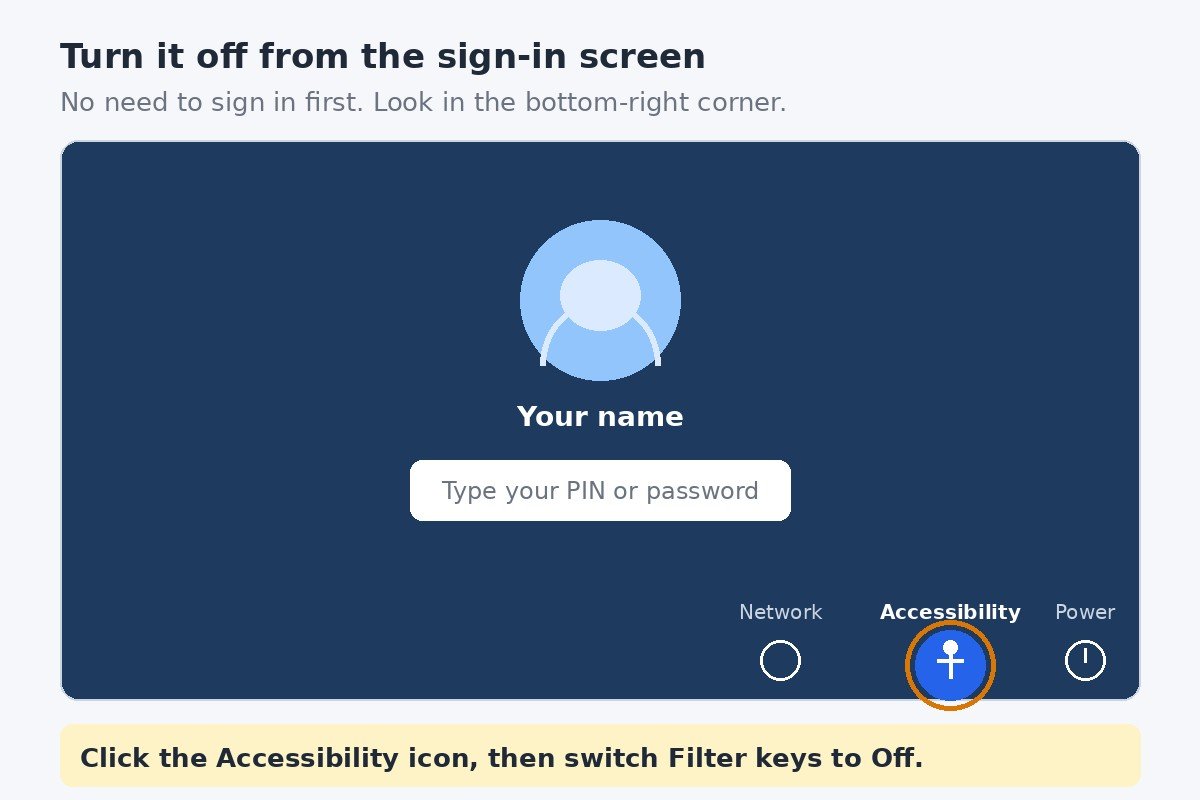
This step is easy to miss because most people never open the sign-in screen menu. It is also the step that explains a confusing symptom: typing works fine once you are signed in, but the PIN entry felt wrong. The two switches cover different moments, so checking both is what makes the fix complete.
Turn off Filter Keys in Control Panel
Control Panel still holds the older route to the same settings. It is useful when Settings is awkward to reach, or when you want to see the shortcut option written out in full. The changes here and the changes in Settings control the same feature, so use whichever route you prefer.
- Press the Windows key + R, type control, and press Enter to open Control Panel.
- Select Ease of Access Center, then Make the keyboard easier to use.
- Under Make it easier to type, clear the checkbox next to Turn on Filter Keys.
- Click Set up Filter Keys, clear the checkbox for Turn on Filter Keys when right SHIFT is pressed for 8 seconds, then click OK.
- Click Apply, then OK.
That last checkbox is the Control Panel version of the shortcut setting from the previous section. Turning it off here has the same effect as turning off Keyboard shortcut for Filter keys in Settings. You do not need to do both routes. Pick one, and make sure the shortcut is off in the route you picked.
Filter Keys is not Sticky Keys or Toggle Keys
The three keyboard accessibility features live on the same Settings page, share similar names, and all have keyboard shortcuts that can trigger them by accident. That is why the wrong one often gets blamed. Each one changes a different part of typing, and each has its own shortcut.
| Feature | What it does | Shortcut that can trigger it |
|---|---|---|
| Filter Keys | Ignores brief or repeated keystrokes, so quick taps may not register | Hold right Shift for eight seconds |
| Sticky Keys | Lets you press shortcut keys such as Ctrl and Alt one at a time | Press Shift five times |
| Toggle Keys | Plays a sound when you press Caps Lock, Num Lock, or Scroll Lock | Hold Num Lock for five seconds |
If the popup you keep seeing mentions Sticky Keys, or your problem is that modifier keys seem stuck rather than ignored, you are dealing with a different feature. The guide to turning off the Sticky Keys shortcut popup covers that one, including its own five-press Shift shortcut. Fixing Sticky Keys will not fix Filter Keys, and the reverse is also true.
Toggle Keys is the least likely of the three to cause trouble, because it only adds a sound when a lock key is pressed. It does not change which keys register. If typing itself is wrong, Filter Keys or Sticky Keys is the more likely cause.
If Filter Keys still turns itself on
When the switch is off, the shortcut is off, and the sign-in screen is checked, Filter Keys has no way left to switch itself on through software. If it still happens, work through the checks below in order.
- Recheck the shortcut setting. Open Settings, Accessibility, Keyboard, expand Filter keys, and confirm Keyboard shortcut for Filter keys is off. It is the setting people most often think they changed but only looked at.
- Look at the right Shift key itself. A key that sticks, a keycap that catches, or something resting on the keyboard can hold the key down long enough to fire the shortcut. Lift the keycap area gently and check for crumbs or debris underneath.
- Try another keyboard. If the problem stops with a different keyboard, the first one has a hardware fault, usually a Shift key that does not release cleanly.
- Check who else uses the PC. The shortcut and the switches are per-user settings, so another account on the same PC can have Filter Keys on while yours is off. Check the setting in each account that signs in.
- Do not confuse the notification setting with the shortcut. The option to be notified when Sticky, Filter, or Toggle keys turn on from the keyboard only controls the warning message. Turning the notification off hides the warning, it does not stop the shortcut from working. The shortcut setting is the one that stops it.
If the main switch is already off and the keyboard still misbehaves, Filter Keys is not the cause. Check the keyboard connection, try another USB port or another keyboard, and check whether the problem appears in only one app. A fault that follows one app is an app setting, not a Windows accessibility feature.
How to turn Filter Keys back on
Filter Keys exists because some people need it, and turning it back on is just as quick. Open Settings, go to Accessibility, then Keyboard, and set the Filter keys switch to On. If you left the shortcut enabled, holding the right Shift key for eight seconds switches it on from the keyboard. If you turned the shortcut off earlier, turn it back on first in the expanded Filter keys options. Nothing is uninstalled, so the feature is always there when it is wanted.
The settings page also has timing options for people who do use the feature, such as how long a key must be held before it counts. Those are worth adjusting before deciding the feature does not suit you, because the default timing is what makes typing feel slow for most people who switch it on by accident.
Most guides stop at the Settings switch, which is why the problem keeps coming back for so many people. The switch turns the feature off, the shortcut setting stops it from returning, and the sign-in screen check covers the one place the Settings switch does not reach. Do all three, type a few sentences to confirm every key registers, and the keyboard should stay the way you left it.

- How to Turn Off Filter Keys on Windows 11 (and Stop It Turning Back On) - November 22, 2026
- How to Extend Battery Life on a Windows 11 Laptop - November 21, 2026
- How to Turn Off App Tracking on iPhone - November 20, 2026