
You type ping google.com, expecting a familiar string of numbers, and instead the replies come from a long address full of colons. Before you change a single setting, work through this quick checklist: first, is the reply address actually IPv6 (colons) rather than IPv4 (dots)? Second, do you need IPv4 for this one command, or do you want Windows to prefer IPv4 everywhere? Third, have you actually lost connectivity, or does the ping work fine and the address format is just unexpected? Your answers decide which fix below you need, because most of the time the correct answer is a single command flag, not a system change.
Why Windows Picks IPv6 First
When you ping a hostname, Windows asks DNS for both an IPv4 address and an IPv6 address, then picks one using its prefix policies. By default, IPv6 wins when both are available. That is not a bug; it is the intended behavior on Windows 10 and 11. The replies you get are perfectly valid, they just look different from what you expected.
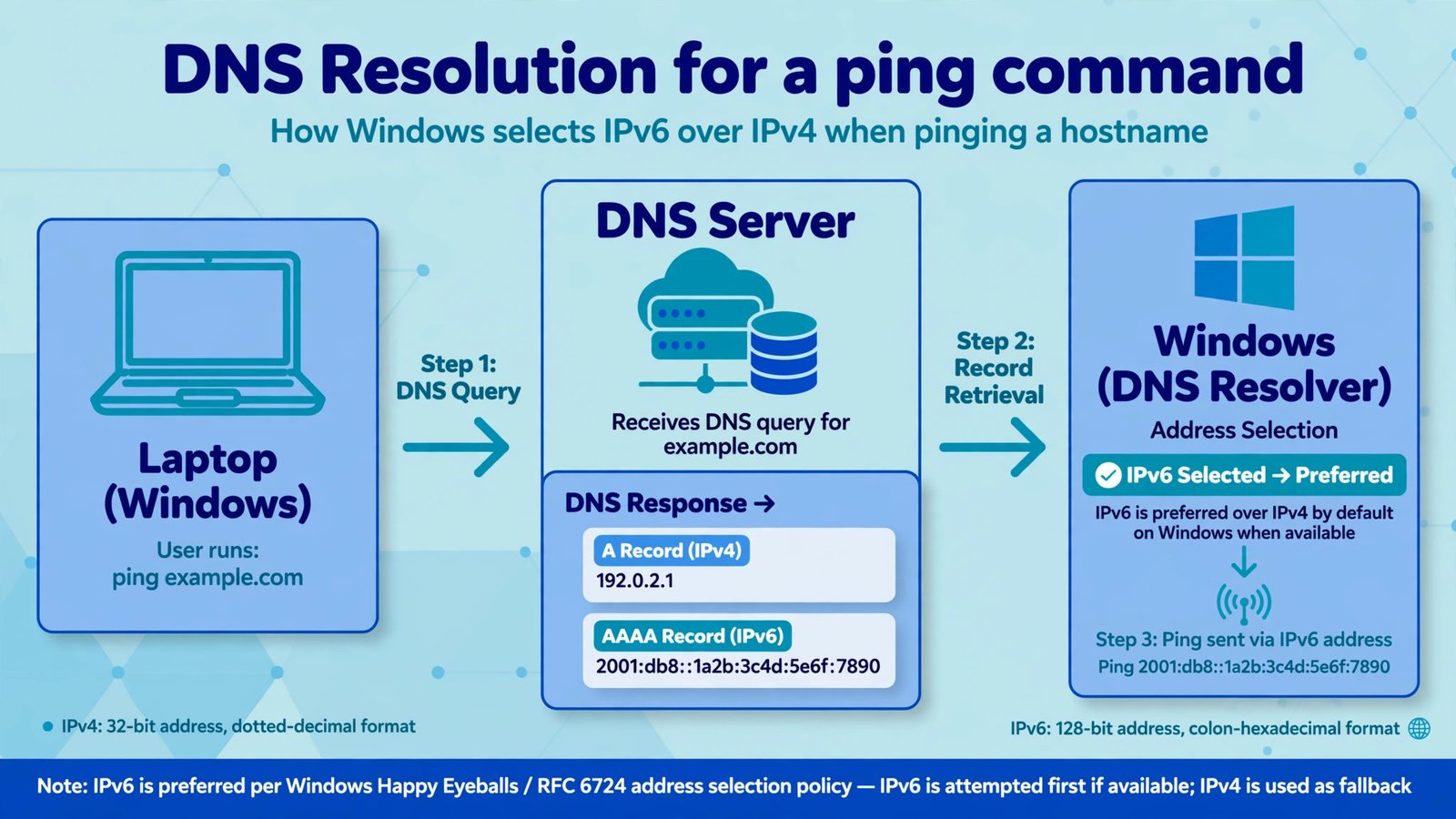
Fix 1: Use the -4 Flag (Just This Once)
If you only need an IPv4 ping for a single test, there is no reason to touch any setting:
ping -4 google.comThe -4 flag forces the IPv4 address, and -6 forces IPv6 explicitly. This is the right answer for scripts, game server checks, and one-off troubleshooting where the address family matters. Nothing else on your system changes.
Fix 2: Make Windows Prefer IPv4 Everywhere (Recommended)
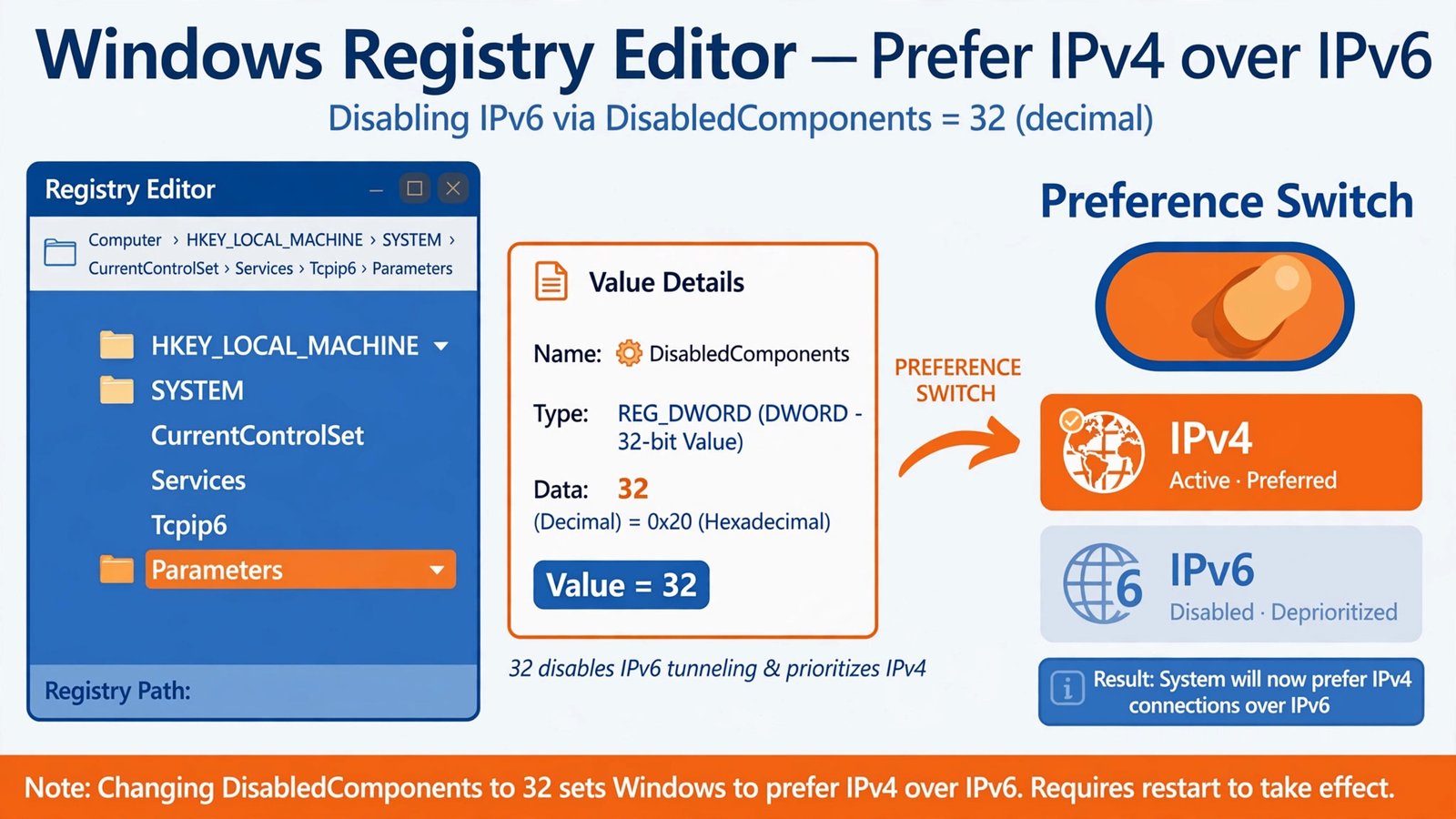
If you want every application to favor IPv4 by default without removing IPv6 from the system, Microsoft’s recommended approach is a single registry value. This is safer than disabling IPv6 outright, because parts of Windows still use IPv6 internally.
- Press Windows key + R, type
regedit, and press Enter. - Navigate to
HKEY_LOCAL_MACHINE\SYSTEM\CurrentControlSet\Services\Tcpip6\Parameters. - Right-click in the right pane, choose New > DWORD (32-bit) Value, and name it
DisabledComponentsif it does not already exist. - Double-click it, set the value to
32in decimal (hex 0x20), and click OK. This value means “prefer IPv4 over IPv6”. - Restart your PC. From then on,
ping google.comresolves to the IPv4 address.
To verify the preference took effect, run netsh interface ipv6 show prefixpolicies in a command prompt: the ::ffff:0:0/96 entry should now outrank the others. Microsoft documents this registry approach in its guide to configuring IPv6 for advanced users, and explicitly recommends it over disabling IPv6.
Fix 3: Uncheck IPv6 on the Network Adapter
Disabling IPv6 on the adapter is the blunt version of the same idea, and it is per-connection rather than system-wide:
- Press Windows key + R, type
ncpa.cpl, and press Enter. - Right-click your active connection (Wi-Fi or Ethernet) and choose Properties.
- Uncheck Internet Protocol Version 6 (TCP/IPv6) and click OK.
- Restart, then run
ipconfig /flushdnsin a command prompt to clear cached answers.
This works, but it also removes IPv6 from that connection entirely, which can break features like HomeGroup-era sharing and some VPN configurations. Prefer Fix 2 unless you have a specific reason to strip IPv6 from an adapter. If your network problems run deeper than address choice, the Wi-Fi disappeared troubleshooting guide or a full network settings reset may be the better tool.
Our Take: A Flag, Not a Surgery
Ping returning IPv6 is Windows working as designed, so resist the urge to rip out IPv6 to “fix” it. For a one-off test, ping -4 ends the conversation. If everything you run keeps landing on IPv6 and it is causing real trouble, the registry preference is the sanctioned middle ground: IPv4 preferred, IPv6 still available. Full IPv6 disabling belongs only in the corner case where your network genuinely mishandles IPv6, and even then, fix the network before you amputate the protocol.

- How to Fix an SD Card Not Detected on Windows 11 - October 25, 2026
- How to Fix Windows 11 Search Not Finding Files - October 24, 2026
- How to Fix Windows 11 Clock Showing the Wrong Time - October 23, 2026