
One moment you are browsing, the next your WiFi is gone. No networks in the list, no WiFi toggle in Settings, sometimes not even a WiFi icon on the taskbar. This is one of the most reported Windows 11 problems, and it almost always comes down to a disabled adapter, a stopped service, or a driver that broke during an update. Here is how to bring it back.
Read the Symptoms Before You Fix Anything
WiFi can “disappear” in several different ways, and each one points to a different fix. Match what you see to the table below so you start in the right place.
| What you see | Likely cause | Jump to |
|---|---|---|
| WiFi icon missing, but networks exist in Settings | Icon hidden or taskbar glitch | Fix 1 |
| No WiFi toggle in Settings at all | Adapter disabled or driver missing | Fix 3 or 4 |
| WiFi vanished right after a Windows update | Driver incompatibility | Fix 4 |
| Adapter missing from Device Manager | Driver gone or hardware disabled | Fix 4 or 6 |
| Nothing works after all software fixes | BIOS or hardware fault | Fix 6 |
Fix 1: Rule Out the Simple Stuff
Before anything else, check the three switches that silently kill WiFi.
- Airplane mode: Press Windows + I, go to Network & internet, and make sure Airplane mode is off. Toggling it on and back off can also clear a stuck state.
- Physical WiFi switch: Many laptops have a physical switch or a function-key combo (often Fn + F2 or similar) that disables wireless. Check the sides of the laptop and the function keys.
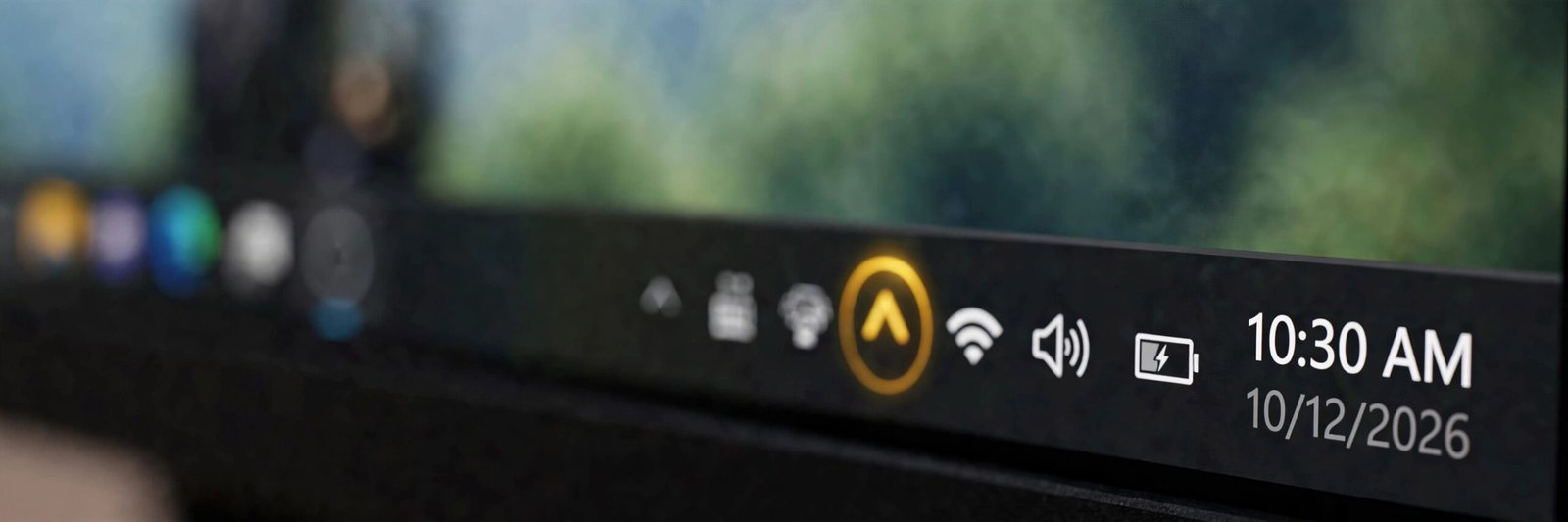
- Hidden taskbar icon: Click the up arrow near the clock to open the notification overflow. After updates, the network icon sometimes hides there instead of disappearing.
Fix 2: Restart the WiFi Services
Two Windows services control wireless networking. If either one stops, the WiFi option can vanish completely.
- Press Windows + R, type services.msc, and press Enter.
- Find WLAN AutoConfig. Right-click it, choose Restart (or Start if it is stopped), and set Startup type to Automatic.
- Find Network List Service and do the same: restart it and set it to Automatic.
- Check Settings again to see if the WiFi toggle has returned.
Fix 3: Re-enable the Wireless Adapter
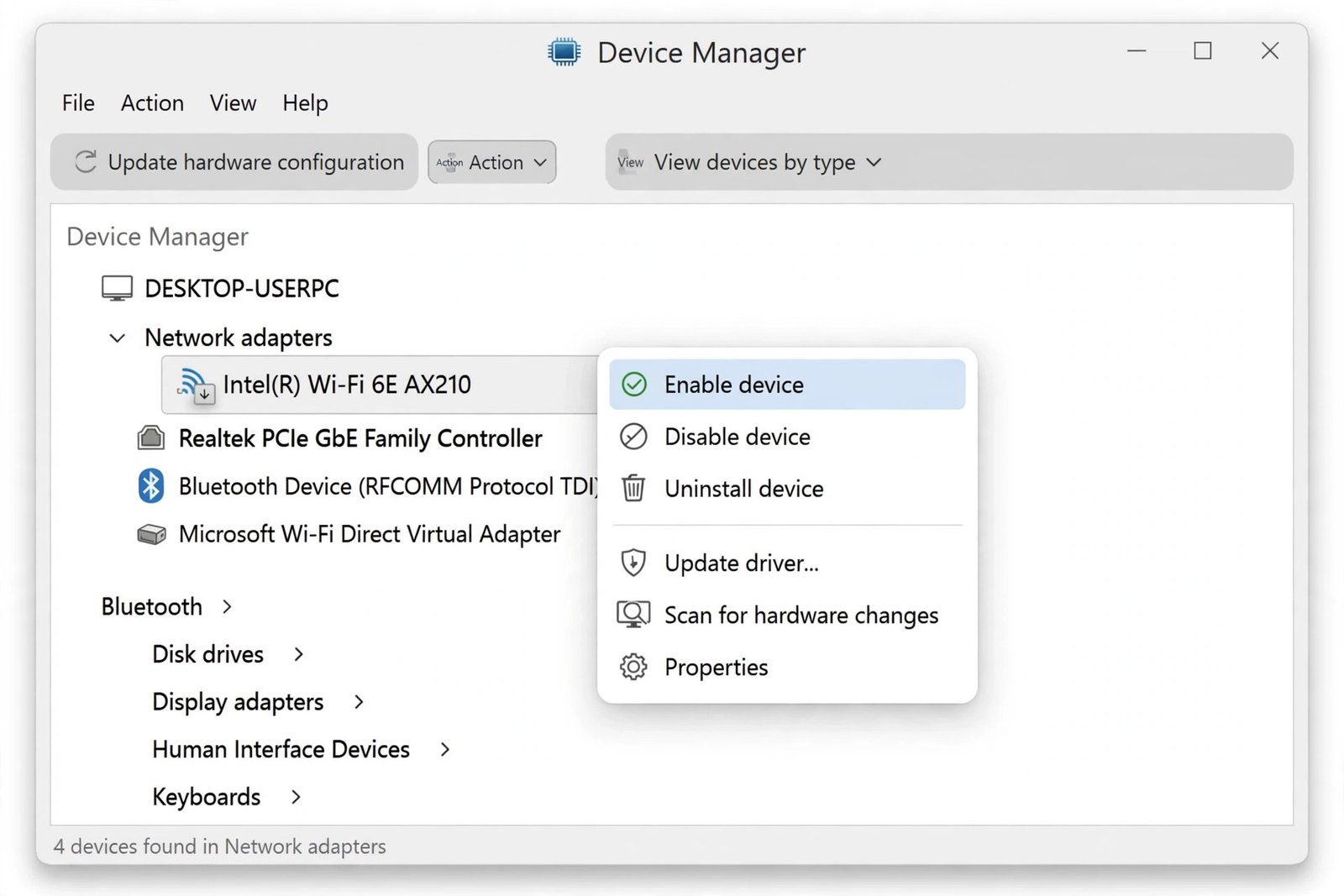
Windows sometimes disables the WiFi adapter after an update without telling you. The adapter shows up in Device Manager with a small down arrow.
- Press Windows + X and choose Device Manager.
- Expand Network adapters and look for your wireless adapter (Intel, Realtek, Qualcomm, or MediaTek).
- If it has a down arrow, right-click it and choose Enable device.
- If the adapter is not listed at all, click View > Show hidden devices. A greyed-out entry can also be enabled the same way.
Fix 4: Reinstall the WiFi Driver
When WiFi disappears right after a Windows update, the driver is the prime suspect. Reinstalling it is the single most effective fix for that scenario.
- In Device Manager, under Network adapters, right-click your wireless adapter and choose Uninstall device.
- Restart the computer. Windows detects the adapter on boot and reinstalls a fresh driver.
- If Windows does not reinstall it, download the latest wireless driver from your laptop manufacturer’s website using another device, transfer it over USB, and install it manually.
- You can also try Update driver > Search automatically for drivers before uninstalling, in case a fixed version is already available.
Fix 5: Reset the Network Stack
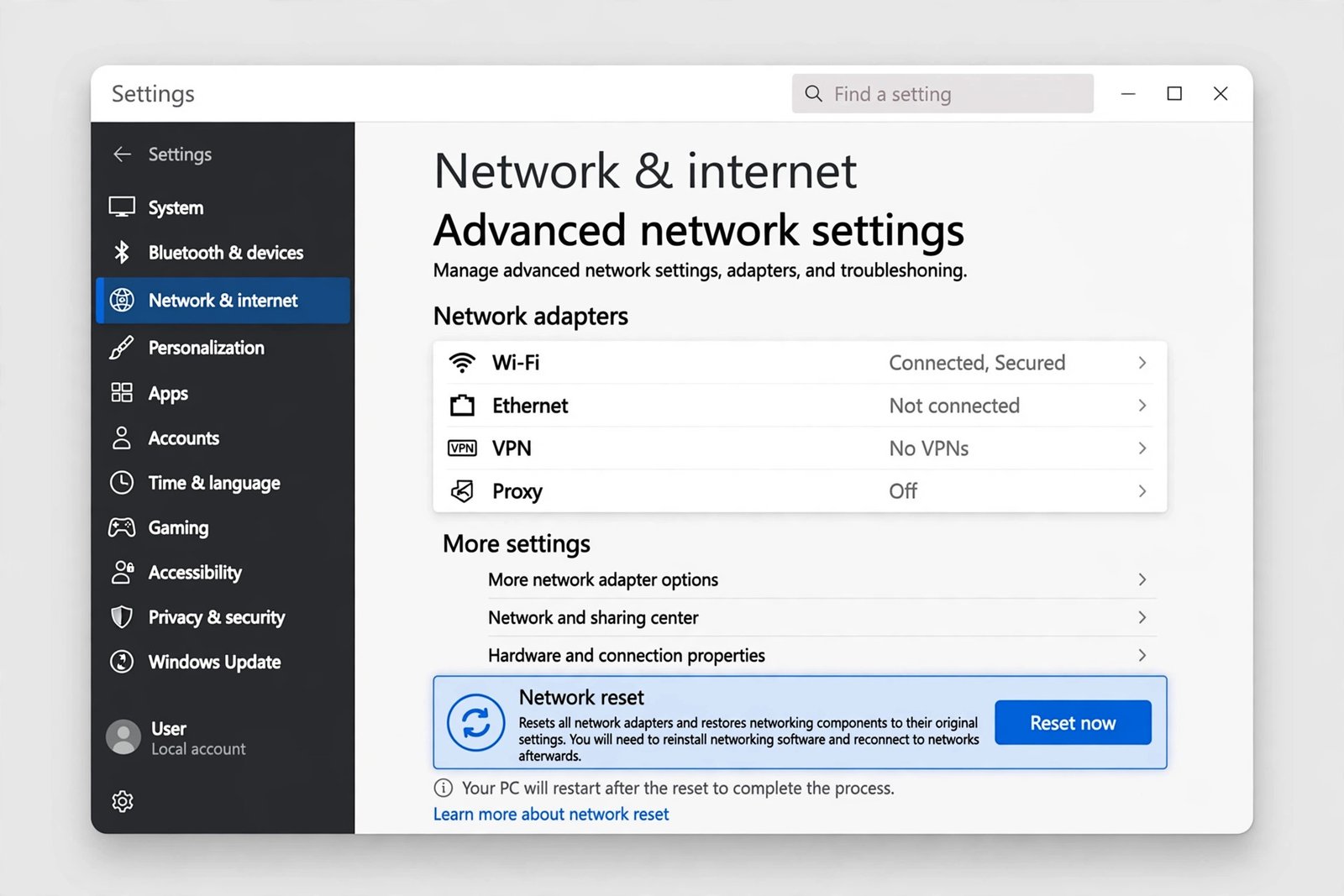
If the adapter is present and enabled but WiFi still misbehaves, a network reset clears every network setting back to defaults. Note that this removes saved WiFi passwords and VPN configurations, so use it when the earlier fixes have failed.
- Go to Settings > Network & internet > Advanced network settings.
- Click Network reset, then Reset now, and confirm.
- Your PC will restart. Reconnect to your WiFi network afterward.
Fix 6: Check the BIOS and Consider Hardware
This is rare, but worth knowing. If the wireless adapter does not appear in Device Manager even after driver installs, wireless may be disabled at the firmware level. Restart into your BIOS or UEFI settings and make sure the wireless device is enabled. If it is enabled and still invisible to Windows, the WiFi card itself may have failed, and a USB WiFi adapter is a cheap workaround.
Frequently Asked Questions
Why does WiFi keep disappearing after every Windows update?
Updates sometimes replace your wireless driver with a generic version that does not match your hardware. Reinstalling the driver from your laptop manufacturer’s site, rather than the generic Windows one, usually stops the cycle.
Will a network reset delete my files?
No, it only resets network settings: saved WiFi passwords, VPN connections, and custom configurations. Your files and apps are untouched.
Two detailed walkthroughs worth bookmarking are the EasyTweaks guide to sudden WiFi loss and the AOMEI guide to the missing WiFi icon. For related Windows repairs, see how to reset network settings in Windows 11, how to fix the ERR_NAME_NOT_RESOLVED error, and how to fix a microphone not working on Windows.

- How to Stop Samsung Galaxy Apps Running in the Background - November 4, 2026
- How to Turn Off Bixby Voice Wake-Up on Samsung Galaxy - November 3, 2026
- How to Turn Off Notification Reminders on a Samsung Galaxy Phone - November 2, 2026