
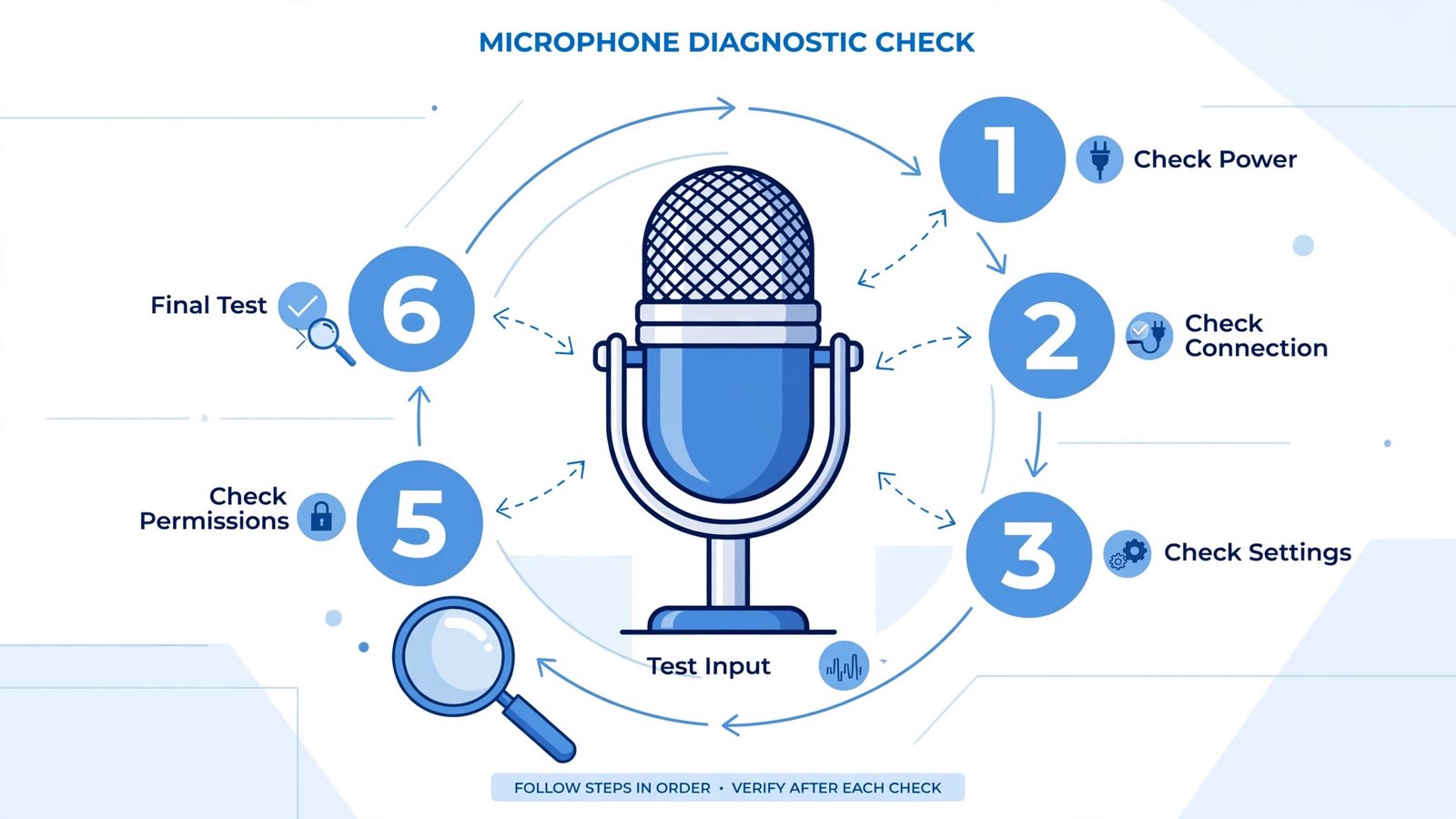
If your microphone suddenly stopped working, this usually means one of three things: Windows switched to the wrong input device, an app grabbed exclusive control of the mic, or a privacy setting flipped during an update. The good news is that the fix is almost always in the six steps below, ordered from easiest to deepest, and they work identically on Windows 10 and Windows 11.
Heads up: Windows 10 reached end of support on October 14, 2025, so it no longer receives security updates unless you enroll in Extended Security Updates. Every fix below works exactly the same on Windows 11, and upgrading is the real long-term answer if your PC qualifies. Details are on Microsoft’s Extended Security Updates page.
Basic fixes first: the 30-second checks
- Check the physical mute button or switch on your microphone, headset, or webcam.
- Unplug the mic and plug it back in. For USB mics, try a different USB port.
- Close the app and reopen it, then test the mic in a second app like Voice Recorder to see if the problem is app-specific.
- Restart the PC. It is a cliché because audio services genuinely get stuck.
If none of that helped, work through the fixes below in order. Stop as soon as your mic works.
Fix 1: unmute and check microphone privacy settings
Windows can mute your mic in two places you never look. First, right-click the speaker icon in the taskbar, open the volume mixer, and make sure the microphone is not muted there. Second, open Settings, go to Privacy (Windows 10) or Privacy and security (Windows 11), then Microphone, and confirm “Allow apps to access your microphone” is turned on, along with the toggle for the specific app you are trying to use. Updates sometimes flip these off silently.
You should now see: the input level bar in Settings, under System and then Sound, moving when you speak.
Fix 2: select the correct input device
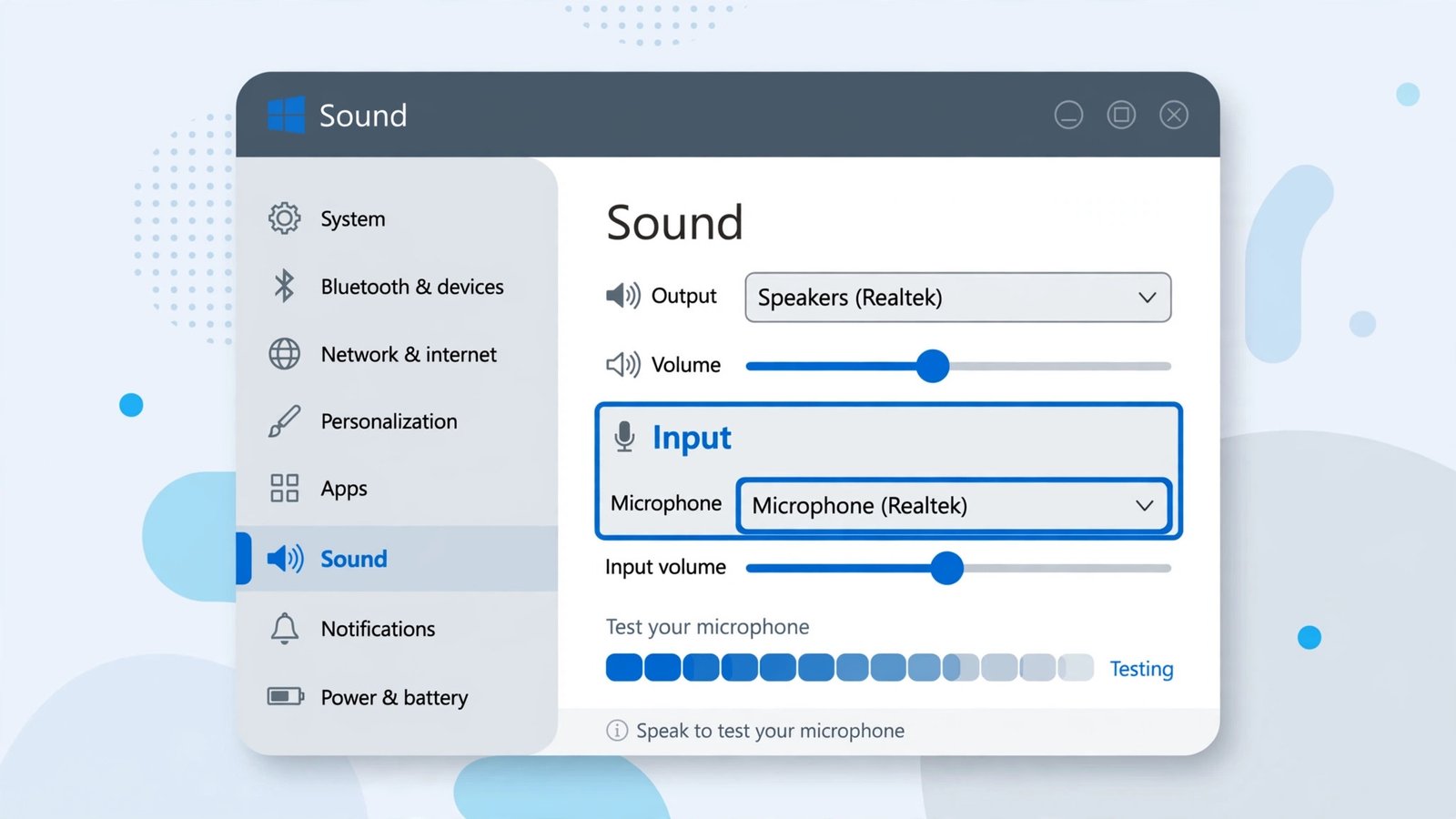
This is the most common cause. Go to Settings, then System, then Sound, and look at the Input dropdown. Windows loves defaulting to a webcam mic or a monitor’s audio input instead of your headset. Pick your actual microphone, then speak and watch the “Test your microphone” bar. For finer control, open the classic Sound control panel, go to the Recording tab, right-click your mic, and set it as both the Default Device and the Default Communication Device.
You should now see: the test bar bouncing as you talk, and your mic labeled Default in the Recording tab.
Fix 3: update or reinstall the audio driver
A corrupted or outdated driver produces the classic symptom: the mic appears in settings but records silence. Open Device Manager, expand “Audio inputs and outputs,” right-click your microphone, and choose Update driver, then “Search automatically for drivers.” If the mic broke right after a Windows update, click Properties instead and use “Roll Back Driver.” Still dead? Choose Uninstall device, restart the PC, and let Windows reinstall it fresh. For the most stubborn cases, grab the driver from your PC or motherboard maker’s site rather than relying on Windows Update.
You should now see: the microphone listed in Device Manager with no yellow warning icon, and the test bar responding.
Fix 4: turn off exclusive mode
Some apps grab the microphone exclusively and refuse to share it, which is why a mic can work in Zoom but stay dead everywhere else. In the Sound control panel, open your microphone’s Properties, go to the Advanced tab, and uncheck “Allow applications to take exclusive control of this device.” Click OK and retest.
You should now see: the mic working in two apps at once, for example a call app and Voice Recorder together.
Fix 5: restart the Windows Audio services
Press Win plus R, type services.msc, and find “Windows Audio” and “Windows Audio Endpoint Builder.” Right-click each and choose Restart, then double-click each and set Startup type to Automatic. These services handle all audio routing, and when they stall, every mic on the system goes quiet at once, which is your clue this fix applies.
You should now see: both services showing a status of Running, and system sounds returning alongside the mic.
Fix 6: clean boot to find the conflicting app
If the mic works for a moment after rebooting and then dies, a third-party app is likely interfering. Type msconfig, go to the Services tab, check “Hide all Microsoft services,” then click Disable all. In Task Manager’s Startup tab, disable everything, and reboot. If the mic works now, re-enable apps in halves until the mic breaks again. You have found your culprit. Audio enhancers and old VoIP apps are the usual suspects; if you use one, our best sound equalizer for Windows 11 guide covers safer options.
You should now see: a working mic in the clean boot, which proves a third-party program was the problem.
The verdict
Nine times out of ten, a dead Windows mic is the wrong input device, a flipped privacy toggle, or exclusive mode, and fixes one through three resolve it in under five minutes. If you have climbed the whole ladder and the mic is still silent, test it on another computer: at that point the hardware itself is the prime suspect. And remember the bigger picture: Windows 10 is out of support, so while these fixes keep you going, planning the move to Windows 11 (or enrolling in Extended Security Updates) is the fix that protects everything else on the PC too. For general Windows tune-ups meanwhile, see how to speed up Windows boot time.
Frequently asked questions
Why does my Bluetooth headset mic sound terrible?
Bluetooth headsets switch to the low-quality HFP profile for the microphone, which tanks audio in both directions. It is a Bluetooth limitation, not a Windows bug. Use the headset mic for calls only, or switch to a wired or USB mic for anything important.
Should I just upgrade to Windows 11 instead of troubleshooting?
If your PC meets the requirements (TPM 2.0, Secure Boot, a supported processor), yes. The microphone fixes are identical, but Windows 11 keeps receiving security updates while Windows 10 does not.

- How to Turn Off Snap Assist in Windows 11 - November 4, 2026
- How to Turn Off Game Mode in Windows 11 - November 3, 2026
- How to Stop Windows 11 Opening Photos When You Plug In a USB Drive - November 2, 2026