
You wake your PC, the second monitor comes back on, and every window has moved. Windows from the second screen are stacked on the main display, and a maximised app has shrunk. The fix starts in Settings: go to System, then Display, expand Multiple displays, and make sure Remember window locations based on monitor connection is checked. On current Windows 11 builds that box is already on by default, so if your windows still move, the cause is usually the cable or a stale display cache, covered below.
Why a waking monitor moves your windows
Windows builds your desktop from the monitors it can see right now. When a monitor goes into deep sleep, its connection signal can drop, and Windows treats the monitor as unplugged. It rebuilds the desktop on the screens that are left, moves the orphaned windows onto the main display, and resizes them to fit. When the monitor finishes waking, it rejoins the desktop, but Windows does not move the windows back.
The cable type decides how often this happens. DisplayPort monitors drop their hot-plug signal when they sleep, so Windows genuinely believes they left. HDMI monitors keep the connection alive during sleep, so the same wake-up rarely moves anything. That is why the problem follows one monitor in a mixed setup and never touches the other. Microsoft shipped a mitigation to Windows Insiders in build 21287 back in 2021, but DisplayPort setups still report it.
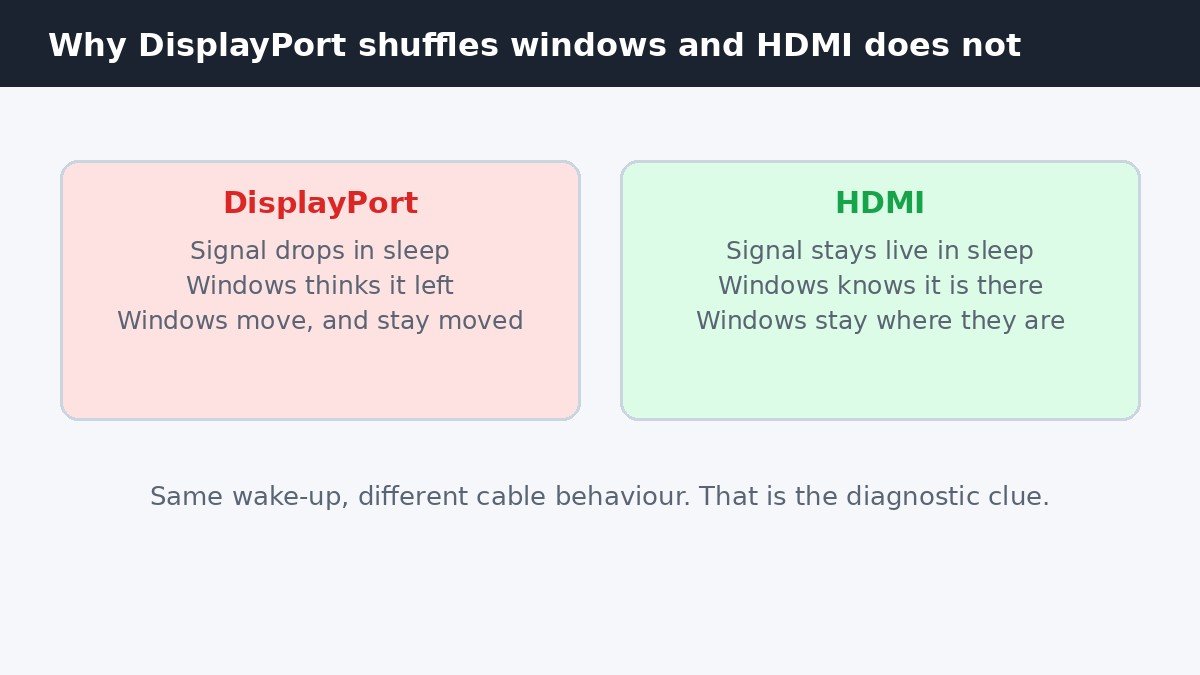
ASUS documents the same DisplayPort behaviour in its monitor support pages: a DisplayPort screen in sleep is recognised as disconnected, while an HDMI screen stays recognised through sleep. If only your DisplayPort monitor causes the shuffle, you have found your culprit.
Turn on the window locations setting
This checkbox ties each window position to the monitors connected at the time, so windows return to their old screens when the same monitors come back.
- Press Win + I to open Settings.
- Click System in the left sidebar, then Display on the right.
- Scroll down and expand Multiple displays.
- Check the box next to Remember window locations based on monitor connection.
- Arrange your windows, then test one sleep and wake cycle.
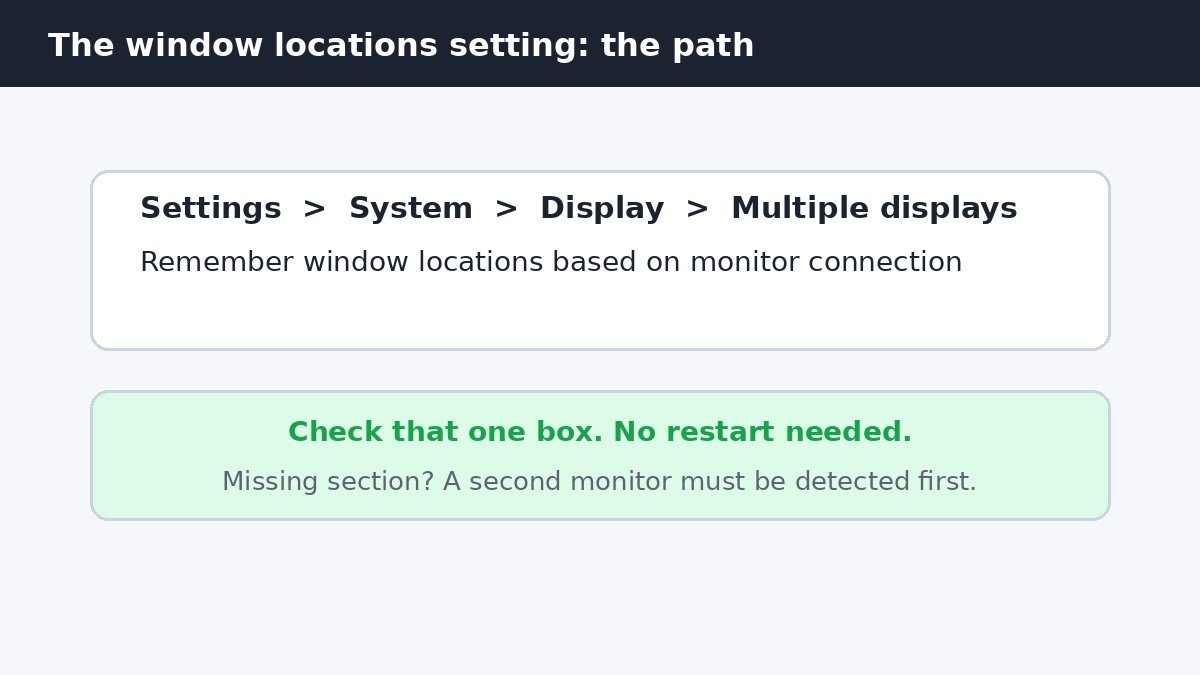
Two details catch people out. First, the Multiple displays section only appears with two or more monitors detected, so if it is missing, check the cable, power, and input, then click Detect. Second, the checkbox wording can vary slightly by build, so look for the option about remembering window locations.
Once windows stay put, you may notice the layout grid that appears when you drag a window to the top of a screen. That is Snap Layouts, a separate feature from window memory, and our guide to turning off the Snap Layouts popup on Windows 11 covers switching it off without losing snapping.
Choose what happens while a monitor is away
Right under the first checkbox sits a second one: Minimize windows when a monitor is disconnected. The two boxes combine into three behaviours.
| Setting combination | What happens on wake | Best for |
|---|---|---|
| Remember locations on, minimize off | Windows pile on the main display, then return on reconnect | Desktop PCs with fast-waking monitors |
| Remember locations on, minimize on | Windows wait on the taskbar, then restore from there | Laptop docks and slow-waking monitors |
| Remember locations off | Windows stay wherever the shuffle left them | Single-monitor use, or layouts you rebuild daily anyway |
For a docking laptop, the second row is calmer: minimised windows wait on the taskbar. For a fast-waking desktop, the first row is fine.
Clear stale display cache entries
If windows return to the wrong monitor or resolution even with the checkbox on, Windows may be restoring a saved layout that no longer matches your screens. Clearing the display cache forces Windows to rebuild it from the monitors actually connected. Treat this as a last resort: it resets your display arrangement.
- Open Command Prompt as administrator: search for cmd, right-click it, and choose Run as administrator.
- Back up the branch first with reg export “HKLM\SYSTEM\CurrentControlSet\Control\GraphicsDrivers” “%USERPROFILE%\Desktop\GraphicsDrivers.reg” /y and confirm the file exists on your desktop.
- Delete only the three cache subkeys: reg delete “HKLM\SYSTEM\CurrentControlSet\Control\GraphicsDrivers\Configuration” /f, then the same for Connectivity and ScaleFactors.
- Never delete the parent GraphicsDrivers key itself, only those three subkeys.
- Restart the PC. Windows rebuilds the cache from the connected displays.
- Re-arrange your monitors, re-check the box, and place your windows.
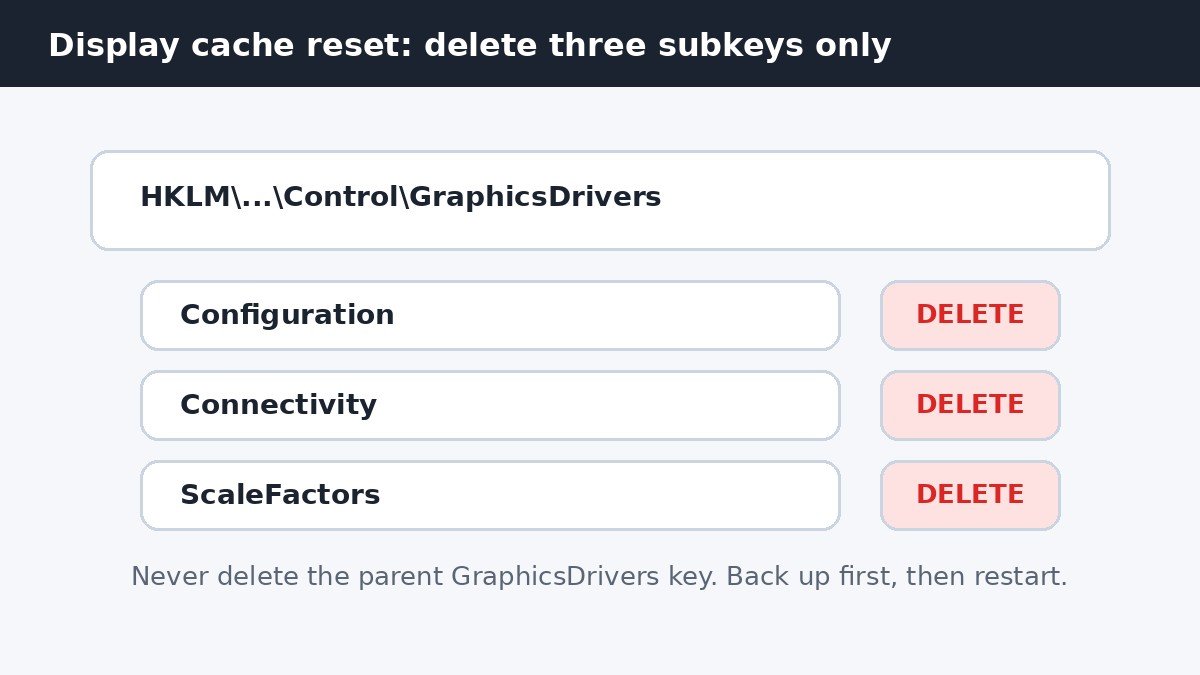
If the problem comes back, the cache was not the cause: double-click the backup file to restore the old layouts. Do not run registry cleaners here.
If windows still move after all that
Work through the remaining causes one at a time, testing one sleep and wake cycle after each change. Wake the monitors before waking the PC: switching the monitors on first and waiting a few seconds gives the slow one time to report itself, so Windows counts it in the right order. Where possible, use the same cable type for both monitors, since mixed DisplayPort and HDMI connections wake at different speeds. Update the graphics driver from the PC or graphics card maker’s own support page for your exact model.
One quick test separates a cable fault from a settings fault: move the troublesome monitor to HDMI for a day. If the shuffle stops, DisplayPort sleep behaviour is confirmed, and the lasting fixes are a monitor setting that keeps the DisplayPort link awake, a different cable, or the minimise-on-disconnect checkbox above. If a window still lands on the wrong screen, press Win + Shift + Left arrow or Right arrow to move it to the next monitor. Microsoft’s own support forum threads on displays connecting and disconnecting during sleep confirm this is a known DisplayPort sleep pattern, not a failing PC.
Most cases end at the checkbox. When they do not, the cable is usually the story, and the cache reset is the last resort. Set the checkbox, pick the minimise behaviour that suits your desk, and let the next wake-up prove the fix.

- How to Stop Windows 11 From Rearranging App Windows When a Monitor Wakes Up - November 4, 2026
- How to Turn Off Search Highlights in Windows 11 - November 3, 2026
- How to Turn Off Dynamic Lighting in Windows 11 - November 2, 2026