
Game Mode is a Windows 11 setting that gives the game you are playing priority over background activity. It is on by default on most PCs, and most players can leave it on. Turn it off if a specific game stutters, or if you want background tasks to keep running normally while you play. Open Settings, go to Gaming, then Game Mode, and set the Game Mode switch to Off. The change takes effect right away, with no restart.
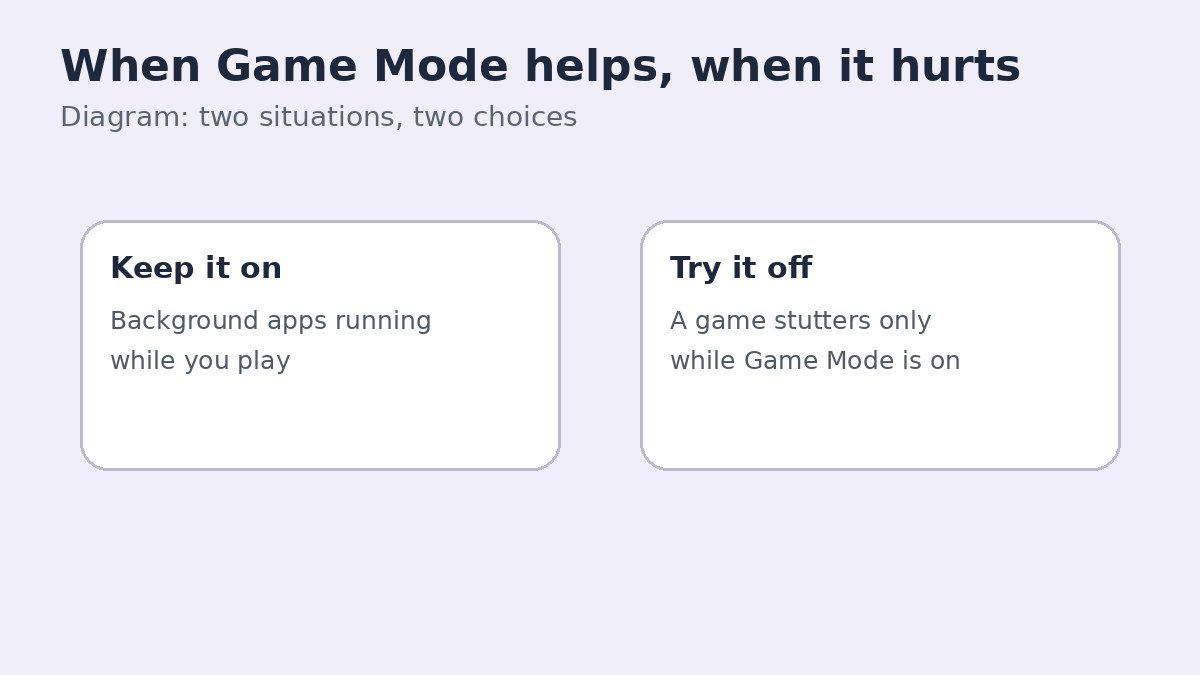
When Game Mode helps, and when it hurts
When Game Mode is on and Windows detects a game running, it steers more system resources to the game and holds back interruptions. That includes stopping Windows Update from installing drivers and showing restart notifications while you play. What it does not do is also worth knowing: it does not overclock your processor or graphics card, does not change your graphics driver settings, and does not switch off Windows Security.
For most players the effect is small, and the real benefit is fewer interruptions rather than a large jump in frame rate. Game Mode can occasionally make things worse, usually as stuttering in one particular game, or as background apps such as voice chat behaving oddly while a game runs. In that case, turning it off for a test is the sensible move, because the setting is one switch and it is easy to reverse.
| Situation | Keep Game Mode on, or turn it off | Why |
|---|---|---|
| Background apps run while you play | Keep it on | Game Mode keeps the game first and holds back interruptions |
| A game stutters with Game Mode on | Try it off | A few game and driver combinations run worse with it on |
| You only play occasionally | Leave it as it is | It only acts while a game is running, so it does not slow everyday work |
Turn off Game Mode in Settings
This is the method for every edition of Windows 11, including Home. It is a single global switch, so it applies to every game, not to one game at a time.
- Press Win + I to open Settings.
- Click Gaming in the left sidebar.
- Click Game Mode on the right.
- Set the Game Mode switch to Off.
- Close Settings. There is no Save button, because the choice is saved automatically.
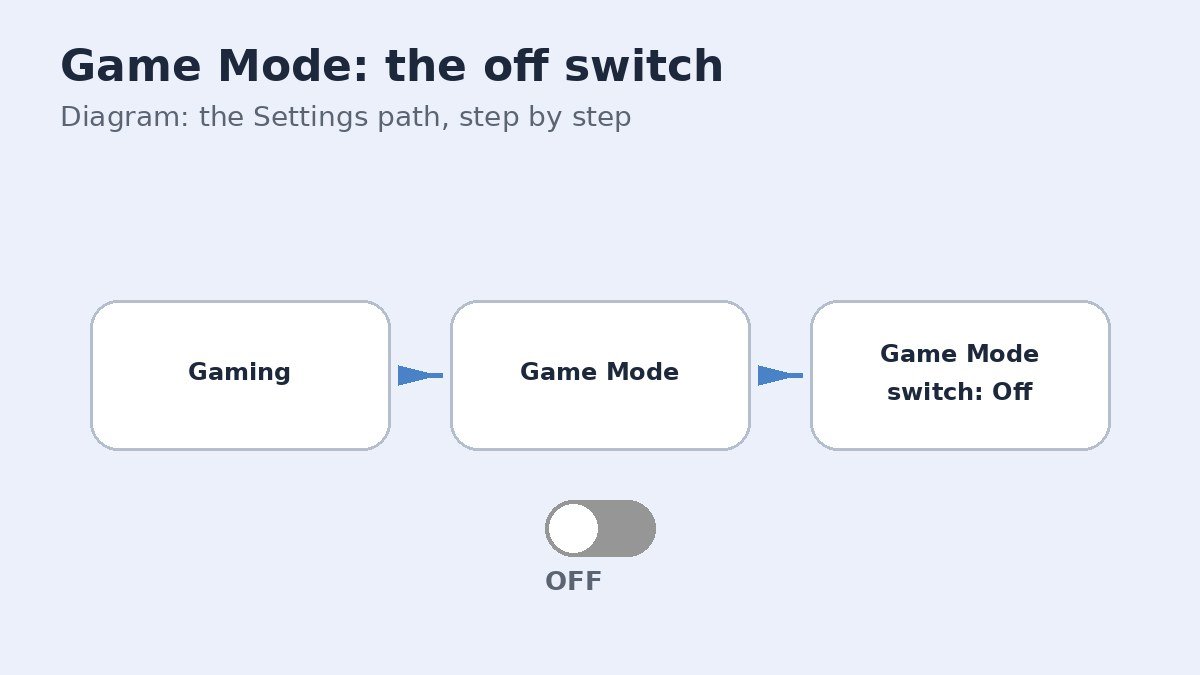
To turn it back on, repeat the same steps and set the switch to On. If you want to compare, play the same section of the same game with the switch on and then off, and keep whichever setting feels smoother.
Registry fallback for advanced users
The registry method is only for advanced users, and only worth trying if the Settings switch is missing or keeps reverting. Back up the registry first. Note that guides disagree on the exact value name here, which is one more reason to prefer the Settings method.
- Press Win + R, type regedit, and press Enter. Approve the User Account Control prompt.
- Go to HKEY_CURRENT_USER\Software\Microsoft\GameBar.
- Look for a DWORD value named AllowAutoGameMode. Some guides name the value AutoGameModeEnabled instead, so if the first name is absent, check for the second before creating anything.
- If neither exists, right-click an empty area, choose New, then DWORD (32-bit) Value, and create AllowAutoGameMode.
- Double-click it, set Value data to 0 to disable Game Mode, and click OK. Restart the PC for the change to take full effect.
If the switch is missing, or a managed PC controls it
On a work or school PC, an administrator policy may control Game Mode. The sign is a missing Gaming section, a greyed-out switch, or a setting that turns itself back on. On Windows 11 Pro, Enterprise, or Education, the policy is found in the Local Group Policy Editor under Computer Configuration, then Administrative Templates, then Windows Components, then Game Bar, where the Turn off Game Mode policy can be enabled. On a managed PC, ask the administrator rather than editing the registry to fight the policy.
On a personal PC, first type Game Mode into the Settings search box, since the Gaming category can be easy to miss. Installing pending Windows updates can also restore a missing Gaming section.
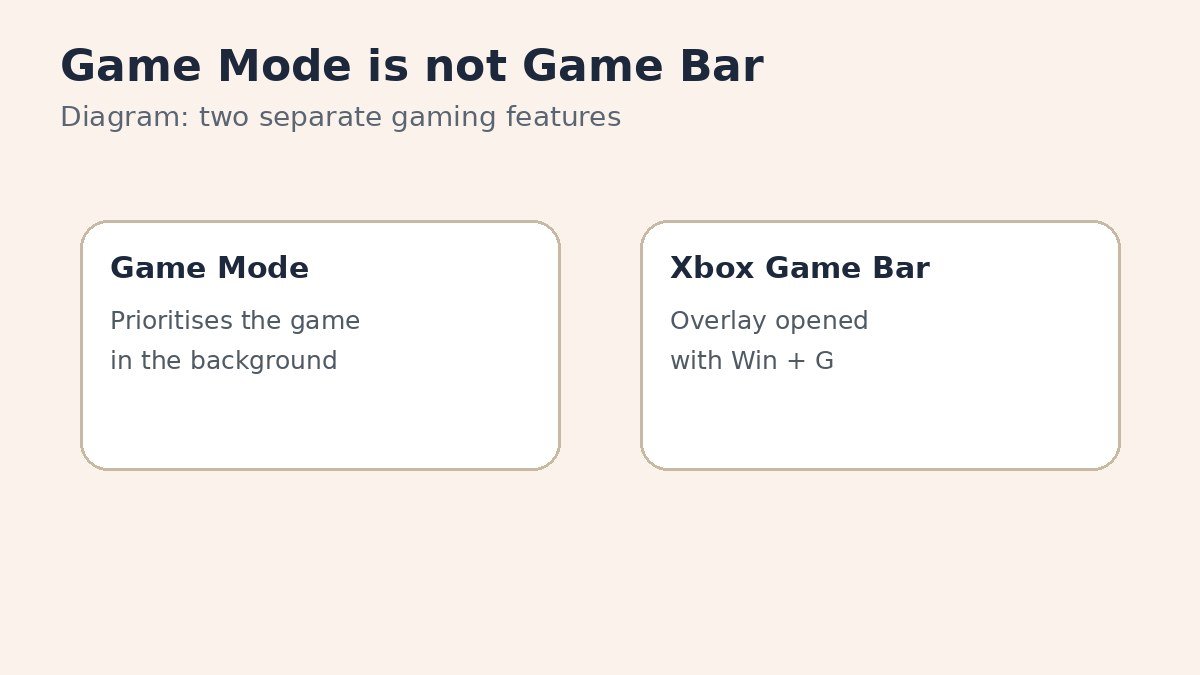
Game Mode is not the same as Xbox Game Bar
It is easy to mix these two up, because both live under Gaming in Settings. Game Mode is a background priority setting with no window of its own. Xbox Game Bar is the overlay that opens over a game when you press Win + G, with widgets for performance, audio, and captures. Turning off Game Mode does not remove Game Bar, and turning off Game Bar does not change Game Mode.
If the overlay itself is what bothers you, our guide to turning off Xbox Game Bar on Windows 11 covers that separately, so you can switch off exactly the feature you mean.
Game Mode is a small setting with a simple test behind it. Leave it on if games run well, turn it off if one game runs worse with it on, and remember that one switch in Settings puts it back whenever you want it. There is no penalty for changing your mind, so test both ways and keep the setting that gives you the smoother game.

- How to Turn Off Game Mode in Windows 11 - November 3, 2026
- How to Stop Windows 11 Opening Photos When You Plug In a USB Drive - November 2, 2026
- How to Hide the Search Box on the Windows 11 Taskbar - November 1, 2026