
If your Windows 11 PC seems to ignore a shutdown, Fast Startup is the likely reason. It is on by default, and it changes what Shut down means. The quick answer: open Control Panel, go to Power Options, choose what the power buttons do, unlock the settings, clear Turn on fast startup, and save. You need an administrator account, and the change takes effect at your next Shut down. Below: what it does, when turning it off helps, and what to do when the checkbox is greyed out or missing.
What Fast Startup actually does
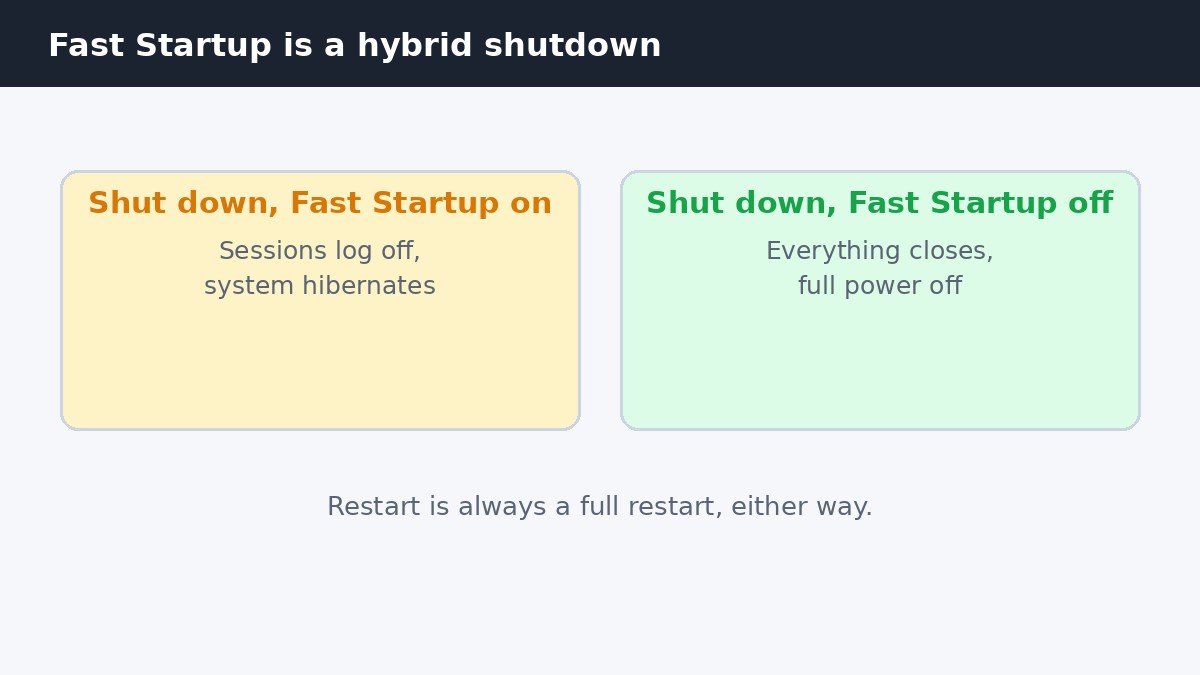
Fast Startup is a hybrid shutdown. When it is on, choosing Shut down logs off every user session, then saves the system state to disk, in the same way hibernation does, instead of powering the PC fully off. Next time you press the power button, Windows loads that saved state, so the PC reaches the sign-in screen sooner. It trades a complete shutdown for a quicker start.
Restart works differently, and this confuses most people. A restart is always a full restart, even when Fast Startup is on: Windows closes everything and reloads the system from scratch. So if a problem survives a Shut down but clears after a Restart, Fast Startup is a strong suspect: the shutdown never fully cleared the system state. Turning Fast Startup off makes Shut down a full shutdown again, and the next boot may take a little longer.
Turn it off in Control Panel
There is no switch for Fast Startup in the Settings app, so this change has to be made in Control Panel. The path is short, but one step is easy to miss, and skipping it leaves the checkbox locked. Sign in with an administrator account before you start.
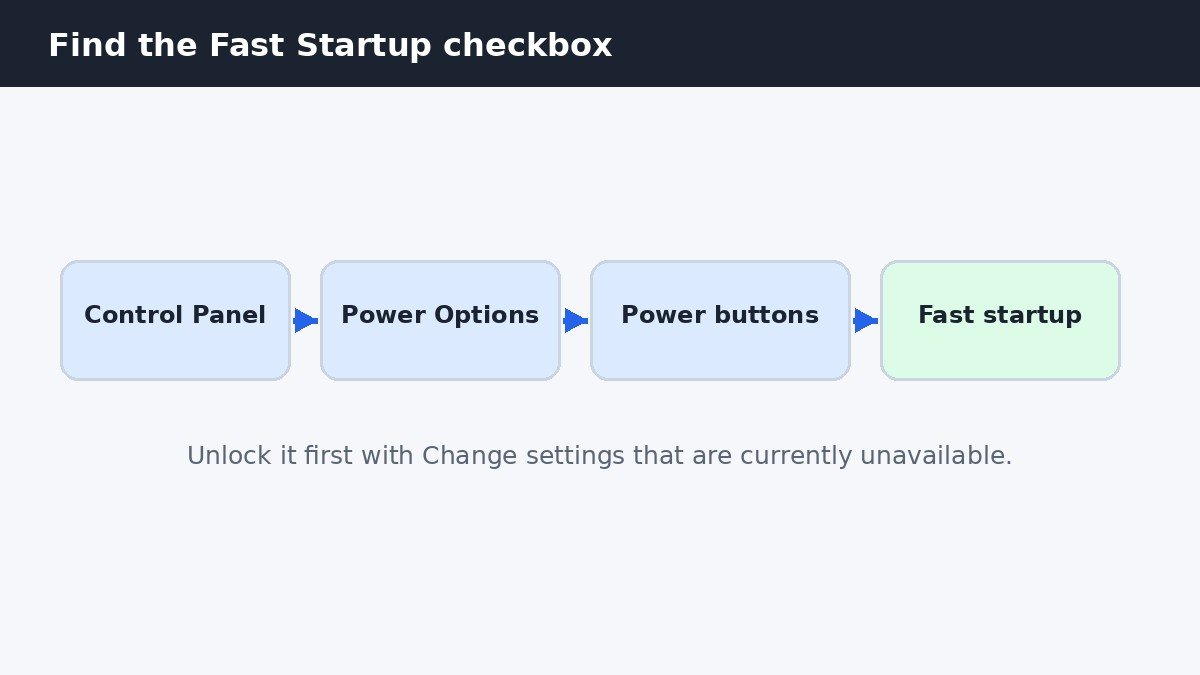
Open Control Panel, then System and Security, or Hardware and Sound on some PCs, then Power Options. Select Choose what the power buttons do. Then select Change settings that are currently unavailable. This unlocks the Shutdown settings at the bottom of the page. Under Shutdown settings, clear the box beside Turn on fast startup (recommended). Select Save changes. The change applies at your next Shut down.
Other laptop settings live nearby in Power Options, including display and power behaviour that can look like a fault when it is only set oddly. If the brightness slider has vanished from your laptop, for example, the cause is usually a driver or display setting rather than Fast Startup, and this guide to fixing a missing brightness slider in Windows 11 walks through the checks in order.
When turning it off helps
Most people never need to touch this setting, but there are clear cases where it helps. The first is a dual-boot setup, where the second system needs full access to drives Windows left in a saved state. The second is a driver or update problem that survives a shutdown but clears after a restart. The third is hardware that does not reset properly, such as a peripheral that needs a full power cycle. Microsoft’s guide to shutting down, sleeping, or hibernating a PC explains the differences between these power states.
If none of those apply, leaving Fast Startup on is fine: it exists to make everyday boots faster, and on a healthy PC it does that job quietly. Turn it off when you have a reason, such as one of the cases above, and turn it back on the same way if you miss the quicker start.
When the checkbox is greyed out
A greyed-out checkbox almost always means one of two things: the settings are still locked, or your account is not an administrator. The locked-settings case is the common one. If you skipped Change settings that are currently unavailable, the Shutdown settings stay read-only, so go back to the top of the page, select that link, and try again. If the box is still greyed out, check that your account has administrator rights, because a standard account cannot change this setting.
When the checkbox is missing altogether
If the Turn on fast startup box is not there at all, even after unlocking the settings, hibernation is almost certainly switched off. Fast Startup depends on hibernation, so switching hibernation off removes the checkbox completely. Switch hibernation back on first, then reopen Power Options.
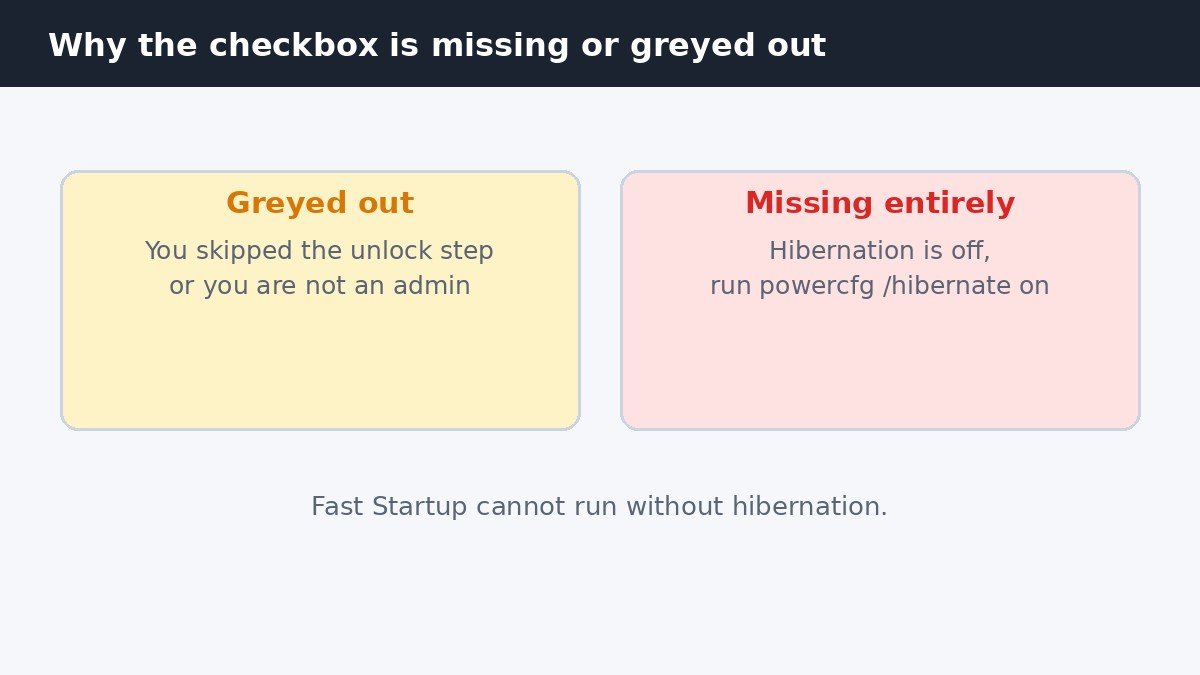
Open Command Prompt as an administrator and run powercfg /hibernate on, then close and reopen Power Options and follow the steps above. The checkbox should be back. The reverse is also true, so running powercfg /hibernate off removes both hibernation and Fast Startup, which is worth knowing before you run either command. Do not run the off command as a way to fix a missing checkbox, because it makes the problem worse.
A full shutdown without changing the setting
Sometimes you only need one full shutdown, for example to clear a stubborn driver problem or to let an update finish properly, without changing the setting for good. Hold the Shift key while selecting Shut down from the Start menu, and Windows performs a full shutdown that once. The other option is to open Command Prompt and run shutdown /s /t 0, which shuts the PC down fully right away. Either way, Fast Startup stays on for the next shutdown, so use this when the problem is a one-off.
There is also a registry route for the same setting, under HKEY_LOCAL_MACHINE\SYSTEM\CurrentControlSet\Control\Session Manager\Power, where a value named HiberbootEnabled controls it: 0 is off and 1 is on. It is a brief mention only, because editing the registry is easy to get wrong and Control Panel does the same job safely, so use the Control Panel steps above unless you have a specific reason to touch the registry.
| Action | What happens | Fast Startup after |
|---|---|---|
| Shut down, Fast Startup on | Hybrid shutdown, system state saved | Still on |
| Shut down, Fast Startup off | Full shutdown, nothing saved | Still off |
| Restart | Full restart, system reloaded | Unaffected |
| Shift plus Shut down | One full shutdown | Still on |
Fast Startup is a small setting with an outsized effect: it decides whether Shut down really means off. When it is on, shutdowns are quicker but the system state is carried over. When it is off, every shutdown is a clean start, at the cost of a slightly slower boot. Now you know where the switch lives, why it sometimes cannot be clicked or found, and how to get one full shutdown without changing anything. If a problem keeps surviving shutdowns, try a full shutdown first: it often settles the question in one go.

- How to Turn Off Fast Startup in Windows 11 - November 9, 2026
- How to Turn Off Auto Rotate on Windows 11 - November 8, 2026
- How to Turn Off Notification Sounds in Windows 11 - November 7, 2026