
If your iPhone keeps sending Sound Recognition alerts and you want them to stop, the switch is one menu away. On iOS 26 and iOS 27, open Settings, tap Accessibility, tap Sound & Name Recognition, tap Sound Recognition, then switch Sound Recognition off. Listening stops right away, and no new alerts arrive.
Sound Recognition is the iPhone feature that listens for sounds you choose, such as a doorbell, a smoke alarm, or a crying baby, and sends you a notification when it hears one. It was built as an accessibility feature for people who are deaf or hard of hearing, and it also helps anyone wearing noise cancelling headphones or working in another room. It is off until somebody switches it on, so if the alerts started appearing, the feature was turned on at some point, on this iPhone or by someone else who uses it.
That one toggle is the whole fix for most people, and the rest of this guide covers the cases where it is not. Apple moved this menu in iOS 26, so older guides send you to a path that no longer matches your screen. If only one sound is the problem, you can silence that sound and keep the rest. If the alerts are going off in the middle of a meeting, Control Center turns the feature off in one tap. And if the alerts keep coming after you switched everything off, the checklist near the end covers the reasons that actually cause that.
Turn off Sound Recognition in Settings
Start by checking which iOS version your iPhone runs, because the menu name changed. On iOS 26 and iOS 27, the setting sits under a heading called Sound & Name Recognition. On iOS 18 and earlier, it sits directly under Accessibility, in the Hearing section, with no extra heading in between. To check your version, open Settings, tap General, then tap About and look at the iOS Version line.
- Open the Settings app.
- Tap Accessibility.
- Tap Sound & Name Recognition. On iOS 18 and earlier, skip this step. Sound Recognition is listed directly under Accessibility.
- Tap Sound Recognition.
- Switch the Sound Recognition toggle off. It turns grey when it is off.
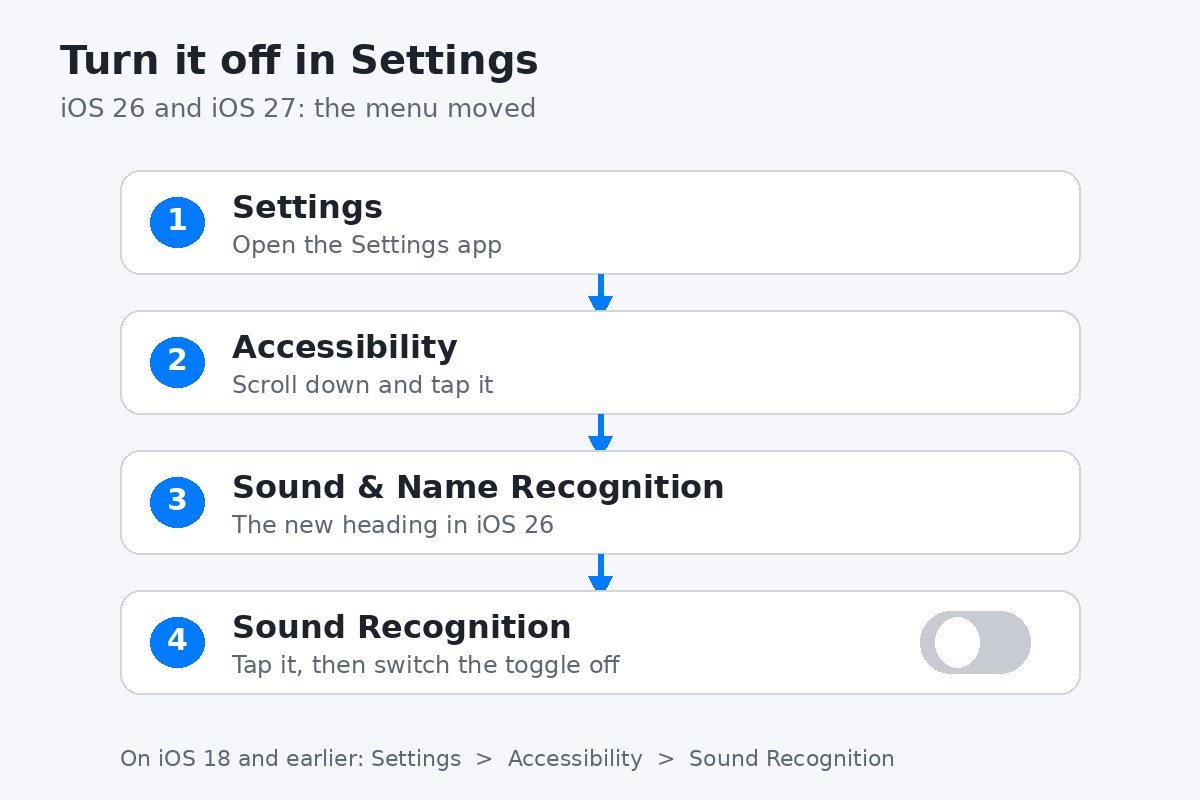
That is all it takes. Your iPhone stops listening for the sounds on your list, and no new notifications arrive. Alerts that already arrived stay in Notification Center until you clear them, so swipe them away if the old ones are still sitting there. If you change your mind later, follow the same steps and switch the toggle back on. Apple notes that after you turn the feature on, your iPhone may need a moment to download the sounds to your device, so give it a short wait before you expect alerts.
Apple documents the current path in its iPhone User Guide, in the page on recognizing sounds using iPhone. The same page carries Apple’s warning that you should not rely on your iPhone to recognise sounds in circumstances where you may be harmed or injured, in high-risk or emergency situations,
If you cannot find Sound & Name Recognition or Sound Recognition anywhere under Accessibility, your iPhone is running an older iOS version than this guide assumes. The Sound & Name Recognition heading arrived with iOS 26. On older versions the setting still exists, but it sits directly under Accessibility, so follow the iOS 18 path above. To update, open Settings, tap General, tap Software Update, and install the version offered there.
Silence one sound instead of turning everything off
Switching the whole feature off is the right move when you no longer want it. It is the wrong move when only one sound is misbehaving. A kettle that keeps setting off the Water Running alert, or a neighbour’s dog that keeps tripping the Dog Barking alert, does not mean the smoke alarm alert has to go too. In that case, leave the main toggle on and switch off the single sound.
- Open Settings, tap Accessibility, tap Sound & Name Recognition, then tap Sound Recognition.
- Tap Sounds.
- Find the sound that keeps alerting you and switch its toggle off. Everything else on your list stays on.
The Sounds list groups the built-in sounds by type, so you can see at a glance what your iPhone is listening for. The exact list can change between iOS versions, and you can also add a custom alarm, appliance, or doorbell sound of your own, but the built-in list usually looks like this.
| Group | Sounds your iPhone can listen for |
|---|---|
| Alarms | Fire alarm, siren, smoke alarm |
| Animals | Cat, dog |
| Household | Appliances, car horn, door bell, door knock, glass breaking, kettle, water running |
| People | Baby crying, coughing, shouting |
Think about the smoke and fire alarm sounds before you switch them off. If you rely on Sound Recognition because you do not always hear the alarm, keep those sounds on and silence only the noisy one. Losing the alarm alert to fix a doorbell alert is a bad trade.
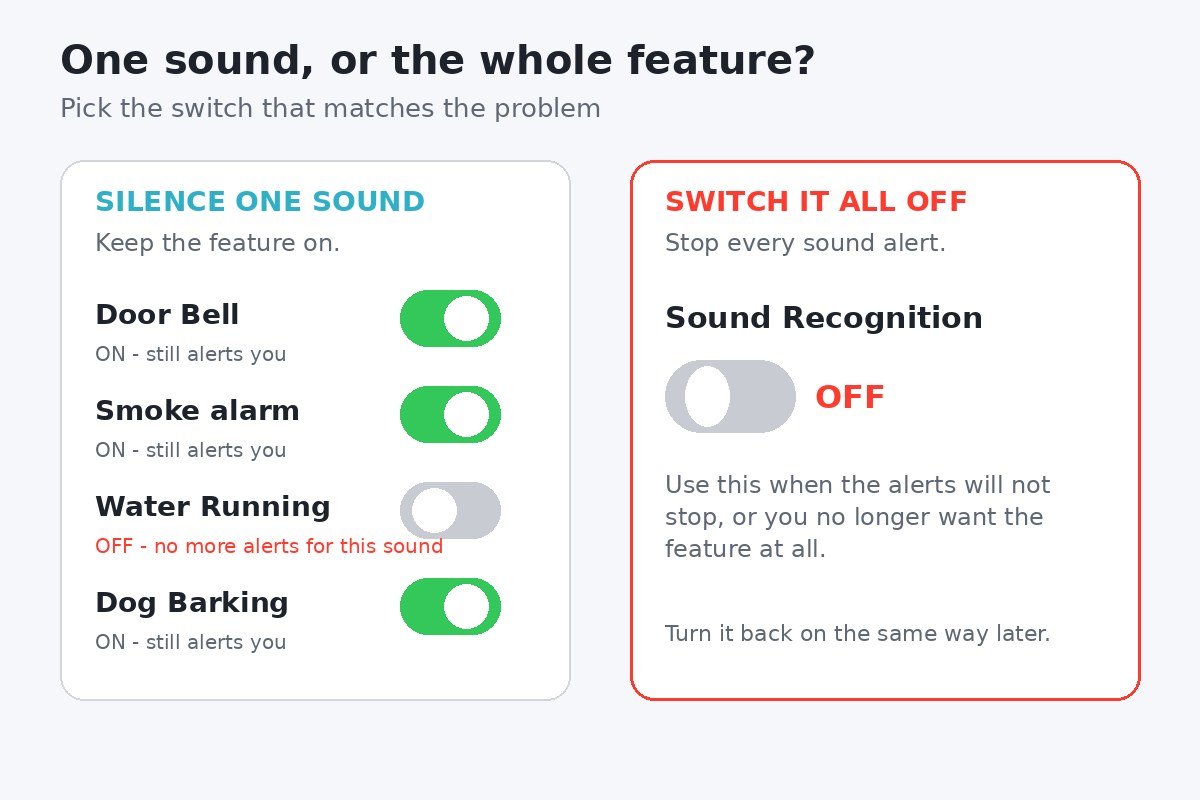
| Your problem | What to switch off |
|---|---|
| One sound keeps alerting you | That one sound, in Sounds |
| You no longer want the feature at all | The main Sound Recognition toggle |
| You only need alerts at certain times | Nothing in Settings. Use the Control Center tile below |
Turn it off fast from Control Center
Settings is the thorough way to switch it off. Control Center is the fast way, and it is the one to use when the alerts are going off right now, in a meeting, in a cinema, or in the middle of the night. Apple suggests adding Sound Recognition to Control Center for exactly this reason.
- Open Control Center. On an iPhone with Face ID, swipe down from the top right corner. On an iPhone with a Home button, swipe up from the bottom edge.
- Find the Sound Recognition tile and tap it once. The feature switches off.
- Tap it again any time to switch it back on.
If the tile is not there, add it first. Open Control Center, tap the plus sign at the top, or touch and hold a blank spot, then tap Add a Control. Search for Sound Recognition and tap it to add the tile. After that, the one-tap switch is always there when you need it.
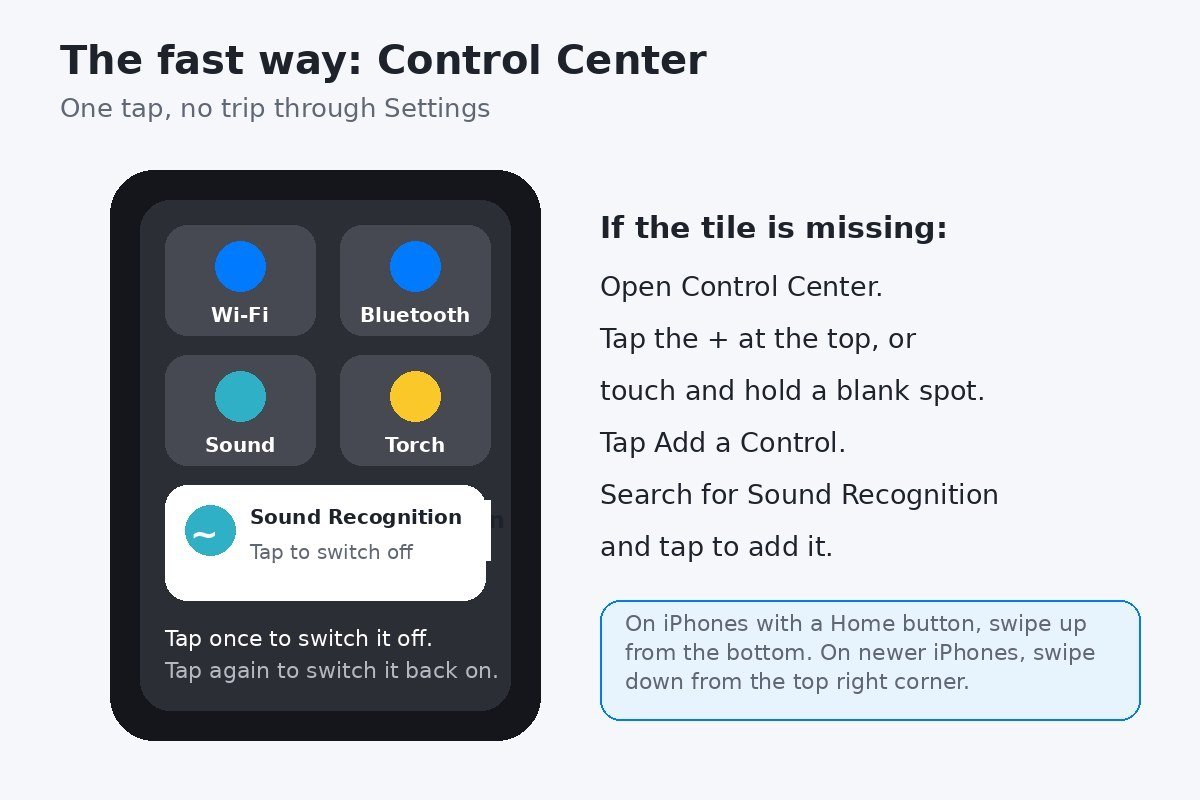
The tile also works from the lock screen, which is handy in a hurry but not something everyone wants. If you would rather keep Control Center off the lock screen, here is how to turn off Control Center on the iPhone lock screen.
Snooze the alerts instead of switching off
Sometimes you do not want the feature off, you want it quiet for an hour. A long press on the alert itself does that. When a Sound Recognition notification appears, press and hold it on the lock screen or in Notification Center, then pick a snooze length: 5 minutes, 30 minutes, or 2 hours. Listening pauses for that sound until the time runs out, then the alerts resume on their own. It is the best option for a meeting, a nap, or a noisy afternoon, because there is nothing to remember to switch back on.
Alerts keep firing after you turned it off
If you switched the feature off and the alerts are still coming, something else is still switched on. Before you work through the list, read the alert itself. Every Sound Recognition notification names the sound your iPhone thinks it heard, so the alert text tells you which sound is firing, and that points straight at the switch you missed. Then check these, in order, because the cause is usually one of the first two.
- You switched off one sound, not the feature. Open the Sounds list and check the main toggle at the top of the Sound Recognition screen. If it is still green, the feature is still listening for every other sound on your list.
- A different sound is still on. The alert that keeps arriving may not be the sound you think it is. Open Sounds and look at which toggles are still on, especially sounds that sound alike, such as a siren and a car horn, or a doorbell and a door knock.
- Name Recognition is still on. It lives under the same Sound & Name Recognition heading, but it is a separate feature that listens for your name. If the alerts arriving are name alerts, switching off Sound Recognition will not stop them. Open Name Recognition in the same menu and switch it off there.
- A custom sound is still on. If you taught your iPhone a custom alarm, appliance, or doorbell sound, it sits in the same Sounds list. Switch that custom sound off too.
- The Control Center tile disagrees with Settings. Open Control Center and look at the Sound Recognition tile. If it shows the feature as on, tap it once to switch it off, then check Settings again.
- The alerts on your screen are old ones. Switching the feature off stops new alerts. It does not clear the ones already delivered. Swipe them away in Notification Center.
- Restart your iPhone. If the toggle is off everywhere and alerts still arrive, a restart clears the stuck state. On most recent models, press and hold the side button and either volume button, drag the power slider, wait a few seconds, then press and hold the side button until the Apple logo appears.
What changes when you turn it off
Three things change, and one of them catches people by surprise. First, your iPhone stops listening for the sounds on your list, so no new alerts arrive. Second, nothing else about notifications changes. Your other apps keep alerting you exactly as before, and your ringer, alarms, and timers are untouched. Third, voice activation for Siri can start working again.
Apple’s guides for earlier iOS versions warned that the “Hey Siri” voice command does not work while Sound Recognition is on, because the microphone is busy listening for the sounds you chose. The warning appeared the first time you switched the feature on, and then never again, which is why so many people forget the connection. If Siri stopped answering after you turned Sound Recognition on, switching the feature off is the first thing to try. Say “Hey Siri” after switching it off, and if it answers, you have found the cause. Apple’s current iOS 26 guide does not repeat this warning, so treat it as the likely cause to check rather than a certainty.
One more thing to weigh before you switch it off for good. If you did not turn the feature on yourself, check with anyone else who uses the phone before you switch it off, in case they rely on the alerts. And remember Apple’s warning: do not rely on your iPhone to recognise sounds in circumstances where you may be harmed or injured, in high-risk or emergency situations, or for navigation. Sound Recognition is an extra alert, never a replacement for a smoke alarm or a doorbell you can hear. If you depend on it for safety sounds, silence the noisy sound instead of switching the whole feature off.
Most of the time, the fix takes less than a minute: Settings, Accessibility, Sound & Name Recognition, Sound Recognition, toggle off. Keep the Control Center tile in place for the next time the alerts go off at the wrong moment, and silence the single noisy sound instead of the whole feature when the rest of the alerts are still earning their keep.

- How to Turn Off Sound Recognition on iPhone - November 22, 2026
- How to Turn Off Google Discover on Samsung Galaxy - November 21, 2026
- How to Use Notepad in Windows 11 - November 20, 2026