
A driver is the small piece of software that lets Windows 11 talk to a piece of hardware, from the graphics card to the Wi-Fi adapter and the printer. When a driver is out of date, the device can stutter, drop its connection, or stop working after a Windows update. Updating the driver by hand is straightforward, as long as you use the right source in the right order.
This guide follows the safe order: Windows Update first, Device Manager second, and the hardware maker’s support page third. It ends with how to check the new version actually installed, and how to roll back if the update makes things worse. You need an administrator account on the PC, and the whole job takes about ten minutes. No third-party updater tool is needed at any point, and none is recommended here.
- Check Windows Update optional updates for a driver Microsoft has matched to your hardware.
- Update the single device in Device Manager and let Windows search for a newer driver.
- Download the driver from the maker’s support page and install it through Device Manager.
- Check the driver version changed, and roll back if the device gets worse.
Update a driver when a device has a problem, when a Windows update breaks something, or when you need a fix or a feature the maker lists in the new version. If every device works fine, leave the drivers alone. A newer version number on its own is not a reason to change a working driver.
Before you start: note the version you have now
Write down the driver version before you change anything. That number is the only reliable way to tell later whether the update actually installed, and it is what you need if you have to go back to the old one.
- Right-click the Start button and select Device Manager.
- Click the arrow next to the category that holds the device. Graphics cards sit under Display adapters, Wi-Fi and Ethernet under Network adapters, and speakers under Sound, video and game controllers.
- Right-click the device, select Properties, and open the Driver tab.
- Note the Driver version, Driver date, and Driver provider, and keep the note where you can see it.
Create a restore point as well, so you have a way back if anything goes wrong. Type Create a restore point in Start search, open the result, and select Create on the System Protection tab. Give the point a name you will recognise, such as Before driver update.
Method 1: Check Windows Update optional updates first
Windows Update is the first place to look, because Microsoft only offers drivers here that match your exact hardware, and the install is handled for you. Driver updates offered this way are optional, which means Windows never installs them on its own. You have to choose them. Microsoft explains the optional updates route in its guide to getting recommended drivers through Windows Update.
- Press Win + I to open Settings.
- Select Windows Update in the left sidebar.
- Select Advanced options, then select Optional updates under Additional options.
- Open the Driver updates section to see the list. Tick only the driver for the device you want to fix.
- Select Download and install, then restart the PC if Windows asks you to.
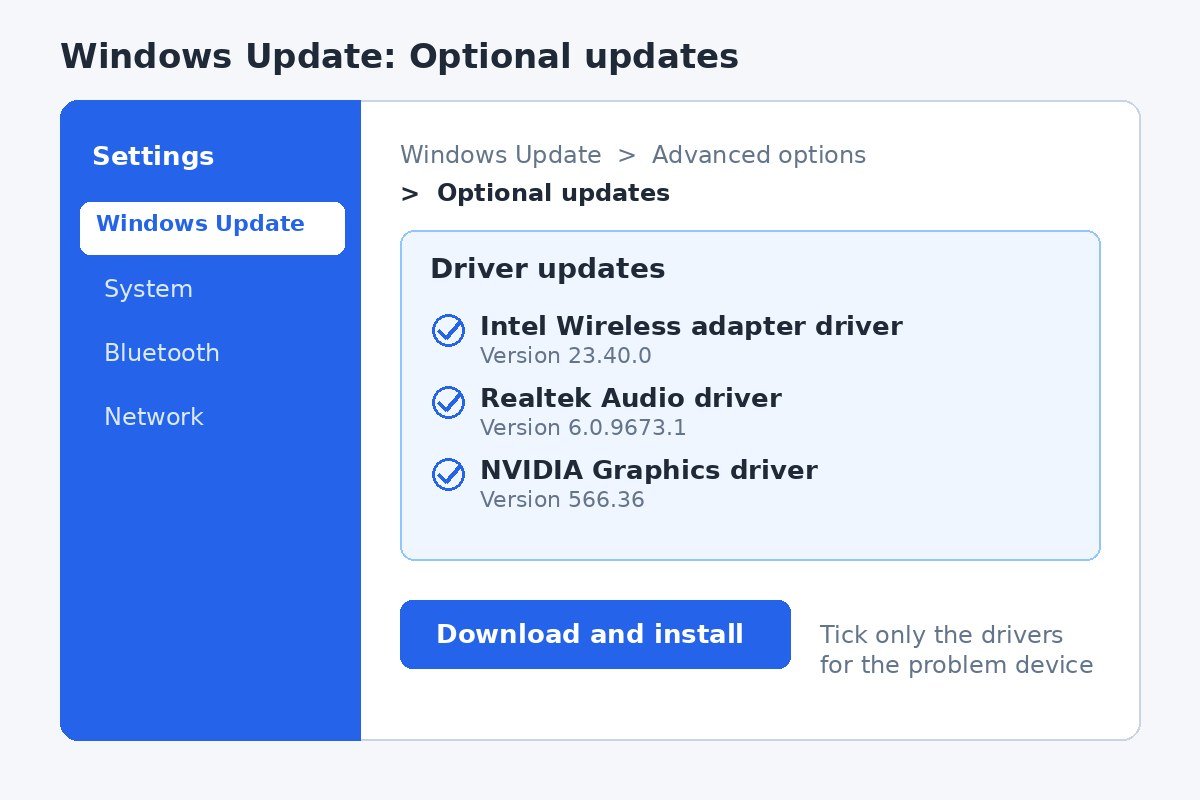
If the Driver updates section is empty, Windows has nothing to offer for your hardware, and that is normal. Move on to Method 2. If the driver you need is listed, install it here and stop. There is no need to chase the same driver anywhere else.
Method 2: Update one device in Device Manager
Device Manager updates a single device at a time, which is what you want when one piece of hardware is the problem. It is also the tool you will use later to check the version and to roll back. Microsoft documents both the automatic and the manual routes in its guide to updating drivers through Device Manager.
- Right-click the Start button and select Device Manager.
- Click the arrow next to the category that holds the device, then right-click the device itself.
- Select Update driver.
- Select Search automatically for drivers. Windows searches its own driver catalogue and installs anything newer it finds.
- Select Close, then restart the PC if Windows asks you to.
What to do when Windows says the best driver is already installed
That message means Windows searched its own driver catalogue and found nothing newer. It does not mean the maker has nothing newer. Hardware makers often publish new drivers on their own support pages weeks before those drivers reach Windows Update, because Windows Update only carries drivers the maker has submitted to Microsoft. A newer version can exist even when Device Manager reports that you already have the best one.
Compare the version on the Driver tab with the version listed on the maker’s support page for your exact model. If the maker lists a higher version number, install it with Method 3 below. If the numbers match, your driver is current, and there is nothing more to do.
Do not install a driver updater tool to chase a newer number. These tools often install the wrong driver for your hardware, and they are a common source of unwanted software. Microsoft advises getting drivers only from the manufacturer’s official site.
Method 3: Download the driver from the maker’s support page
The maker’s support page is the right source when Device Manager finds nothing and the device still misbehaves. It is also the only place to get the newest graphics card drivers, which makers update far more often than Windows Update does.
Find the exact model first
A driver only works when it matches the exact hardware. For a laptop or a ready-built PC, use the maker’s support page and search for the model name or serial number printed on the device. You can also find the model in Settings, under System and then About. For a part you fitted yourself, such as a graphics card, go to the part maker’s page instead of the PC maker’s page.
- On the maker’s support or downloads page, search for your model and choose Windows 11. Make sure the download matches your edition of Windows.
- Download the driver package. If it arrives as a zip file, right-click it, select Extract All, and note the folder it creates.
- If the download is a setup file, double-click it and follow its prompts, then restart if asked. You can skip the rest of this method and go straight to the check below.
- If the download is a folder of driver files instead, open Device Manager, right-click the device, and select Update driver.
- Select Browse my computer for drivers, then select Browse and pick the folder you extracted. Tick Include subfolders if that option is shown, then select Next.
- Windows installs the driver if it is a newer version than the one already installed. Select Close, then restart the PC if Windows asks you to.
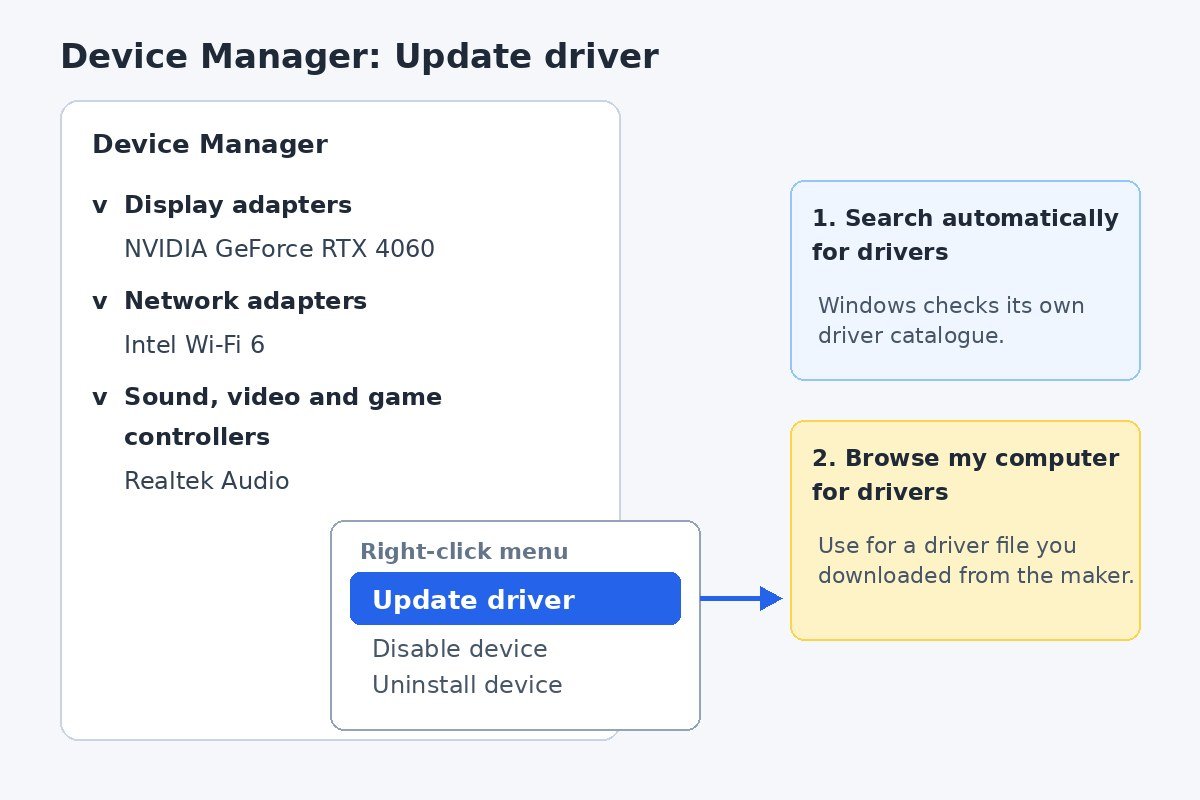
Only ever download from the maker’s own site. Search results are full of driver download sites that look official and are not, and the files they offer can carry unwanted software. If a site asks you to install its own downloader or updater before it hands over the driver, close the page.
Which source to trust for which hardware
The three methods are not equal for every device. The table below shows where to look first, so you do not waste time on a source that will never have the driver you need.
| Hardware | Look here first | Why |
|---|---|---|
| Graphics card | The graphics card maker’s site (NVIDIA, AMD, or Intel) | New features and game fixes arrive here first, often months before Windows Update |
| Laptop parts such as Wi-Fi, touchpad, and audio | The laptop maker’s support page | Laptop makers test drivers against their own models |
| Printer or scanner | The printer maker’s page, or Windows Update | Both carry printer drivers, and Windows Update often has the same version |
| Chipset and motherboard | The PC or motherboard maker’s page | These drivers are specific to the board |
| USB ports and basic peripherals | Windows Update | These drivers change rarely, and Windows carries them |
When two sources list the same version number, take the Windows Update one. It has been through Microsoft’s checks, and it installs without any extra steps.
Check the update worked: verify the version changed
An update is only done when the version number proves it. Go back to the note you made at the start and compare.
- Open Device Manager, right-click the device, and select Properties.
- Open the Driver tab and read the Driver version and Driver date.
- Compare them with the numbers you noted before. If the version changed, the update worked.
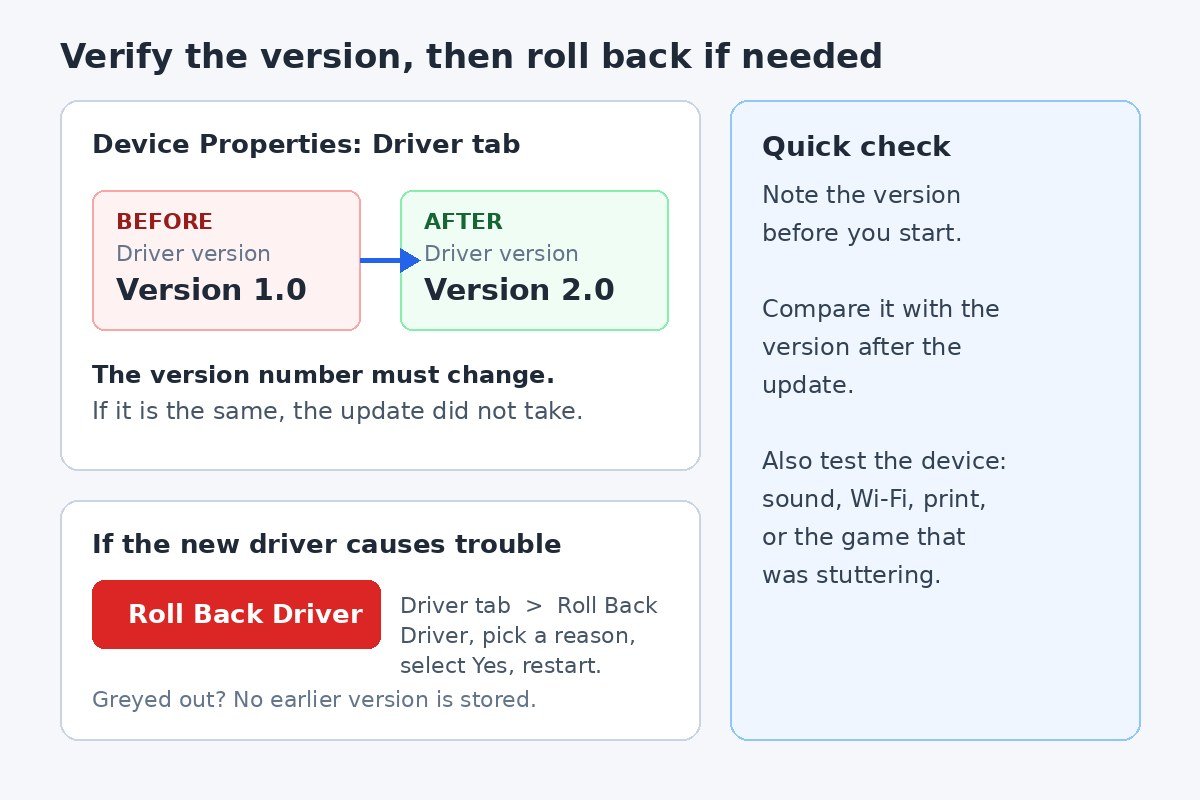
Also test the device itself. Play some sound after an audio update, connect to Wi-Fi after a network update, print a test page after a printer update, or open the game that was stuttering after a graphics update. A changed version number plus a device that behaves is the full check.
If the new driver causes trouble: roll it back
A new driver can make things worse, usually right after it installs. Rolling back puts the previous version back for that one device, and it takes a couple of minutes.
- Open Device Manager, right-click the device, and select Properties.
- Open the Driver tab and select Roll Back Driver.
- Choose a reason when Windows asks for one, then select Yes to confirm.
- Restart the PC if Windows asks you to.
Roll Back Driver is greyed out when Windows has no earlier version stored for that device. In that case, download the older driver from the maker’s support page and install it with Method 3, using the same Browse my computer steps.
If Windows installs the newer driver again after you roll back, automatic driver updates are putting it back. That is a separate setting, and this guide to how to disable automatic driver updates on Windows 11 walks through turning it off.
| Problem after updating | What to try |
|---|---|
| Device worked before, broke after the update | Roll Back Driver in Device Manager |
| Roll Back Driver is greyed out | Install the older driver from the maker’s site with Method 3 |
| Device still broken after rolling back | Right-click the device, select Uninstall device, then restart so Windows reinstalls the driver |
| Device is missing from Device Manager | Restart the PC, then check the maker’s site for the driver for your exact model |
What to avoid
A few habits cause most driver trouble on Windows 11, and all of them are easy to skip.
- Never use a third-party driver updater tool. They promise to find drivers for you, and they often install the wrong one, bundle unwanted software, or charge for a job Windows does for free.
- Never download a driver from a site that is not the hardware maker’s official page, no matter how convincing it looks.
- Never update a driver that works fine, just because a newer version exists. If the device works, the update adds risk and no benefit.
- Never install a driver made for a different model, or for a different version of Windows. The wrong driver can stop the device working entirely.
Most driver problems on Windows 11 are fixed by the first two methods in this guide, and the third covers the rest. Keep the version note you made at the start, check the new version after every update, and remember that rolling back is always there if a new driver misbehaves. A driver that works is a driver worth leaving alone.

- How to Update Drivers Manually on Windows 11 - November 22, 2026
- How to Use Paint in Windows 11 - November 21, 2026
- How to Turn Off Spotlight Suggestions on Mac - November 20, 2026