
Key Takeaways
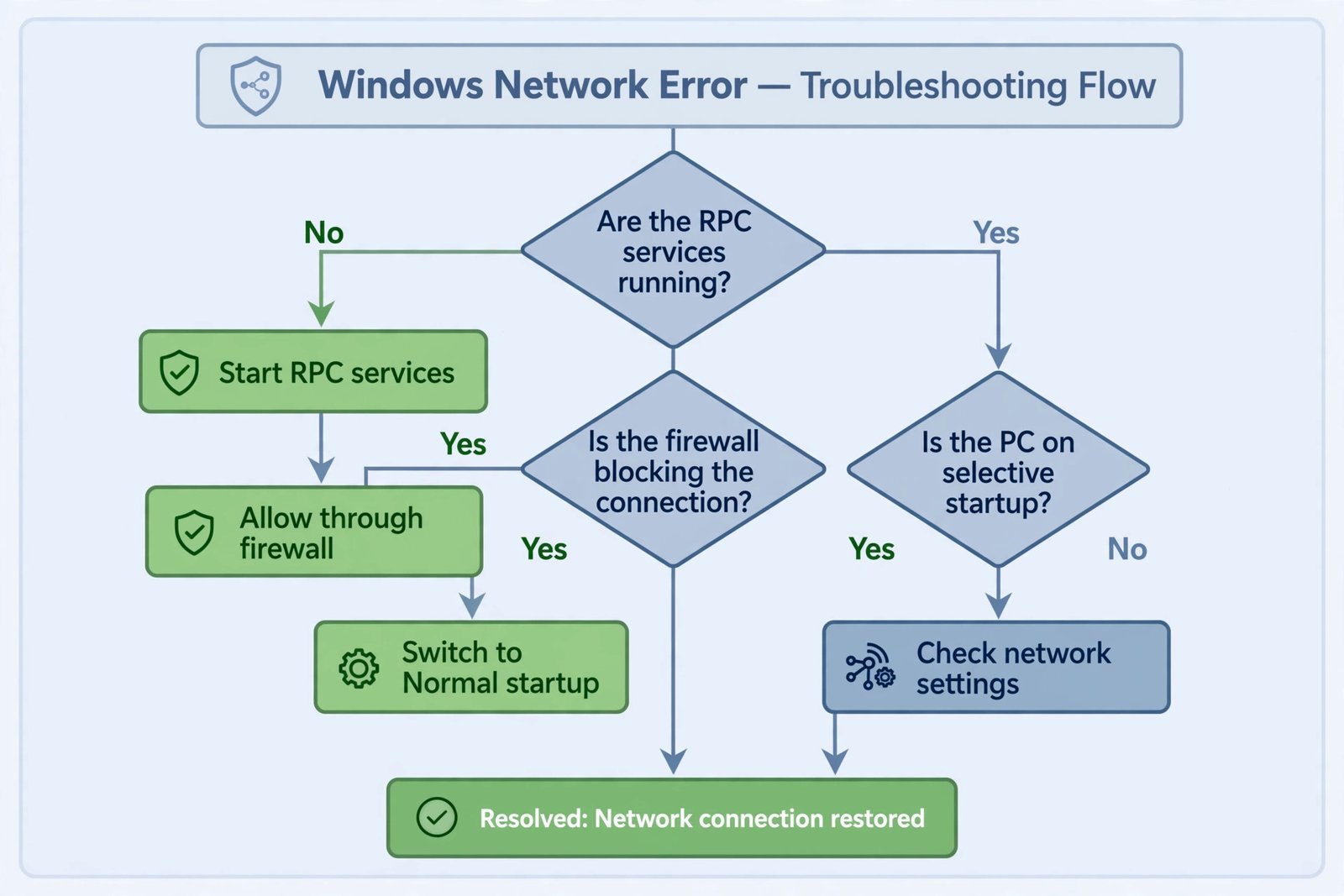
- Error 1722 almost always comes down to three things: an RPC-related service that is not running, a firewall blocking the connection, or a network setting (selective startup, IPv6, DNS) getting in the way.
- Start with the Services console. Remote Procedure Call, DCOM Server Process Launcher, and RPC Endpoint Mapper should all be Running and set to Automatic.
- If you recently used msconfig for troubleshooting, switch back to Normal startup. Selective startup skips the very components RPC needs.
Error 1722, “The RPC server is unavailable,” usually shows up during Windows updates, printing, or connecting to another computer on your network. In plain terms, it means Windows tried to reach a service and got no answer, either because that service is not running or because something is blocking the connection. The fixes below are ordered from most to least likely.
Basic fixes to try first
- Restart your PC. A surprising number of 1722 errors clear after a clean restart, since it relaunches every RPC-dependent service.
- Check your date and time. Go to Settings > Time & language and make sure Set time automatically and Set time zone automatically are on. Wrong clocks break network authentication.
- Undo selective startup. If you have been troubleshooting with msconfig, press Win + R, type msconfig, and on the General tab choose Normal startup, then restart. Selective startup does not load all RPC components.
Fix 1: Make sure the RPC services are running
This works when the error appears out of nowhere on a PC that was fine yesterday: one of the core services has stopped or been set to manual.
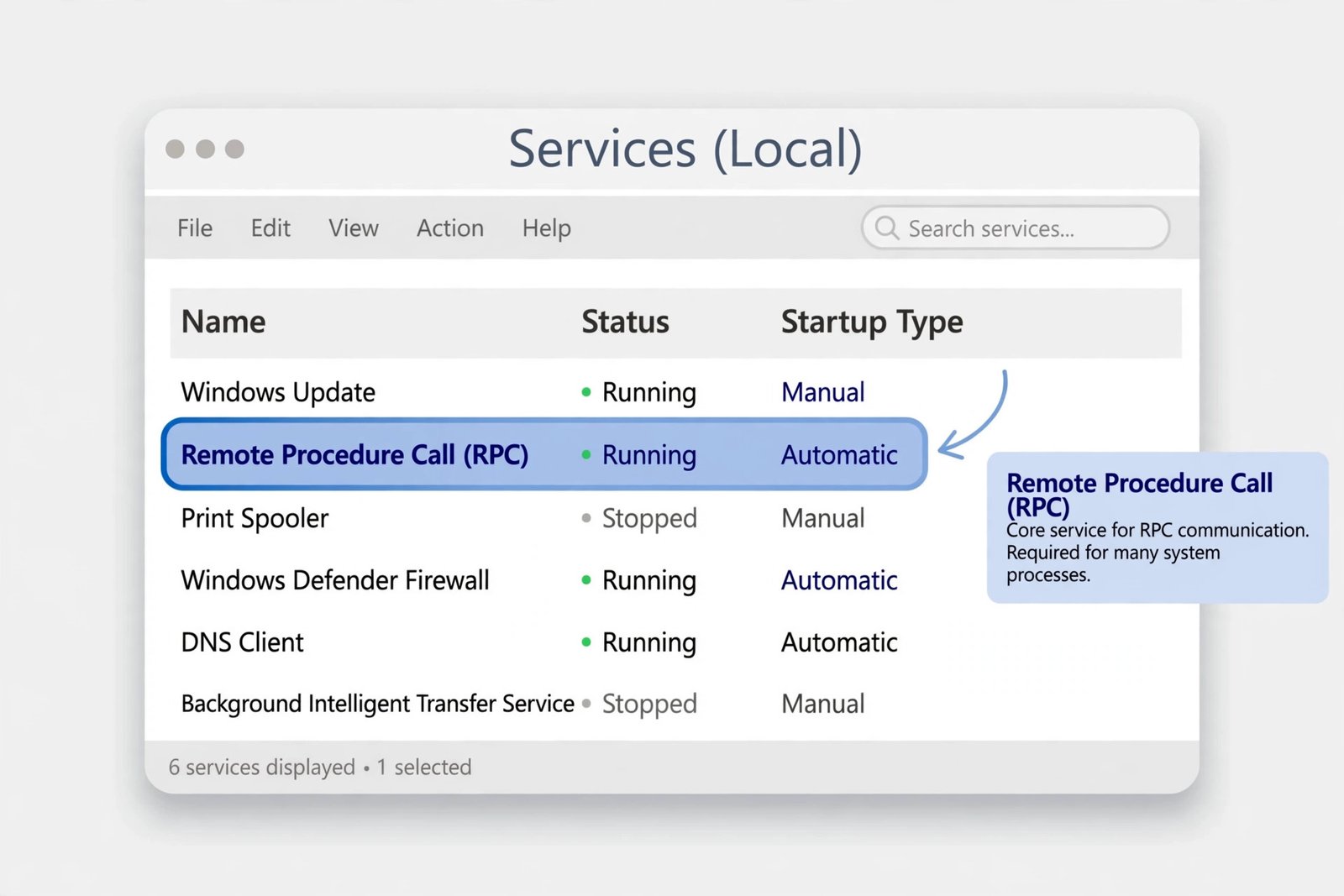
- Step 1: Press Win + R, type services.msc, and press Enter.
- Step 2: Find Remote Procedure Call (RPC). Its status should be Running and its startup type Automatic. (The change options are greyed out for this service; that is normal.)
- Step 3: Do the same for DCOM Server Process Launcher and RPC Endpoint Mapper. If either is stopped, double-click it, set startup type to Automatic, click Start, then OK.
- Step 4: If the error happened while printing, also right-click Print Spooler and choose Restart.
You should now see the original task, whether printing, updating, or connecting, proceed without the 1722 message. If a service refuses to start, note its exact error and continue to the firewall fix, since a blocked connection produces the same symptom.
Fix 2: Let RPC through Windows Firewall
This works when the services are all running but the error appears during network tasks: the firewall is silently dropping the traffic.
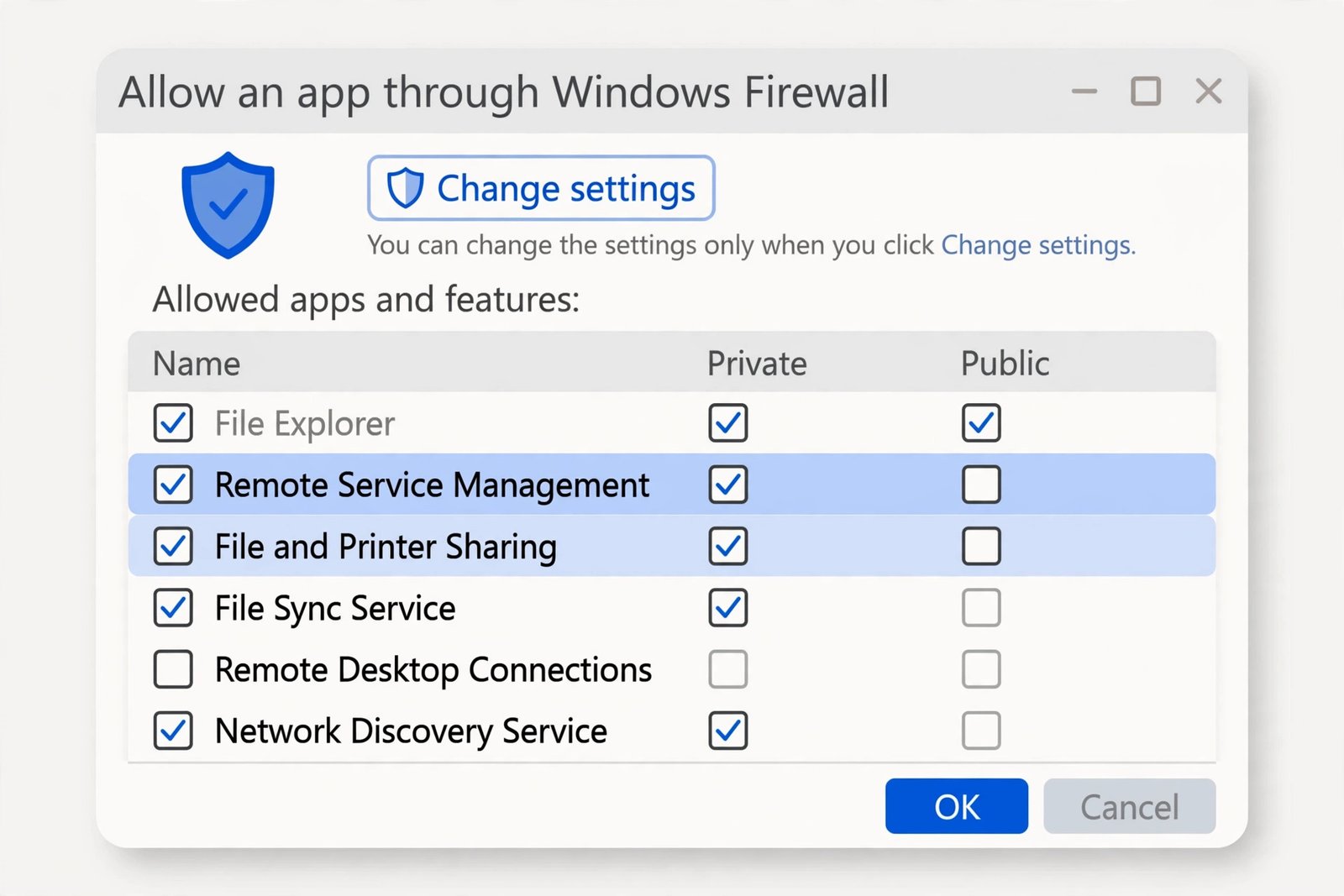
- Step 1: Search for Allow an app through Windows Firewall and open it.
- Step 2: Click Change settings (you need administrator rights).
- Step 3: In the list, make sure Remote Service Management is checked. If the error involves printing or shared folders, also check File and Printer Sharing.
- Step 4: Click OK and retry your task.
You should now see the connection succeed where it was refused before. On a corporate network, your security team may need to allow the same rules on the network firewall too.
Fix 3: Enable IPv6 and File and Printer Sharing on the adapter
This works when the error happens between two computers on a local network: a missing protocol binding breaks name resolution and sharing. It is also the fix to try when copying files across the network keeps failing with odd errors.
- Step 1: Press Win + R, type ncpa.cpl, and press Enter.
- Step 2: Right-click your active network connection and choose Properties.
- Step 3: On the Networking tab, check both File and Printer Sharing for Microsoft Networks and Internet Protocol Version 6 (TCP/IPv6), then click OK.
You should now see the network task complete. If your Wi-Fi adapter itself keeps vanishing from this list, see our guide to fixing Wi-Fi that disappeared in Windows 11.
Fix 4: Flush the DNS cache
This works when the error is tied to reaching a specific computer by name: stale DNS entries send Windows to the wrong place.
ipconfig /flushdns
ipconfig /renew
Open an elevated Command Prompt or Terminal (right-click Start, choose Terminal (Admin)), run both commands above, and retry. You should now see the name resolve and the connection go through. If network problems persist beyond this point, the nuclear option is to reset network settings in Windows 11, which restores every adapter to a clean state.

- How to Fix Windows 11 Search Not Finding Files - October 24, 2026
- How to Fix Windows 11 Clock Showing the Wrong Time - October 23, 2026
- How to Fix File Explorer Slow to Open in Windows 11 - October 22, 2026