
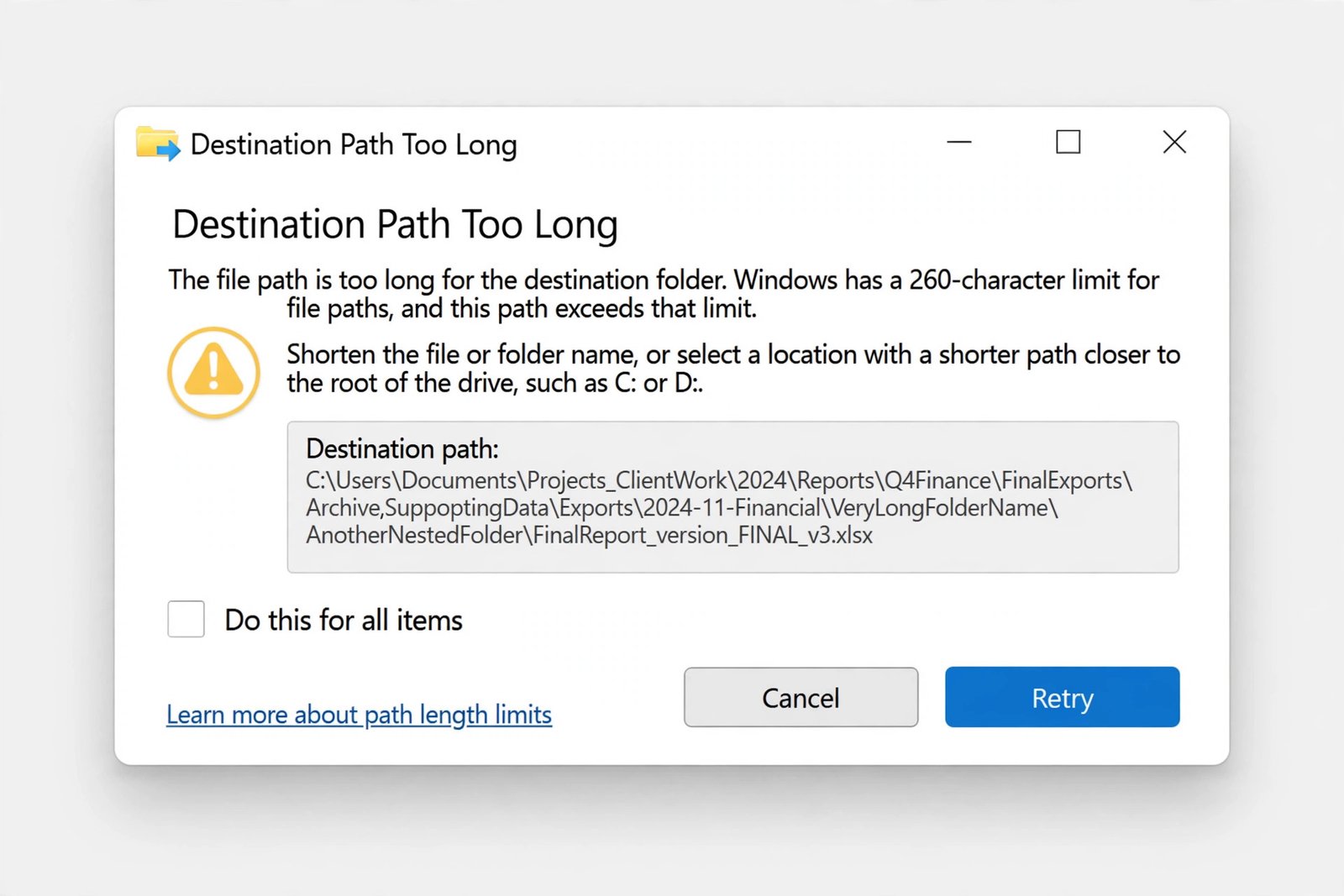
You try to copy a folder, and Windows refuses: “Destination Path Too Long.” The file is fine. The disk has space. The problem is that the full path, every folder plus the filename, is longer than Windows allows. Here is why the limit exists and every practical way around it.
Why Windows Still Has This Limit
Windows traditionally caps file paths at 260 characters, a limit called MAX_PATH. Modern NTFS drives can technically handle far longer paths, but Microsoft keeps the restriction on by default so older applications do not break. You hit it most often when extracting ZIP archives, copying deeply nested project folders, or moving backup directories where long names stack up level after level.
The key detail: Windows measures the entire path, not just the filename. A short file buried ten folders deep can fail while the same file copies fine from your Desktop. That is also your fastest diagnostic test.
Fix 1: Shorten the Path
The simplest fix is also the most reliable. Shorter names higher up the tree give every file below them more room.
- Copy to a short location first. Try copying the file to your Desktop or to C:\Temp. If it works there, the file is fine and only the original path was too long.
- Rename the parent folders. Change something like Final Backup Version 01 Source Files to V1 Src. You only need to shave off enough characters to get under the limit.
- Move the folder higher up. Copying from C:\Users\YourName\Documents\Projects\2026\Client\Final\ to D:\Projects\ can remove dozens of characters at once.
Fix 2: Enable Long Path Support in Windows
Windows 10 and 11 include a setting that lifts the 260-character limit for applications that support it. Enabling it does not fix every program, File Explorer still has quirks, but it resolves the error in many cases.
Option A: Registry Editor
- Press Windows + R, type regedit, and press Enter.
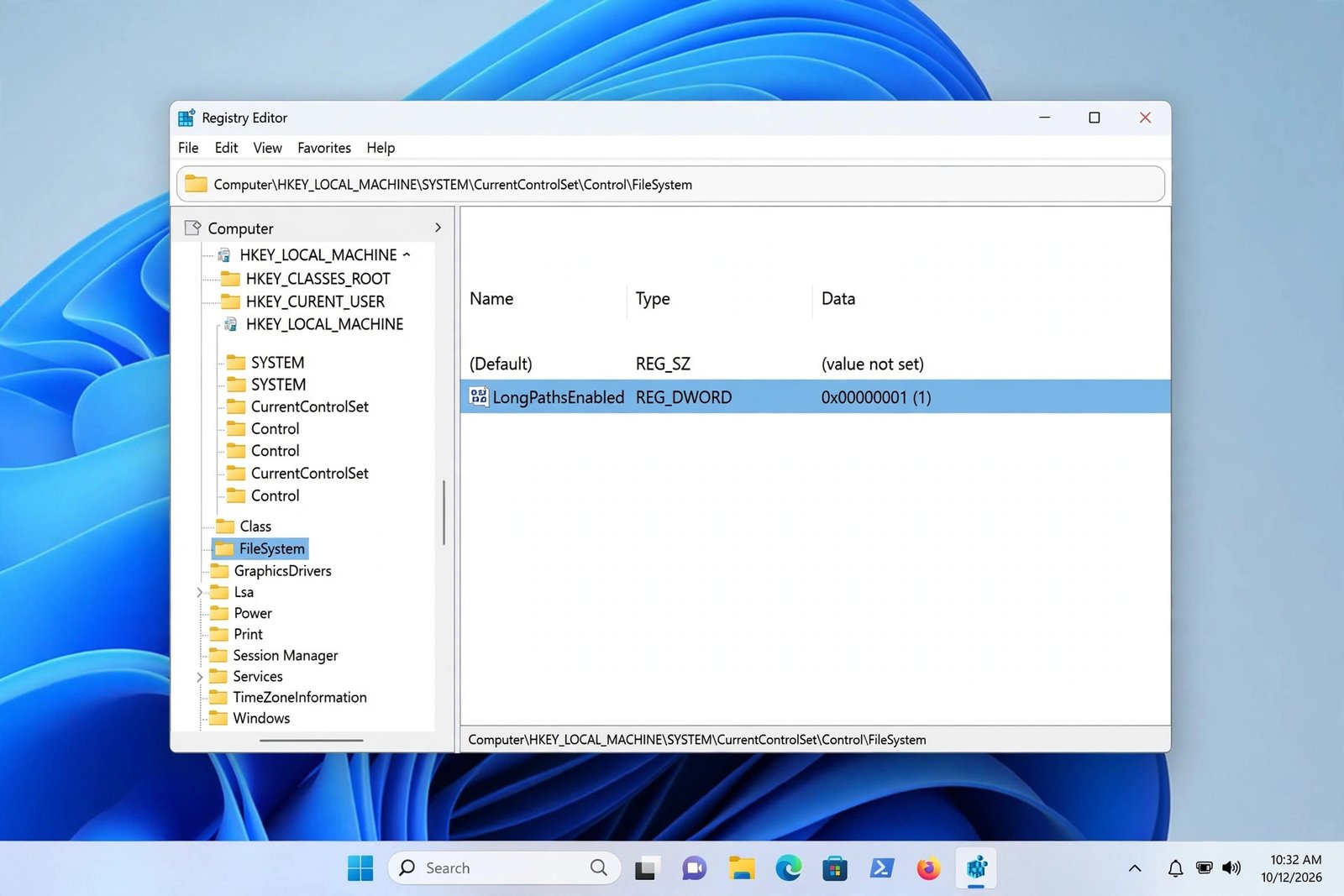
- Navigate to HKEY_LOCAL_MACHINE\SYSTEM\CurrentControlSet\Control\FileSystem.
- Double-click LongPathsEnabled and set its value to 1. If the entry does not exist, create it as a DWORD (32-bit) value.
- Restart your computer.
Option B: Group Policy Editor
- Press Windows + R, type gpedit.msc, and press Enter. (This works on Pro, Enterprise, and Education editions.)
- Go to Computer Configuration > Administrative Templates > System > Filesystem.
- Open Enable Win32 long paths, set it to Enabled, and click OK.
Fix 3: Copy With Robocopy
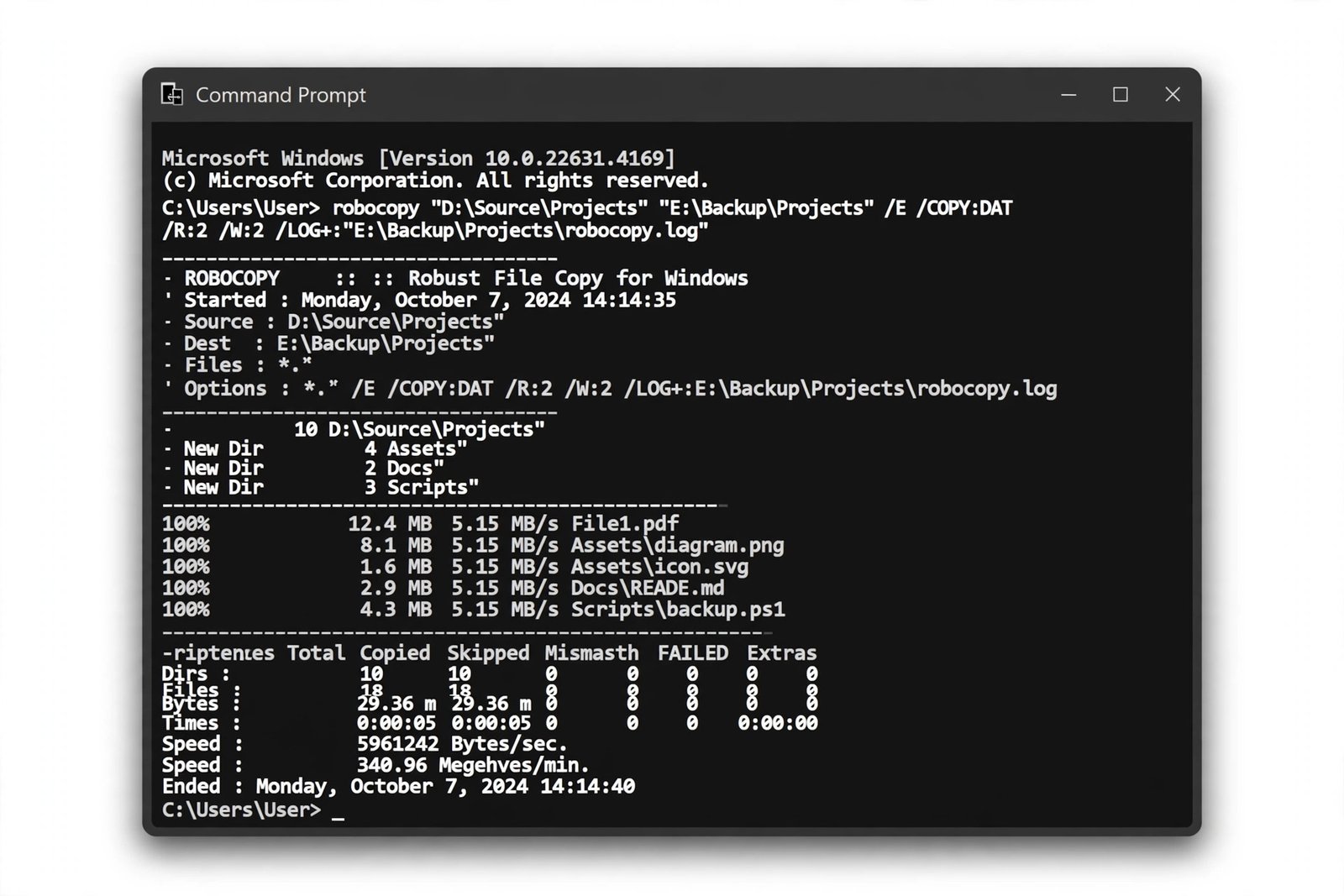
Robocopy, the command-line copy tool built into Windows, handles long paths far better than File Explorer. Use it when you need to move a stubborn folder tree as-is.
- Press Windows + R, type cmd, and press Ctrl + Shift + Enter to open Command Prompt as administrator.
- Run: robocopy “C:\source folder” “D:\destination folder” /E, replacing the paths with your own. The /E flag copies all subfolders, including empty ones.
- Tip: in File Explorer, right-click a folder and choose Copy as path to paste exact paths into the command without typing them.
Fix 4: Shorten the Path With a Drive Alias
This is a clever workaround for one-off copies. The subst command maps a deep folder to a drive letter, which makes every path under it dramatically shorter.
- Open Command Prompt and run: subst W: “C:\very\long\destination\folder”.
- A new W: drive appears. Copy your files to it in File Explorer; they land in the real folder.
- When done, remove the alias with subst /d W:.
Fix 5: Extract Archives to a Short Path
If the error appears while unzipping, extract the archive to C:\Temp or your Desktop first, then move the files where you want them. Dedicated tools like 7-Zip also handle long paths better than the built-in Windows extractor, so they are worth trying before anything more drastic. Our roundup of the best apps to open RAR files covers the most reliable options.
Frequently Asked Questions
What is the maximum path length in Windows 11?
By default, 260 characters including the drive letter and separators. Enabling Win32 long paths raises the effective limit for compatible applications, though NTFS itself supports much longer paths.
Will enabling long paths break my programs?
Very old applications that were written against the 260-character limit can misbehave, which is why Microsoft leaves the setting off by default. Modern software is unaffected.
Two authoritative references for this error are The Windows Club’s long path guide and the Microsoft Q&A discussion on the file name too long message. For general Windows upkeep, see how to clear the cache on Windows 11 and how to reset network settings in Windows 11.

- How to Stop iPhone Apps Asking for Ratings and Reviews - October 23, 2026
- How to Turn Off HDR in Windows 11 When Colors Look Washed Out - October 22, 2026
- What Is Samsung Free and How to Stop It Opening on Your Home Screen - October 21, 2026