
Key Takeaways
- On iPhone, Low Data Mode lives under Settings > Cellular > Cellular Data Options, with a separate switch for 5G under Data Mode.
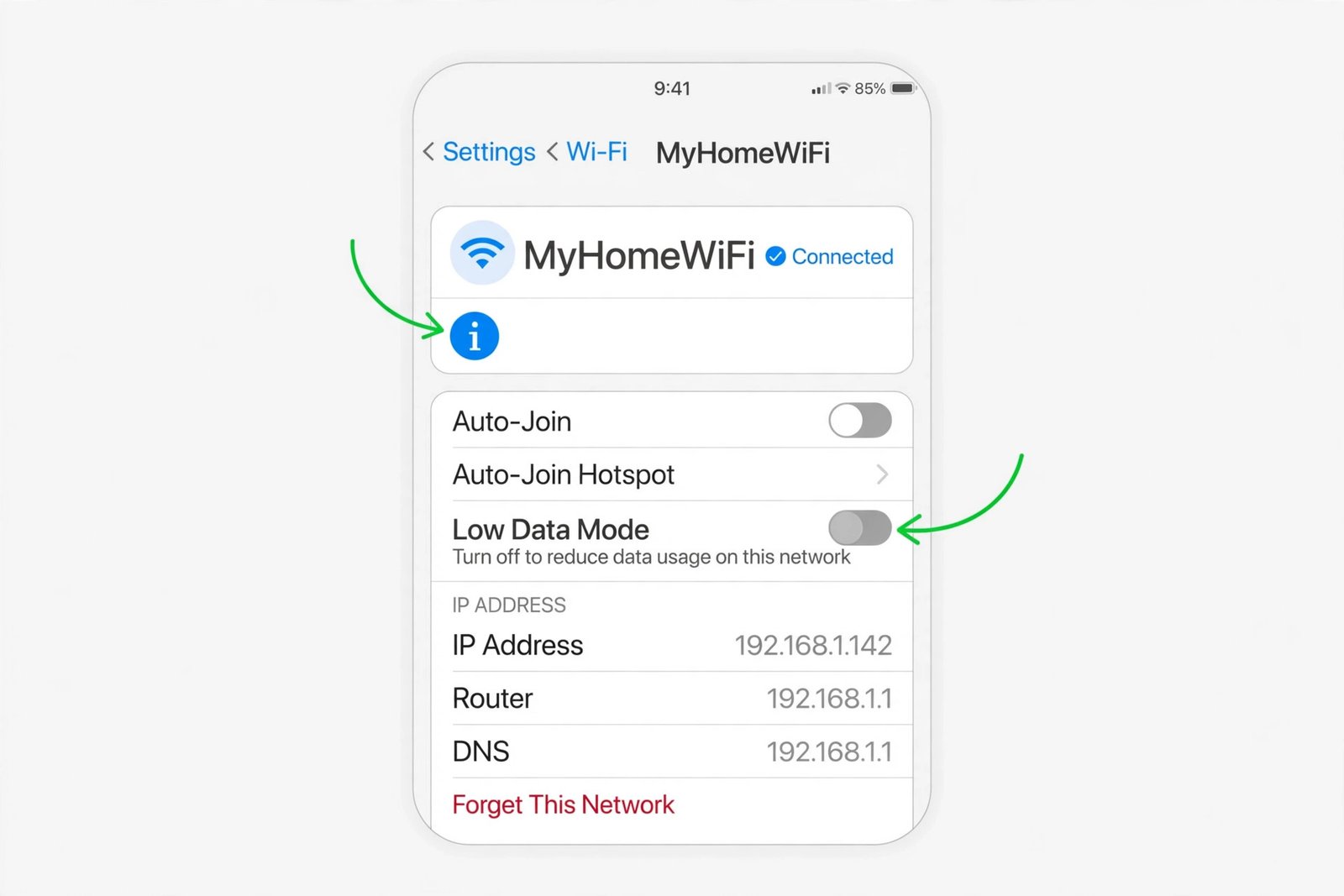
- Wi-Fi networks have their own Low Data Mode switch on iPhone; turning it off for cellular does not change it for Wi-Fi.
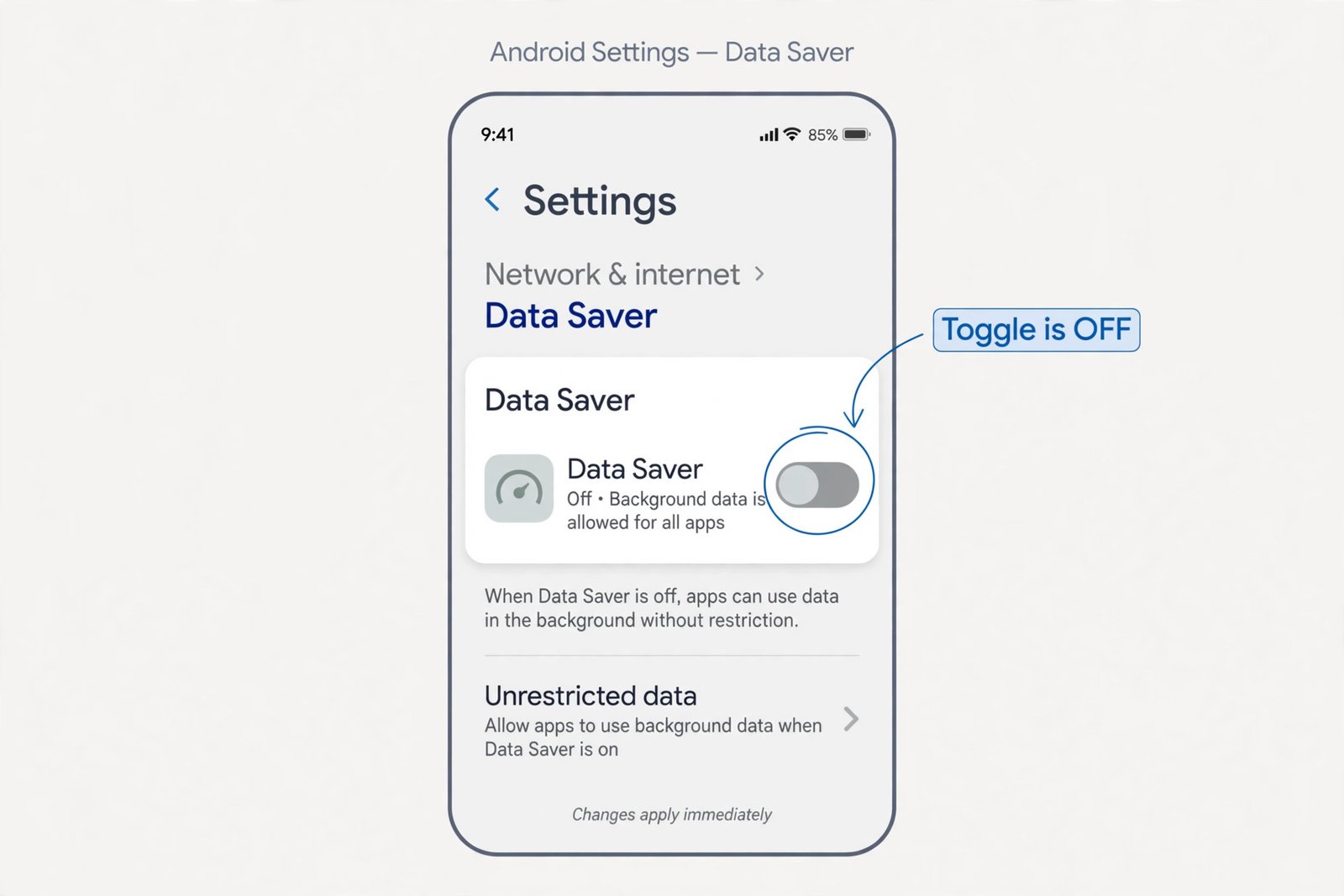
- On Android, the equivalent is Data Saver under Settings > Network & internet, or Settings > Connections > Data usage on Samsung phones.
- Switching it off brings back background refresh, automatic downloads, and full-quality streaming, so expect data usage to rise.
FaceTime drops to low quality, iCloud Photos pauses its syncing, and the App Store holds back updates on a connection that is otherwise fine. That is Low Data Mode doing its job a little too well. Here is how to switch it off on iPhone, for both cellular and Wi-Fi, and how to turn off Data Saver on Android.
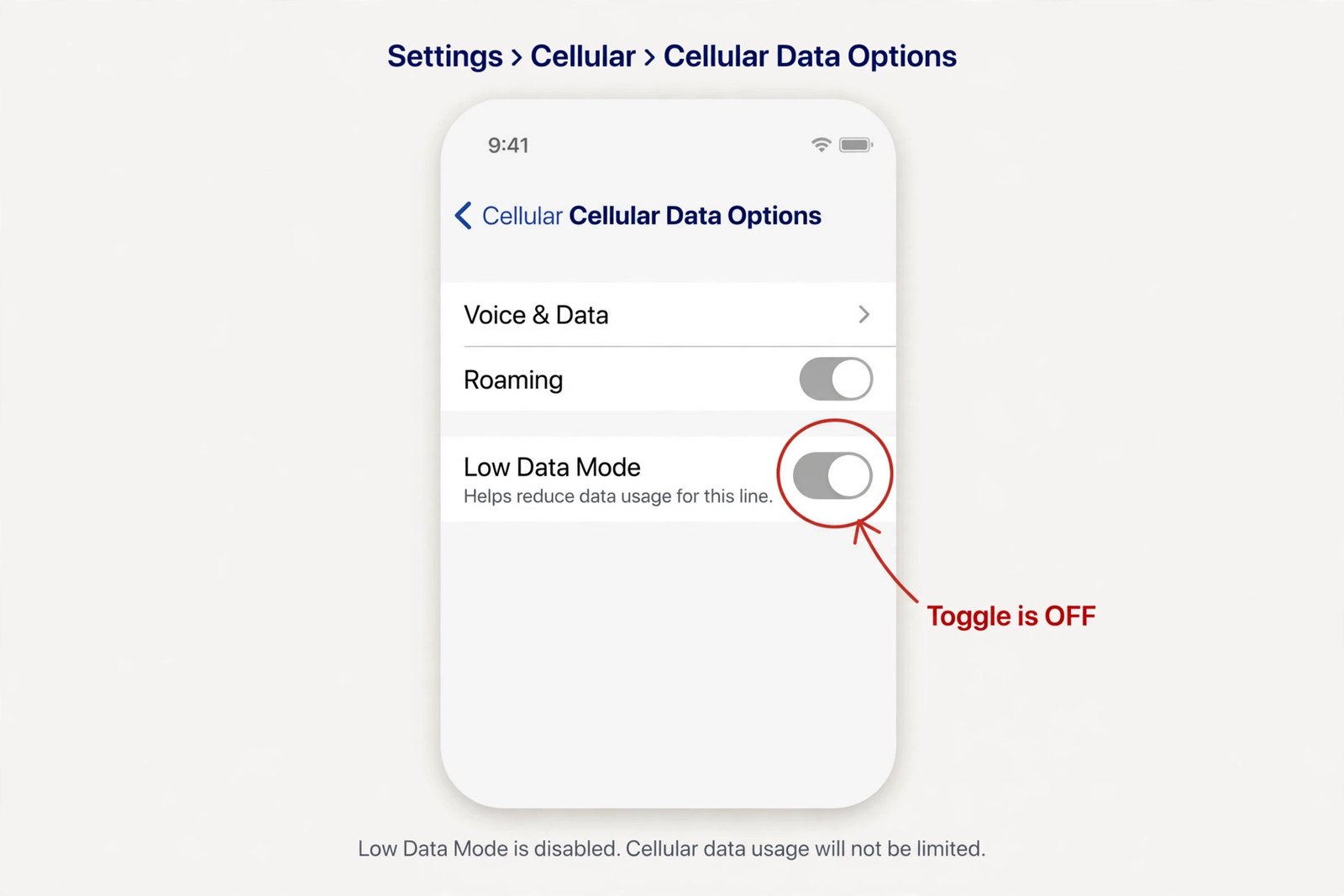
First, find which connection is the slow one. If the Wi-Fi icon is showing, check that Wi-Fi network’s switch first. If you are on 5G or LTE with no Wi-Fi icon, check the cellular line that carries your data. Changing the wrong switch is the most common reason the setting seems to do nothing.
Turn Off Low Data Mode for Cellular Data on iPhone
On iPhones running iOS 26 or iOS 27, the path is short once you know where Apple hides it. The same path works on a cellular iPad. The menu names differ slightly by region: Cellular may appear as Mobile Data or Mobile Service, and Cellular Data Options as Mobile Data Options.
- Step 1: Open the Settings app.
- Step 2: Tap Cellular (or Mobile Data, depending on your region).
- Step 3: Tap Cellular Data Options.
- Step 4: If your iPhone uses 4G or LTE, switch Low Data Mode to the off position. The toggle turns grey when it is disabled.
- Step 5: If your iPhone uses 5G, tap Data Mode instead and choose Standard or Allow More Data on 5G. Selecting anything other than Low Data Mode turns it off.
Note: With two lines on one iPhone, each SIM or eSIM has its own setting. Go to Settings > Cellular, tap the line you use for data, then open Cellular Data Options. If you recently changed plans, it is also worth checking that your eSIM is activated correctly on your iPhone, since a half-provisioned line can mimic the same sluggish symptoms.
A shortcut exists too: pull down inside the Settings app to reveal the search bar, type Low Data Mode, and tap the result to jump straight to the switch. If Gmail is the app misbehaving after your change, the problem may be sync rather than data; see how to fix Gmail not updating or syncing on iPhone.
Turn Off Low Data Mode for a Wi-Fi Network on iPhone
This one catches almost everyone. Your iPhone remembers a Low Data Mode choice per Wi-Fi network, so disabling it for cellular leaves any Wi-Fi networks you restricted still restricted. Hotel hotspots and metered connections are the usual suspects.
- Step 1: Open Settings and tap Wi-Fi.
- Step 2: Tap the (i) info button next to the network you are connected to. You must be connected to change it.
- Step 3: Scroll down and switch Low Data Mode off.
Turn Off Data Saver on Stock Android Phones
Android calls the same idea Data Saver. When it is on, apps are blocked from using data in the background, which is why notifications and syncs arrive late. On Pixel and other near-stock Android 16 phones:
- Step 1: Open Settings.
- Step 2: Tap Network & internet.
- Step 3: Tap Data Saver. On some builds it sits one level deeper under Data usage.
- Step 4: Switch the Data Saver toggle off.
Prefer a middle ground? Leave Data Saver on and exempt the apps that matter: in the Data Saver menu, tap Unrestricted data and allow your messaging and email apps. Android Police’s Data Saver guide walks through the same menu with screenshots if your build looks different. There is also a shortcut: swipe down twice from the top of the screen and tap the Data Saver tile in Quick Settings. Note that Data Saver follows whichever SIM carries your data; unlike iPhone, Android has no per-SIM switch for it.
Turn Off Data Saver on Samsung Galaxy Phones
Samsung uses its own menu names under One UI. On One UI 8 (Android 16) the path below is unchanged. The steps are otherwise identical in spirit:
- Step 1: Open Settings and tap Connections.
- Step 2: Tap Data usage, then Data saver.
- Step 3: Switch Turn on now off.
For per-app exceptions on a Galaxy phone, tap Allowed to use data while Data saver is on in the same menu and toggle your essential apps.
If it keeps coming back. Three things usually explain it. First, you may have changed the wrong line or the wrong network: re-check the line and the Wi-Fi network that is actually carrying your data. Second, iCloud keeps Wi-Fi Low Data Mode preferences in sync across your Apple devices, so the setting can return from another iPhone or iPad: switch it off there too. Third, if you are connected through a Personal Hotspot, Low Data Mode is on by default for the connecting device, and nobody flipped a switch to put it there.
Back to Full Speed: What Changes Now
With the switch off, background app refresh resumes, automatic downloads run again, and streaming apps return to full quality. Watch your data usage for the first billing cycle, especially on a capped plan. One lookalike worth ruling out is Low Power Mode, a separate switch in Battery settings that also pauses background activity; a locked phone with both modes on can look offline. If downloads still misbehave after this, the issue is usually elsewhere: WhatsApp images or files not downloading has its own set of fixes worth trying.

- How to Turn Off Suggested Actions in Windows 11 - November 15, 2026
- How to Turn Off Enhance Pointer Precision in Windows 11 - November 14, 2026
- How to Stop iPhone Mirroring Notifications on Mac - November 13, 2026