
Swapfile.sys is a small system file Windows uses to shuffle memory around for Microsoft Store apps. It sits at the root of your C: drive, usually around 256 MB, and most people never need to touch it. This guide explains what it actually does and how to remove it safely if you are short on space.
What is swapfile.sys?
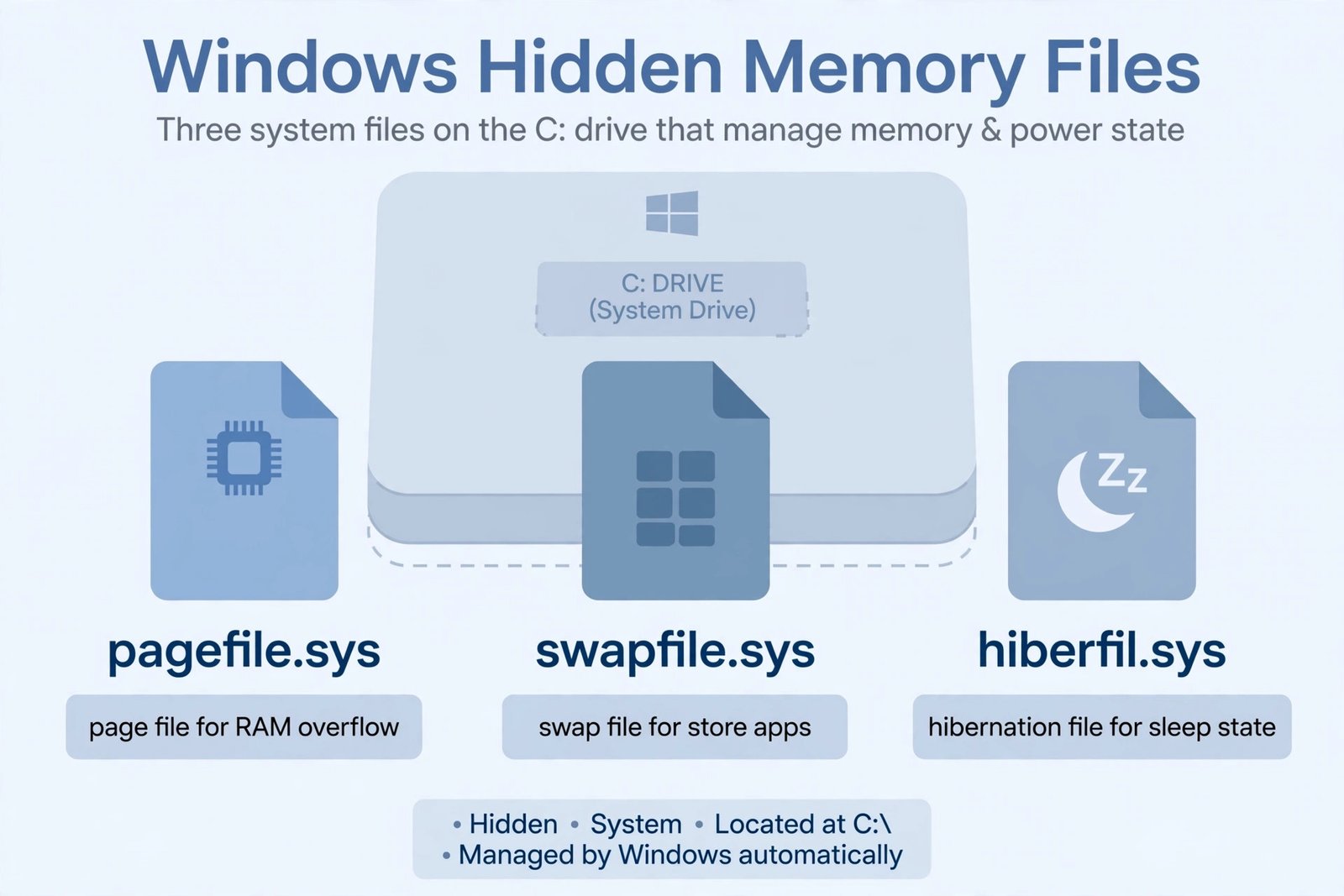
Swapfile.sys is a virtual memory file. When Windows needs more memory than your RAM provides, it moves less-used data to disk so active programs keep running smoothly. The older pagefile.sys handles this for classic desktop programs, while swapfile.sys handles it for Microsoft Store (UWP) apps, which manage memory differently.
It shares the stage with two siblings on your system drive: pagefile.sys, the main page file that can grow to several gigabytes, and hiberfil.sys, which stores the memory image used by hibernation and Fast Startup. Swapfile.sys is the lightweight of the three at roughly 256 MB, and Windows recreates it automatically whenever virtual memory is enabled.
How to delete swapfile.sys
You cannot just select swapfile.sys in File Explorer and delete it. Windows locks the file as a protected system object, and even changing ownership will not help. The file has to be removed by disabling the virtual memory feature that creates it, and that takes a restart to take effect.
Method 1: Disable the paging file (removes swapfile.sys and pagefile.sys)
- Step 1: Press Win + R, type sysdm.cpl, and press Enter to open System Properties.
- Step 2: Go to the Advanced tab and click Settings under Performance.
- Step 3: In Performance Options, open the Advanced tab and click Change under Virtual memory.
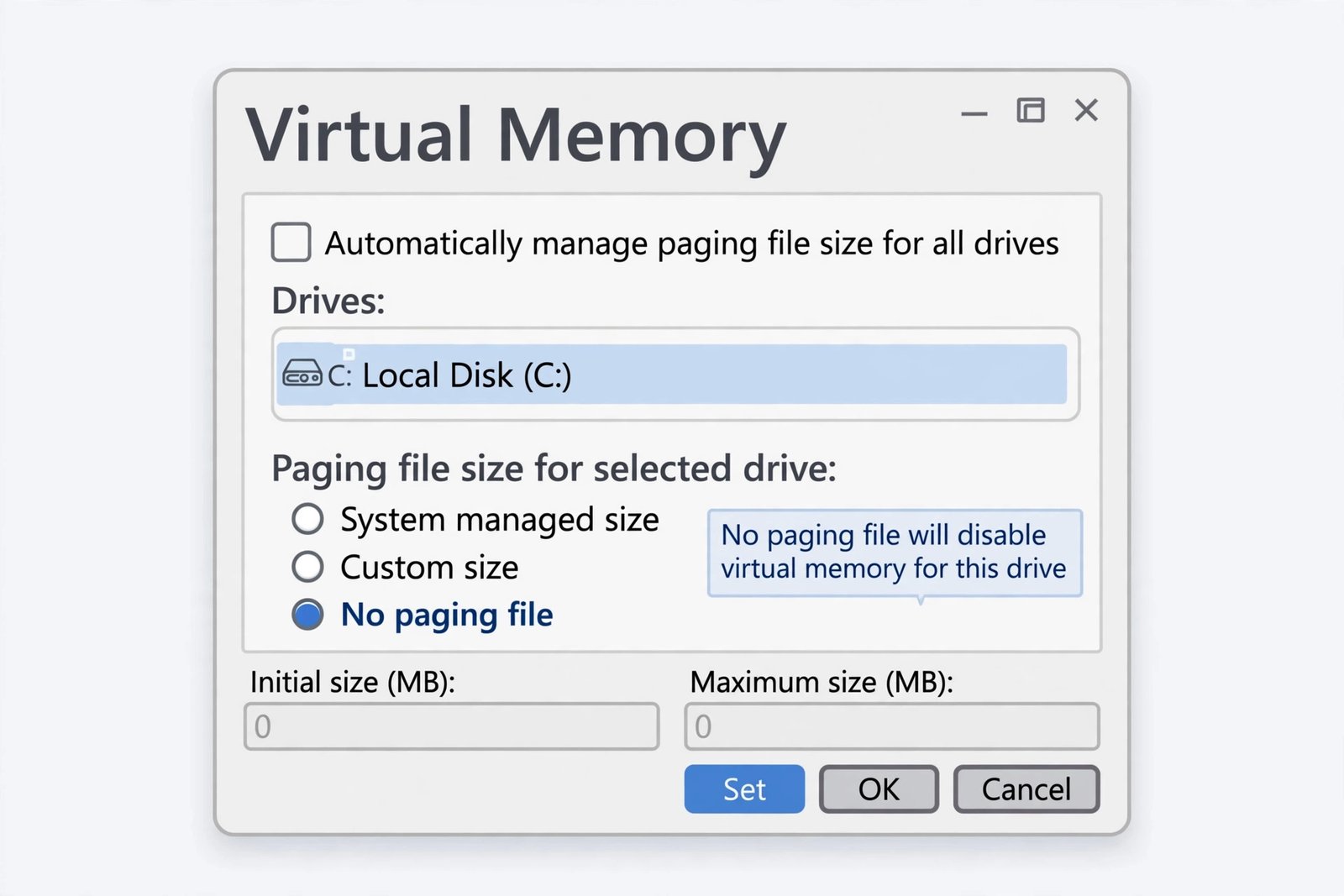
- Step 4: Uncheck Automatically manage paging file size for all drives.
- Step 5: Select your system drive, choose No paging file, and click Set. Confirm the warning with Yes.
- Step 6: Click OK through the dialogs, then choose Restart (not Shut down) so Windows fully reloads. Both files disappear after the reboot.
Warning: Disabling the page file entirely can cause instability on systems with limited RAM and removes Windows’ ability to capture crash dumps. A better move on most PCs is to move the page file to a second drive rather than turning it off. If you need space quickly, clearing the cache on Windows 11 is the safer first step.
Method 2: Disable only swapfile.sys with a registry value
If you want to keep the main page file but stop Windows from creating swapfile.sys, a registry value does exactly that. Back up the registry first (File > Export in Registry Editor) and follow the path exactly:
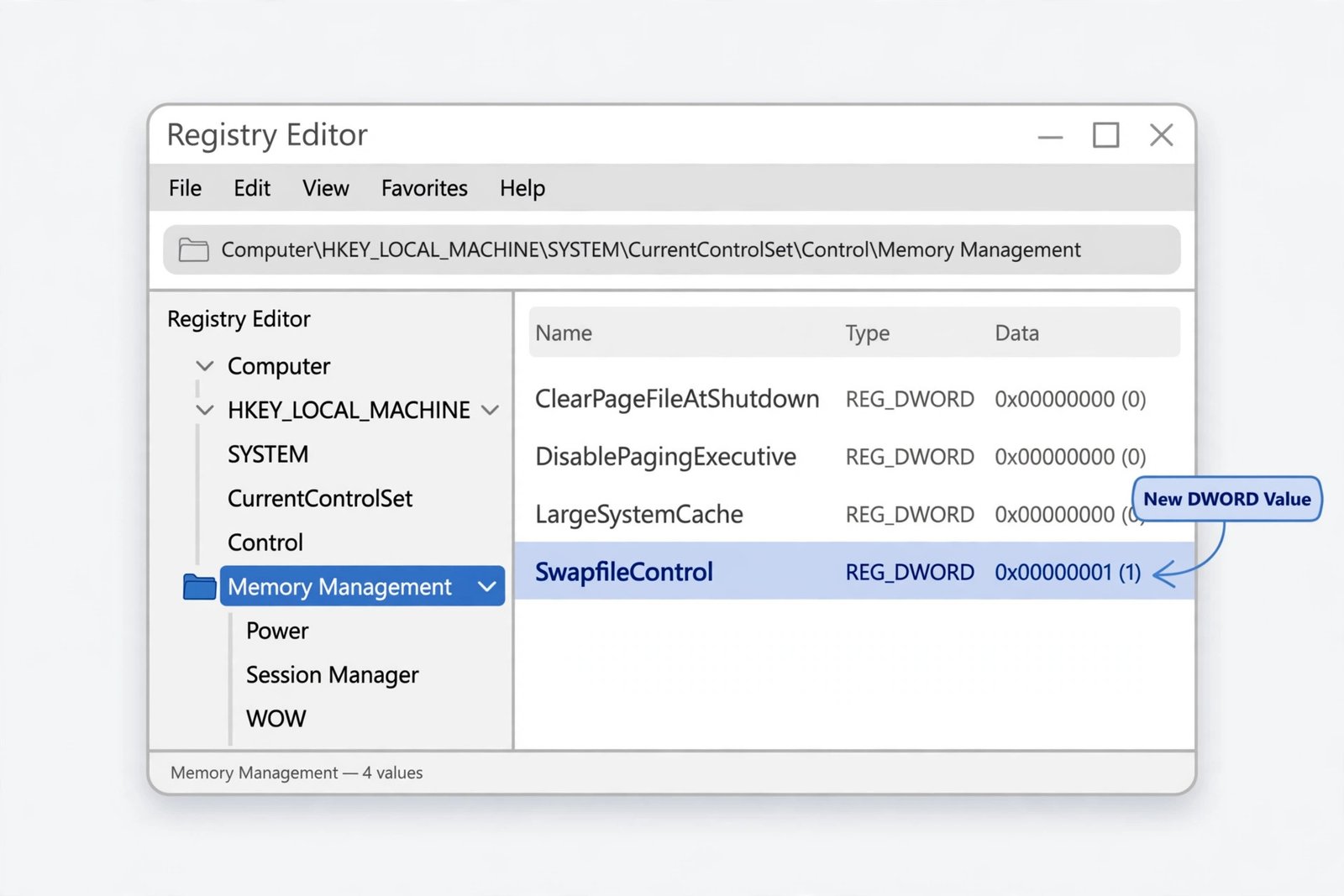
HKEY_LOCAL_MACHINE\SYSTEM\CurrentControlSet\Control\Session Manager\Memory Management- Step 1: Press Win + R, type regedit, and press Enter.
- Step 2: Navigate to the Memory Management key above.
- Step 3: Right-click the right pane, choose New > DWORD (32-bit) Value, and name it SwapfileControl.
- Step 4: Restart your PC. Windows will no longer create swapfile.sys.
To bring swapfile.sys back, delete the SwapfileControl value you created and restart again.
Verdict: should you delete swapfile.sys?
For most people, no. The file is tiny, it helps Store apps stay responsive, and removing it saves you roughly the size of a short video clip while adding real risk if you disable the page file along with it. Delete it only on a severely space-constrained device where every megabyte matters, and use Method 2 so the main page file stays intact. Everyone else gets more space, with less risk, from ordinary cleanup, and from understanding related system files like the hibernation file covered in our guide to what Fast Startup is in Windows.

- How to Stop Android Auto-Connecting to Open Wi-Fi Networks - October 24, 2026
- How to Stop iPhone Apps Asking for Ratings and Reviews - October 23, 2026
- How to Turn Off HDR in Windows 11 When Colors Look Washed Out - October 22, 2026