
Setting up eSIM is useful because you can activate a carrier plan in minutes without waiting for a physical SIM to arrive. This guide is for anyone adding a new line, a second line, or a travel plan to their iPhone. One caveat: your iPhone model and your carrier must both support eSIM.
All you need before starting: an iPhone XS or newer, a carrier that supports eSIM, the QR code or activation details your carrier sent you (usually by email or in your carrier account), and a Wi-Fi connection, the eSIM profile downloads over the internet. If your phone is carrier-locked, check Settings General About Carrier Lock first; it must say “No SIM restrictions.”
Activate Your eSIM
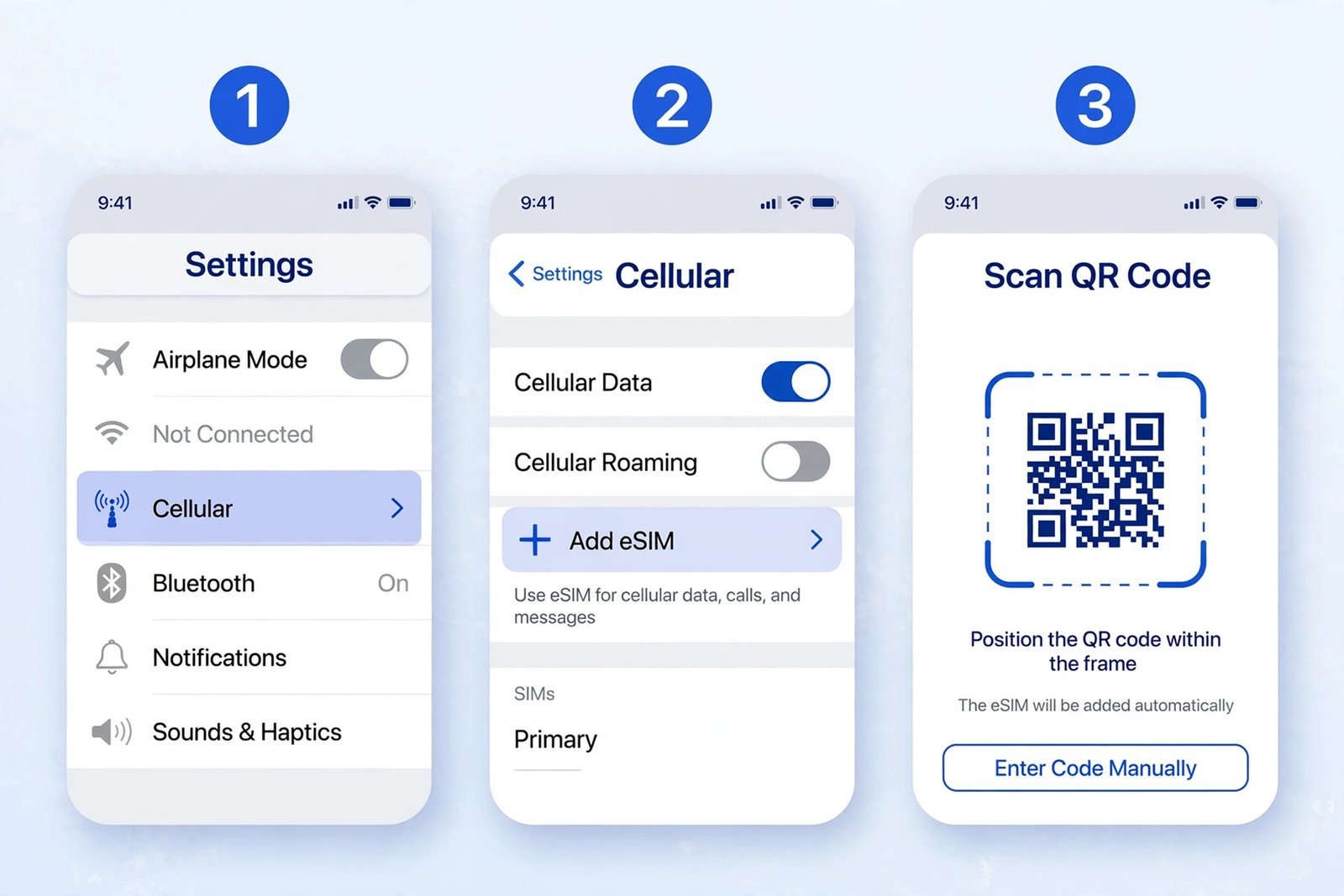
- Open Settings and tap Cellular (it may say Mobile Data in some regions).
- Tap Add eSIM.
- Choose Use QR Code. Your camera activates, point it at the QR code your carrier provided and hold steady until it is recognized. If you received activation details as text instead, tap Enter Details Manually and type them in.
- Tap Continue. Some carriers ask for a confirmation code here; enter the one they gave you.
- Label the plan something useful like Personal, Work, or Travel, then choose which line handles calls, messages, and cellular data by default.
- Tap Done. Signal bars should appear within a minute or two.
And that’s it! Your eSIM is live. If nothing appears after a few minutes, toggle Airplane Mode on and off once, that nudges the phone to register on the network.
Prefer not to scan anything? Most carriers let you activate from their own app instead: download your carrier’s official app, sign in, find Add eSIM or Activate Service, and approve the plan when iOS asks. It skips the QR code entirely and is usually faster if you are already their customer. Setting up a brand-new iPhone? During setup, choose Transfer from Another iPhone when asked about your cellular plan, hold the two phones near each other, and approve the move on the old one, both need iOS 16 or later and a carrier that supports transfers.
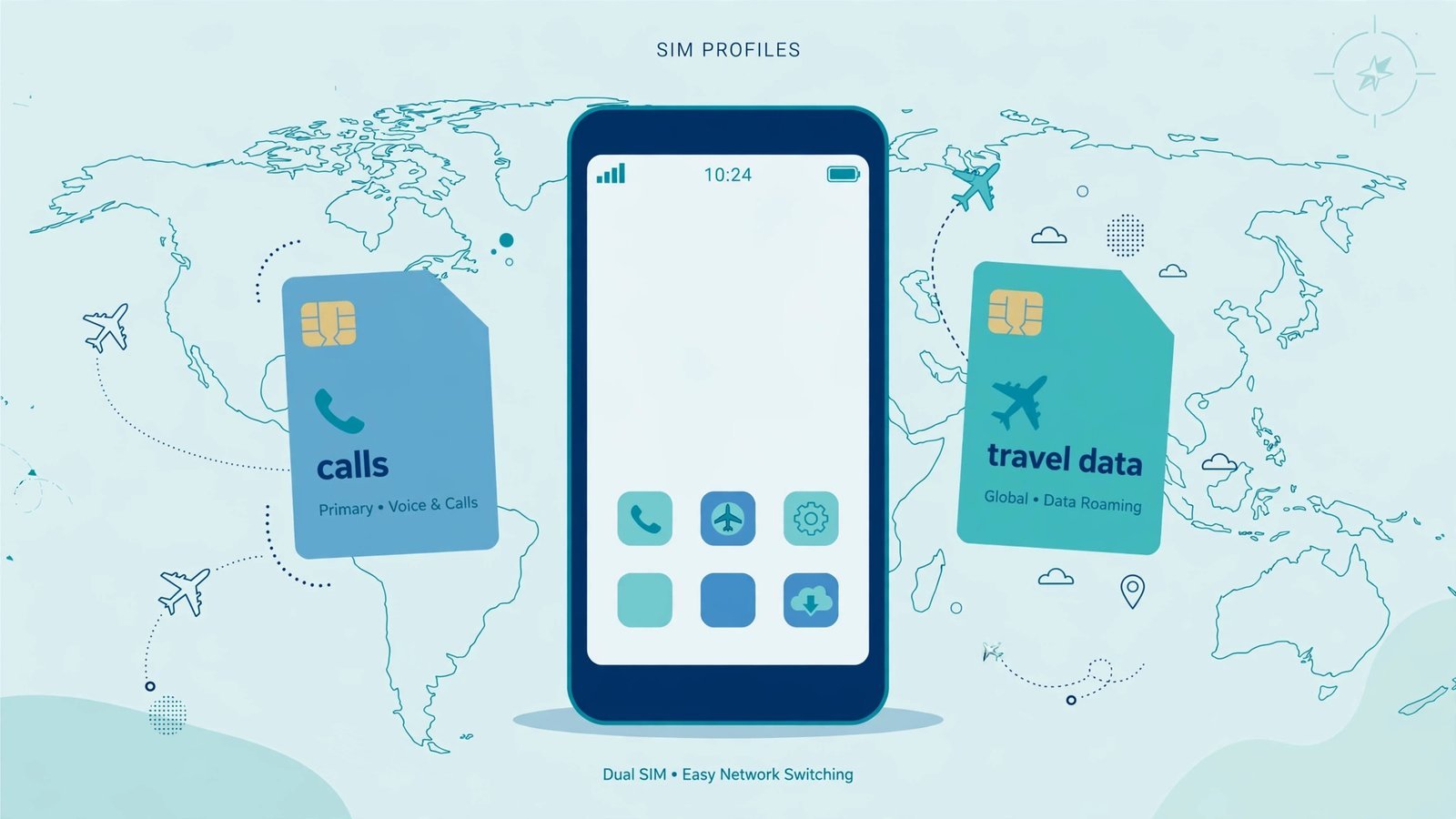
One judgment call: if your iPhone still has a physical SIM tray and you like it, there is no rush to give it up. Converting a physical SIM to eSIM (Settings Cellular tap your number Convert to eSIM) frees the tray for a local SIM when you travel somewhere with weak eSIM support. But know where the industry is heading: US iPhones have been eSIM-only since the iPhone 14, the iPhone 17 lineup is eSIM-only in the US and eleven other countries, and the iPhone Air has no SIM tray in any market. If you buy new, eSIM is not optional anymore. Your iPhone can store eight or more eSIM profiles and keep two active at once, so a home line plus a travel line is the sweet spot.
More iPhone tips
- How to Save Voicemail on iPhone, every method that actually works in 2026.
- Fix “Cannot Verify Server Identity” on iPhone or iPad, for the certificate error that blocks Mail.
- Best Music Downloader for iPhone, get your music offline the right way.
Quick answers
I deleted my eSIM by accident. Is my number gone?
No. Deleting the profile removes it from the phone but does not cancel your service or release your number, your carrier still holds both. Contact them for a fresh QR code to reactivate. Just do not delete an eSIM right before a trip; getting a new code from abroad is a headache.
Does activating an eSIM cancel my old plan or physical SIM?
Activating a new eSIM line does not cancel anything by itself. But if you use Convert to eSIM on your existing number, the physical SIM is deactivated as part of the conversion, you can remove it from the tray afterward.

- How to Fix Windows 11 Clock Showing the Wrong Time - October 23, 2026
- How to Fix File Explorer Slow to Open in Windows 11 - October 22, 2026
- How to Fix a Printer Showing Offline in Windows 11 - October 21, 2026