
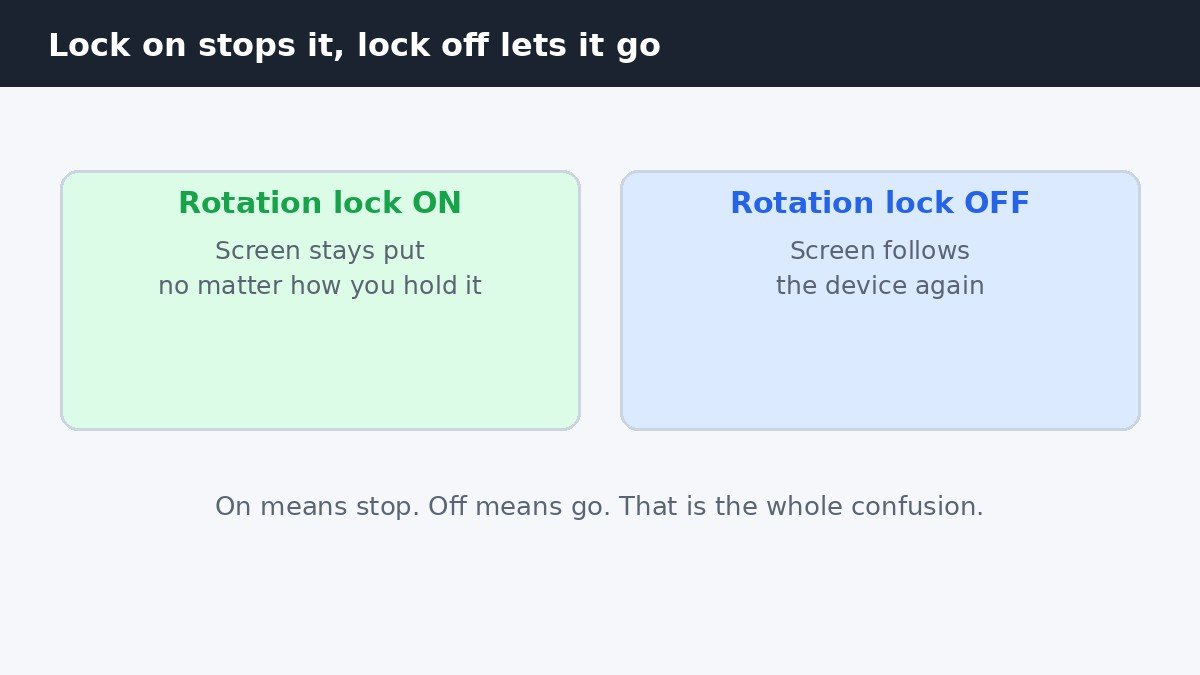
Here is the part that trips almost everyone up: to stop your Windows 11 screen turning on its own, you turn Rotation lock on. Turning it off does the opposite, and lets the screen rotate again whenever you tilt the device. If your tablet screen keeps flipping, the fix is to lock it in place.
You can switch Rotation lock on in Settings, with Win+O, or from Quick Settings. All three do the same job. The only complication is when the control is greyed out or missing, which usually means no orientation sensor, or laptop mode with a keyboard attached.
Lock on means stop, lock off means go
Think of Rotation lock as a brake, not a power switch. When the lock is on, the screen stays where it is, no matter how you hold the device. When it is off, the screen follows the way you tilt it. That is why searching for an “auto rotate off” switch leads nowhere: Windows 11 does not label it that way.
Display orientation, the Landscape and Portrait choice on the same Display page, is a separate manual setting. It turns the screen once and leaves it there. If your screen is stuck sideways, change the orientation, not the lock. Also, Ctrl+Alt+arrow is not a Windows shortcut for rotating the screen: on some PCs it works only because graphics driver software has claimed those keys.
Turn it off in Settings
Open Settings, then System, then Display. Under Scale and layout, turn Rotation lock on. The screen locks straight away, with no restart needed. To let it rotate freely again, come back here and turn Rotation lock off.
While you are here, glance at the other controls nearby, because a screen that looks wrong is not always a rotation problem. If the brightness slider is missing, that is a separate issue, and the fix for a missing brightness slider in Windows 11 walks through it.
The Rotation lock toggle only appears on a device that can sense which way up it is. On a standard desktop or a laptop with no orientation sensor, you will not see it at all. That is not a fault: there is nothing for Windows to lock, because the screen cannot turn by itself.
The two faster ways: Win+O and Quick Settings
To flip the setting quickly, press Win+O. That shortcut toggles Rotation lock on and off, so press it once to lock the screen and again to free it. It is fastest when you are holding a tablet with one hand. Microsoft lists Win+O as “Lock the device orientation” in Microsoft’s list of Windows keyboard shortcuts.
The other fast route is Quick Settings. Press Win+A, then tap the Rotation lock tile. If the tile is not shown, click the pencil-shaped Edit button, choose Add, and add Rotation lock so it is there next time. Then locking the screen takes two taps: Win+A, then the tile.
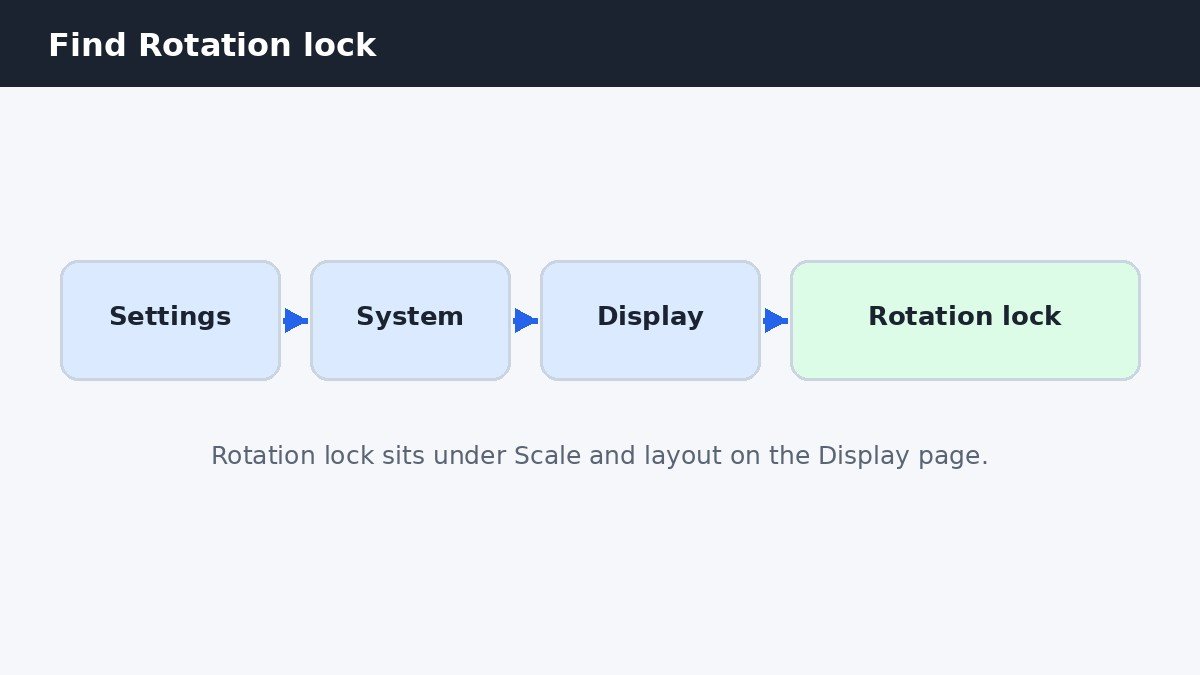
All three methods change the same setting, so use whichever fits the moment. Settings is best when you are already on the Display page. Win+O is best when your hands are on the keyboard, and Quick Settings is best on a touchscreen, where a tile is easier to tap.
Why Rotation lock is greyed out or missing
A missing toggle usually has a simple cause, and it is rarely a broken setting. The control only exists on devices with an orientation sensor, the small accelerometer that tells Windows which way the device is tilted. A standard desktop has no such sensor, and most ordinary laptops do not either. On those machines the screen is fixed by the hardware itself, so there is nothing to rotate or lock.
A greyed-out toggle is a different story, most common on 2-in-1 devices. Rotation lock is often greyed out in laptop mode, or while a keyboard is attached, because Windows treats that posture as a laptop that should not rotate. Fold the keyboard back or detach it, and the toggle usually becomes available. Windows 11 has no manual tablet-mode switch: it changes mode by itself when the posture changes.
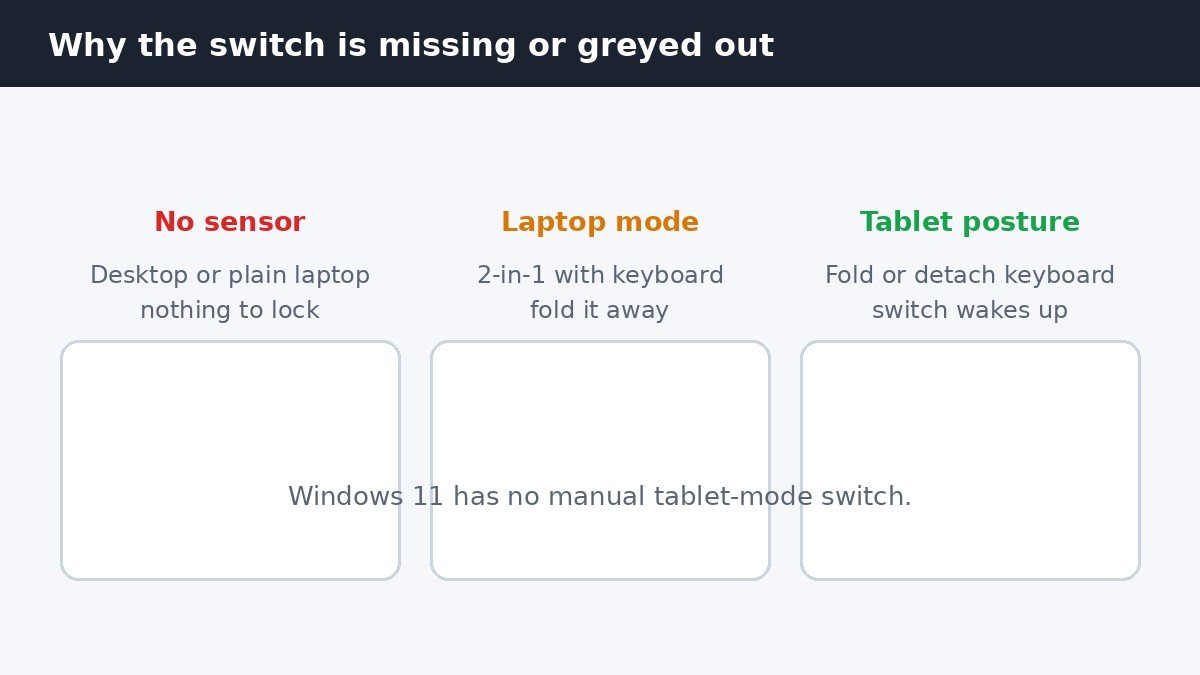
If the toggle stays greyed out, check that the keyboard is fully detached or folded right back. Restart once, then check the Display page again in tablet posture. If it is still greyed out on a machine that has rotated before, a driver or firmware update from the device maker is the next step.
A quick check: which method fits your device
Use the table below to match your device to the right approach. The key question is whether your device can rotate at all.
| Your device | Best method | What to expect |
|---|---|---|
| Tablet or 2-in-1 in tablet posture | Win+O or Quick Settings | Rotation lock turns on and the screen holds still |
| 2-in-1 in laptop mode | Fold or detach the keyboard first | Rotation lock is greyed out until you change posture |
| Standard laptop or desktop | No action needed | No Rotation lock toggle, because the screen cannot rotate |
| Screen stuck sideways | Change Display orientation | The screen turns once, and Rotation lock is not involved |
If your row is the last one, fix the orientation, because no amount of locking will turn a sideways screen upright. If your row is the third one, there is nothing to fix: a fixed screen already does what Rotation lock would do.
The registry route for advanced users
There is also a registry route, but it is for advanced users only, and the Settings methods above should always come first. The relevant key is HKEY_LOCAL_MACHINE\SOFTWARE\Microsoft\Windows\CurrentVersion\AutoRotation, and the DWORD value called Enable controls auto-rotation: setting it to 0 disables it.
Be careful with this route. The registry holds settings Windows depends on, and a wrong edit can cause real problems. Back up the key, change only the Enable value, and restart afterwards. If the Settings toggle is available, use it instead: it changes the same behaviour without the risk.
Turning off auto rotate comes down to one idea that is easy to get backwards: lock on means the screen stays put, and lock off means it is free to turn. Set Rotation lock on in Settings, with Win+O, or from Quick Settings, and check the device posture if the control is greyed out or missing.

- How to Turn Off Auto Rotate on Windows 11 - November 8, 2026
- How to Turn Off Notification Sounds in Windows 11 - November 7, 2026
- How to Stop Your Laptop Screen from Dimming Automatically in Windows 11 - November 6, 2026